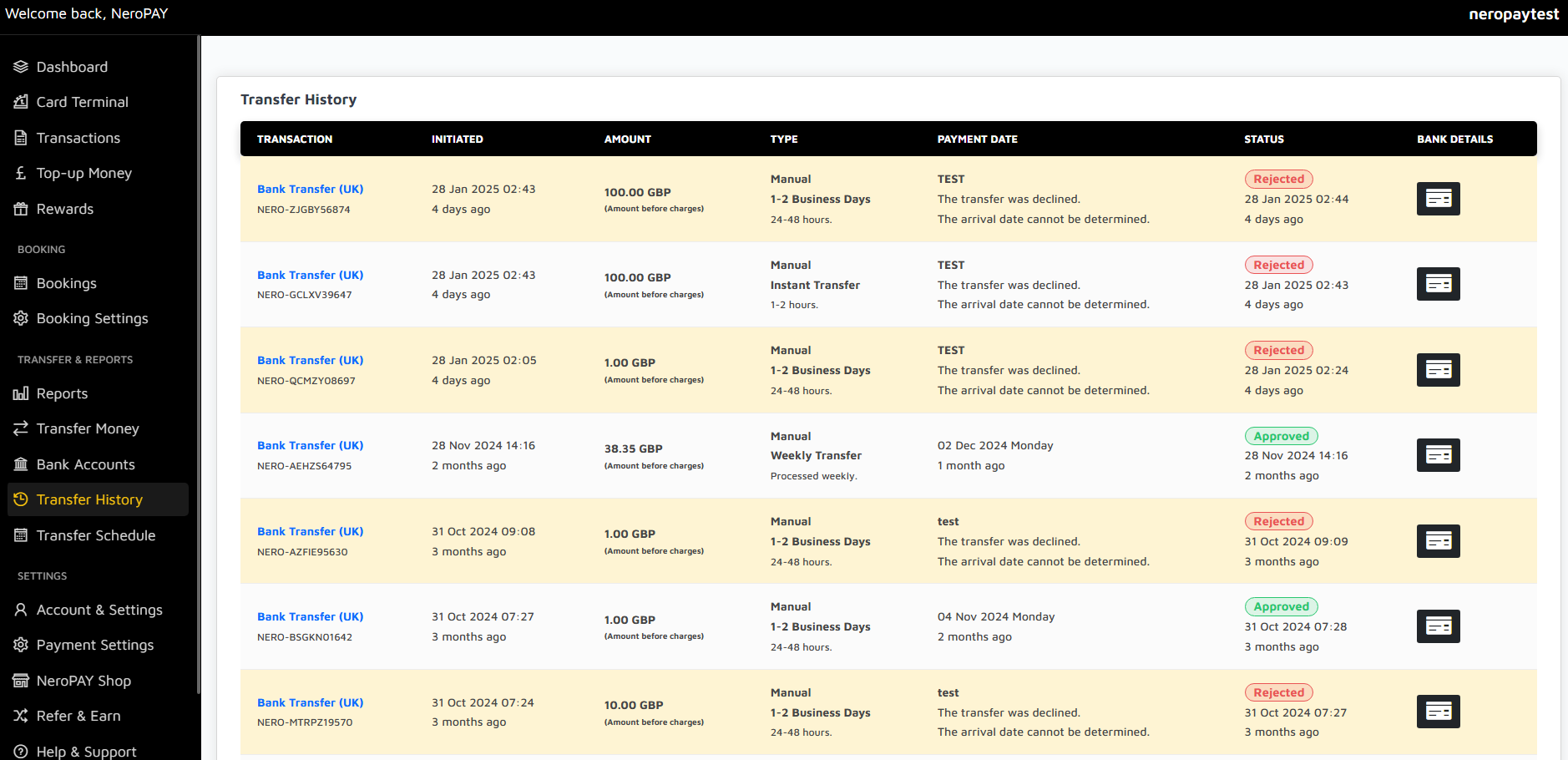
The Transfer History section provides a comprehensive record of all your completed and attempted money transfers. It helps you track your financial activities, understand transfer statuses, and review transaction details at a glance.
Understanding Transfer Details
Transaction
Each transaction is identified by a unique reference ID, allowing you to track and refer to specific transfers easily.
Initiated
This column displays the exact date and time the transfer was initiated, providing a clear timeline for your transactions.
Amount
The total amount of the transfer, displayed before any applicable charges or fees.
Type
The transfer method or schedule, such as "Manual" transfers or "Weekly Transfer" for recurring payments.
Payment Date
The expected or actual date when the payment was processed. For declined transfers, the payment date will reflect when the transfer was attempted.
Status
The current status of each transfer, such as "Approved" for successful transfers or "Rejected" for unsuccessful attempts. Rejected transfers will include additional details explaining the reason for failure.
Bank Details
The receiving bank account details are accessible via the bank details icon, allowing you to verify where the funds were sent.
How to Use Transfer History
Follow these steps to effectively navigate your Transfer History:
- Review the list of transactions to identify successful or failed transfers.
- Click on the bank details icon to view the recipient account information for specific transfers.
- Use the unique transaction reference ID to communicate with customer support in case of queries or issues.
Common Transfer Statuses
Approved
The transfer was successfully processed, and the funds have been sent to the recipient.
Rejected
The transfer was unsuccessful. Reasons for rejection are displayed, such as insufficient funds or incorrect account details.
Pending
The transfer is currently being processed and will be completed within the expected time frame.
Important Notes
- All transfer amounts are displayed before deductions for fees and charges.
- Rejected transfers may require action, such as updating account details or ensuring sufficient balance.
- Contact customer support with the transaction reference ID for assistance with specific transfers.
- Use the Transfer History to reconcile your accounts and track business expenses effectively.