How to get there
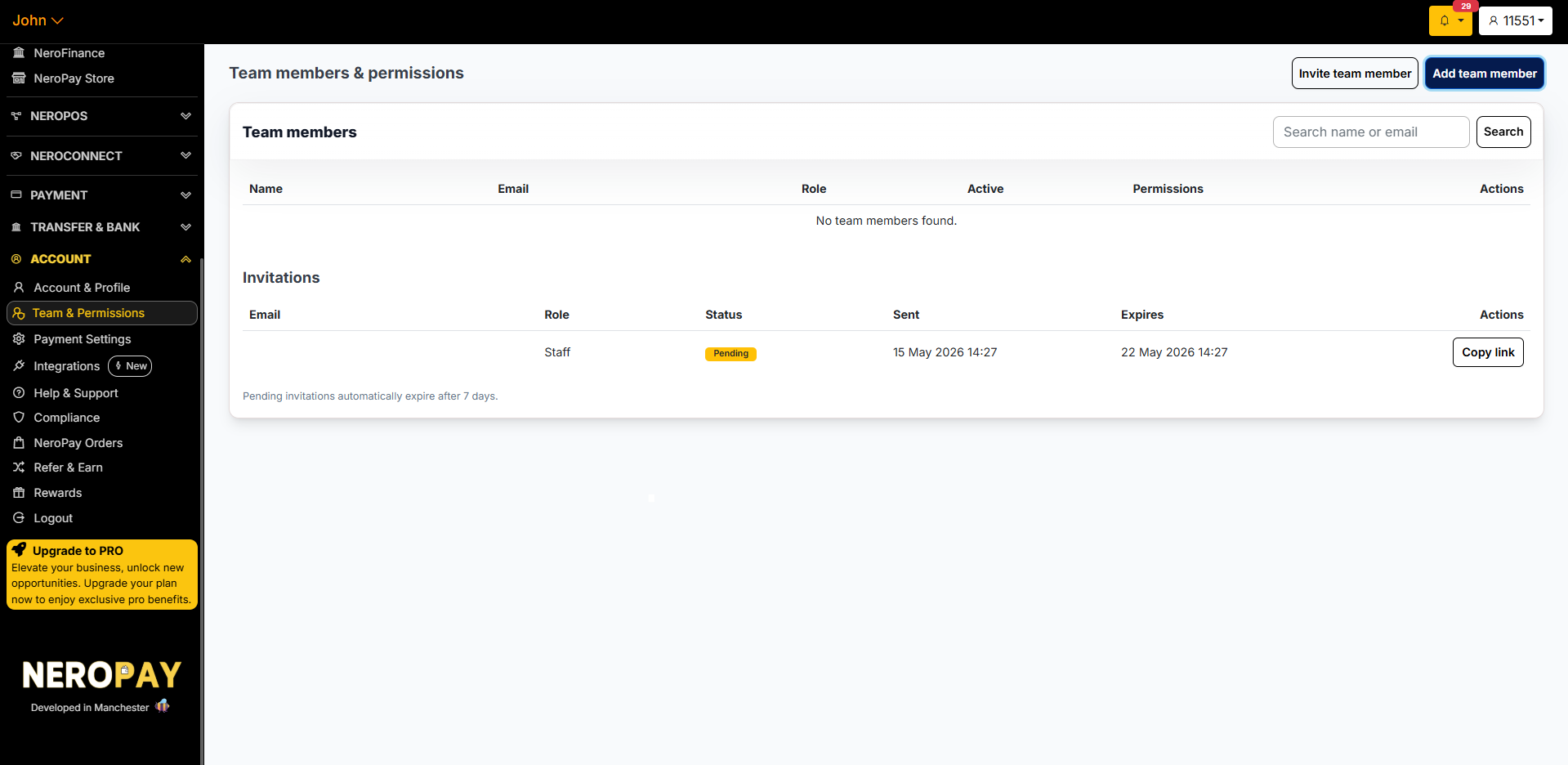
From your dashboard, follow this path: Account → Team & Permissions
The Team members page
The page is divided into two sections:
- Team members — a list of all active staff on your account
- Invitations — a list of pending invitations that have been sent but not yet accepted
You can search for any team member by name or email using the search bar at the top right.
📸
⚠️ Pending invitations automatically expire after 7 days.
Adding a team member
There are two ways to add someone to your team:
Option 1 — Add team member (manual)
Use this if you want to create the account yourself and share the login credentials directly.
Click Add team member and fill in the following:
| Field | What to enter |
|---|---|
| Email address | The staff member's email — e.g. john.smith@example.com |
| Password | A password for their account (minimum 8 characters) |
| Role | Their role — e.g. Staff |
| Active | Toggle on to make the account active immediately |
Then assign the relevant permissions (see Permissions reference below), and click Create team member.
Option 2 — Invite team member (by email)
Use this if you want the staff member to set up their own password. They will receive an invitation email with a link to accept and create their account.
Click Invite team member, enter their email address and role, and send the invitation.
The invited person will receive an email from NeroPay with an Accept invitation button. They must click it within 7 days to activate their account.
📸
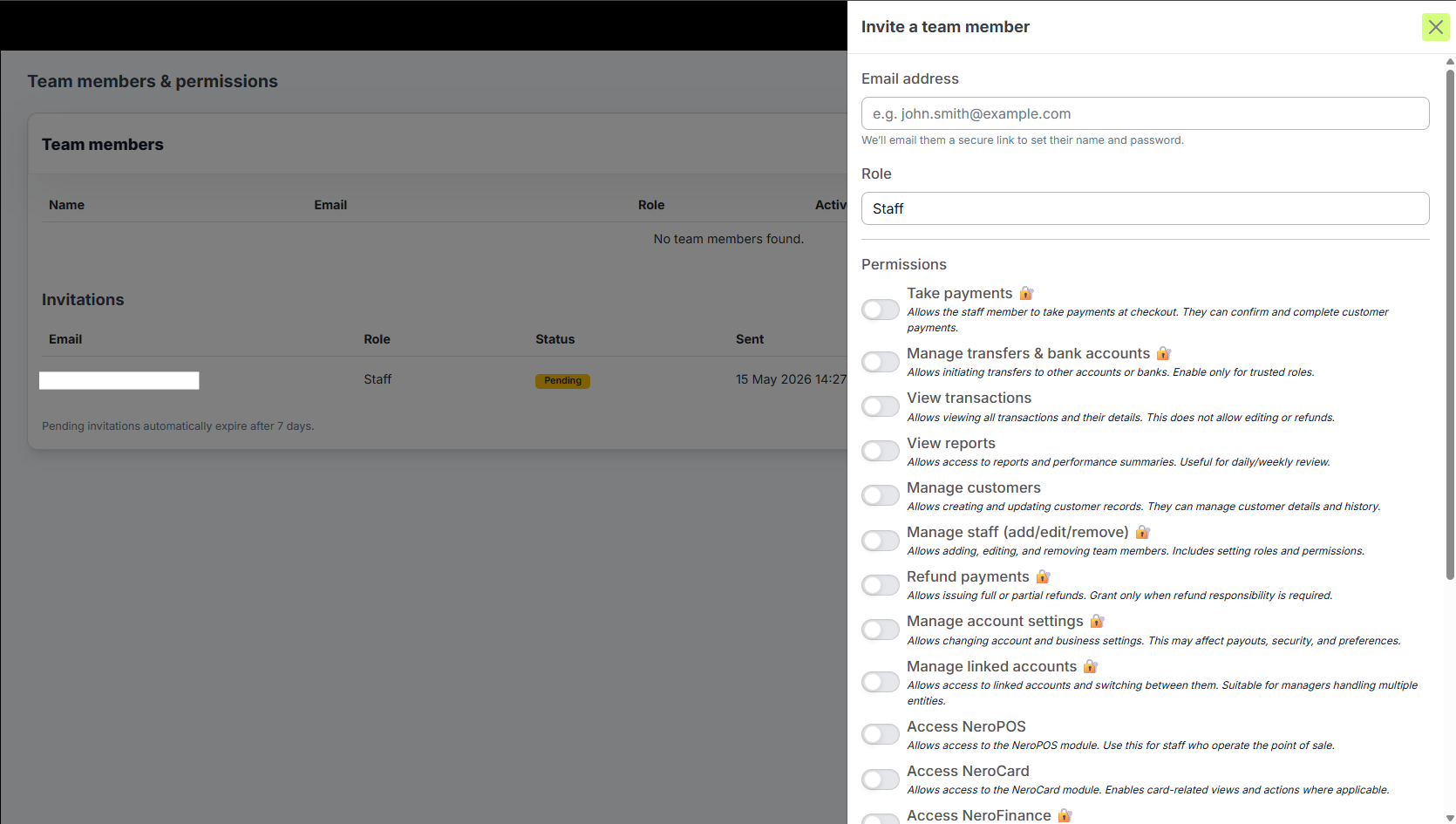
Permissions reference
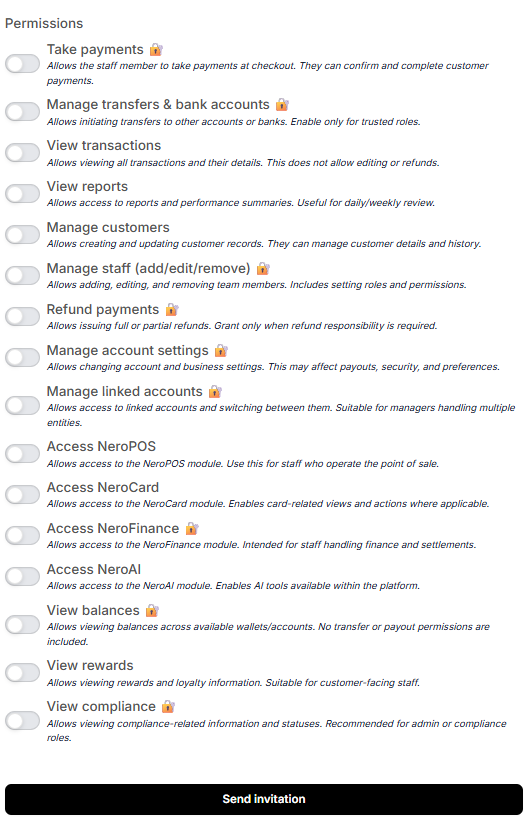
When adding a team member, you can toggle individual permissions on or off. Permissions marked with 🔒 carry elevated access and should only be granted to trusted roles.
Operational permissions
| Permission | What it allows |
|---|---|
| Take payments 🔒 | Staff member can take payments at checkout and complete customer transactions |
| Manage transfers & bank accounts 🔒 | Allows initiating transfers to other accounts or banks — enable only for trusted roles |
| View transactions | Allows viewing all transactions and their details — does not allow editing or refunds |
| View reports | Access to reports and performance summaries — useful for daily or weekly review |
| Manage customers | Allows creating and updating customer records, including customer details and history |
| Manage staff (add/edit/remove) 🔒 | Allows adding, editing, and removing team members, including setting roles and permissions |
| Refund payments 🔒 | Allows issuing full or partial refunds — grant only where refund responsibility is required |
| Manage account settings 🔒 | Allows changing account and business settings — may affect payouts, security, and preferences |
| Manage linked accounts 🔒 | Access to linked accounts and switching between them — suitable for managers handling multiple entities |
Module access
| Permission | What it allows |
|---|---|
| Access NeroPOS | Access to the NeroPOS module — use for staff who operate the point of sale |
| Access NeroCard | Access to the NeroCard module — enables card-related views and actions |
| Access NeroFinance 🔒 | Access to the NeroFinance module — intended for staff handling finance and settlements |
| Access NeroAI | Access to the NeroAI module — enables AI tools available within the platform |
Visibility permissions
| Permission | What it allows |
|---|---|
| View balances 🔒 | Allows viewing balances across available wallets and accounts — no transfer or payout permissions included |
| View rewards | Allows viewing rewards and loyalty information — suitable for customer-facing staff |
| View compliance 🔒 | Allows viewing compliance-related information and statuses — recommended for admin or compliance roles |
📸
What the invited person receives
When you use the Invite team member option, the invitee receives an email from NeroPay containing:
- A confirmation that they have been invited by your account
- An Accept invitation button to set their name and password
- A notice that the link expires in 7 days
If the invitation expires before they accept it, you can resend it from the Invitations section on the Team & Permissions page.
Frequently asked questions
Q: What is the difference between Add team member and Invite team member? A: Add team member lets you set the email and password yourself. Invite team member sends the staff member an email so they can set their own password.
Q: Can I change a team member's permissions after they have been added? A: Yes. Find the team member in the list and use the Actions column to edit their profile and adjust permissions.
Q: What happens if an invitation expires? A: The invitation becomes invalid after 7 days. You can resend a new invitation from the Invitations section.
Q: Can a staff member see my full account details? A: Only if you grant them the relevant permissions. By default, no permissions are enabled — you choose exactly what each person can access.
Q: Who should I grant the 🔒 locked permissions to? A: Only to trusted team members such as managers or senior staff. These permissions affect financial actions, account settings, and staff management.
Still need help? Contact us at support@neropay.app or create a ticket.