1. Dashboard
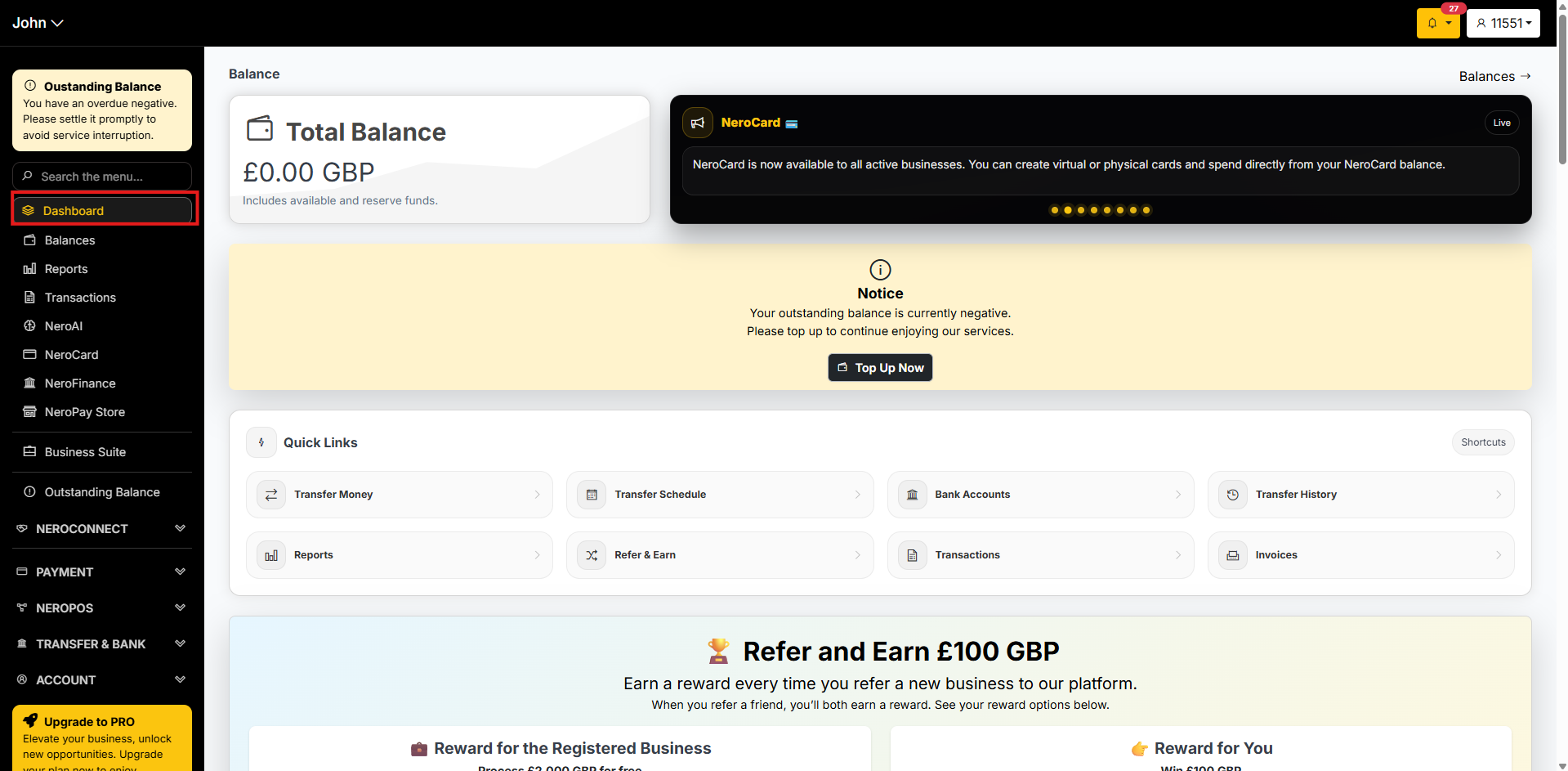
The Dashboard is your home screen and central hub. From here you can:
- View your total balance at a glance
- Check compliance status
- Access quick links to Bank Accounts, Transfer Schedule, Reports, Transactions, and Invoices
- See your Refer & Earn rewards
- Discover and navigate all NeroPay services
📸
2. Balances
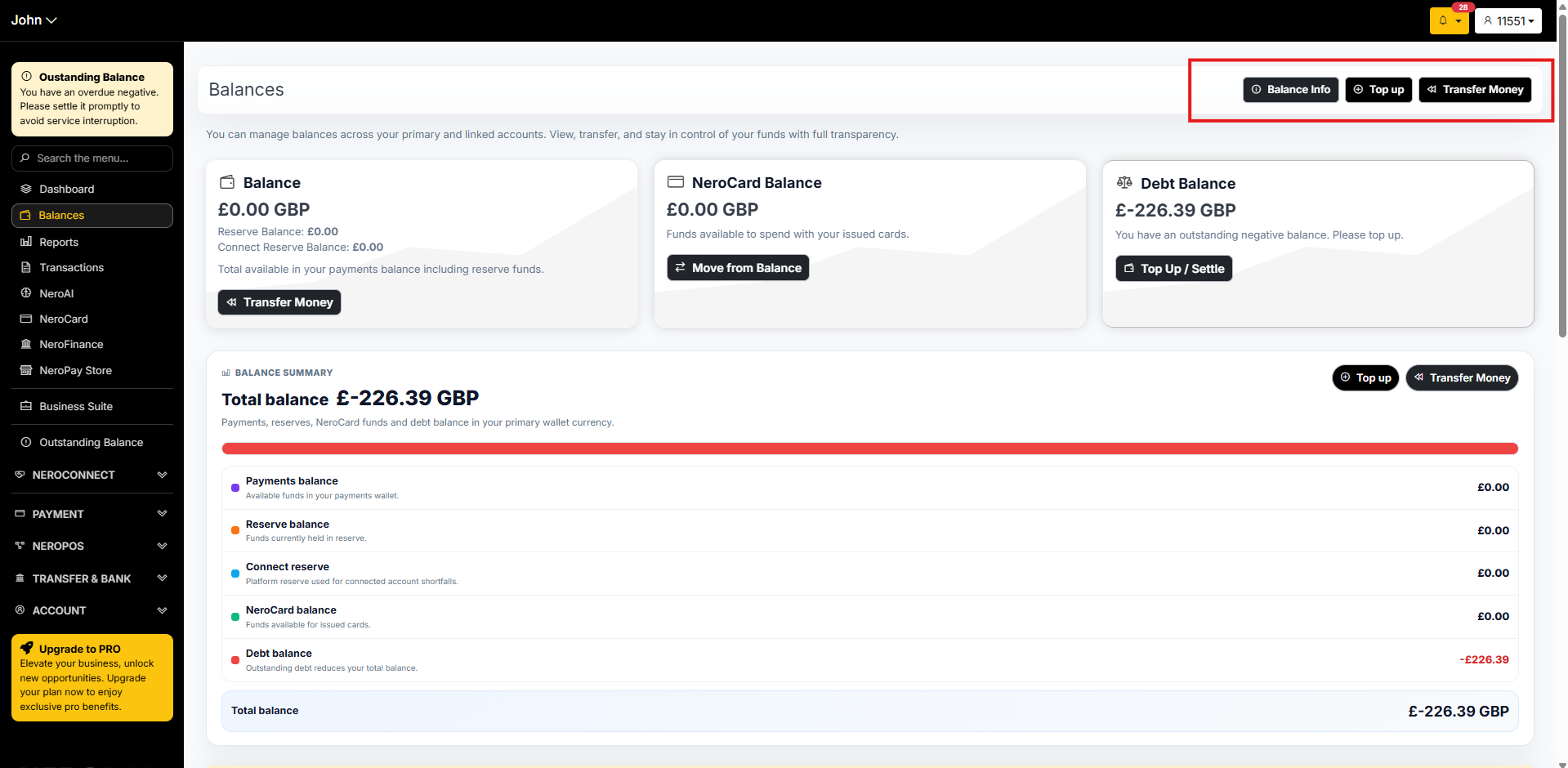
Go to Balances to see a full breakdown of your funds across three balance types:
| Balance | What it means |
|---|---|
| Balance | Your main payments balance — includes available and reserve funds. Reserve balance is funds held in the system, for example deposits |
| NeroCard Balance | Funds you have transferred into your NeroCard for spending. See Managing your NeroCard → |
| Debt Balance | Money you owe and need to top up — for example, when a customer raises a chargeback dispute and funds are recovered |
If your Debt Balance is negative, top up promptly to avoid service interruption. Now, you can also Top up or Transfer Money directly from Balance
📸
3. Reports
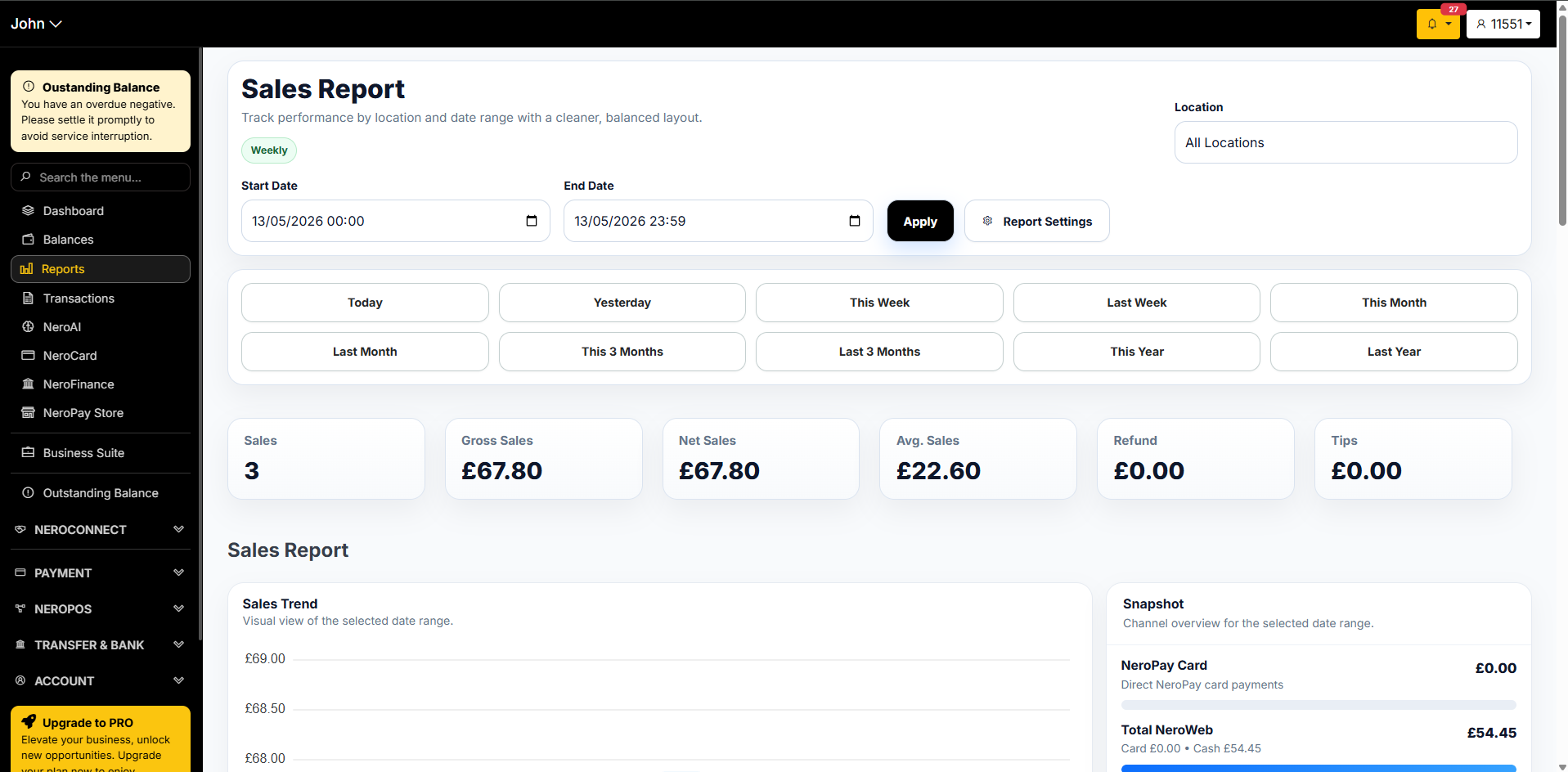
The Reports section helps you generate financial reports and keep everything on record. You can generate reports based on different accounts and payout types.
See Reports overview → for full details on how to generate and export your reports.
📸
4. Transactions
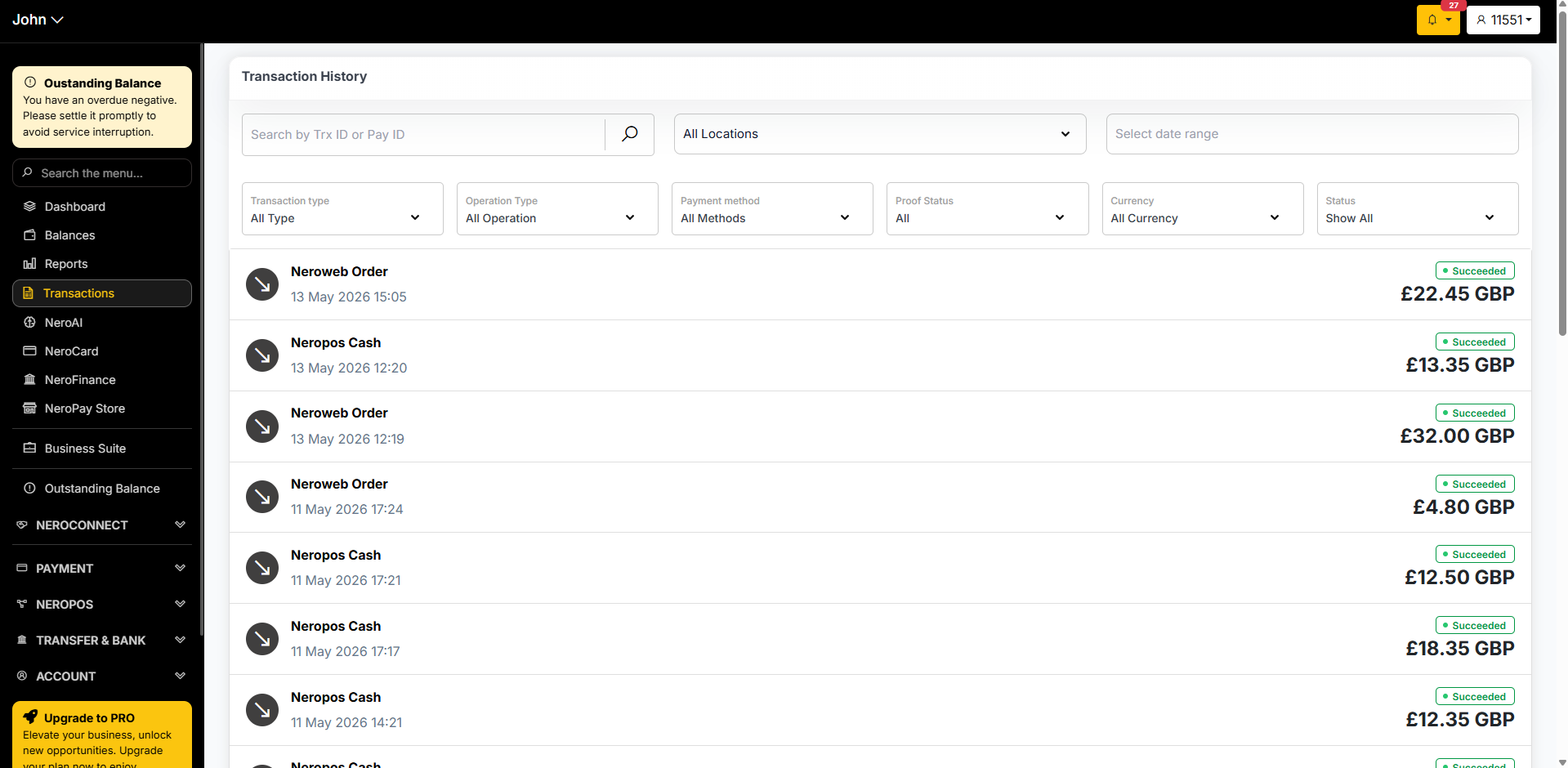
The Transactions page shows every transaction processed under your account — including payments from your terminal, virtual terminal, EPOS, and NeroWeb store — all in one place.
📸
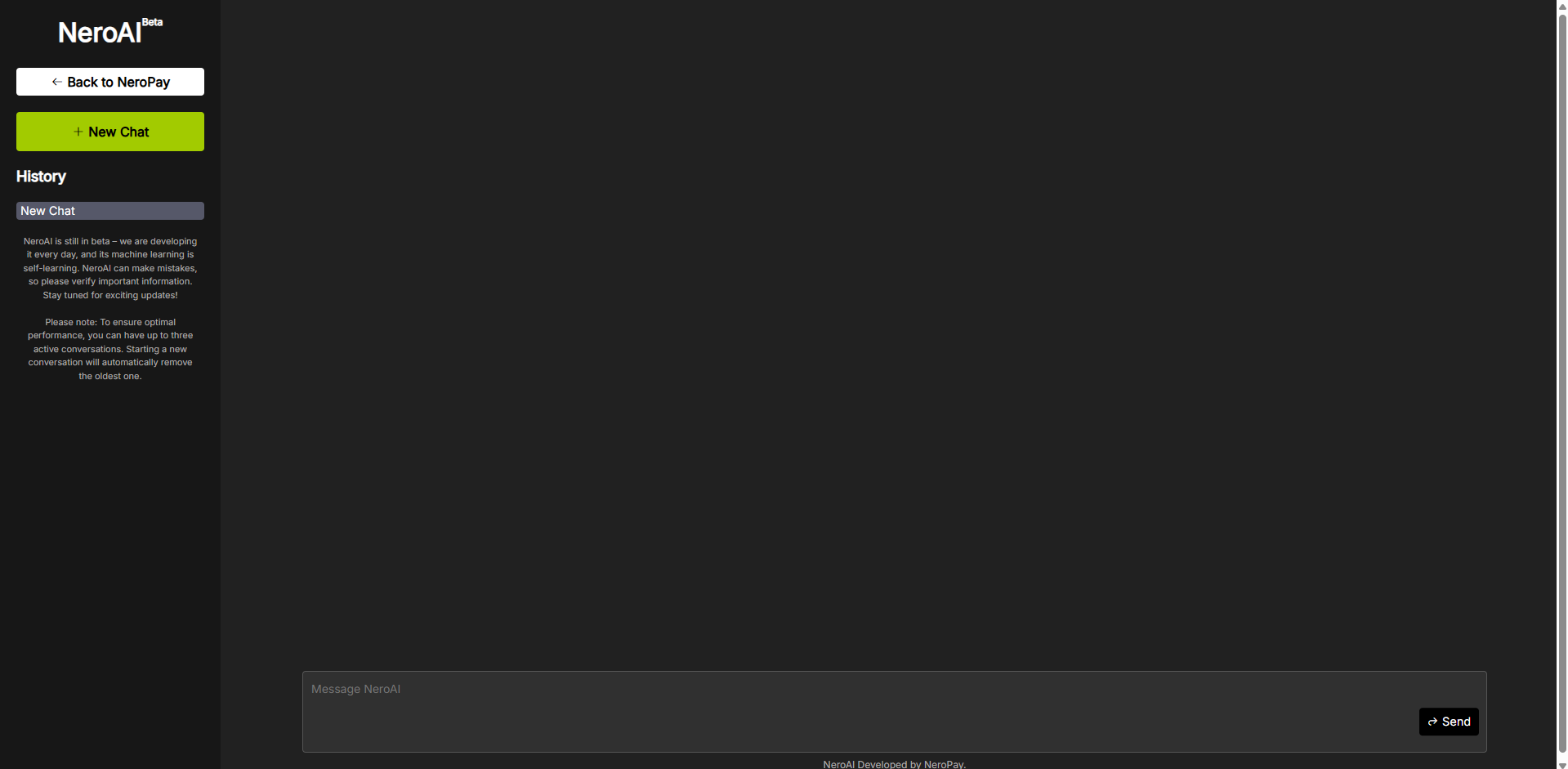
5. NeroAI
NeroAI is a free AI assistant built into your NeroPay dashboard. Use it to ask general business or platform questions — think of it like having ChatGPT available directly inside your account.
📸
6. NeroCard
NeroCard is NeroPay's business spending card — available as both a virtual and physical card. It lets you spend directly from your NeroPay balance, making it easy to manage business expenses without transferring funds to a separate bank account.
See Managing your NeroCard → for full details on how to apply and set up your card.
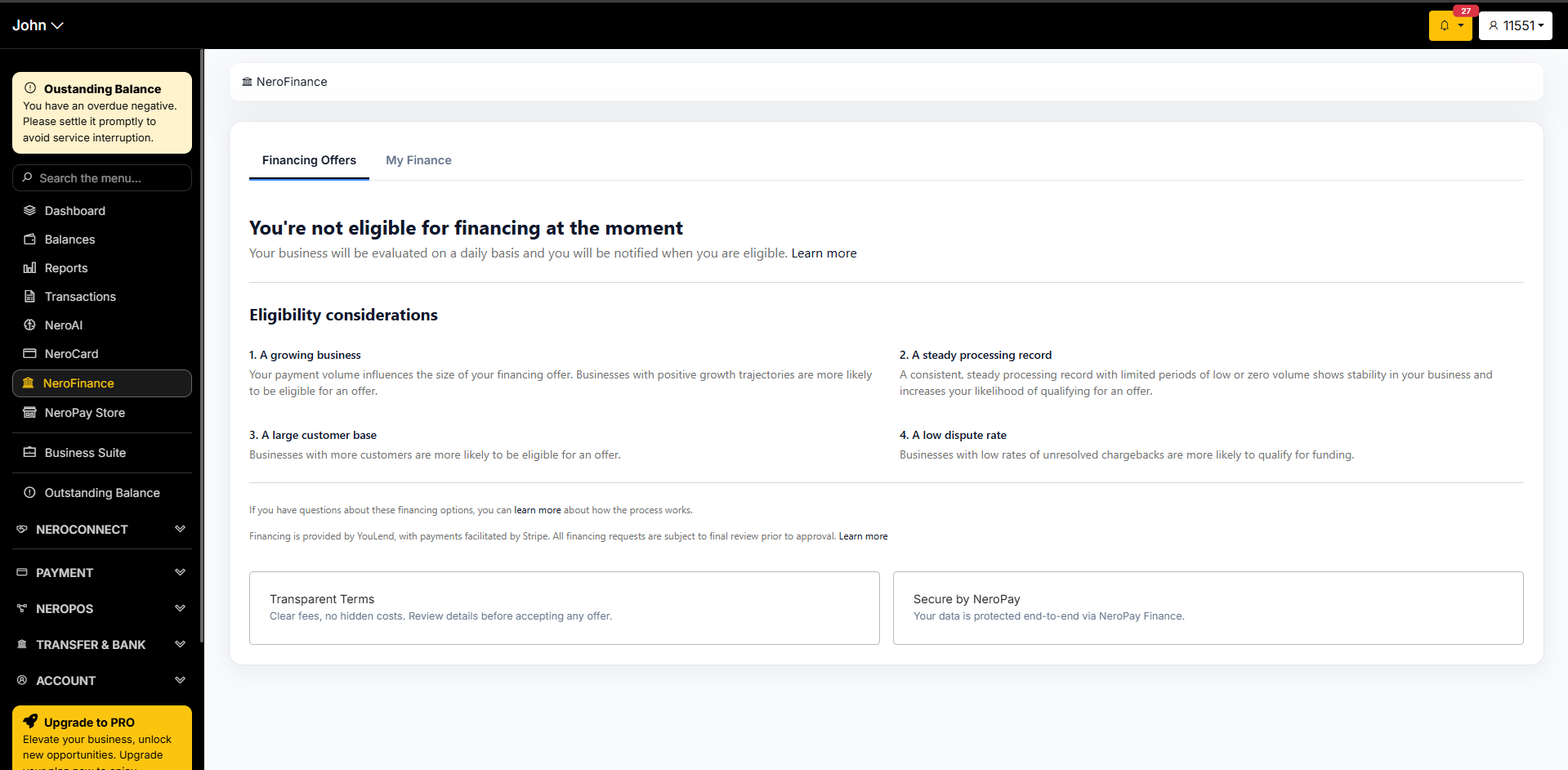
7. NeroFinance
If your business has a stable transaction history, you may be eligible to apply for a business loan through NeroFinance. Your transaction volume is the key indicator for how much you can borrow — the more consistent your sales, the higher the potential loan amount.
📸
8. NeroPay Store
The NeroPay Store is a shortcut to purchase hardware, accessories, and other items directly through your account.
See NeroPay Store → for what's available.
Frequently asked questions
Q: What is the difference between Balance and Reserve Balance? A: Your Balance is the total available funds in your payments account. Reserve Balance is a portion held by NeroPay as a security buffer — for example, to cover potential disputes or deposits. It is included in your total Balance figure.
Q: What should I do if my Debt Balance is negative? A: Top up your account as soon as possible. Go to Balances and click Top Up / Settle to add funds and clear the debt. Service interruption may occur if the balance remains negative.
Q: Is NeroAI free to use? A: Yes. NeroAI is a free tool available to all NeroPay merchants directly from the dashboard.
Q: Can I apply for NeroFinance at any time? A: Eligibility is based on your transaction volume and account history. The more stable and consistent your transactions, the higher your potential borrowing amount. Contact support or check the NeroFinance page for current eligibility criteria.
Still need help? Contact us at support@neropay.app or create a ticket