
NeroBooking has new controls for when people can book, how large parties are handled, how you secure a booking and how bookings use your NeroPOS tables. This page lists what is new and where to find each setting.
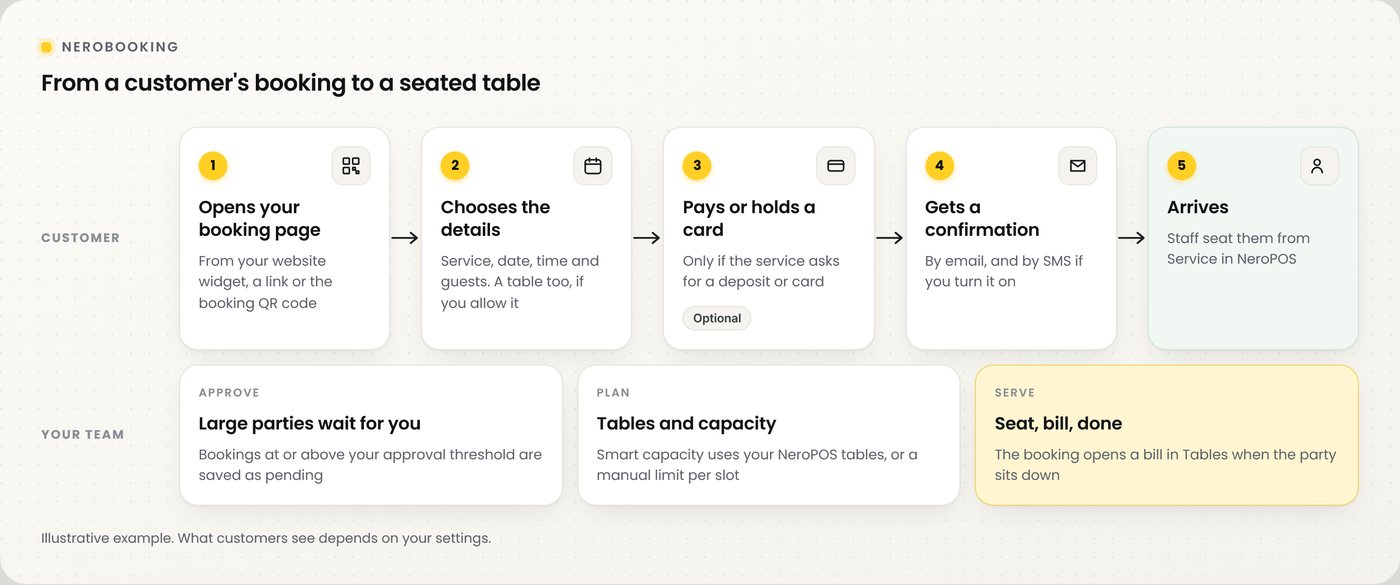
📸 How a booking moves from your customer to a seated table.
Where to find it
Go to Bookings → Booking Settings in your dashboard menu. Each new setting sits in the section named below.
New in Booking Settings
| Setting | What it does |
|---|---|
| Unavailable booking times | Block a time range, a single slot or a whole day without changing your opening hours |
| Booking time interval | How often start times are offered, from every 10 minutes to hourly |
| Staff approval threshold | Bookings for this many guests or more are saved as pending until a member of staff approves them |
| Ask about the occasion | Customers can tell you what they are celebrating. It is optional for them |
| Staff SMS notifications | Text your team when a new booking comes in. SMS charges apply |
| Booking QR code | A print-ready QR code for your window, reception desk or menus. Customers scan it to book |
| Deposits and card holds | Ask for a deposit, full payment or a saved card per service, with a late-cancellation fee. See deposits, card holds and cancellation fees |
💡 Note: Confirmation emails go to customers automatically when they give an email address. There is no separate switch for them.
Block times without changing your hours
| Step | What to do |
|---|---|
| 1 | Go to Booking Settings → Unavailable booking times |
| 2 | Add a rule: a time range, a single slot, or All day |
| 3 | Click Save settings |
For example, blocking 19:00–21:00 stops any booking starting from 19:00 up to, but not including, 21:00. Rules apply to all services, staff and locations, and you can add up to 100.
⚠️ Blocking a time does not cancel bookings already made for it. For an overnight range, add a rule for each day. To reopen a time, remove the rule and save.
Tables from NeroPOS
If you run tables in NeroPOS, NeroBooking can use them for reservations. Go to Booking Settings → NeroPOS.
| Setting | What it does |
|---|---|
| Enable NeroPOS Integration | Uses your NeroPOS tables in NeroBooking and keeps customer and table history in one place |
| Allow table reservations | Customers can reserve a specific table for services marked as a table reservation |
| Show table selection in the booking widget | Lets customers pick the table themselves |
| Require a table for table-reservation services | Leave it off if customers should book a time rather than an exact table |
| Smart capacity from NeroPOS tables | Checks table seats, current occupancy in NeroPOS and existing reservations before offering a time |
| Auto-assign the best available table | Picks a table for the party when customers do not choose one |
| Default merchant booking view | How your team sees reservations: calendar, list, map, table or card view |
| Reservation hold duration | How many minutes a reserved table is held |
💡 Note: If you have no tables set up, NeroBooking uses the Manual capacity per slot in Slot settings, so bookings keep working.
Bookings on the Service screen
Tonight's bookings appear on the Service screen in NeroPOS, next to your live tables and walk-ins. Staff seat a booked party from there, and the bill opens in Tables.
Related guides
| Guide | Covers |
|---|---|
| Booking overview | What NeroBooking does and what customers see |
| Booking settings | Opening hours, slots, company page, locations, themes and widget |
| Services, pricing and staff | Adding services and staff |
| Booking confirmations | What customers receive after booking |
Frequently asked questions
Does blocking a time cancel existing bookings?
No. It only stops new bookings in that time. Bookings already made stay as they are.
Can I close a whole day?
Yes. Add an unavailable booking time and choose All day. You can also use Holiday blocks for longer closures.
What happens when a large party books?
If the party is at or above your staff approval threshold, the booking is saved as pending until a member of staff approves it. Your capacity and maximum guest limits still apply.
Do I need NeroPOS tables to take bookings?
No. Without tables, NeroBooking uses your manual capacity per slot.
Where can customers book?
From your secure booking link, the widget on your website, or the booking QR code.
Still need help? Contact us at support@neropay.app or create a ticket.