
Tap to Pay on iPhone lets you take contactless card and digital wallet payments on your iPhone with the NeroPay app. There is no card reader to buy or charge: your customer holds their card, phone or watch near the top of your iPhone, and the payment goes into your NeroPay account.
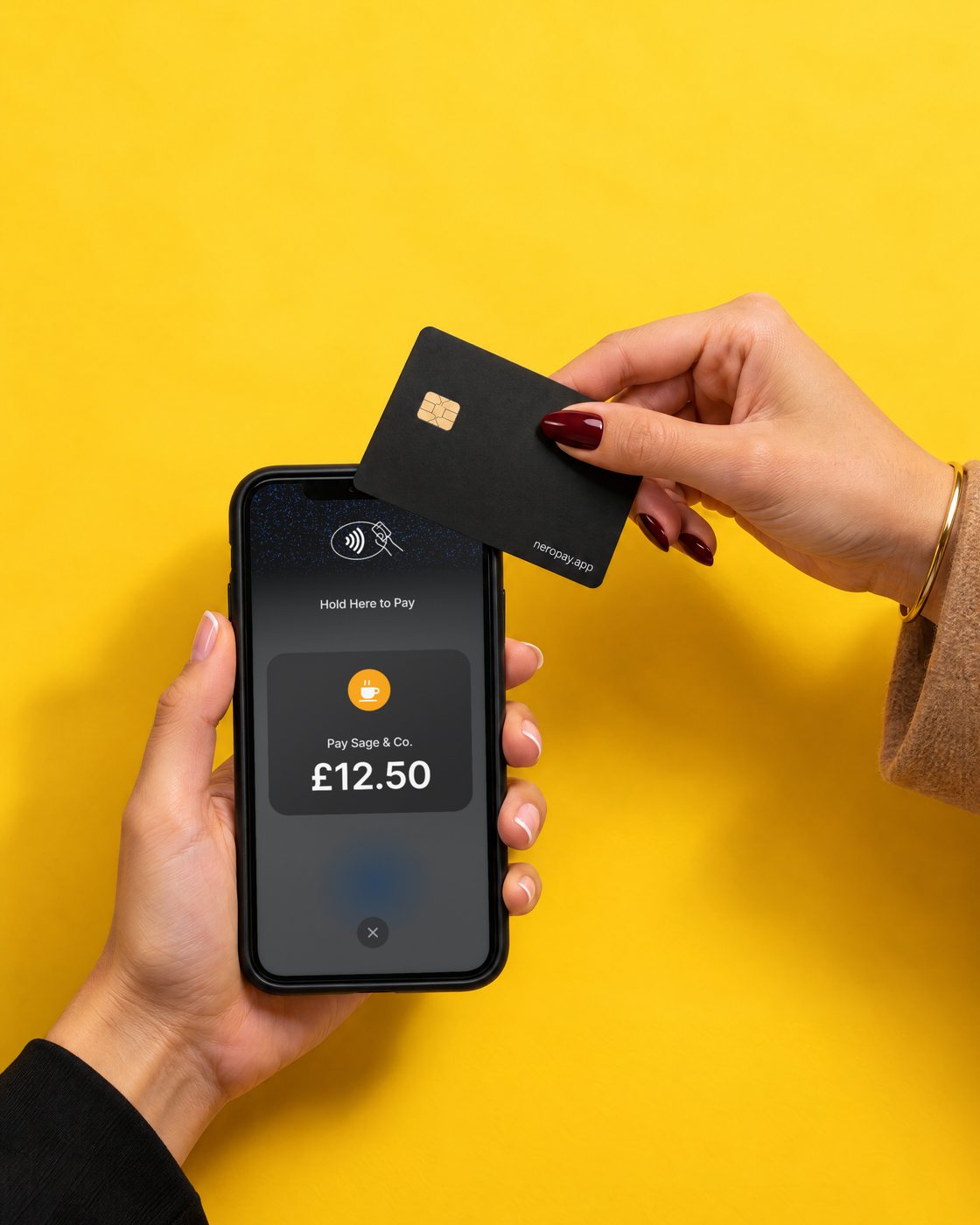
📸 Your customer holds their card near the top of the iPhone. Illustrative example.
Before you start
| You need | Why |
|---|---|
| A supported iPhone | Tap to Pay on iPhone runs on iPhone models that support it. It does not work on iPad |
| The latest version of iOS | Update in Settings → General → Software Update |
| The NeroPay app | Search "NeroPay" in the App Store and sign in with your NeroPay account |
| An active NeroPay account | Your account needs to be set up and verified before you can take payments. See how to complete your account setup |
💡 Note: Tap to Pay on iPhone is free to use. Card processing fees apply as per your NeroPay pricing.
Take a payment
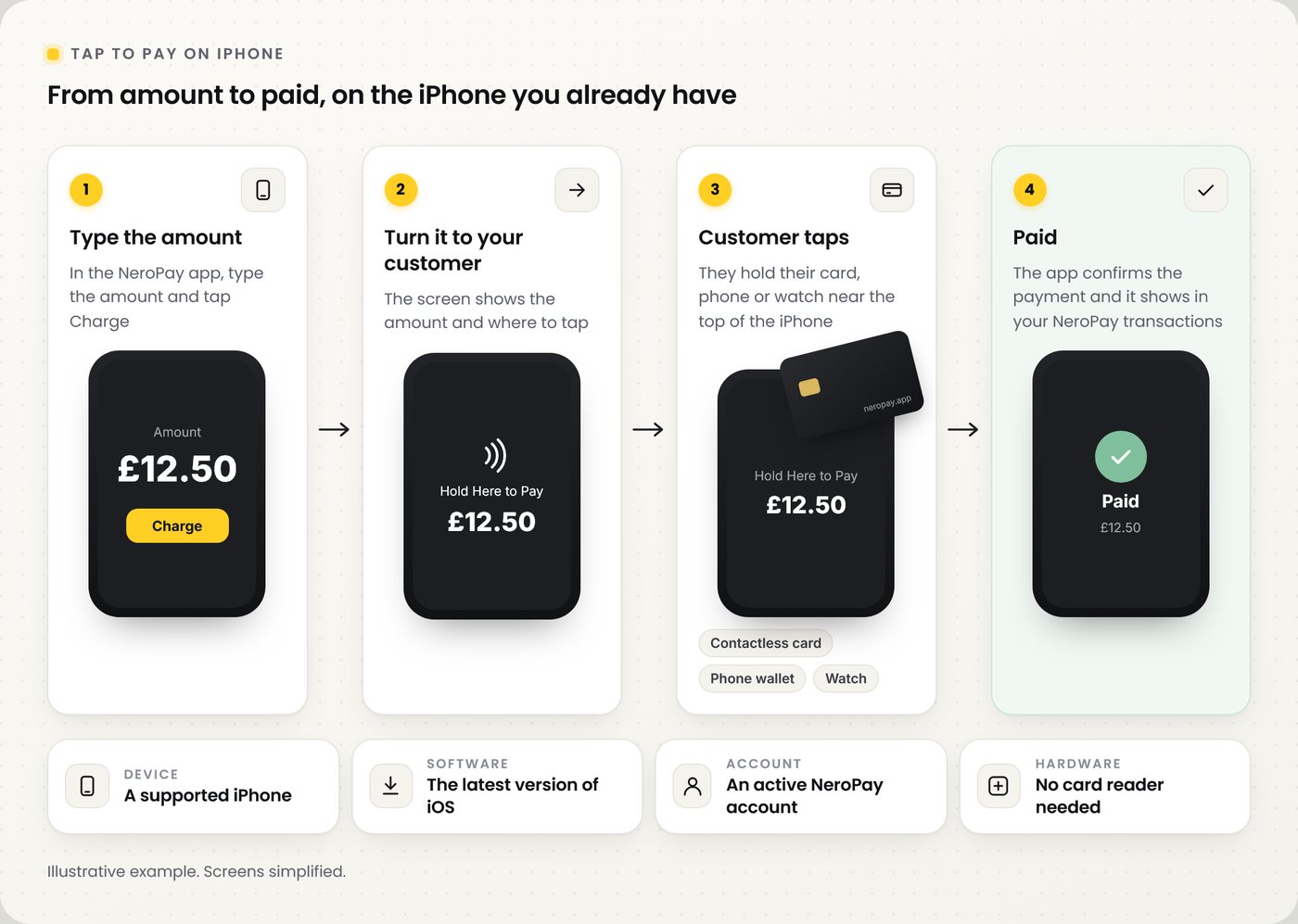
📸 From amount to paid in four steps.
| Step | What to do |
|---|---|
| 1. Type the amount | In the NeroPay app, enter what the customer owes |
| 2. Tap Charge | The iPhone shows the amount and Hold Here to Pay |
| 3. Turn the iPhone to your customer | Hold it so the screen faces them |
| 4. Customer taps | They hold their contactless card, phone or watch near the top of the iPhone |
| 5. Paid | The app confirms the payment. It also shows in your NeroPay transactions |
⚠️ The first time you use it, the app asks you to turn on Tap to Pay on iPhone and accept Apple's terms. Do this on the iPhone you will take payments with.
What customers can pay with
| Payment | How it works |
|---|---|
| Contactless cards | Debit and credit cards with the contactless symbol |
| Phone wallets | A card saved in a digital wallet on the customer's phone |
| Watches | A card saved on a smartwatch |
💡 Note: Some contactless cards may not be accepted, and transaction limits may apply.
After the payment
| Task | Where |
|---|---|
| See the payment | Dashboard → Transactions. See Transactions |
| Refund it | Open the payment in Transactions and click Refund. Full and partial refunds are both possible |
| Get paid | Tap to Pay payments go into the same NeroPay balance and payouts as your other payments. See your first payout |
Tap to Pay or a card terminal?
| Tap to Pay on iPhone | NeroPay terminal | |
|---|---|---|
| Hardware | Your own iPhone | Terminal Pro+, Flex or Max |
| Best for | Starting out, taking payments on the go, or a second till at busy times | Counters and tables where you take payments all day |
| Works with NeroPOS | Payments go into the same NeroPay account | Yes, on the same NeroPOS account |
| How to start | Download the NeroPay app | Order from the NeroPay Store in your dashboard |
Not sure which terminal fits? See choosing a NeroPay terminal.
Frequently asked questions
Do I need a card reader?
No. Tap to Pay on iPhone uses the iPhone itself. Your customer taps their card, phone or watch near the top of it.
Which iPhones work?
A supported iPhone running the latest version of iOS. Apple lists the supported models on its website.
Can I use it on an iPad?
No. Tap to Pay on iPhone works on iPhone only.
Is there a fee?
Tap to Pay on iPhone is free to use. Card processing fees apply as per your NeroPay pricing.
How do I refund a Tap to Pay payment?
Go to Dashboard → Transactions, open the payment and click Refund.
Tap to Pay on iPhone requires a supported payment app and the latest version of iOS. Update to the latest version by going to Settings > General > Software Update and tapping Download and Install. Some contactless cards may not be accepted by your payment app. Transaction limits may apply. Tap to Pay on iPhone is not available in all markets. The Contactless Symbol is a trademark owned by and used with permission of EMVCo, LLC. Apple and iPhone are trademarks of Apple Inc.
Still need help? Contact us at support@neropay.app or create a ticket.