Which refunds could I have?
Merchants can process both full and partial refunds directly through the NeroPay Dashboard.
This page explains how refunds work, important notes, and the difference between Dashboard and Terminal refund functions.
---
How It works (Dashboard)
1. Go to Dashboard → Transactions and open a completed transaction.
2. Click the Refund button next to the amount.
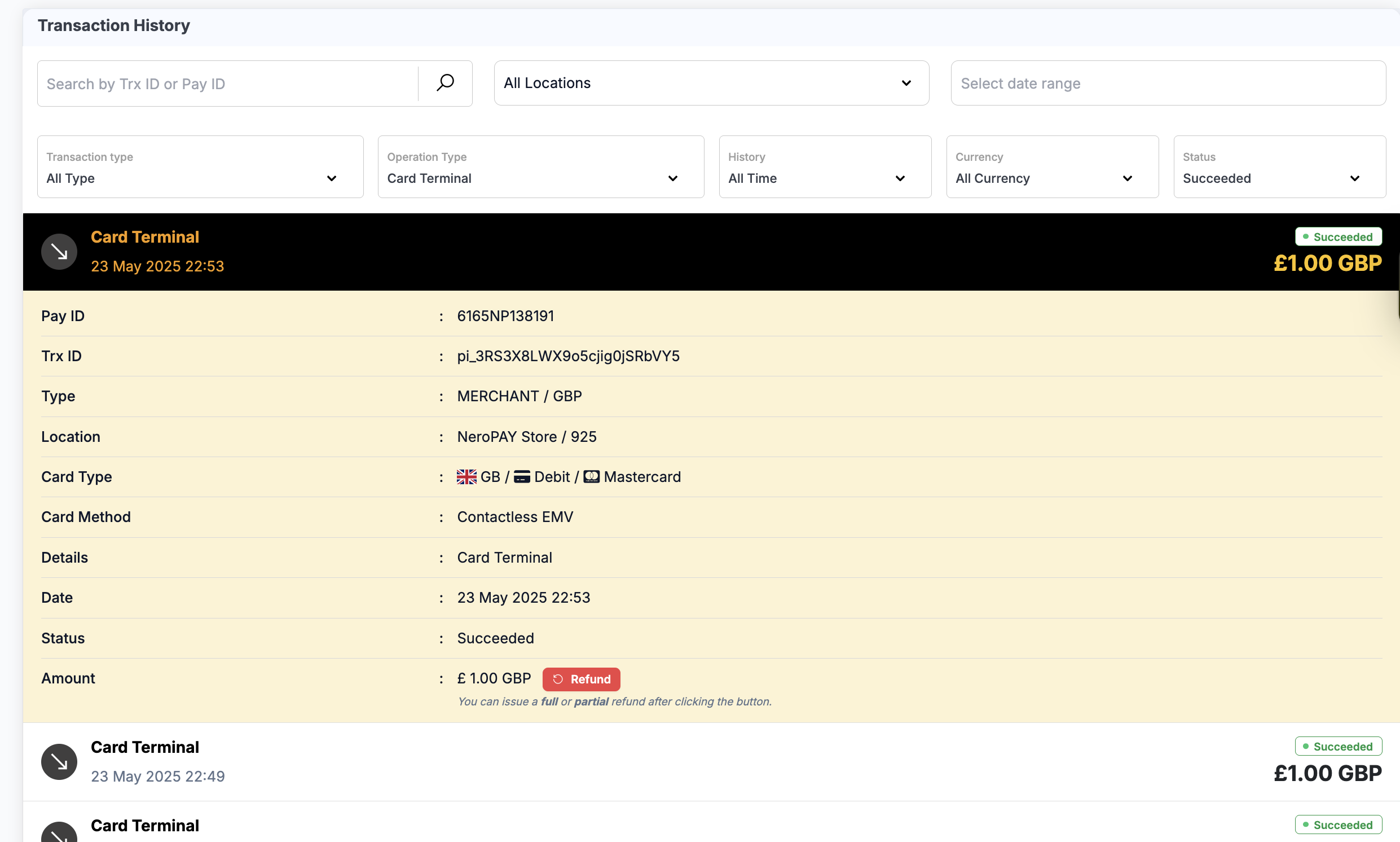
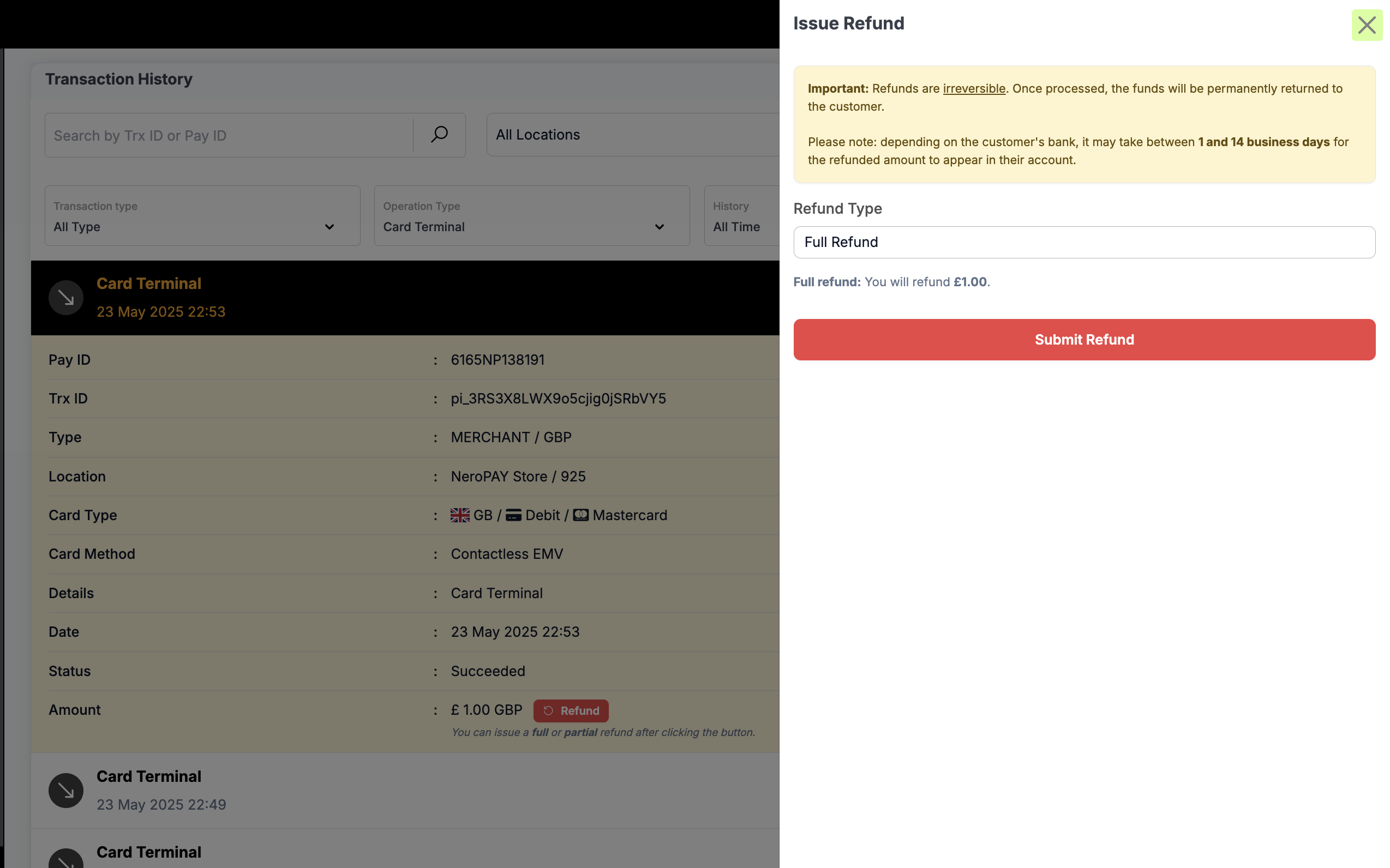
3. Choose one of the following options:
- Full Refund – returns the total amount to the customer.
- Partial Refund – enter the amount you wish to refund.
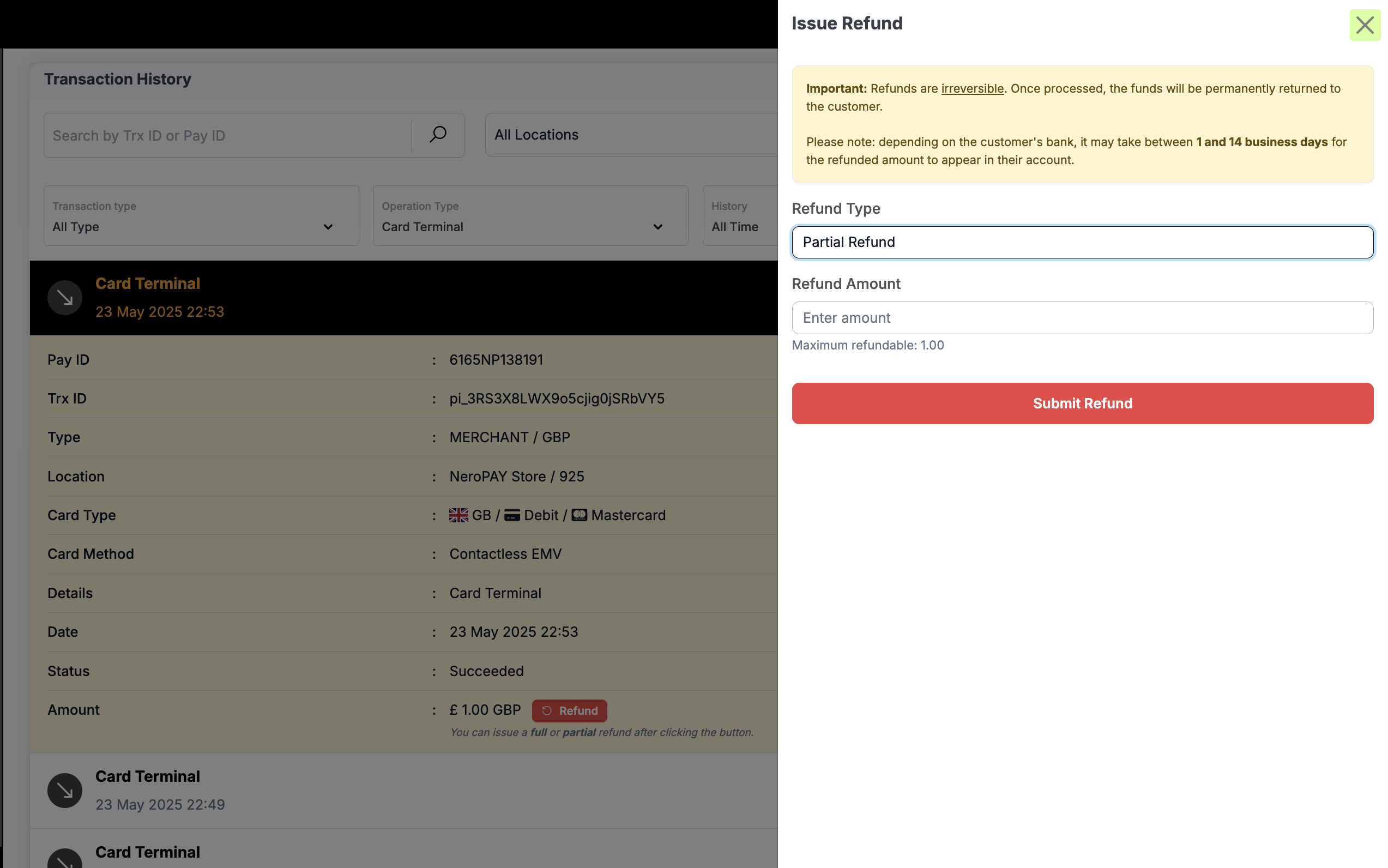
4. Click Submit Refund to confirm.
- The refunded amount will be permanently returned to the customer’s original payment method.
Important Notes
- ⚠️ Refunds are irreversible once processed.
- Depending on the customer’s bank, funds may take 1–14 business days to appear.
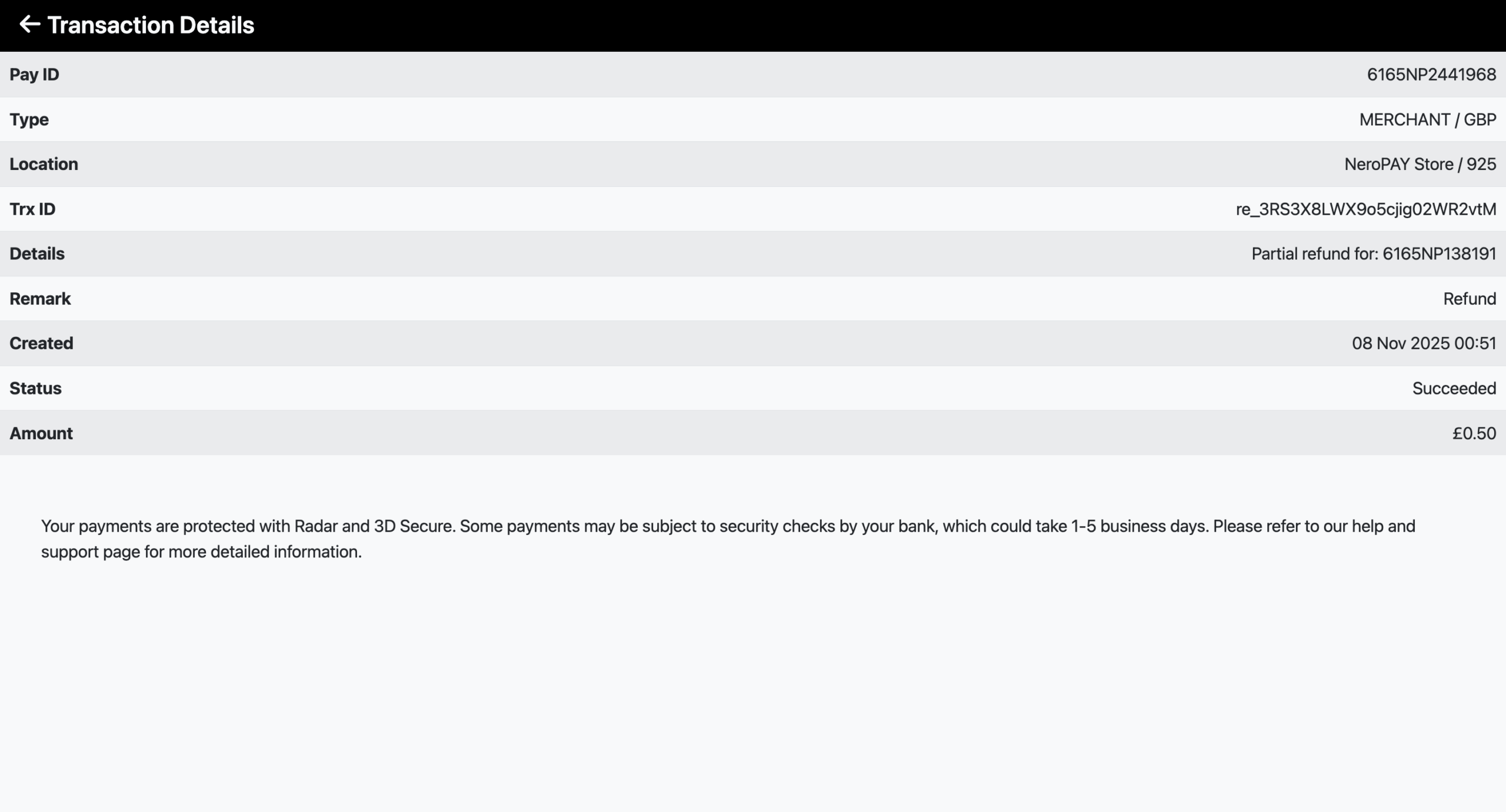
- Partial refunds will appear as “Partial Refunded”, with the refunded amount displayed.
- Refund transactions are excluded from all sales and revenue totals.
- Both full and partial refunds create a related entry labeled “refund_transaction”, which is excluded from reports and analytics.
---
Functionality Comparison
| Platform | Refund Type Supported | Notes |
| Terminal → Transactions | Full Refund only | Refund entire amount of transaction |
| Dashboard → Transactions | Full + Partial Refunds | Enter any amount for partial refunds |