Where to sign up
Go to: neropay.app and click Sign Up, or go directly to eu.neropay.app/merchant/register
Before you start
Have the following ready:
- Your full legal name and date of birth
- Your home address
- A mobile number
- Your business name and trading address
- Your business type and industry
Step 1 — Choose your language and fill in your details
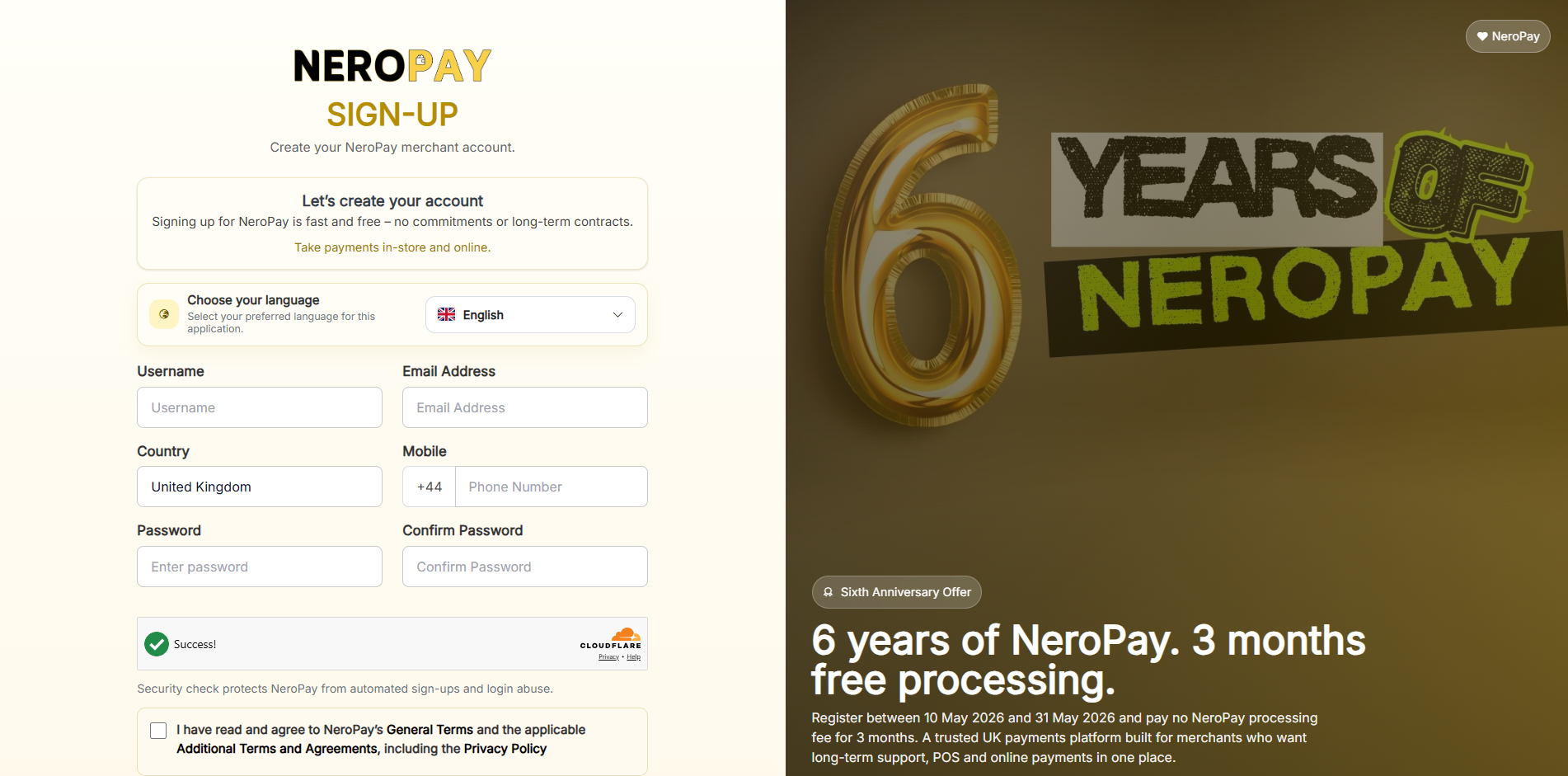
On the sign-up page, first select your preferred language from the dropdown at the top of the form. English is selected by default.
Then fill in the following fields:
| Field | What to enter |
|---|---|
| Username | Choose a unique username for your account |
| Email address | Your email address — used for login and notifications |
| Country | Your country — United Kingdom is selected by default |
| Mobile | Your phone number including country code — e.g. +44 |
| Password | Choose a secure password (minimum 8 characters) |
| Confirm password | Re-enter your password to confirm |
Complete the security check (Cloudflare verification), then tick the box to confirm you have read and agree to NeroPay's General Terms, Additional Terms and Agreements, and Privacy Policy.
📸
Step 2 — Legal Info (authorised person)
After submitting the initial form, you will be asked to provide your personal legal details. This information is used for identity and compliance purposes.
| Field | What to enter |
|---|---|
| First name | Your legal first name |
| Last name | Your legal last name |
| Date of birth | Your date of birth |
| Mobile number | Your contact mobile number |
| Home address | Your residential address |
| County | Your county |
| Town/City | Your town or city |
| Postcode | Your postcode |
Click Next to continue to the business information step.
Step 3 — Business Info
Enter the details for the business you will be taking payments for:
Field
What to enter
Business name
Your registered or trading business name
Business type
e.g. Sole trader, Limited company, Partnership
Trading address
The address where your business operates
Industry
Select the industry that best describes your businessOnce both steps are completed, your registration is marked as complete and you will be redirected to your dashboard.
💡 Registration is fast and free — no commitments or long-term contracts. Identity verification is a separate step completed from your dashboard after registration.
What happens next
After registration you will land on your dashboard, where you will see your account activation progress. The next steps are to verify your identity and link your bank account. See the article How to complete your account setup for a full walkthrough.
Frequently asked questions
Q: Is there a fee to register? A: No. Creating a NeroPay account is completely free.
Q: Can I change my username after registering? A: No. Usernames cannot be changed once set. Choose carefully during registration.
Q: What terms do I need to agree to? A: You must agree to NeroPay's General Terms, Additional Terms and Agreements, and the Privacy Policy before your account can be created.
Q: What if I do not have a UK mobile number? A: Enter your number with the correct country code. If you experience issues, contact support@neropay.app for assistance.
Still need help? Contact us at support@neropay.app or create a ticket from your dashboard.