How to get there
From your dashboard, follow this path:
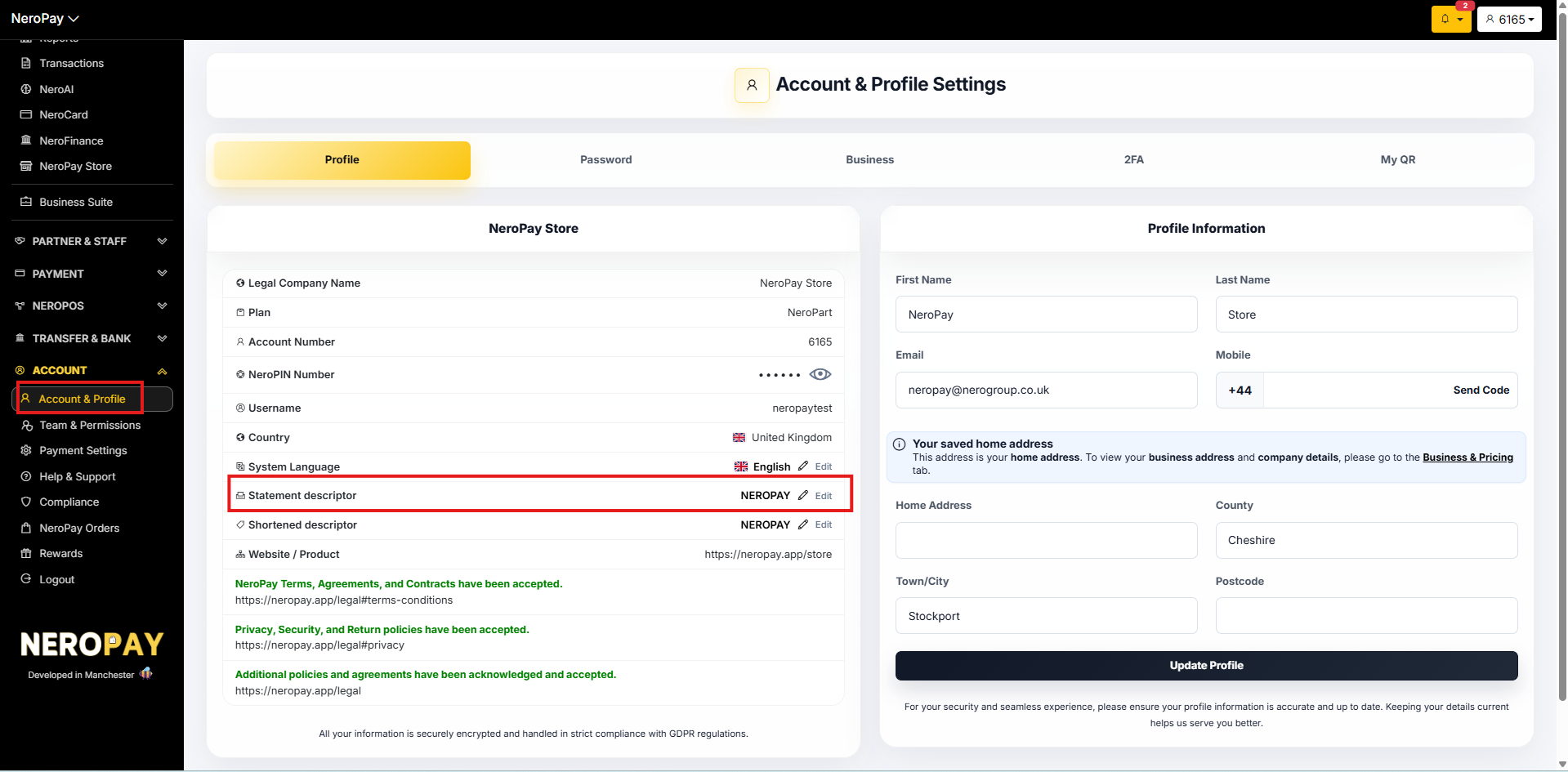
Account → Account & Profile → Profile
Step 1 — Log in to your NeroPay dashboard
Go to eu.neropay.app and log in with your credentials.
Step 2 — Go to Account
From the main menu, select Account.
Step 3 — Open Account & Profile
Select Account & Profile, then click Profile.
Step 4 — Update your descriptor
You can update two fields here:
- Shortened Descriptor — the abbreviated name shown on some statements
- Longest Descriptor — the full name shown where more characters are allowed
Update the fields as needed and save your changes.
📸
Before you save — please make sure:
- The descriptor reflects your registered business or trading name
- No special characters or misleading wording are used
- The name is clear enough for cardholders to recognise the transaction
⚠️ Note: Changes may not appear immediately on all statements. Banks and card networks may take some time to update their records.
Frequently asked questions
Q: Why is my descriptor important? A: It's the name your customers see on their bank statement after paying you. If it's unrecognisable, customers may dispute the charge — keeping it accurate helps avoid unnecessary chargebacks.
Q: How long does it take for the change to show on statements? A: This varies by bank and card network. Changes are applied on our end immediately, but may take a few days to appear on customer statements.
Q: Can I use my trading name instead of my registered business name? A: Yes, as long as it clearly identifies your business to cardholders and does not contain special characters or misleading wording.
Still need help? Contact us at support@neropay.app or create a ticket