Before you start
- You have an active NeroPay account. If not, please register here.
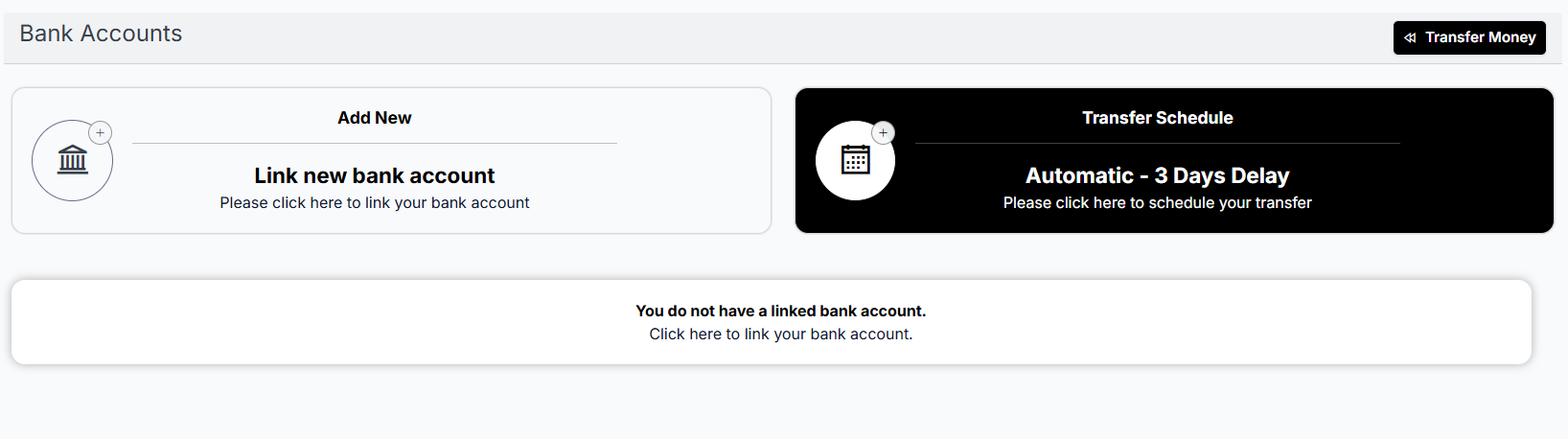
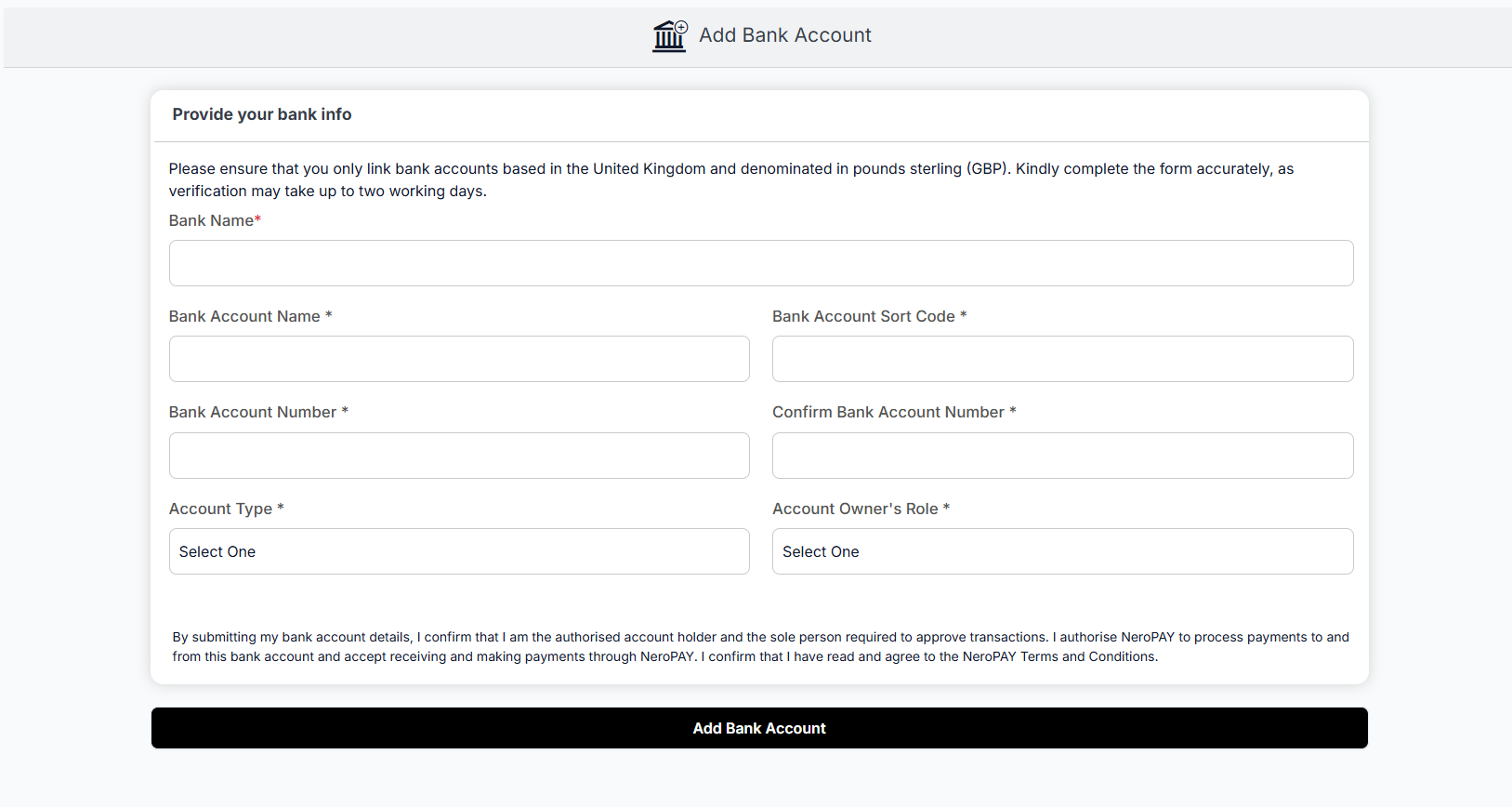
- You have a linked bank account
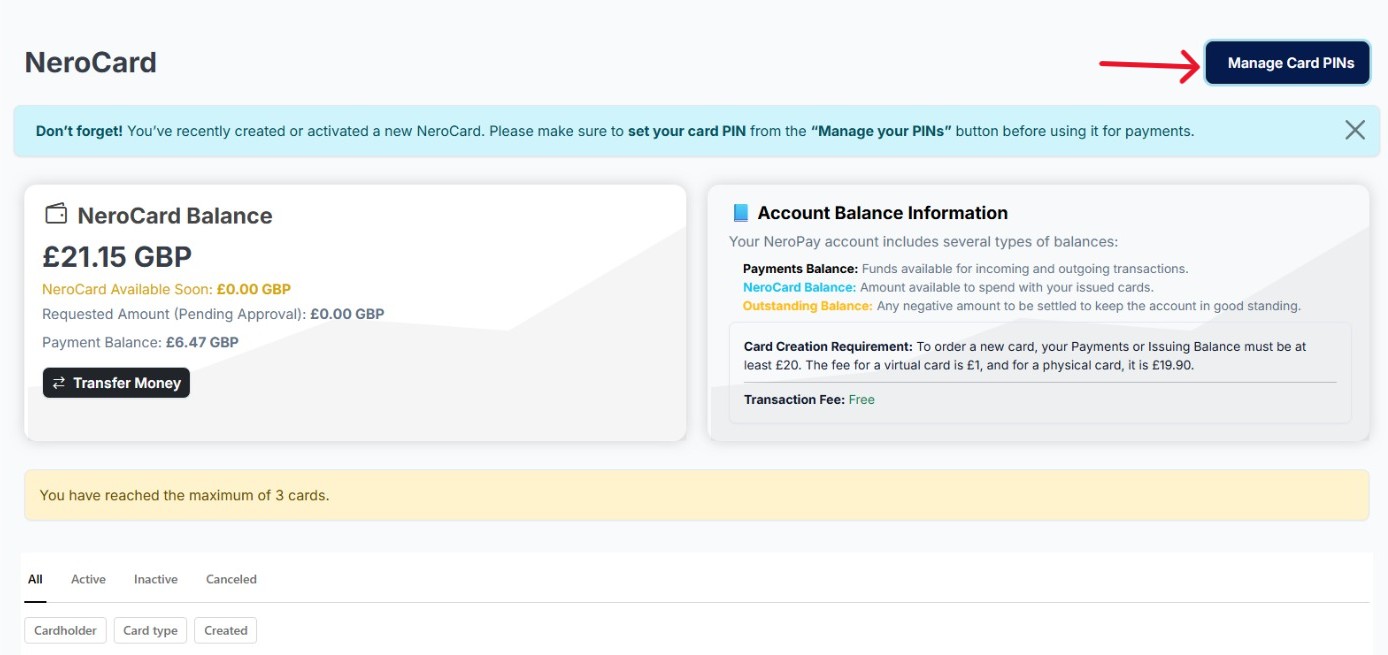
- You have at least £20 in your Payment Balance or NeroCard Balance
Step 1 — Sign up and register on NeroPay
- Download the NeroPay app from the App Store or Google Play
- Create an account by entering your email, password, and verifying your identity
- Complete your profile — you may be asked to provide:
- Full name
- Address
- Date of birth
- Business details (if applicable)
- Go to Bank Accounts → Link a new bank account and follow the prompts to connect your bank securely
📸
Step 2 — Add funds to your balance
Before creating a NeroCard, you need at least £20 in your Payment Balance or NeroCard Balance.
- Tap Transfer Money on your dashboard
- Choose your linked bank account or merchant wallet
- Deposit at least £20 to unlock card creation
Step 3 — Apply for a NeroCard
Once your account has funds:
- Navigate to the NeroCard section in the app
- Tap Create Card
- Choose your card type:
| Card type | Fee | Availability |
|---|---|---|
| Virtual Card | £1 | Instantly created, ready for online use |
| Physical Card | £19.90 | Shipped to your registered address |
- Confirm your details — a delivery address is required for physical cards
- Review the fees and confirm your request
📸


Step 4 — Set your PIN
Before making your first payment, set your PIN directly on the platform.
- Go to Menu → NeroCard → Manage Card PINs
- Set, view, or change your PIN anytime from here
⚠️ Note: The Manage Card PINs button will appear automatically once your new card has been added to your account.
🔒 Security reminder: All PINs are securely encrypted. Never share your PIN with anyone, including NeroPay staff. If you suspect unauthorised access, contact NeroPay support immediately.
Step 5 — View your card details
- Go to your Dashboard and tap NeroCard
- You will see all cards under your account — both physical and virtual
- Tap the card you want to check
- Tap Details to view the full card information and transaction history
📸
Managing your NeroCard day to day
Once your card is set up, you can:
- View balance and transactions — check your NeroCard dashboard anytime
- Top up instantly — add funds through your merchant wallet or linked bank
- Use anywhere — pay online, in-store, or internationally
- Real-time alerts — stay updated on every transaction
Frequently asked questions
Q: How much do I need in my account to create a NeroCard? A: You need at least £20 in your Payment Balance or NeroCard Balance before you can create a card.
Q: What is the difference between a Virtual and a physical card? A: A virtual card (£1) is created instantly and is best for online payments. A physical card (£19.90) is shipped to your address and works everywhere, but takes longer to arrive.
Q: I can't see the Manage Card PINs button — what should I do? A: This button only appears after your card has been successfully created. If your card is active and the button is still missing, contact support.
Q: Can I have both a virtual and a physical card? A: Yes. You can create multiple cards under the same account.
Still need help? Contact us at support@neropay.app or create a ticket