How to get there
From your dashboard, follow this path:
Dashboard → Transactions
Part 1 — Filtering your transactions
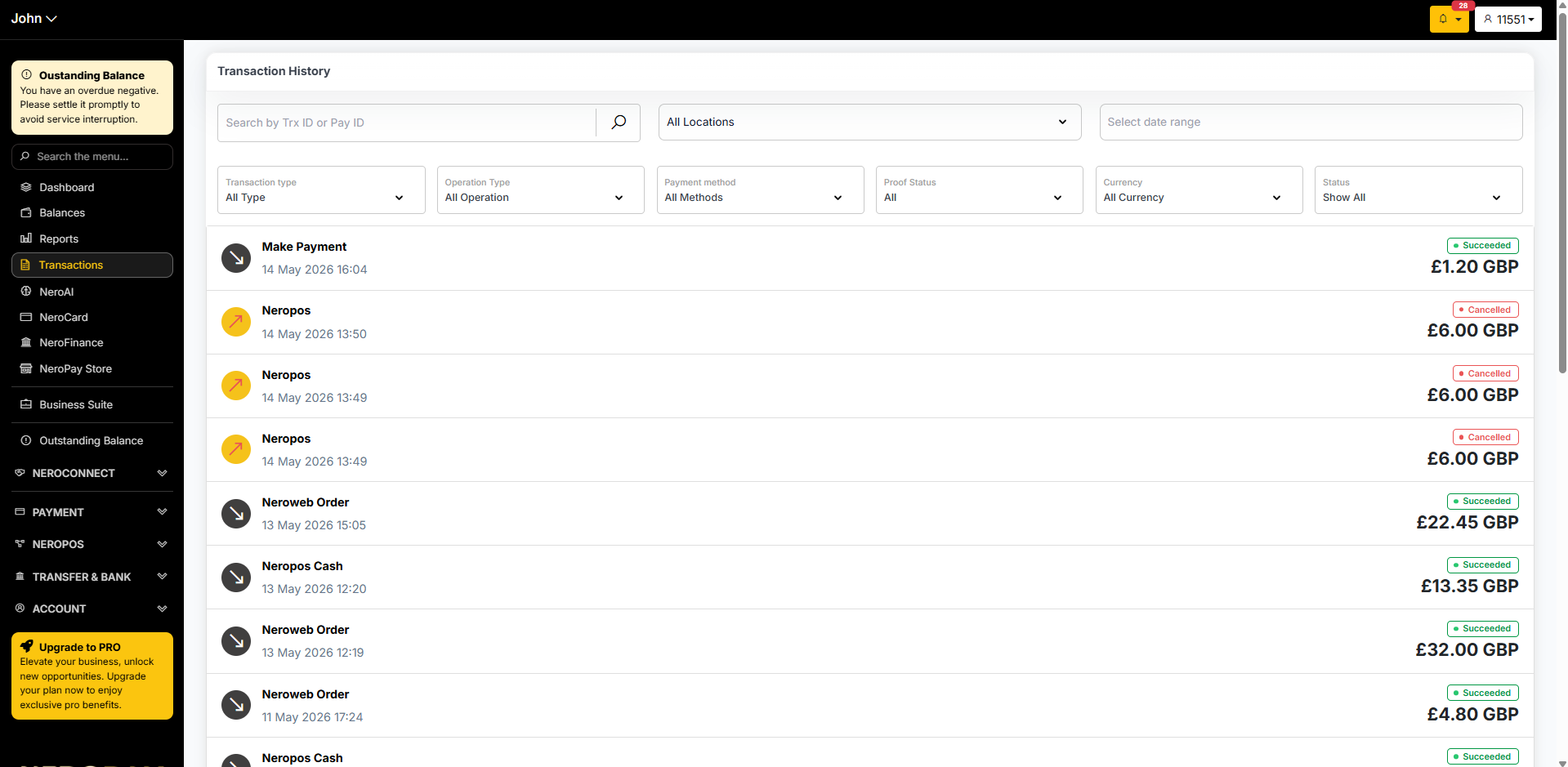
Use the filters at the top of the page to narrow down what you see:
| Filter | What it does |
|---|---|
| Transaction type | Filter by category — e.g. Balance Subtract, Payments, Transfers, or Refunds |
| Operation type | Filter by action — e.g. Deposits or Withdrawals |
| History from | Set a date range — useful for monthly reviews or preparing financial reports |
| Wallet currency | Filter by currency — e.g. GBP, USD, or EUR |
| Status | Filter by outcome — Succeeded, Pending, or Declined |
📸
Part 2 — Understanding transaction details
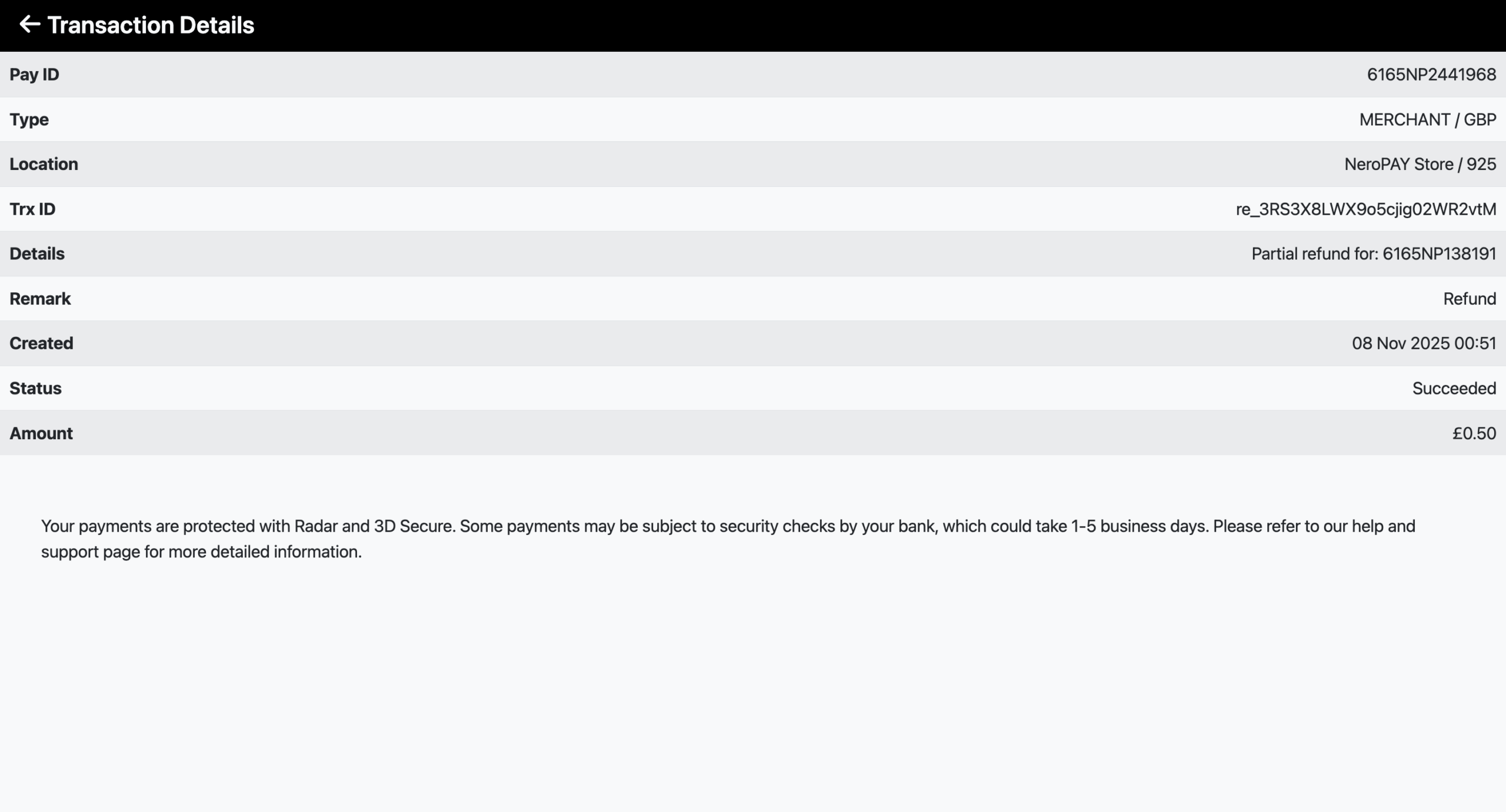
Each transaction shows the following information:
| Column | What it shows |
|---|---|
| Type of operation | The nature of the transaction — e.g. Balance Subtract, Make Payment, or Transfer |
| Date and time | The exact date and time the transaction occurred |
| Status | The current outcome of the transaction |
| Amount | The total value in the relevant currency |
Transaction statuses:
| Status | What it means |
|---|---|
| Succeeded | The transaction completed successfully |
| Pending | The transaction is being processed and is not yet complete |
| Declined | The transaction was not processed — e.g. due to insufficient funds |
📸
Part 3 — Processing a refund
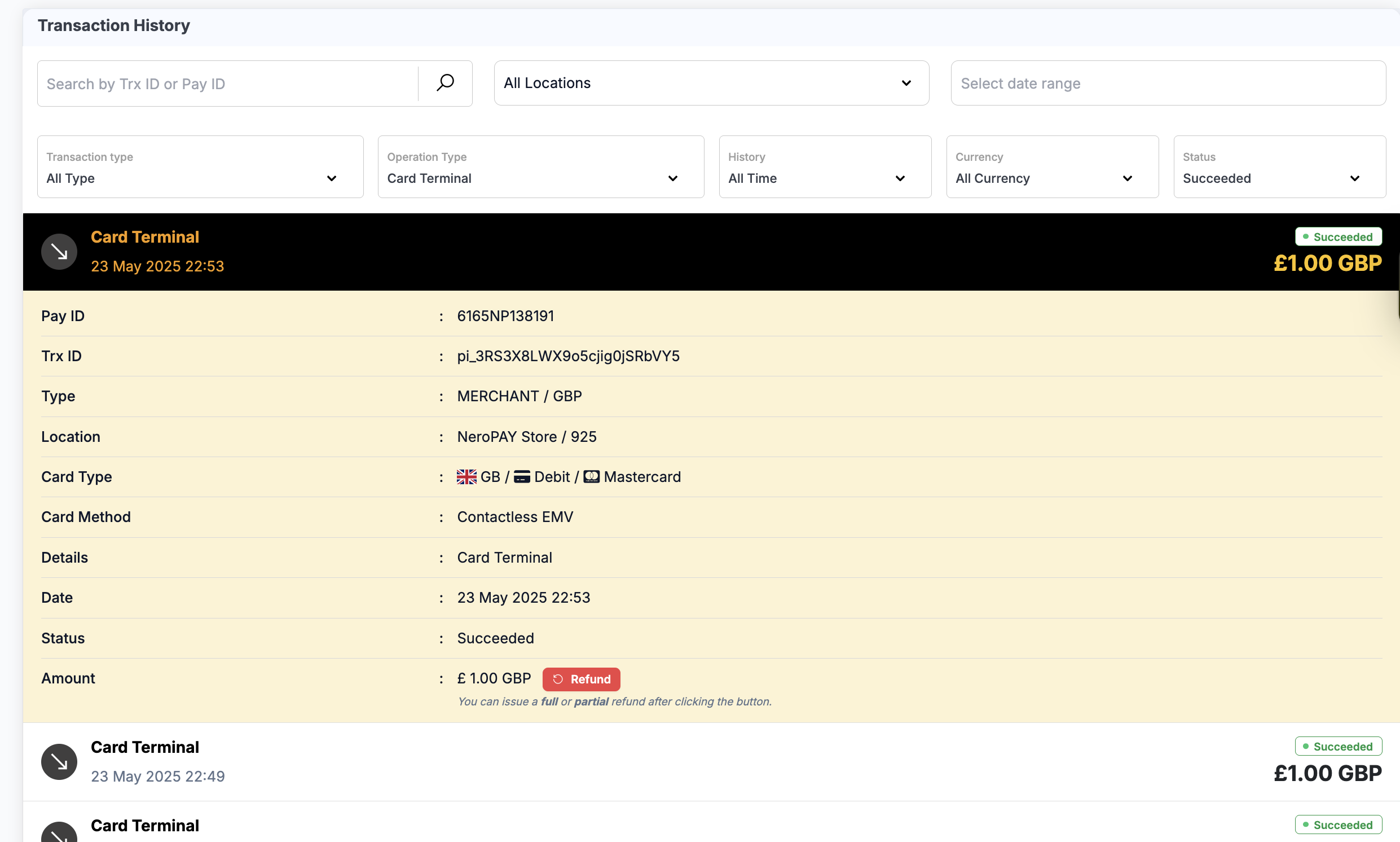
You can process full or partial refunds directly from the Transactions page.
How to refund from the dashboard
- Go to Dashboard → Transactions
- Open the completed transaction you want to refund
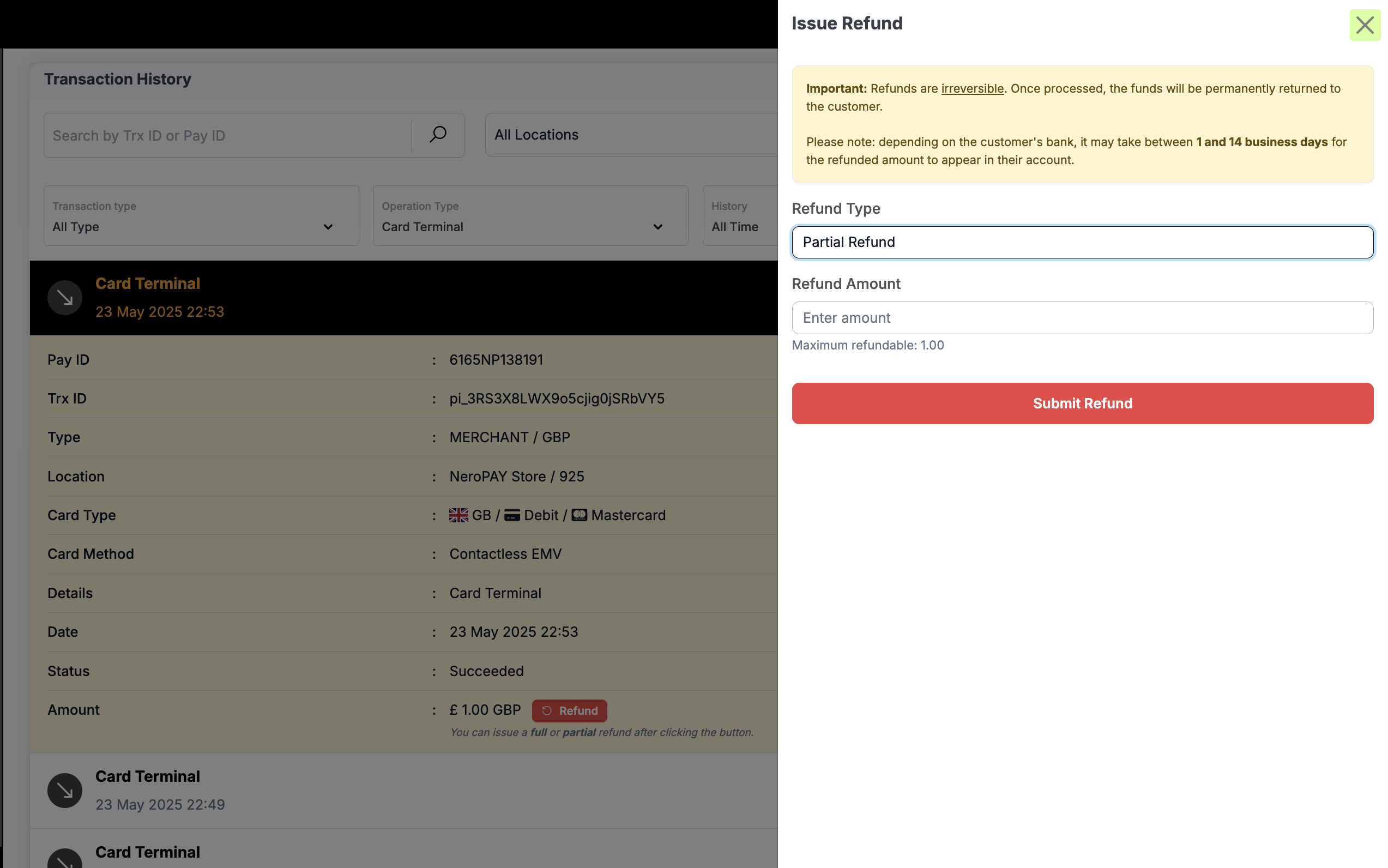
- Click the Refund button next to the amount
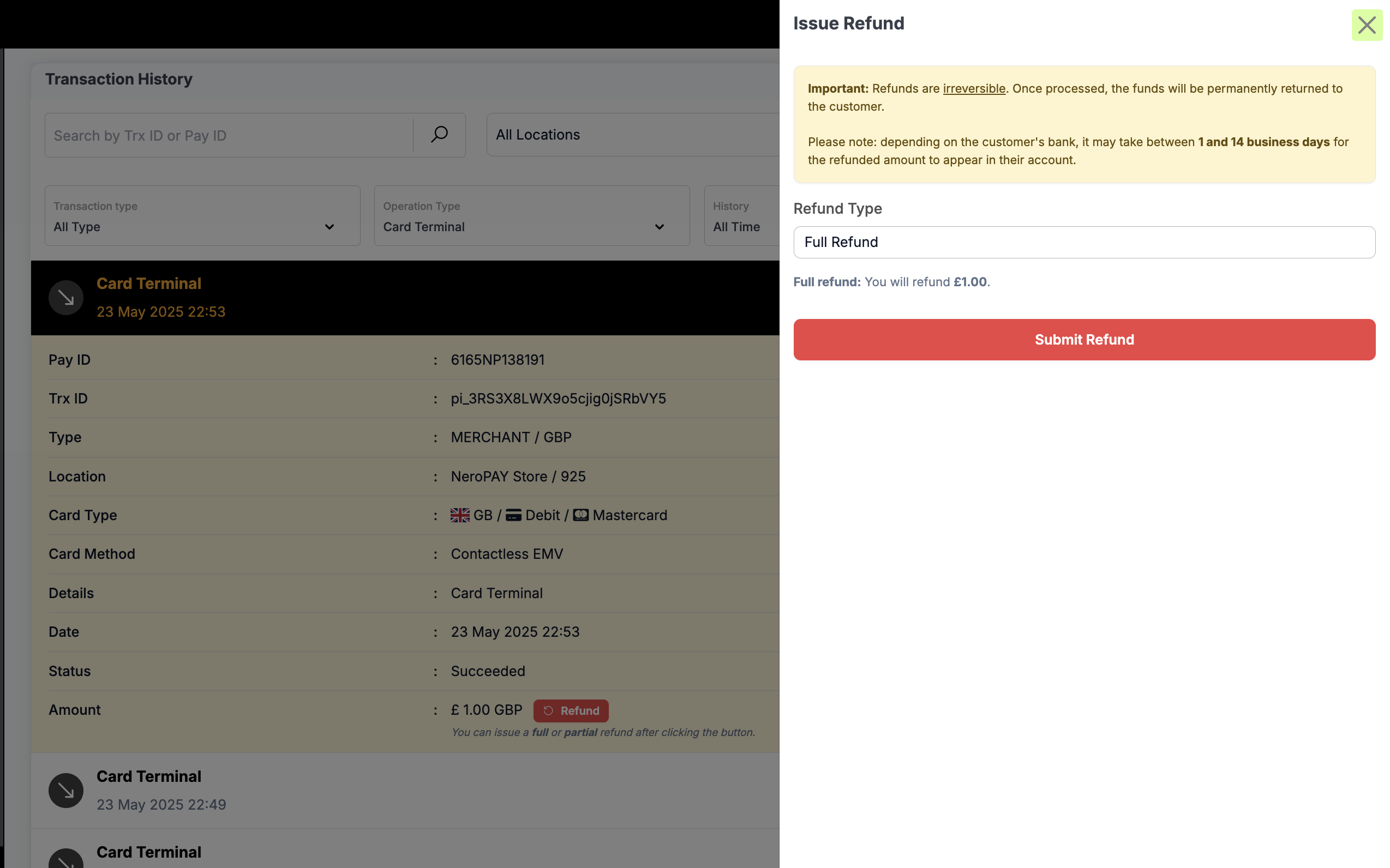
- Choose your refund type:
- Full refund — returns the total amount to the customer
- Partial refund — enter the specific amount you want to refund
- Click Submit Refund to confirm
The refunded amount is returned permanently to the customer's original payment method.
📸
Refund comparison — Dashboard vs Terminal:
| Platform | Refund type supported | Notes |
|---|---|---|
| Dashboard → Transactions | Full and partial refunds | Enter any amount for partial refunds |
| Terminal → Transactions | Full refund only | Refunds the entire transaction amount |
Important notes on refunds
- ⚠️ Refunds are irreversible once processed — always double-check before confirming
- Funds may take 1–14 business days to appear in the customer's account, depending on their bank
- Partial refunds appear as Partial Refunded with the refunded amount shown
- Refund transactions are excluded from all sales and revenue totals
- Both full and partial refunds create a related entry labelled refund_transaction, which is excluded from reports and analytics
Part 4 — Using Transaction History effectively
Step 1 — Apply filters Use the filter options to refine your view — for example, set a date range to review a specific month or select a currency to focus on international payments.
Step 2 — Review individual transactions Click on any transaction to see more detail. This is particularly useful for investigating larger or unusual amounts.
Step 3 — Take action if needed If you notice any unexpected transactions, contact support immediately with the transaction details for clarification or dispute resolution.
Why Transaction History matters
- Track all incoming and outgoing payments in one place
- Identify discrepancies or errors quickly
- Organise financial data for reporting and analysis
- Support compliance and accountability requirements
Frequently asked questions
Q: Can I export my transaction history? A: Yes. Use the Reports section to generate and export financial reports. See Reports overview → for full details.
Q: Why has my transaction been declined? A: Common reasons include insufficient funds, incorrect card details, or a block placed by the customer's bank. If the issue persists, contact support with the transaction reference.
Q: How long does a refund take to reach the customer? A: This depends on the customer's bank — typically 1–14 business days from the date the refund is processed.
Q: Can I reverse a refund once it has been processed? A: No. Refunds are irreversible once submitted. Always verify the amount and transaction before confirming.
Q: Why don't refunds appear in my sales totals? A: Refund transactions are automatically excluded from sales and revenue totals to keep your reporting accurate.
Still need help? Contact us at support@neropay.app or create a ticket