
Choose how NeroPOS prints receipts and kitchen tickets: from the browser, silently through NeroBridge, or from the NeroPay app on a phone or tablet. Route orders to bar and kitchen printers and set receipt details.
Go to NeroPOS → POS Settings → Printing.
Receipt settings
| Setting | What it does |
|---|---|
| Receipt width | 80mm or 58mm, to match your printer's paper roll |
| Receipt font and spacing | Standard, Compact or Small. Use Compact or Small if bill receipts are too long |
| Receipt copies | How many copies print automatically, set separately for Table service, Collection and Delivery. Each order type prints one copy unless you change it |
| Receipt footer | Text at the bottom of every receipt, for example a thank-you message or your website |
| Receipt VAT number | Shown above the footer when filled in. Leave blank to hide it |
| Show QR code on unpaid receipts | Prints an order-specific NeroPay payment QR code on unpaid receipts, so customers can pay by scanning |
| Hide print on basket | Hides only the Print button next to Pay in the basket. Printing from Tables, Orders, Manage, Payment and Till/X/Z reports still works |
💡 Note: click Preview Receipt after saving to check the layout before you use it in service. Your shop name, phone number and address come from NeroPOS → POS Settings → Mode.
Choose how receipts print
📸 Three ways to print a receipt.
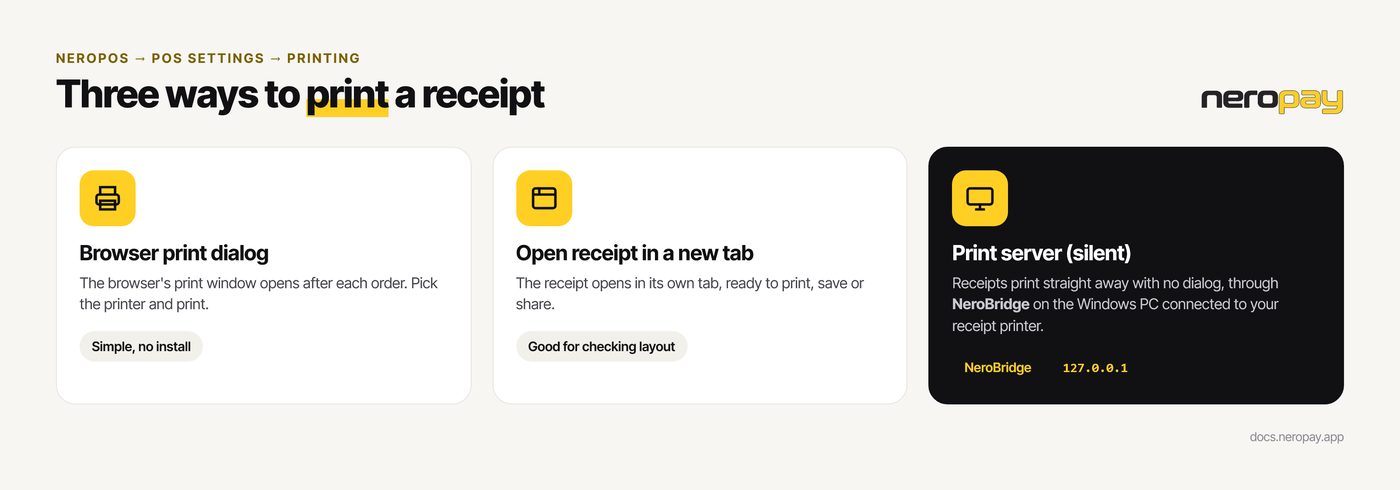
| Automatic print mode | How it works |
|---|---|
| Browser print dialog | The browser's print window opens after each order. Choose the printer and print |
| Open receipt in a new tab | The receipt opens in its own tab, ready to print or save |
| Print server (silent / no dialog) | Receipts print straight away with no window, through NeroBridge on the Windows PC connected to your printer |
Set up silent printing with NeroBridge
| Step | What to do |
|---|---|
| 1. Download NeroBridge | Under POS and print server, click Download latest NeroBridge (Windows) and install it on the PC connected to the receipt printer |
| 2. Generate a key | Click Generate next to Print server key, then Copy |
| 3. Add the URL | Enter the Print server URL. On the same Windows PC it is usually http://127.0.0.1:17625/print |
| 4. Save | Choose Print server (silent / no dialog) as the print mode and click Save Settings |
💡 Note: keep NeroPay Print Server open on the PC while you trade. Online orders from NeroWeb need the NeroWeb printing key added to the print server too. See NeroPOS → NeroWeb → Printing.
Print from your phone or tablet
📸 New: print from the NeroPay app.
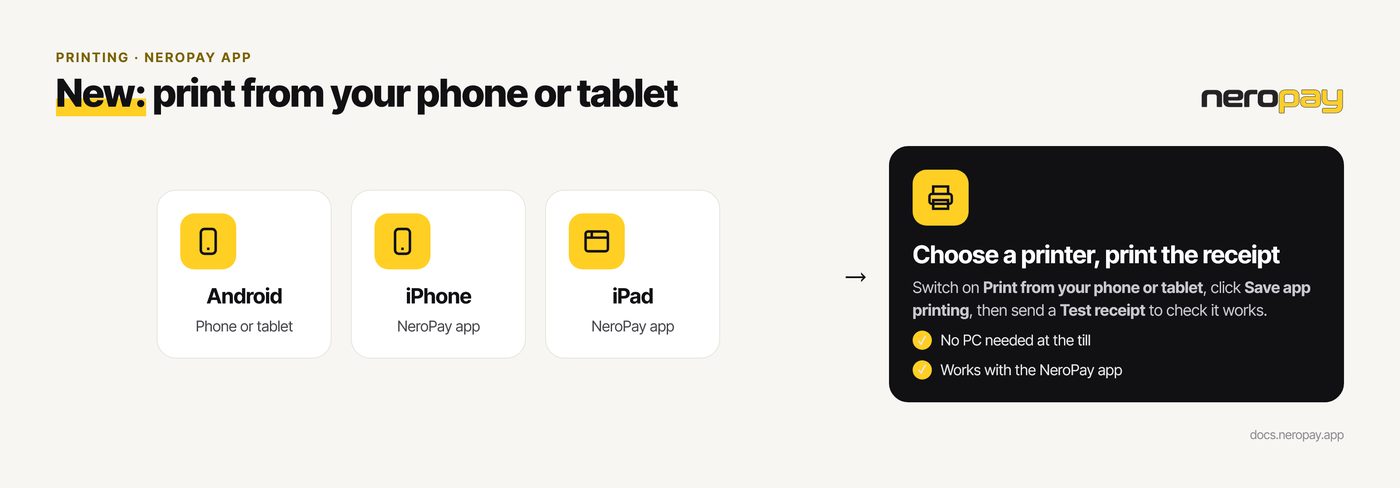
Print receipts from the NeroPay app on an Android phone or tablet, iPhone or iPad. Turn on Print from your phone or tablet, choose your printer, click Save app printing, then send a Test receipt to check it works.
Send orders to the right printer
📸 Station printer routing.
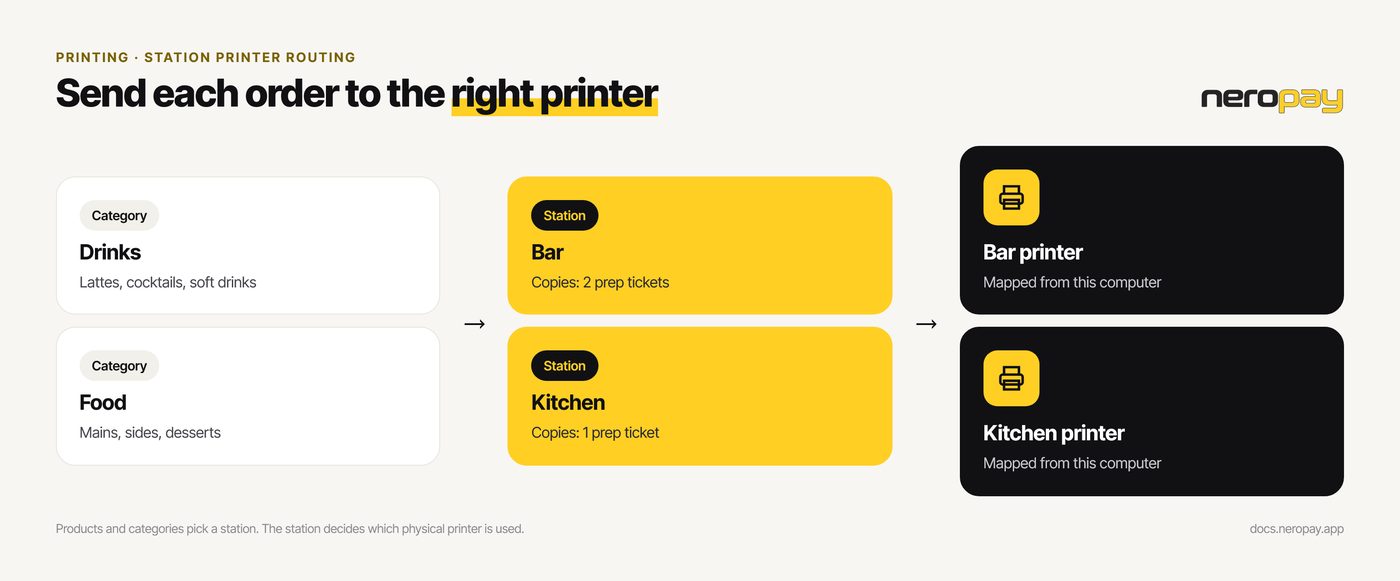
| Step | What to do |
|---|---|
| 1. Load printers | With NeroPay Print Server open, click Load printers from this computer |
| 2. Add stations | Click Add station and create logical stations such as Kitchen or Bar |
| 3. Map each station | Choose the physical printer each station uses |
| 4. Assign products | On category and product pages, choose a station, for example Drinks to Bar and Food to Kitchen |
💡 Note: station copies override the general receipt copies for routed prints. For example, the Bar station can print two prep tickets while the customer receipt stays at one copy.
Prep tickets for the kitchen and bar
📸 A prep ticket next to a customer receipt.
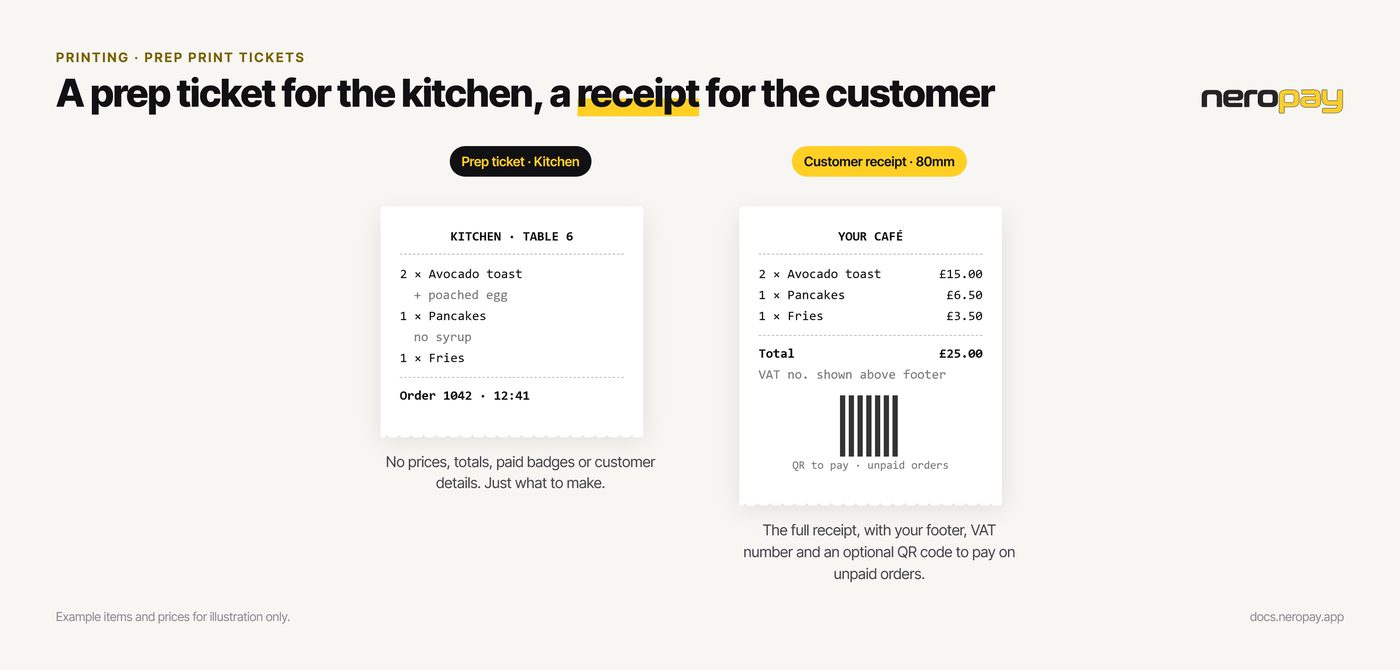
Turn on Enable Prep Print tickets to add a Prep Print button next to the order Print buttons. Prep tickets go to kitchen and bar stations without prices, totals, paid badges or customer details. The normal Print button still prints the full customer receipt.
Bridge devices
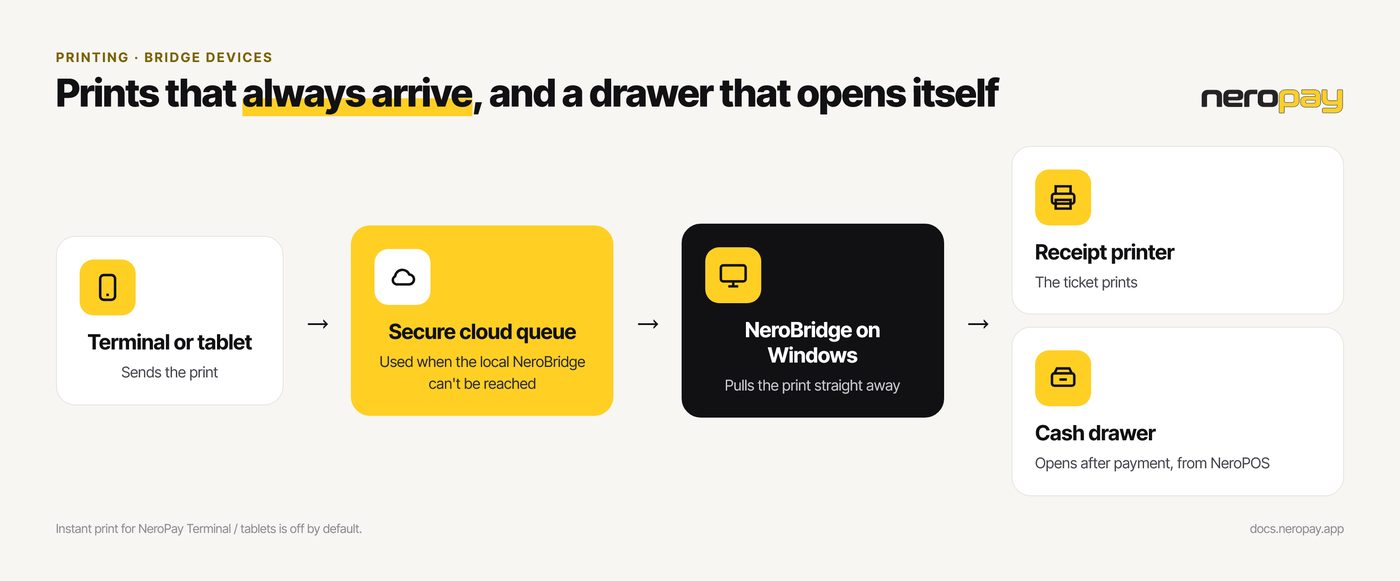
📸 Instant print and the cash drawer.
| Setting | What it does |
|---|---|
| Instant print for NeroPay Terminal / tablets | If a terminal or tablet can't reach NeroBridge on the local network, NeroPOS queues the print securely in the cloud and the online Windows NeroBridge prints it straight away. Off by default |
| Manage cash drawer from NeroPOS | Staff can open the cash drawer after a successful payment or from order details. NeroBridge sends the open command through the selected printer |
| Show customer details when the business phone rings | With a supported caller ID device, the caller's customer details appear in NeroPOS |
⚠️ when Instant print is off, a print that can't reach NeroBridge locally is not queued. Turn it on if your terminals and tablets print through a Windows PC.
Frequently asked questions
Do I need NeroBridge to print?
No. The browser print dialog and new tab modes work without it. NeroBridge is needed for silent printing, station routing, the cash drawer and instant print.
Can I print from an iPad or phone?
Yes. Turn on Print from your phone or tablet and choose a printer. It works with the NeroPay app on Android, iPhone and iPad.
Why do prep tickets have no prices?
Prep tickets are for the kitchen and bar, so they show only what to make. Customers get the full receipt from the normal Print button.
My printer doesn't appear in the list. What should I do?
Check NeroPay Print Server is open on the PC connected to the printer, then click Load printers from this computer again.
Can drinks and food print in different places?
Yes. Create Bar and Kitchen stations, map each to a printer, and choose a station on your categories and products.
Still need help? Contact us at support@neropay.app or create a ticket.