
A round-up of what has been added to NeroPOS recently, from the new Service screen and staff lock to offline mode, smarter tables and low-stock alerts. Most new options are off by default, so your till only changes when you switch them on. Each section says where to find the setting.
📸 The main additions, grouped by where they help.
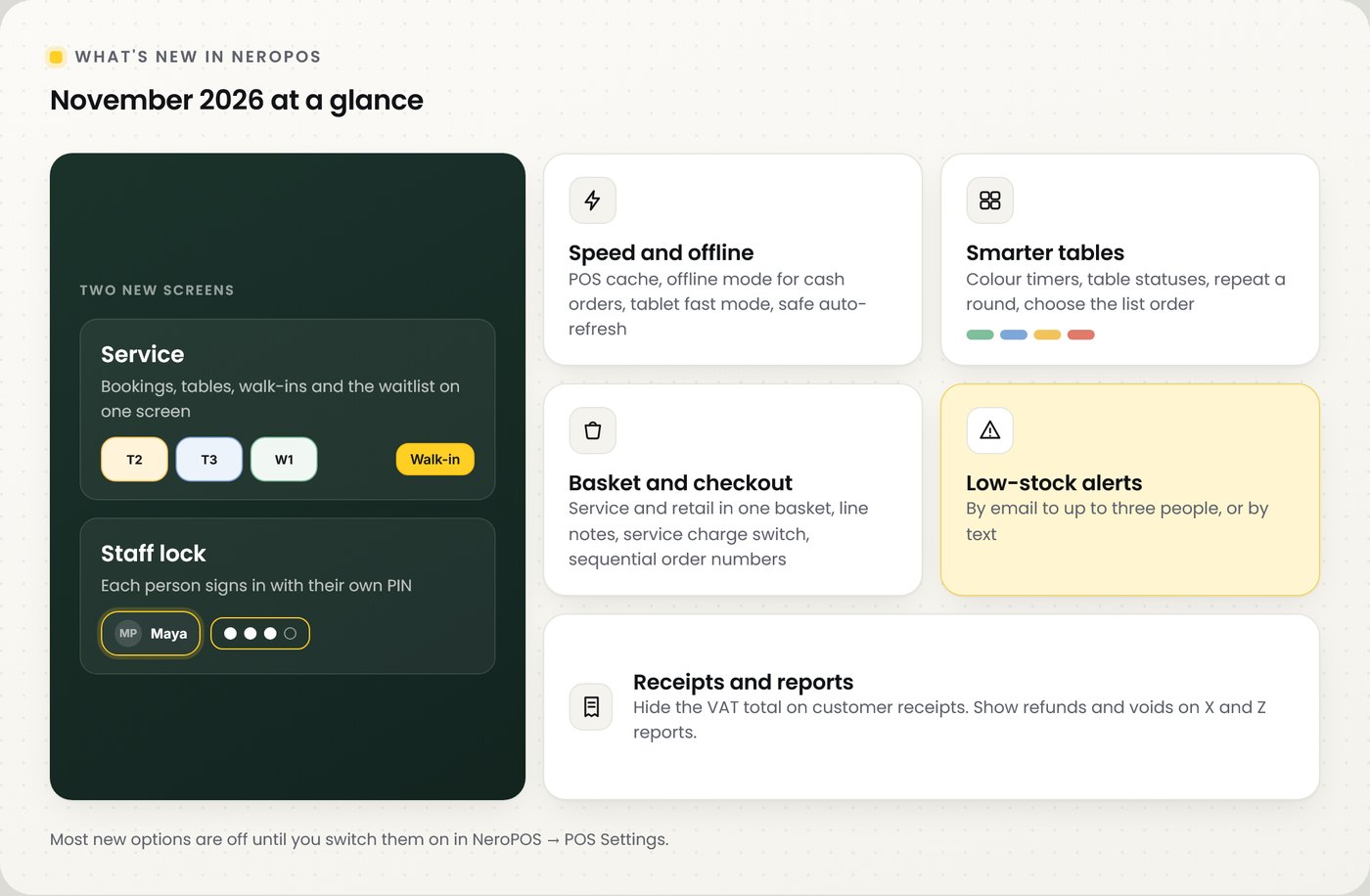
Two new screens
| Feature | What it does |
|---|---|
| Service | Tonight's bookings, live tables, walk-ins and the waitlist on one screen, opened from the till |
| Staff lock | Staff tap their name and enter their own PIN to use the till. Manager approval by PIN for voids and refunds |
💡 Note: both are in NeroPOS → POS Settings → Mode and are off by default.
Speed and offline
Go to NeroPOS → POS Settings → General and find Performance & offline.
| Setting | What it does |
|---|---|
| Enable POS Cache | Keeps products, categories and options in the browser so the till loads faster. Refreshes itself when you change products or settings |
| Enable Offline Mode | If the internet drops, cash, bank payment and external card orders are saved on the till and sync when the connection returns |
| EPOS / tablet fast mode | Makes product and category taps feel quicker on iPads, Android tablets and slower EPOS devices |
| Auto-refresh POS when idle | Reloads a long-running till only when it is safe: empty basket, no payment running. Checks after 1 hour or 30 orders |
⚠️ Card terminal, Tap to Pay and keyed card payments still need an internet connection.
Tables
Go to NeroPOS → POS Settings → General and find Modules / UI and Industry quick operations.
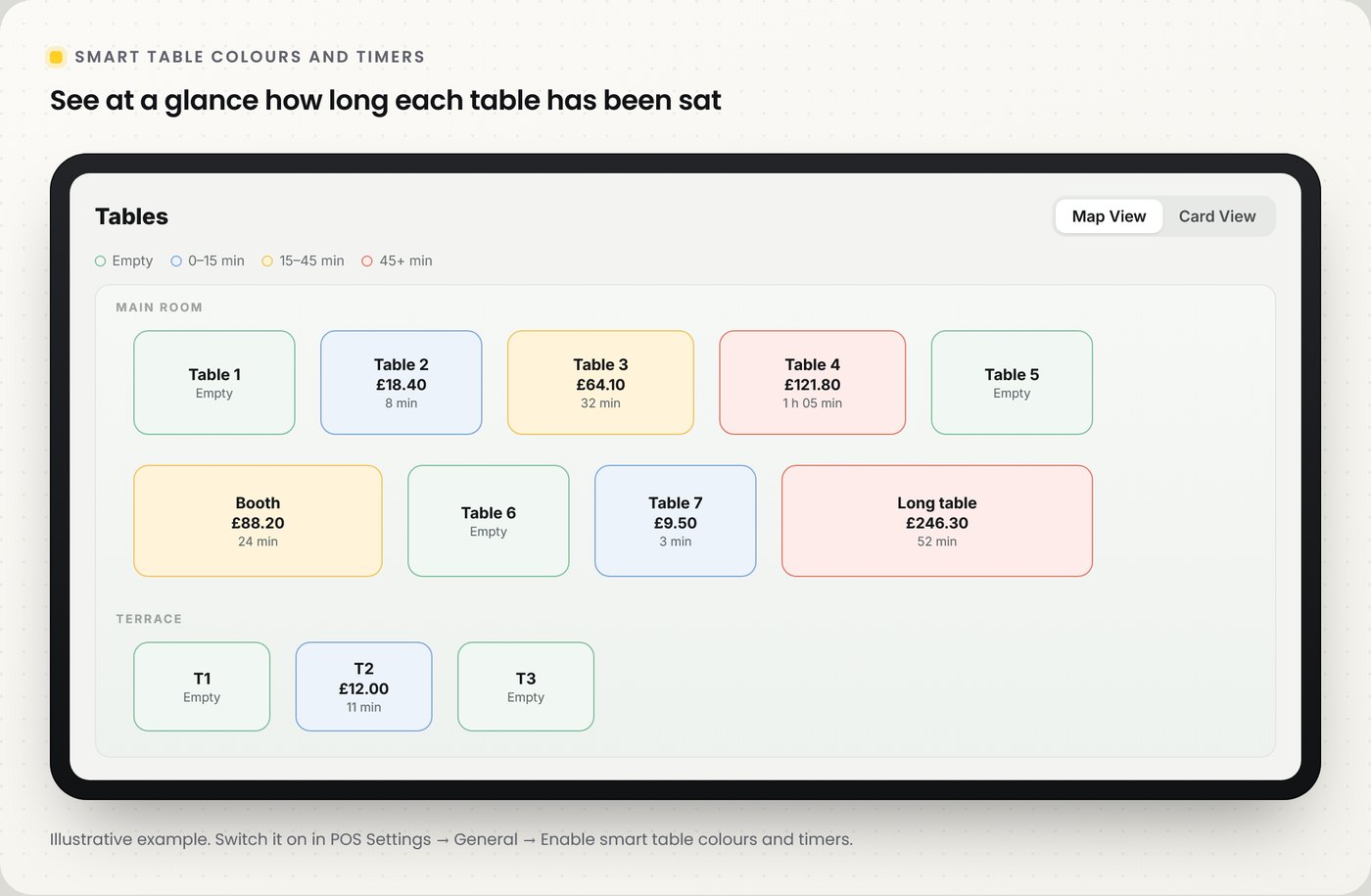
📸 Smart table colours show how long each table has been sat.
| Setting | What it does |
|---|---|
| Smart table colours and timers | Colours occupied tables by time seated: blue up to 15 minutes, amber 15–45 minutes, red after 45. Empty tables stay green |
| Manual table status | Adds Waiting to order, Food sent, Mains served, Bill requested and Waiting for payment |
| Repeat last order / round | Loads a table's latest order, or the last customer order, into a new basket |
| Table list order | Keep tables in fixed order, bring occupied tables to the top, group by area or use your own sort order |
Basket and checkout
| Setting | What it does |
|---|---|
| Mixed service & retail basket | Sell a NeroBooking service and a stock product in one basket, with one payment and one receipt. Service lines do not reduce stock |
| Basket item note button | Adds a note icon to each basket line so staff can add notes after the item is in the basket |
| Quick "Remove Service Charge" button | One tap to remove the service charge before payment. Staff permissions still apply |
| Service Charge switch | An on/off switch in Order Details and the Payment window that updates the total straight away |
| Order numbering | Keep the default reference or use sequential numbers such as 1, 2, 3, with an optional prefix such as POS-1 |
| Repeat customer order | Find a customer by phone and reload their latest order as a new basket |
| Walk-in queue | Manage waiting and in-service customers from the till, for salons and counters |
| Rebook after payment | Shows a Book next appointment action after a successful payment |
Example: a piercing studio adds a £25.00 piercing service and £18.00 titanium jewellery to one basket. NeroPOS takes £43.00 once and prints one receipt. The jewellery stock goes down; the service line has no stock. Figures shown are illustrative.
💡 Note: the mixed basket sells the service but does not create an appointment. Book the slot in NeroBooking as usual.
Receipts and reports
| Setting | What it does |
|---|---|
| Hide VAT total on customer receipts | Removes the VAT included line from paper and PDF receipts. Service charge, discounts and the total stay |
| Show refunds and voids on X/Z reports | Adds refund and void counts, totals and lines to X and Z report printouts |
Low-stock alerts
Go to NeroPOS → POS Settings → Mode and find Stock management & low-stock alerts.
| Setting | What it does |
|---|---|
| Enable Stock Management | Turns on stock tracking for your NeroPOS products |
| Low-stock threshold (units) | Alerts when a tracked product is at or below this number, including out of stock |
| Email stock alerts | Up to three email addresses |
| Paid SMS stock alerts | A text to one mobile number. SMS fees apply and the estimate is shown before you save |
💡 Note: you get one alert per product. A new alert is sent only after it is restocked above the threshold and falls low again.
Frequently asked questions
Will any of this change my till without me doing anything?
Most new options are off by default. Check POS Settings, switch on the ones you want, then save.
Does offline mode take card payments?
No. Card terminal, Tap to Pay and keyed card payments need the internet. Offline mode keeps cash, bank payment and external card orders and syncs them later.
Where is the Service screen?
Turn on Enable Service workspace in POS Settings → Mode, save, then reload NeroPOS. A Service button appears in the top bar.
Do mixed baskets book an appointment?
No. They sell the service on one receipt. Book the appointment in NeroBooking.
Are low-stock SMS alerts free?
No. SMS fees apply. Email alerts are free.
Still need help? Contact us at support@neropay.app or create a ticket.