
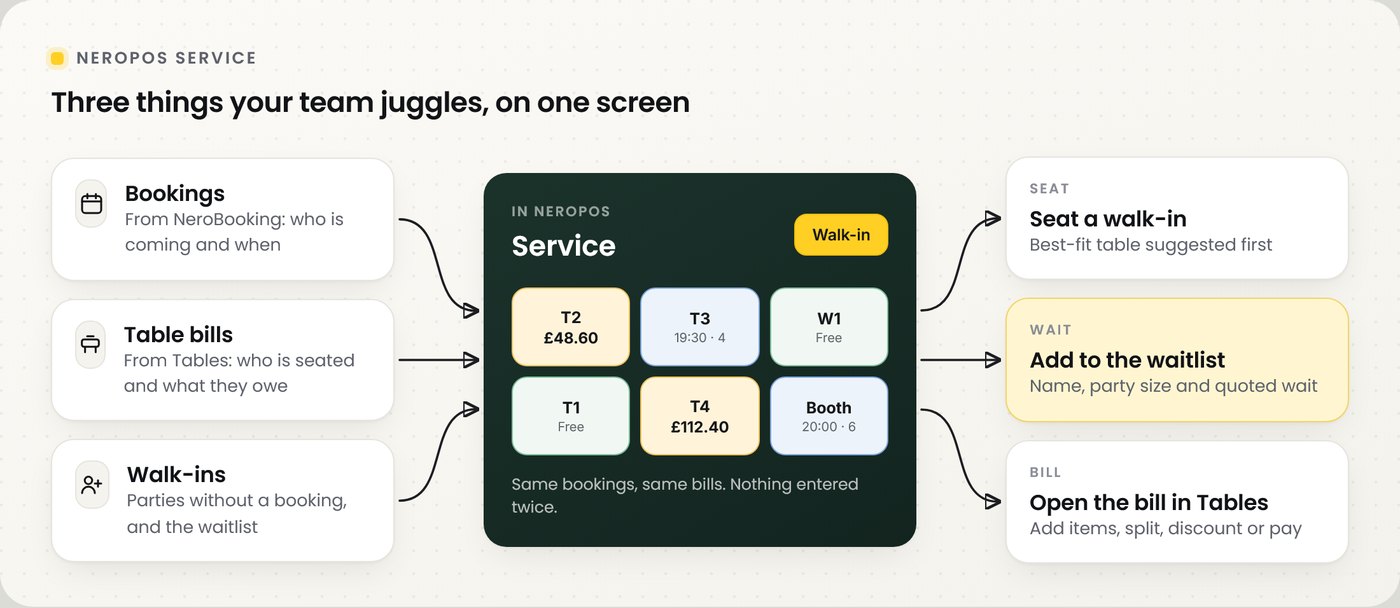
Service brings tonight's bookings, your live tables, walk-ins and the waitlist together on one screen in NeroPOS. It uses the same NeroBooking bookings and the same table bills you already have, so nothing is entered twice. Staff open it from the Service button on the till.
📸 Bookings, table bills and walk-ins meet on the Service screen. Every bill still opens in Tables.
Before you start
| You need | Why |
|---|---|
| NeroBooking set up | Service shows your table bookings from NeroBooking |
| Tables and areas | Service shows your floor plan and each table's bill. See Tables and areas |
| Dine-in switched on | In POS Settings, enable tables (dine-in) for the channel |
Switch Service on
| Step | What to do |
|---|---|
| 1 | Go to NeroPOS → POS Settings → Mode |
| 2 | Turn on Enable Service workspace. It is off by default |
| 3 | Select Save Settings at the top of the page |
| 4 | Reload NeroPOS on each till. The Service button appears in the top bar |
⚠️ Service saves with the main Save Settings button, not the staff lock button on the same tab.
Find your way around
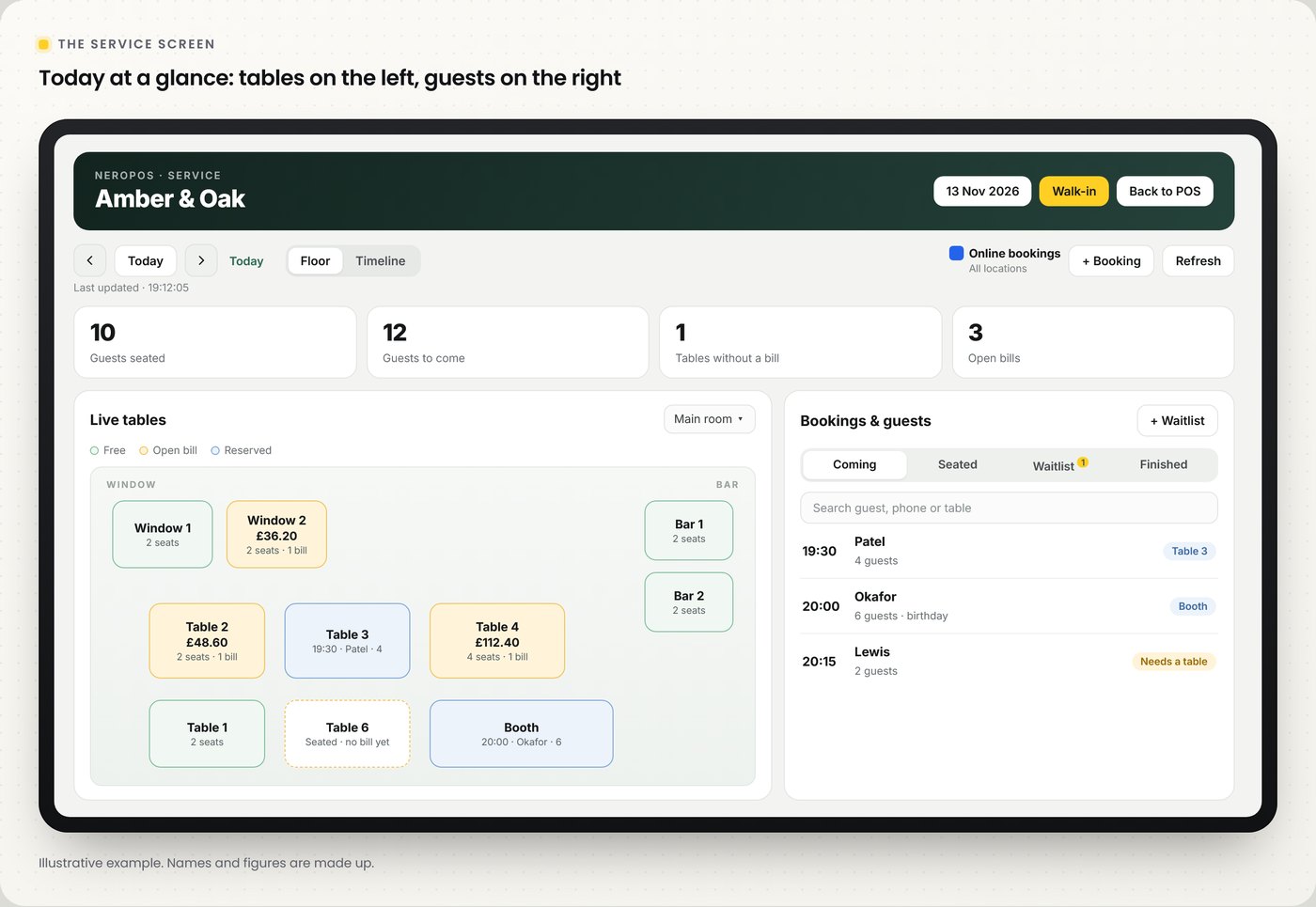
📸 The Service screen on today's date.
Moving around
| Part of the screen | What it does |
|---|---|
| Date | Opens a calendar to pick a service day. Days closed to online bookings show a red dot |
| Day arrows and Today | Moves one day back or forward, or jumps back to today |
| Floor / Timeline | Shows tables on your floor plan, or as rows across the day |
| Refresh | Reloads the day. Below the arrows you can see when it last refreshed |
Actions
| Part of the screen | What it does |
|---|---|
| Walk-in | Seats a party without a booking. Available on today only; greyed out on other days |
| Online bookings | Shows whether online bookings are open for all locations |
| Add booking | Adds a booking for the selected day |
| Back to POS | Returns to the till |
Summary counts
| Today | Other days | |
|---|---|---|
| First | Guests seated | Bookings |
| Second | Guests to come | Guests expected |
| Third | Tables without a bill | No-shows |
| Fourth | Open bills | Need a table |
Tables and bills
Each table shows its name, the bill total and its seats. The colour tells staff its state at a glance: free, open bill or reserved. Choose a floor from the menu above the plan if you have more than one.
| Step | What happens |
|---|---|
| 1 | Tap a table |
| 2 | A panel shows its seats and Open bill with the total |
| 3 | Tap Open bill. The bill opens in Tables, where staff add items, move, split, discount, void or take payment |
💡 Note: on a future day the floor shows each table as free or reserved for that day's bookings, so you can plan the evening ahead.
Seat a walk-in
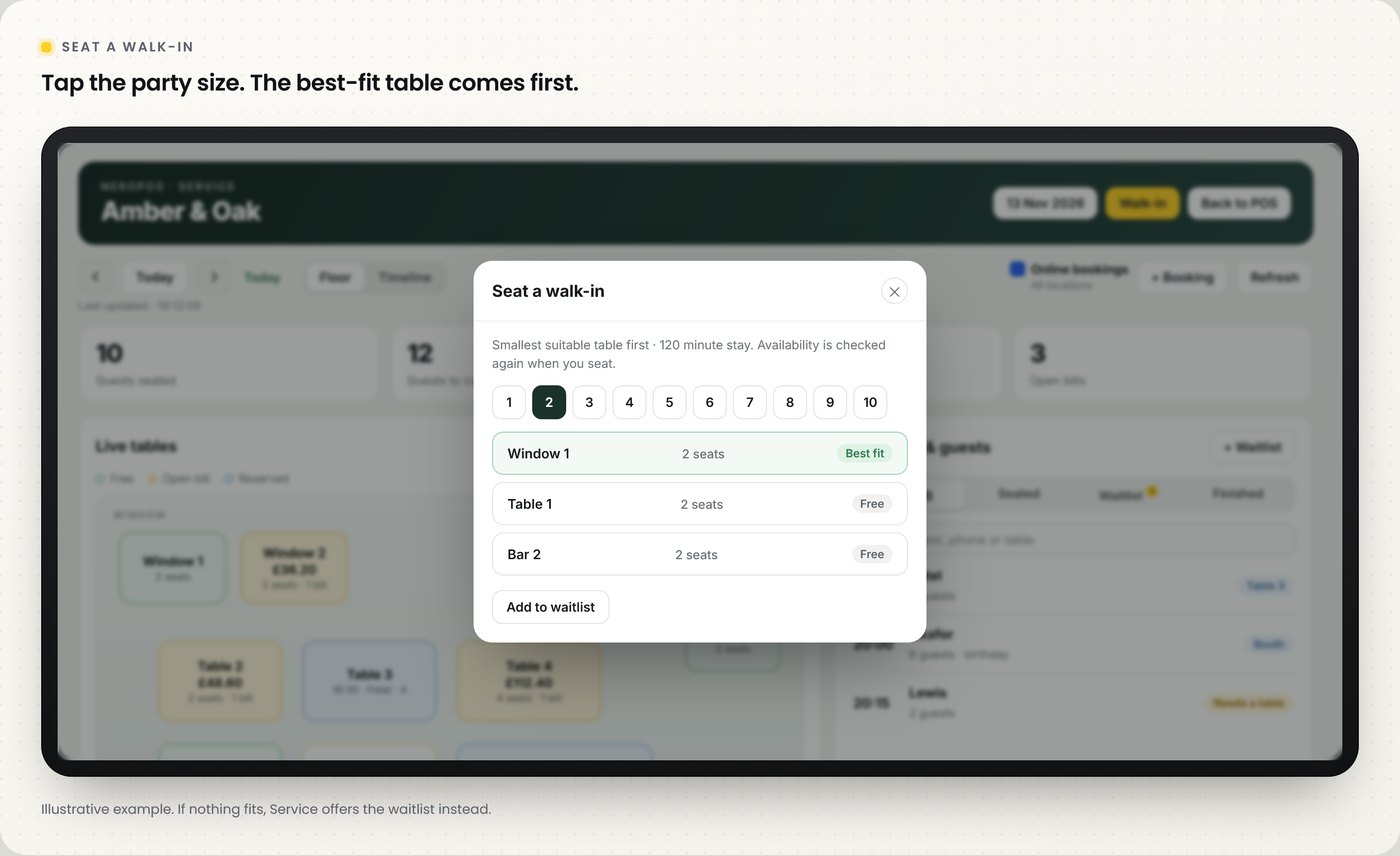
📸 Walk-in suggests the smallest table that fits first.
| Step | What happens |
|---|---|
| 1 | Select Walk-in |
| 2 | Tap the party size, from 1 to 10 |
| 3 | Service lists free tables for the usual stay, smallest suitable table first, marked Best fit |
| 4 | Tap a table to seat the party. Availability is checked again at that moment |
💡 Note: if no table is free for the usual stay, Service says so and offers Add to waitlist instead.
Bookings, guests and the waitlist
The Bookings & guests panel lists the day's parties in four tabs. Search by guest name, phone number or table.
| Tab | Shows |
|---|---|
| Coming | Bookings still to arrive |
| Seated | Parties at a table now |
| Waitlist | Parties waiting for a table |
| Finished | Parties that have left |
Add a party to the waitlist
| Field | What to enter |
|---|---|
| Name | The guest's name |
| Phone (optional) | A number to reach them when a table is ready |
| Guests | Party size |
| Estimated wait (minutes) | The wait you have quoted. 20 minutes is filled in for you |
Frequently asked questions
Does Service replace Tables or NeroBooking?
No. It shows the same bookings and bills in one place. Every bill still opens in Tables, and bookings stay in NeroBooking.
Why is Walk-in greyed out?
Walk-ins are for today. Tap Today to add one.
Why can't I see the Service button?
Turn on Enable Service workspace in POS Settings → Mode, save, then reload NeroPOS on that till.
Can staff see another day's bookings?
Yes. Use the arrows or tap the date to open the calendar.
Do I need NeroBooking to use Service?
Yes. Set up NeroBooking and your tables first, then switch Service on.
Still need help? Contact us at support@neropay.app or create a ticket.