
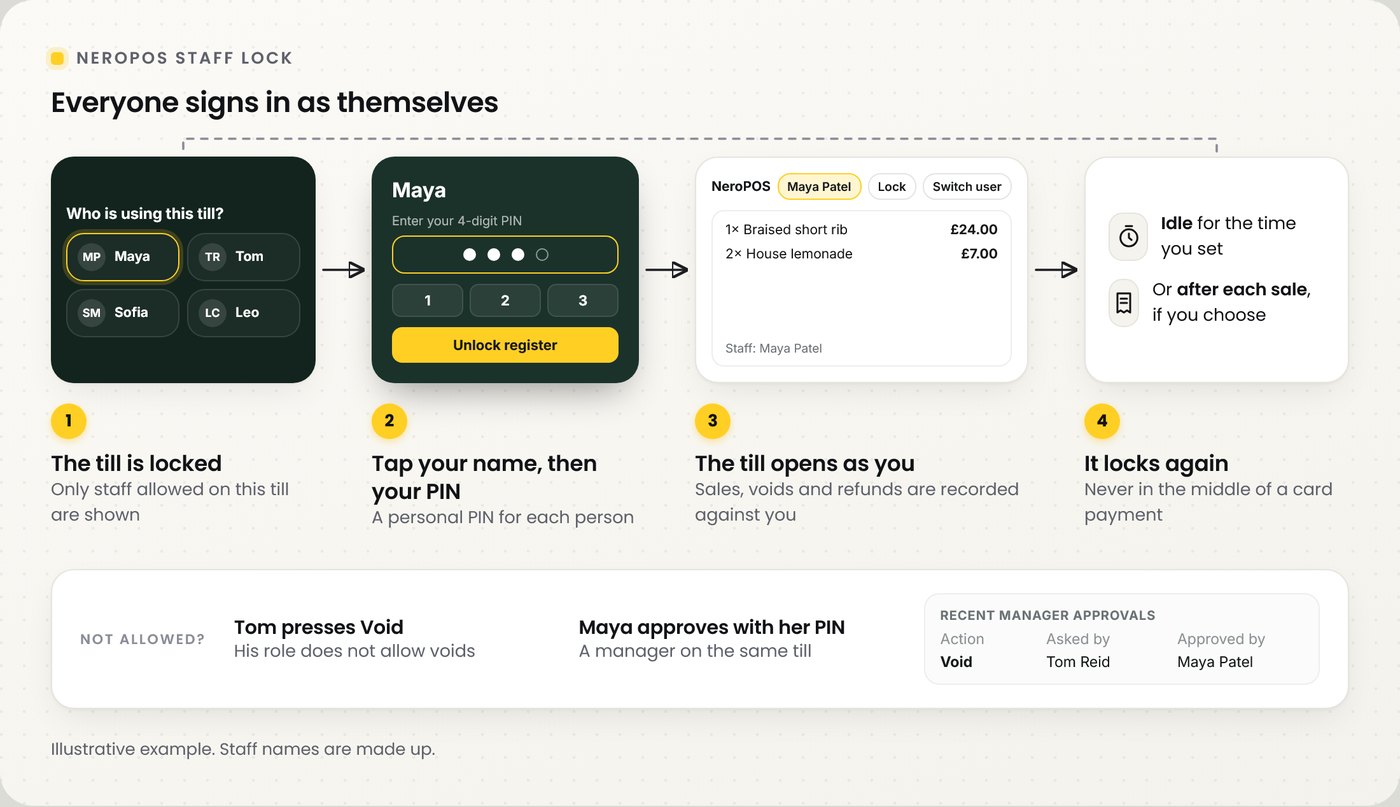
Staff lock puts a sign-in screen on the till. Each person taps their name and enters their own 4-digit PIN, and NeroPOS opens under their name. It uses the staff you already have in POS Staffs, with the same roles, tills and permissions, so there is no second staff list.
📸 From a locked till to a sale recorded against the right person.
Give each person a PIN
| Step | What to do |
|---|---|
| 1 | Go to NeroPOS → POS Staffs |
| 2 | Select Edit on a staff member, or Add staff |
| 3 | Enter a 4-digit Register PIN, or select Generate |
| 4 | Check their Role, Staff permissions and Allowed registers (tills) |
| 5 | Select Save changes and give the PIN to that person |
💡 Note: PINs are saved securely and cannot be viewed later. If someone forgets theirs, set a new one. To take a PIN away, tick Remove existing PIN.
Usernames and passwords keep working. For someone who only ever uses the till, you can leave username and password blank and give them a PIN only.
Switch staff lock on
📸 Staff lock settings in POS Settings.
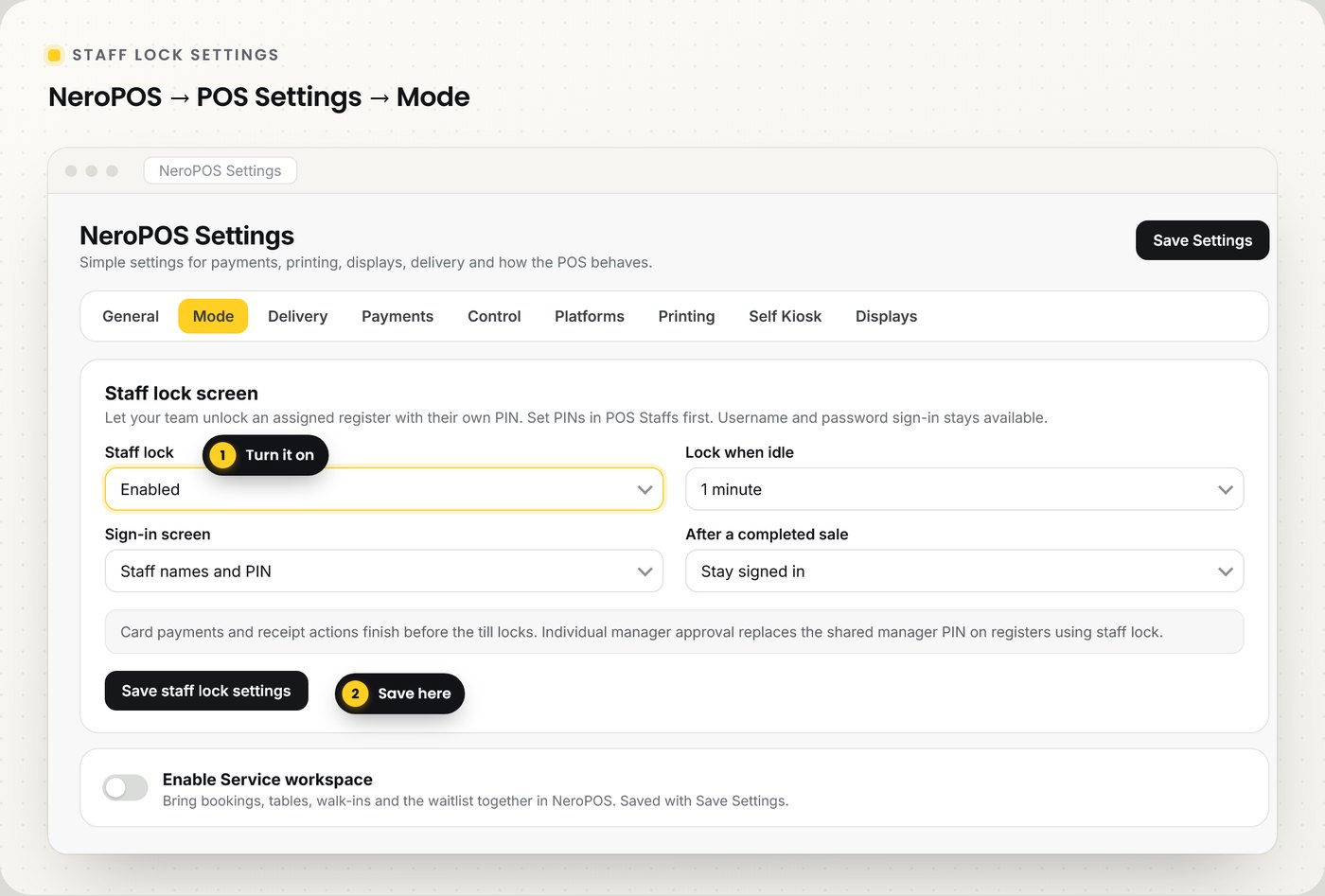
Go to NeroPOS → POS Settings → Mode, set each option, then select Save staff lock settings.
| Setting | What it does |
|---|---|
| Staff lock | Disabled or Enabled. Off by default |
| Lock when idle | Locks the till after no one touches it: never, 15 or 30 seconds, or 1, 2, 3 or 5 minutes |
| Sign-in screen | Staff names and PIN shows a tile for each person; PIN only shows the keypad without names |
| After a completed sale | Stay signed in, or Lock after receipt actions finish for bars and busy counters |
💡 Note: a card payment and its receipt actions always finish before the till locks.
Sign in and lock
📸 The lock screen shows who can use this till.
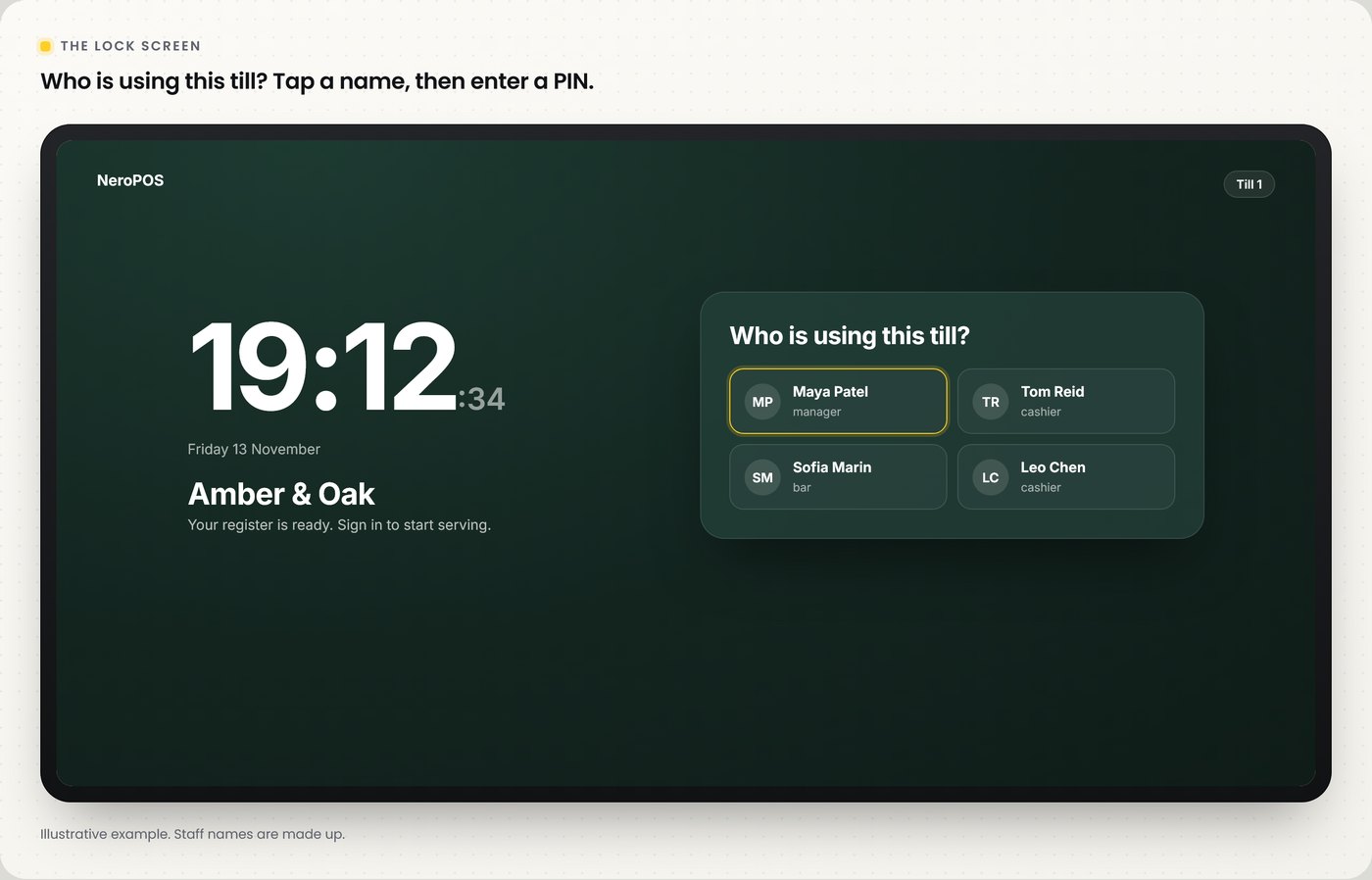
| Step | What happens |
|---|---|
| 1 | The lock screen shows the time, the register name and Who is using this till? |
| 2 | Staff tap their name. Only people allowed on this till are shown |
| 3 | They enter their 4-digit PIN and select Unlock register |
| 4 | NeroPOS opens with their name in the top bar. Orders, voids, discounts and refunds are recorded against them |
| 5 | To hand over, select Lock or Switch user in the top bar |
Manager approval
When someone tries an action their permissions do not allow, such as a void, a refund or changing settings, NeroPOS asks for Manager approval. A manager assigned to the same till, with that permission, approves with their own PIN.
⚠️ On tills using staff lock, individual manager approval replaces the shared manager PIN. Make sure at least one manager with the right permissions is assigned to each till.
See who approved what
Go to NeroPOS → POS Staffs and scroll to Recent manager approvals. It lists the latest 50 approvals.
| Column | Shows |
|---|---|
| Date | When it was approved |
| Action | What was approved, for example a void or a refund |
| Asked by | The person signed in on the till |
| Approved by | The manager who entered their PIN |
| Order | The order it relates to |
| Approval | The approval record |
💡 Note: an approval is not proof that a payment or refund went through. Check the order activity for the result.
Frequently asked questions
Do I need a new staff list for staff lock?
No. Staff lock uses the people in POS Staffs, with their existing roles, tills and permissions. You only add a PIN.
Can staff still sign in with a username and password?
Yes. Username and password sign-in stays available alongside PINs.
Someone forgot their PIN. Can I look it up?
No. PINs cannot be viewed after saving. Edit the staff member and set a new PIN.
Why does a name not appear on the lock screen?
Check the person is active and that this till is ticked under Allowed registers (tills) in POS Staffs.
Will the till lock during a card payment?
No. The payment and its receipt actions finish first.
Still need help? Contact us at support@neropay.app or create a ticket.