
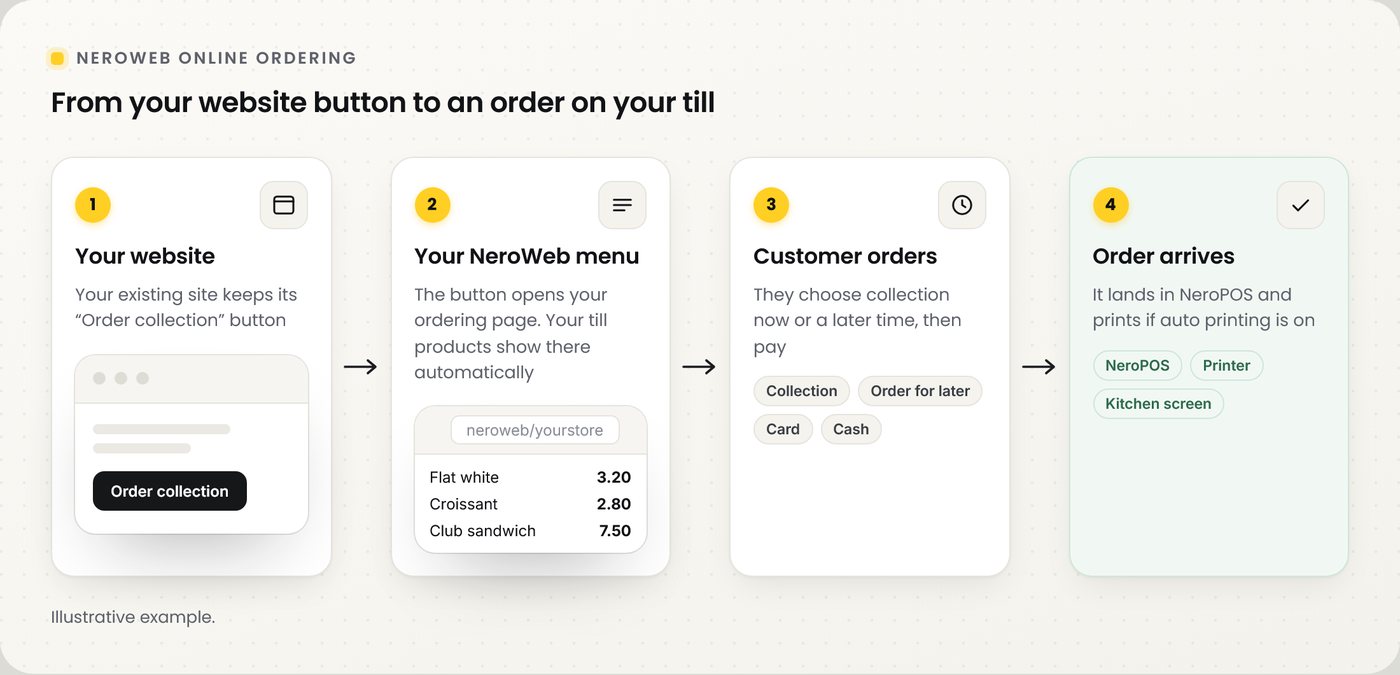
Your NeroWeb online ordering page is ready as soon as your NeroWeb store is active, and the products on your till show there automatically. This guide shows how to send customers to it from the website you already have, and where to change collection, hours, prices and branding.
📸 How an online order reaches you.
Before you start
| You need | Why |
|---|---|
| An active NeroPay account | Online orders are paid into your NeroPay account |
| Products in NeroPOS | Your online menu uses the same products as your till |
| Access to your website (optional) | Only if you want an ordering button on your own site |
Step 1 — Check your store is on
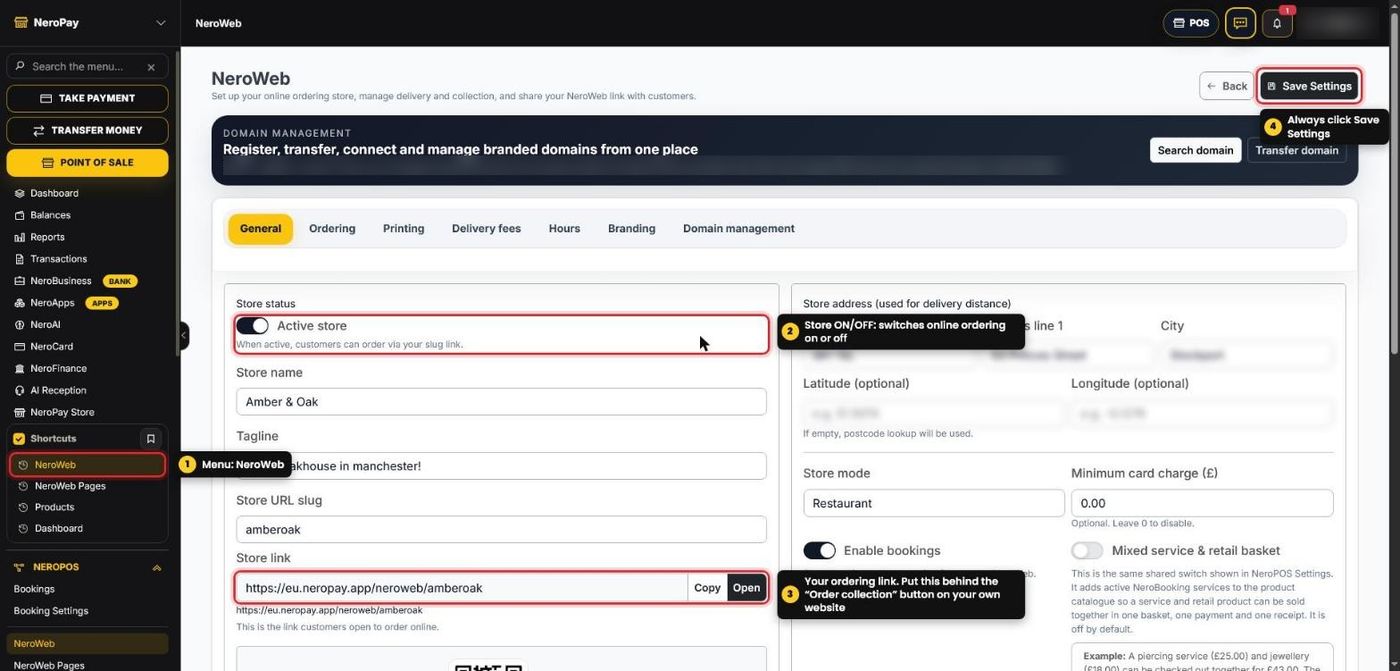
Go to NeroPOS → NeroWeb and open the General tab. Make sure Active store is on. Your ordering link and a QR code for your counter, flyers and menus are on the same tab.
📸 General tab: store on or off, and your ordering link. Illustrative example from a demo store.
⚠️ Always click Save Settings before you leave a tab. Unsaved changes are lost.
Step 2 — Add the ordering button to your website
You do not need a new website. Copy your ordering link from the General tab and use it as the link on an Order collection or Order online button on your existing site. Customers then order and pay on your NeroWeb page.
💡 Note: For your own domain, a subdomain such as order.yourbrand.com, Google Business Profile and social media, see link NeroWeb to your existing website.
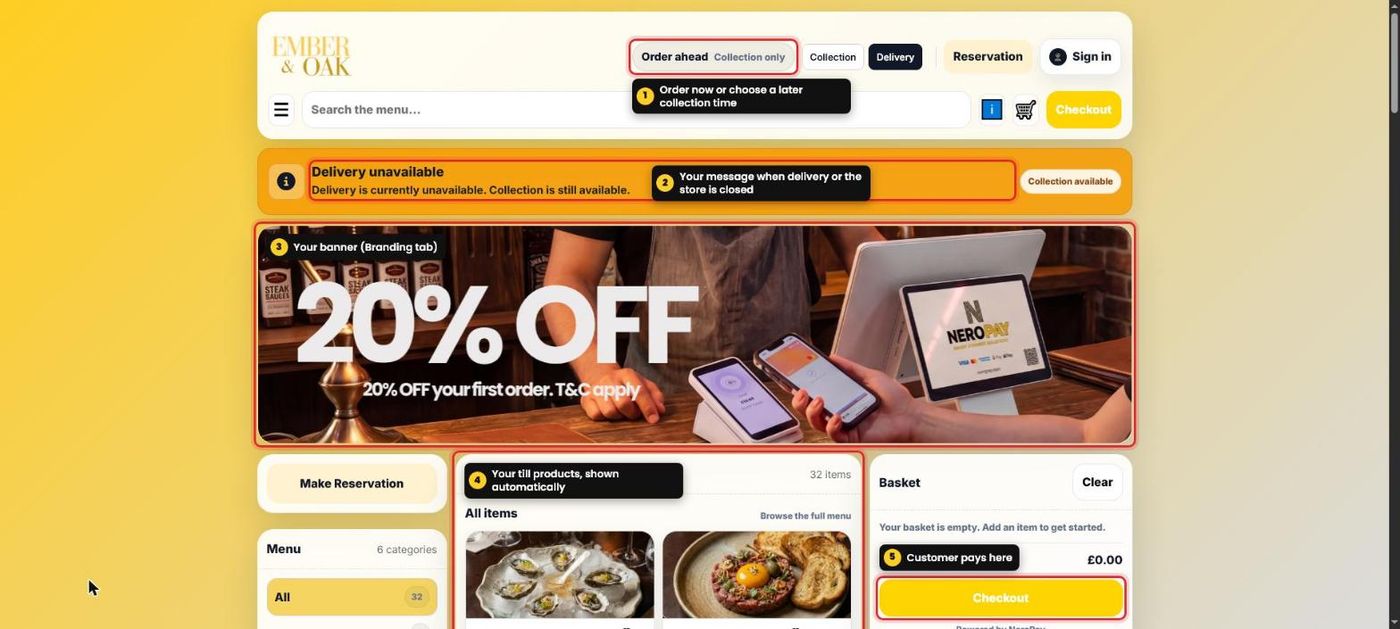
What your customers see
📸 Your NeroWeb ordering page, as customers see it. Illustrative example from a demo store.
Step 3 — Collection, payment and ordering ahead
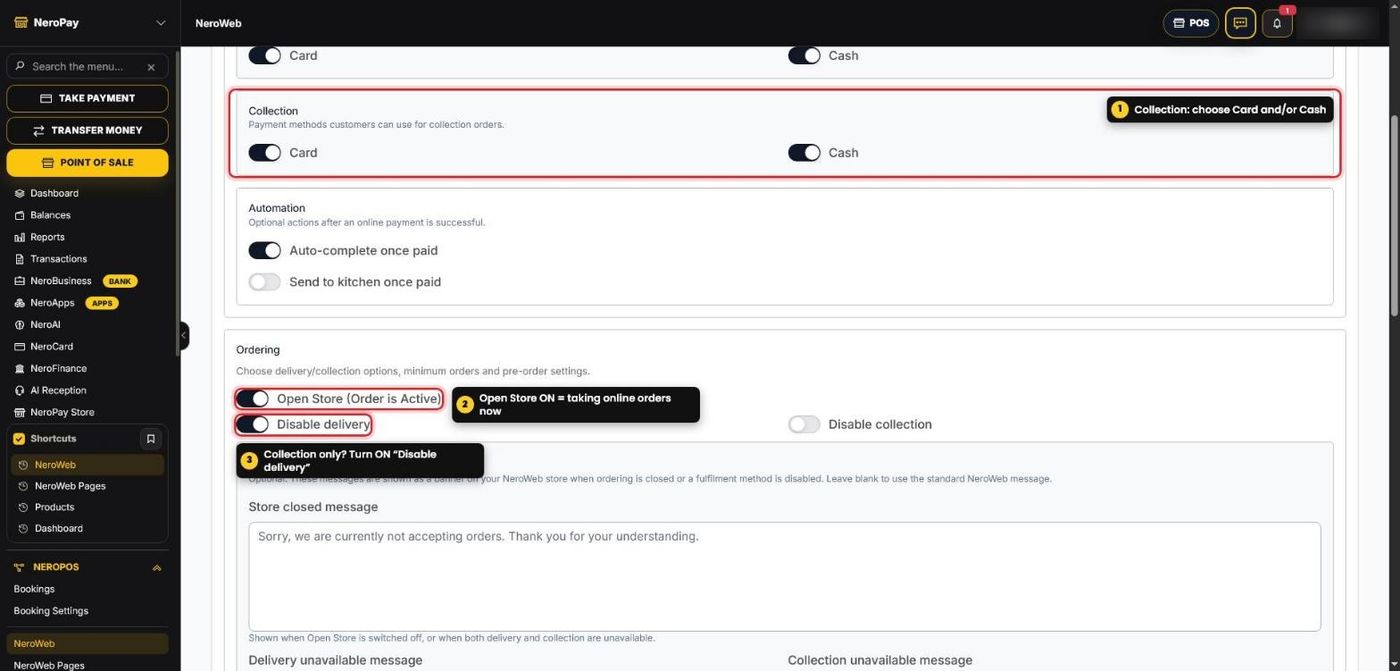
Open the Ordering tab to choose how customers order.
📸 Ordering tab: payment methods and store open. Illustrative example from a demo store.
| Setting | What it does |
|---|---|
| Collection — Card / Cash | Payment methods customers can use for collection orders |
| Open Store (Order is Active) | Turn off to pause online orders, for example on a busy night |
| Disable delivery | Turn on if you only offer collection |
| Minimum order for collection | The smallest basket you accept for collection |
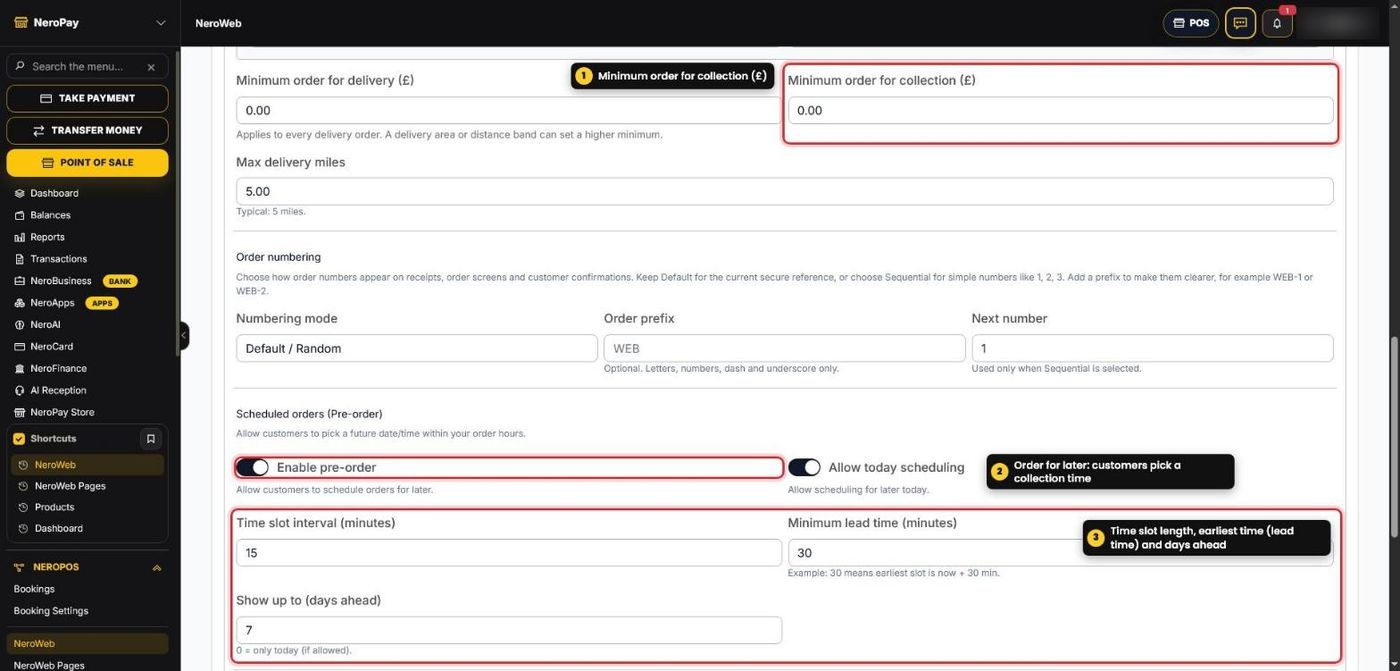
📸 Ordering tab: minimum order and scheduled orders. Illustrative example from a demo store.
| Setting | What it does |
|---|---|
| Enable pre-order | Customers can choose a later collection time |
| Allow today scheduling | Lets customers book a later time on the same day |
| Time slot interval | The gap between collection times, for example 15 minutes |
| Minimum lead time | How soon the earliest slot is, for example now + 30 minutes |
| Show up to (days ahead) | How far ahead customers can order. 0 means today only |
Step 4 — Set your hours
In the Hours tab, set your opening hours and the times customers can place collection orders. Use + Add slot if you close between services, for example 12:00–14:30 and 17:00–22:00.
📸 Hours tab: working hours and collection order hours. Illustrative example from a demo store.
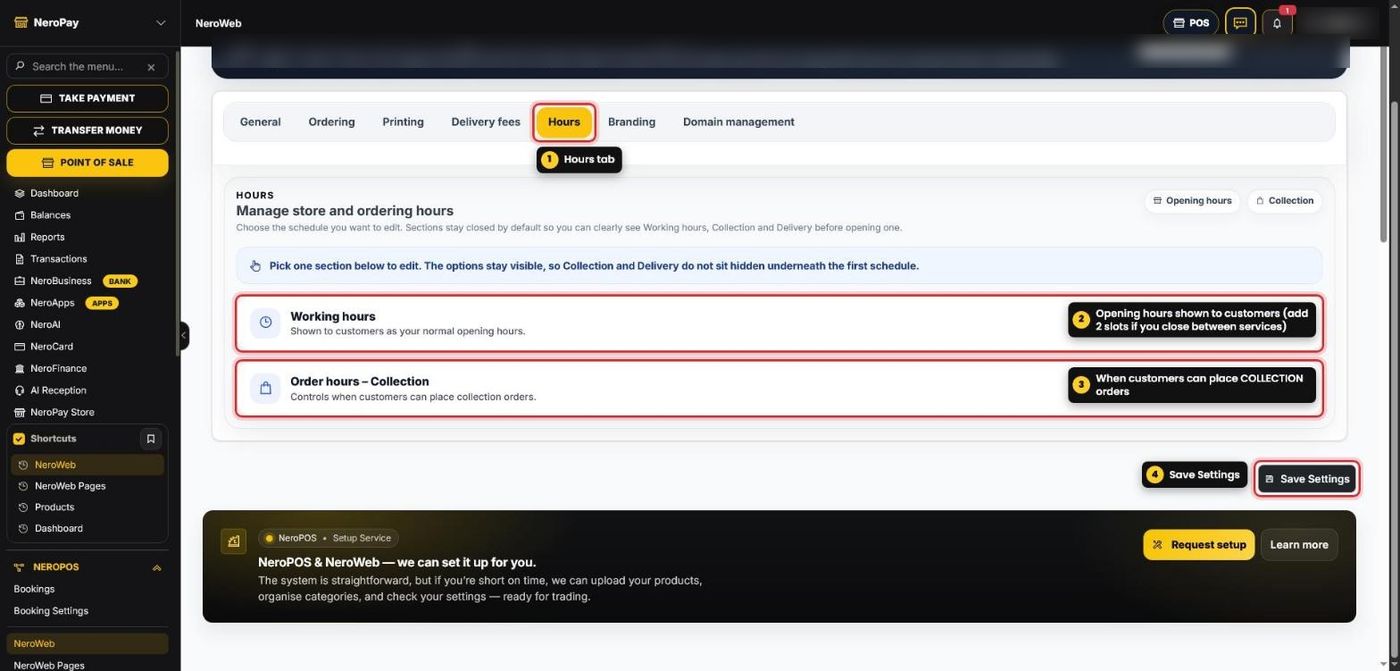
💡 Tip: Set your collection order hours to end a little before you close, so the last orders are ready in time.
Step 5 — Add your logo and banner
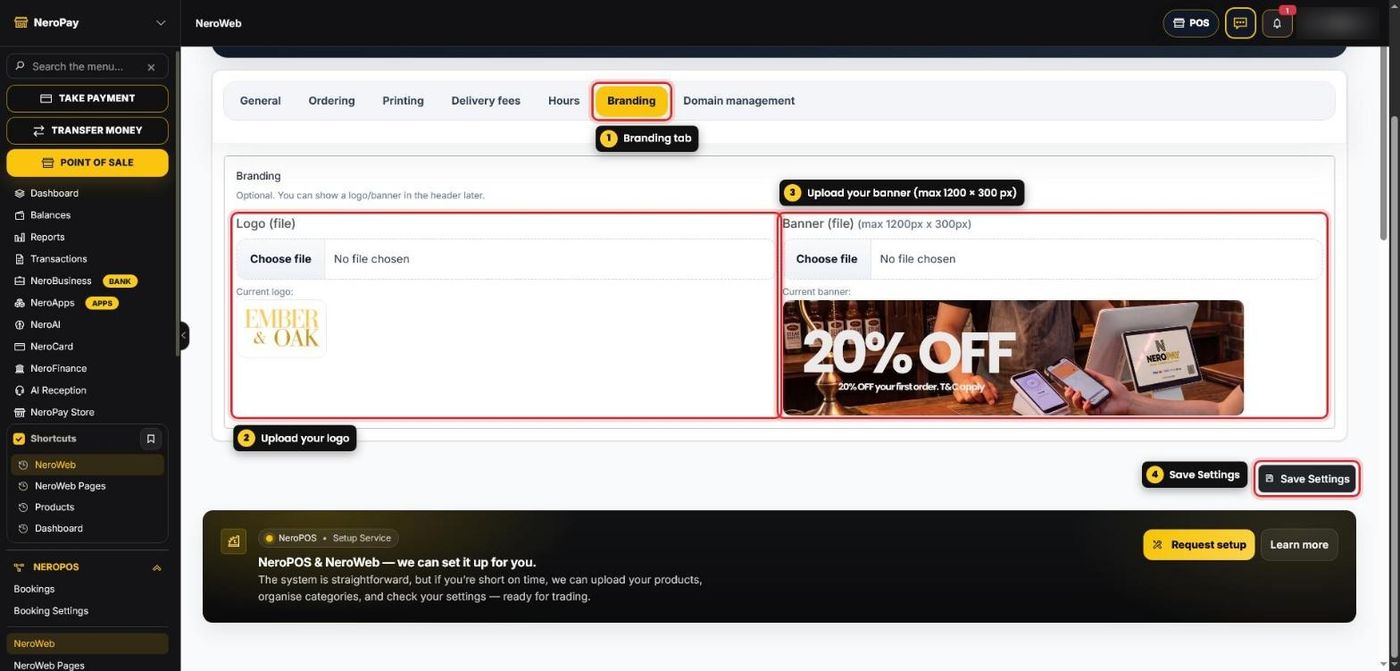
In the Branding tab, upload your logo and a banner image for the top of your ordering page. The banner can be up to 1200 × 300 px.
📸 Branding tab: logo and banner. Illustrative example from a demo store.
Online prices and hiding products
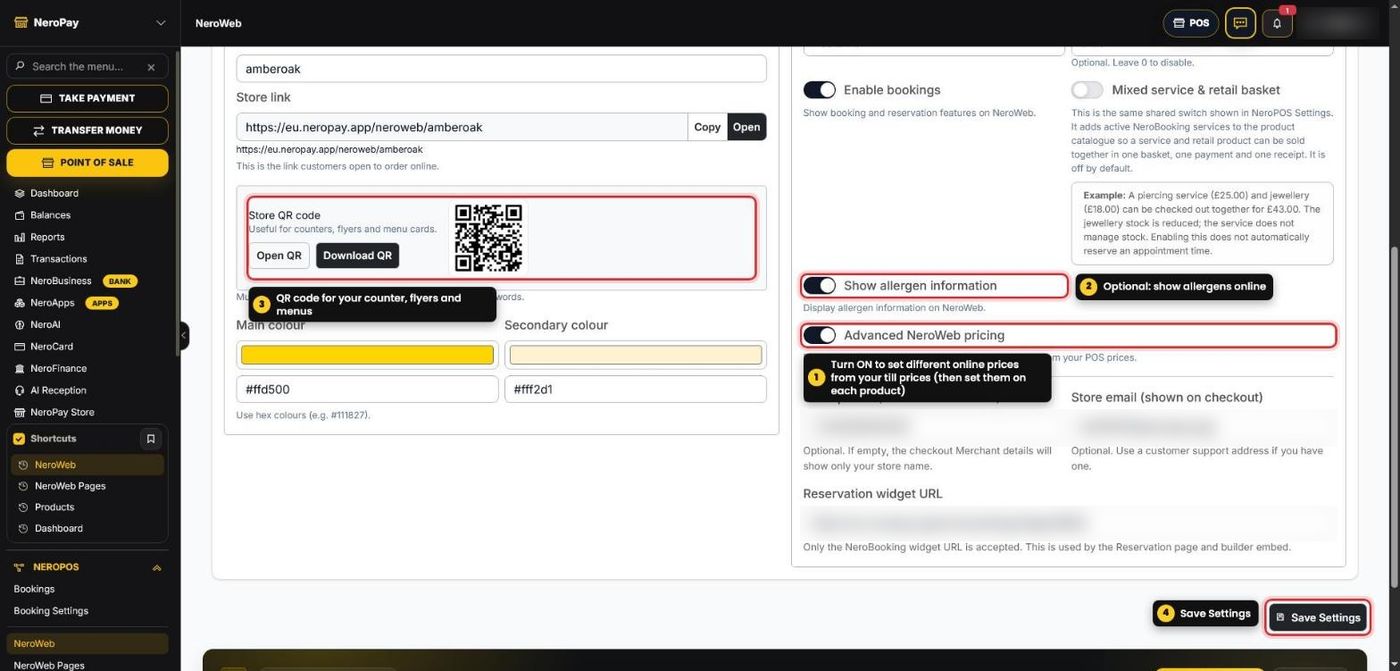
By default your online menu uses your till prices. To charge different prices online, turn on Advanced NeroWeb pricing in the General tab, then set the online price on each product.
📸 General tab: Advanced NeroWeb pricing and your store QR code. Illustrative example from a demo store.
📸 Products: the till price and the online price side by side. Illustrative example from a demo store.
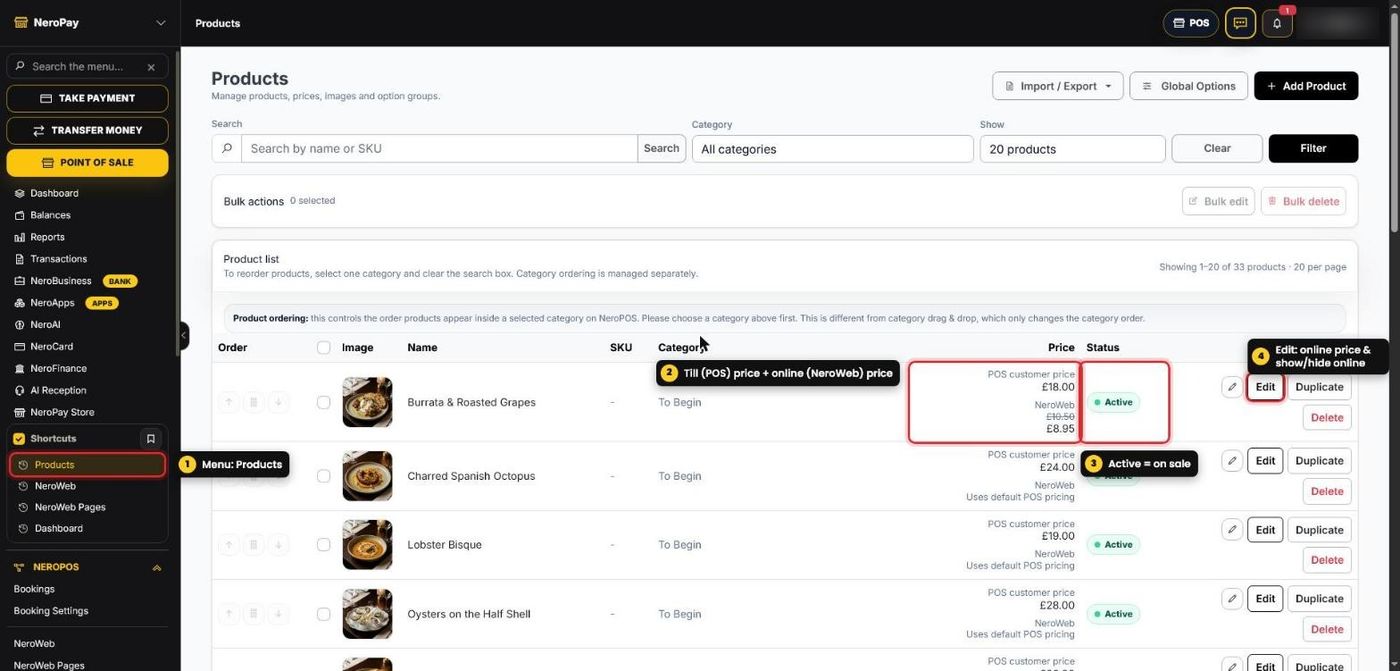
Go to NeroPOS → Products, click Edit on a product and scroll to Channels & Pricing.
📸 Edit product: online visibility and online prices. Illustrative example from a demo store.
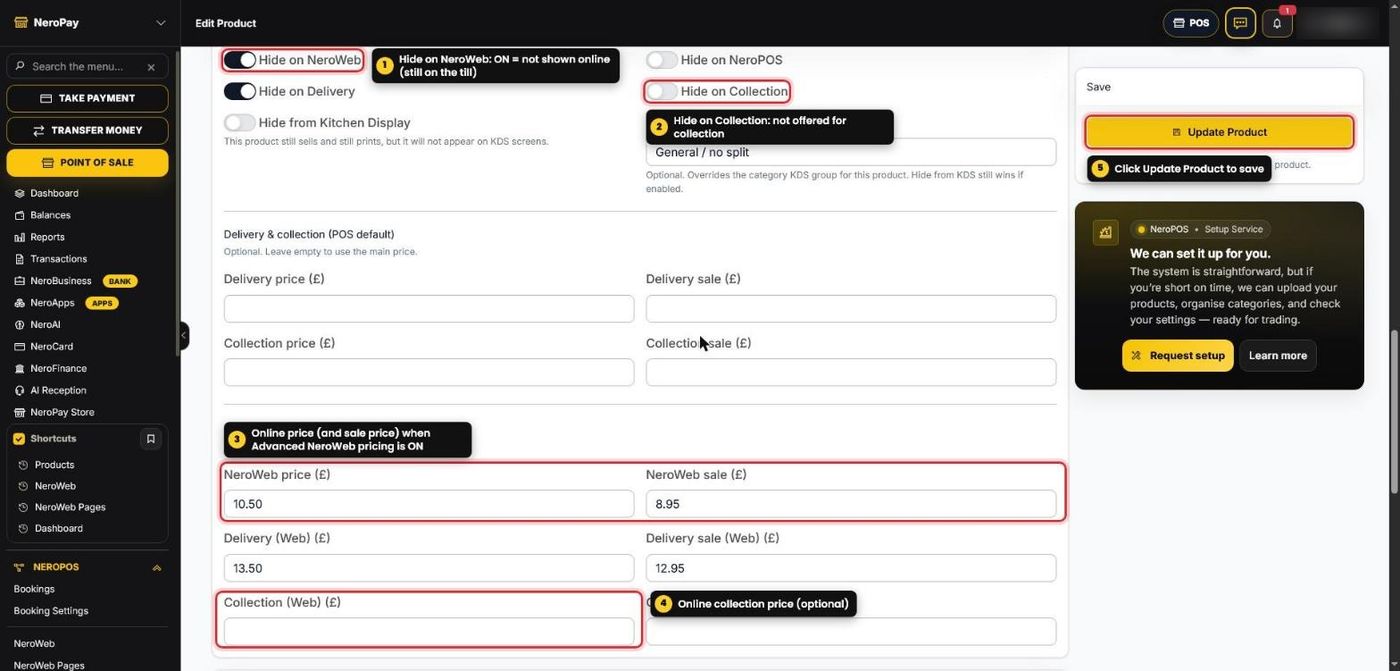
| Setting | What it does |
|---|---|
| Hide on NeroWeb | Removes the product from your online menu. It stays on your till |
| Hide on Collection | The product is not offered for collection orders |
| NeroWeb price / sale | The online price and an optional online sale price |
| Collection (Web) | An online price for collection only. Leave empty to use the NeroWeb price |
⚠️ Save each product with the yellow button at the top right of the edit page.
Edit your NeroWeb website
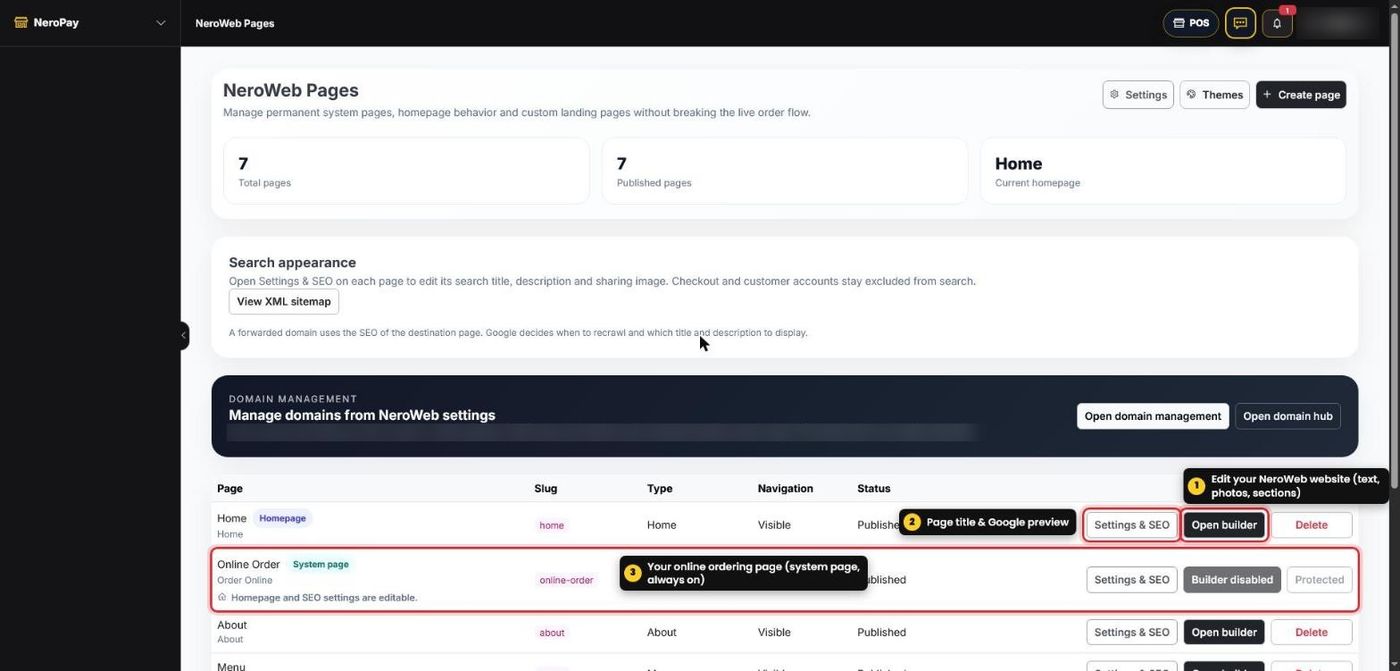
Your NeroWeb store also has simple website pages. Go to NeroPOS → NeroWeb Pages and click Open builder to edit text, photos and sections. The Online Order page is a system page, so it is always available and cannot be deleted.
📸 NeroWeb Pages: open the builder to edit your site. Illustrative example from a demo store.
Want us to set it up for you?
Our team can set up your banner, online menu, prices and hours for you. Send your logo, a banner photo and any price changes to support@neropay.app, or use Request setup on the NeroWeb settings page.
Related guides
- NeroWeb overview — what NeroWeb is and the page builder
- Link NeroWeb to your existing website — buttons, domains, QR codes and Google
- NeroWeb setup — every setting explained
- Managing NeroWeb orders — accepting and completing online orders
Frequently asked questions
Do I need to add my products again for online ordering?
No. NeroWeb uses the products from your till. Hide any you do not want online with Hide on NeroWeb.
Can I keep my current website?
Yes. Link your existing Order collection button to your NeroWeb ordering link and customers order through NeroPay.
How do I stop online orders for a while?
Turn off Open Store in the Ordering tab and click Save Settings. Customers see your store closed message until you turn it back on.
Can customers order for a later time?
Yes. Turn on Enable pre-order in the Ordering tab and choose your time slots and how many days ahead customers can order.
Where do online orders appear?
In NeroPOS with your other orders. With auto printing on, they also print on your receipt printer. See managing NeroWeb orders.
Still need help? Contact us at support@neropay.app or create a ticket.