
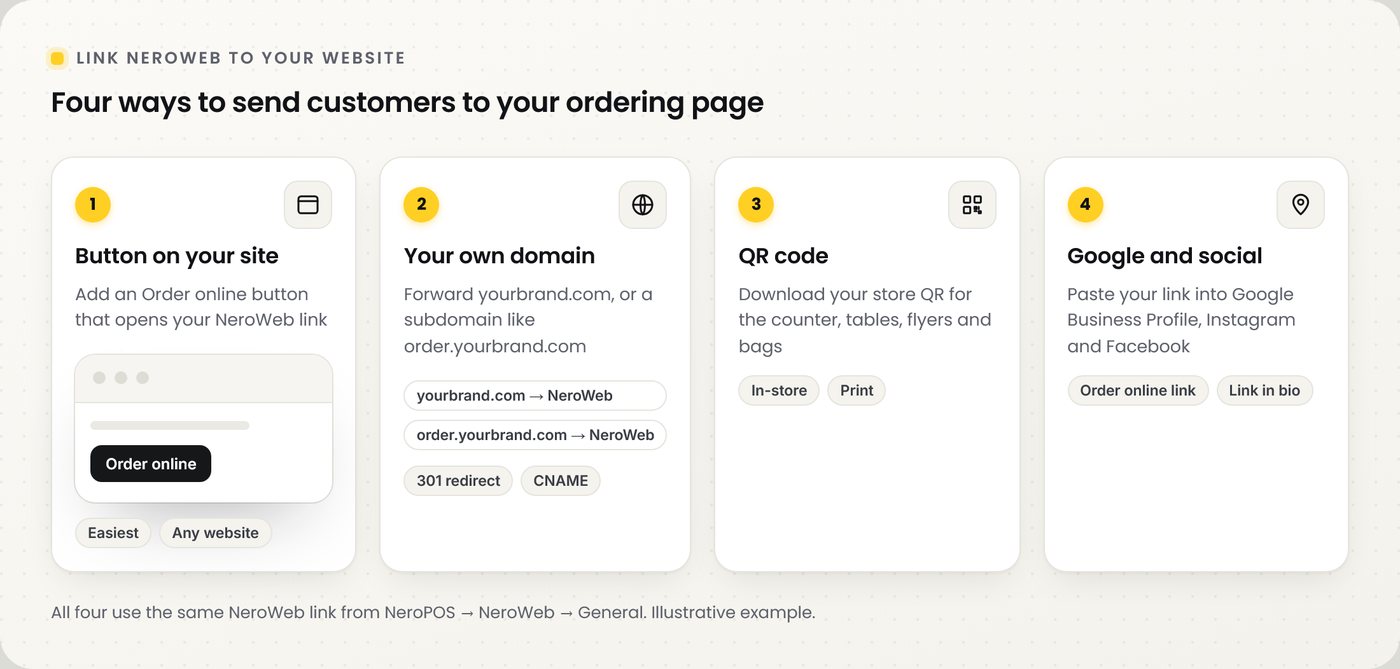
Already have a website? You can keep it and send customers to your NeroWeb store to order and pay. This guide shows four ways to do it: a button on your site, your own domain, a QR code, and Google and social media.
📸 Four ways to link customers to your NeroWeb ordering page.
Find your NeroWeb link
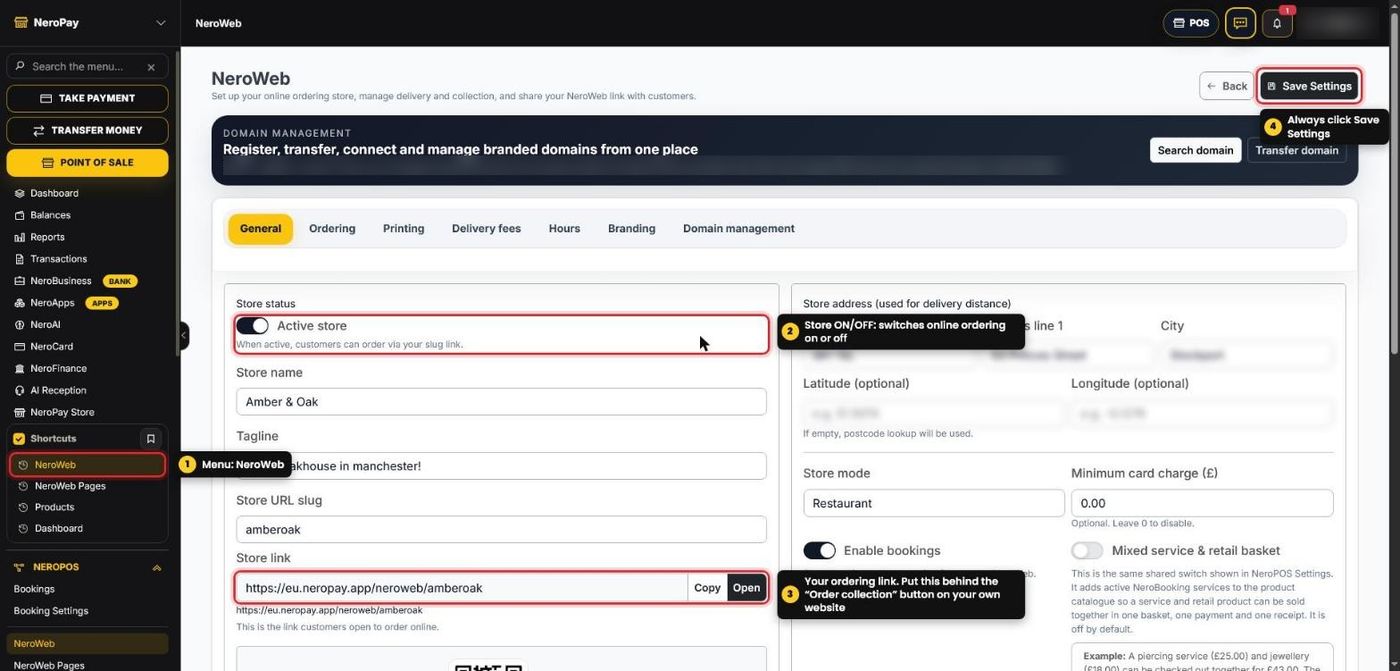
Go to NeroPOS → NeroWeb and open the General tab. Click Copy next to your store link. Every option below uses this link.
📸 Your store link, with Copy and Open. Illustrative example from a demo store.
- Your store link opens your NeroWeb home page: eu.neropay.app/neroweb/yourstore
- Your ordering link opens your menu, ready to order: eu.neropay.app/neroweb/yourstore/online-order
💡 Note: Replace yourstore with your own Store URL slug. Use the online-order link on buttons so customers land straight on your menu.
Option 1 — Add a button to your website
This is the quickest option and works with any website. Add a button or menu link called, for example, Order online or Order collection, and paste your NeroWeb link as its web address.
| Website builder | Where to add the button |
|---|---|
| WordPress | Edit the page, add a Button block and paste your link |
| Wix | Add a Button, then set its link to a web address |
| Squarespace | Add a Button block and paste your link |
| Shopify | Add a button or menu item in your theme and paste your link |
| Anything else | Ask your web designer to add a button that links to your NeroWeb link |
💡 Tip: Put the button where customers look first: the top of your home page, your menu page and your site header.
Option 2 — Use your own domain
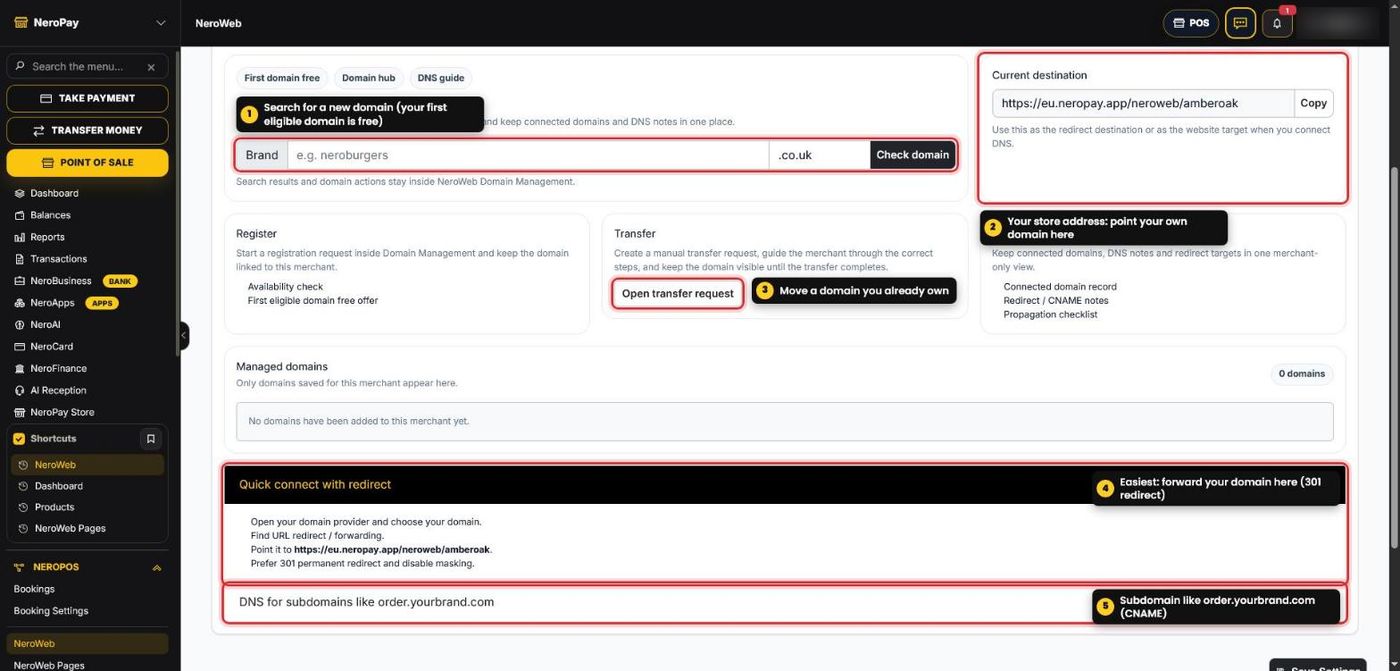
Send people who type your web address straight to your NeroWeb store. Go to NeroPOS → NeroWeb → Domain management.
📸 Domain management: search, transfer, redirect and subdomain. Illustrative example from a demo store.
| What happens | Best for | |
|---|---|---|
| Forward your domain (301 redirect) | yourbrand.com opens your NeroWeb store | You have no other website, or want NeroWeb as your main site |
| Subdomain (CNAME) | order.yourbrand.com opens your store, yourbrand.com stays as it is | You keep your current website and add ordering |
| Register a new domain | A new domain set up for your store. Your first eligible domain is free | You do not have a domain yet |
| Transfer your domain | Move a domain you own to NeroPay | You want everything in one place |
Forward your domain
| Step | What to do |
|---|---|
| 1 | Copy your Current destination from the Domain management tab |
| 2 | Sign in to the company you bought your domain from |
| 3 | Find URL redirect or URL forwarding for your domain |
| 4 | Paste your Current destination, choose a 301 permanent redirect and turn masking off |
Use a subdomain
| Step | What to do |
|---|---|
| 1 | Choose a subdomain, for example order.yourbrand.com |
| 2 | In your domain provider, add a CNAME record for that subdomain |
| 3 | Point it to the address our support team gives you. Contact support@neropay.app |
| 4 | Wait for the change to take effect. This can take up to 48 hours |
Option 3 — Use your QR code
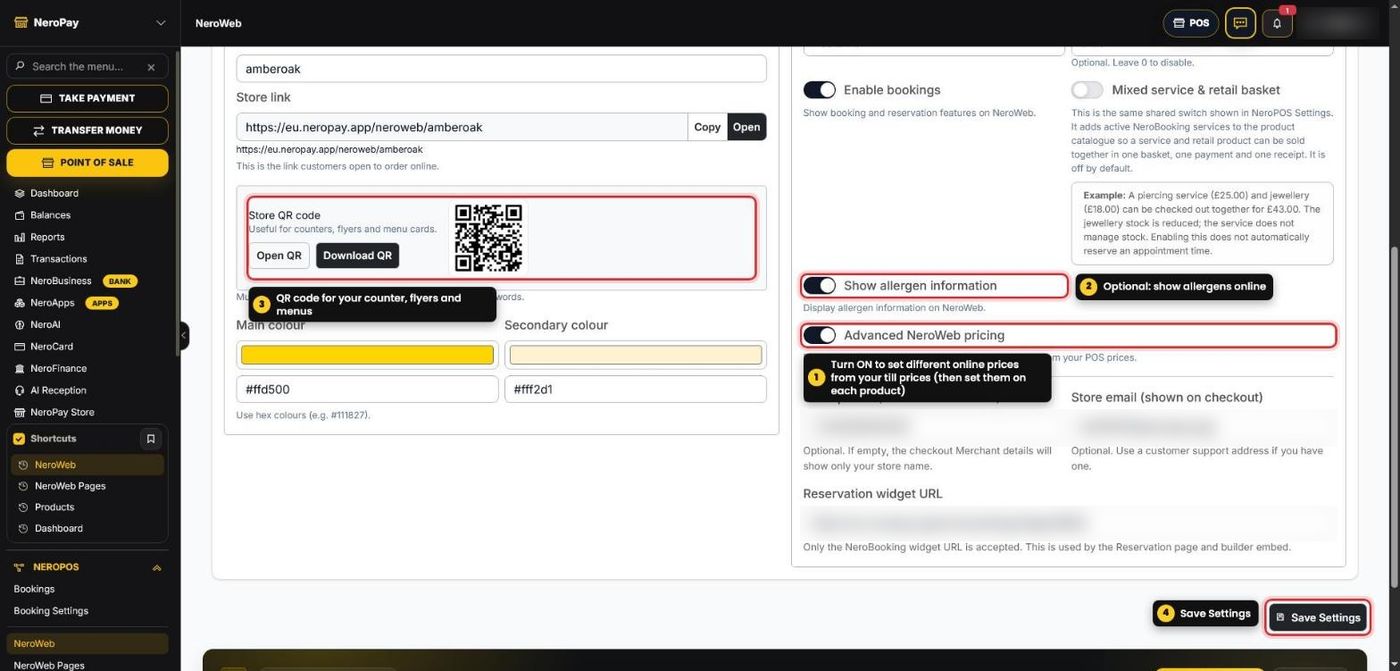
In the General tab, click Download QR. Print it on table cards, your counter, flyers, takeaway bags and menus. Customers scan it and land on your store.
📸 Download your store QR code from the General tab. Illustrative example from a demo store.
Option 4 — Google and social media
| Where | What to do |
|---|---|
| Google Business Profile | Edit your profile and add your NeroWeb link as your order link or website |
| Add your NeroWeb link to your bio, or as a link on your stories | |
| Add your NeroWeb link to your page as your website, or to an Order button | |
| WhatsApp Business | Add your link to your business profile and your quick replies |
What your customers see
📸 Your NeroWeb ordering page, as customers see it. Illustrative example from a demo store.
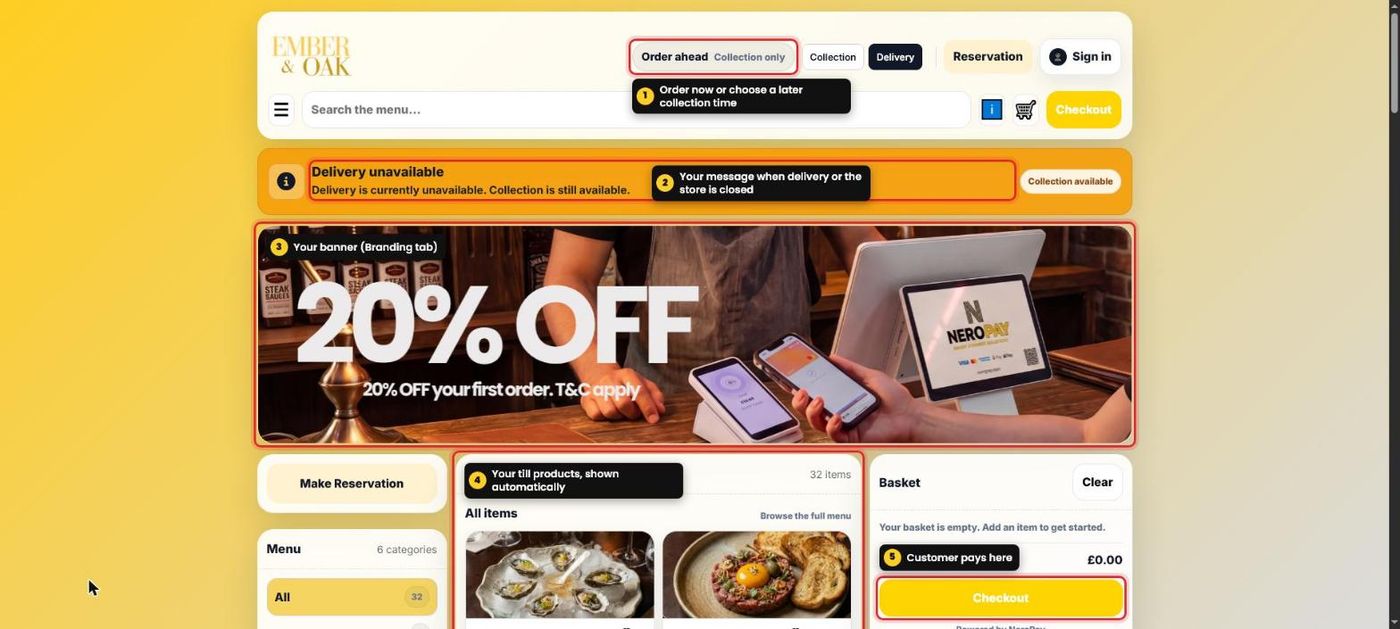
Customers browse your menu, choose collection or delivery, order now or for later, and pay. The order arrives in NeroPOS straight away. See managing NeroWeb orders.
Want us to do it for you?
Our team can connect your domain and set up your NeroWeb store. Email support@neropay.app with your domain name and your website details.
Related guides
- NeroWeb overview — what NeroWeb is and the page builder
- Add online ordering to your website — quick start
- Link NeroWeb to your existing website — buttons, domains, QR codes and Google
- NeroWeb setup — every setting explained
- Managing NeroWeb orders — accepting and completing online orders
Frequently asked questions
Do I need to replace my website?
No. Keep your website and add a button or subdomain that sends customers to your NeroWeb store.
Which link should my button use?
Use your online-order link, ending in /online-order, so customers land straight on your menu.
How long does a domain change take?
A redirect usually works within minutes. DNS changes such as a subdomain can take up to 48 hours.
Is a domain free?
Your first eligible domain registered through NeroWeb Domain management is free.
Can I use NeroWeb as my whole website?
Yes. Build your pages in NeroWeb Pages and forward your domain to your store. See NeroWeb overview.
Still need help? Contact us at support@neropay.app or create a ticket.