📹 Video tutorial
customer perspective walkthrough
What NeroWeb does for your business
- Free online store — get a live website instantly, no developer needed
- Online ordering — customers can order for delivery or collection directly from your store page
- Reservations — customers can book tables or appointments through your NeroBooking widget
- Fully customisable — build and design your pages using the NeroWeb page builder
- Your own domain — connect a branded domain so customers find you at your own web address
How to get there
From your dashboard, follow this path:
NeroPOS → NeroWeb
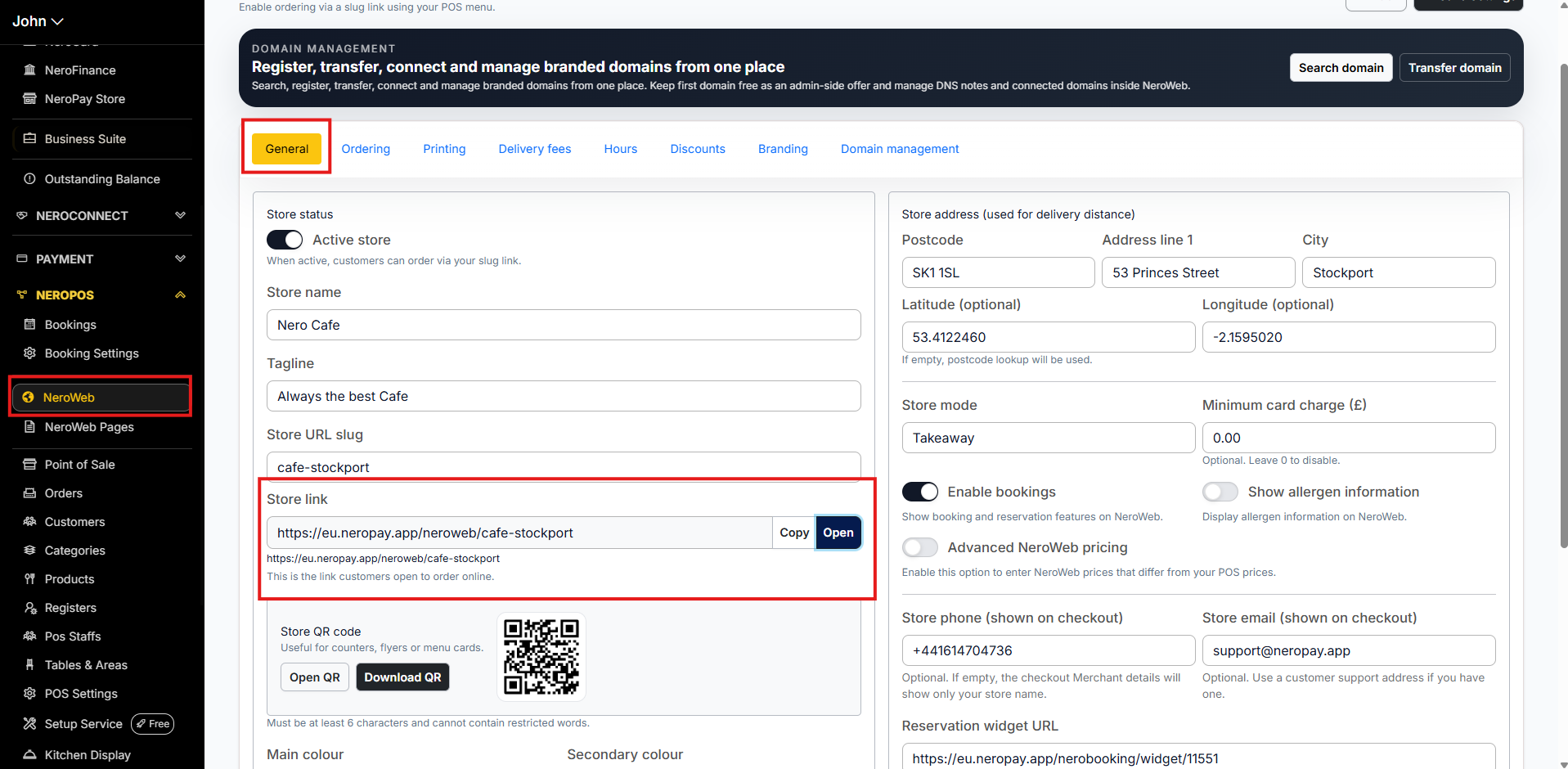
Your store link is on the General tab — this is the URL your customers use to access your store:
https://eu.neropay.app/neroweb/your-store-name
Click Copy or Open to share or preview your store.
💡 Tip: A QR code for your store is also available on the General tab — useful for counters, flyers, and menu cards.
📸
Building your store pages
From your dashboard, follow this path:
NeroPOS → NeroWeb Pages
NeroWeb Pages is where you manage and build your website. You will see all your pages listed here — including system pages such as Home, Online Order, Reservation, and Checkout.
Choosing a theme
Click Themes in the top right corner to choose a design that suits your business.
📸

Using the page builder
Click Open builder next to any page to open the editor. From here you can:
- Add and arrange sections using the elements panel on the left — Hero, Gallery, Text, CTA, Reservation, Online order, and more
- Edit content, styling, and settings from the Inspector panel on the right
- Drag sections in the Page structure panel to reorder them
- Click Preview to see how the page looks to customers before publishing
- Click Save changes when you are happy
⚠️ Note: System pages such as Online Order, Reservation, and Checkout have the builder disabled — only limited settings are editable on these pages. The Checkout page is fixed and cannot be edited.
📸

What customers see
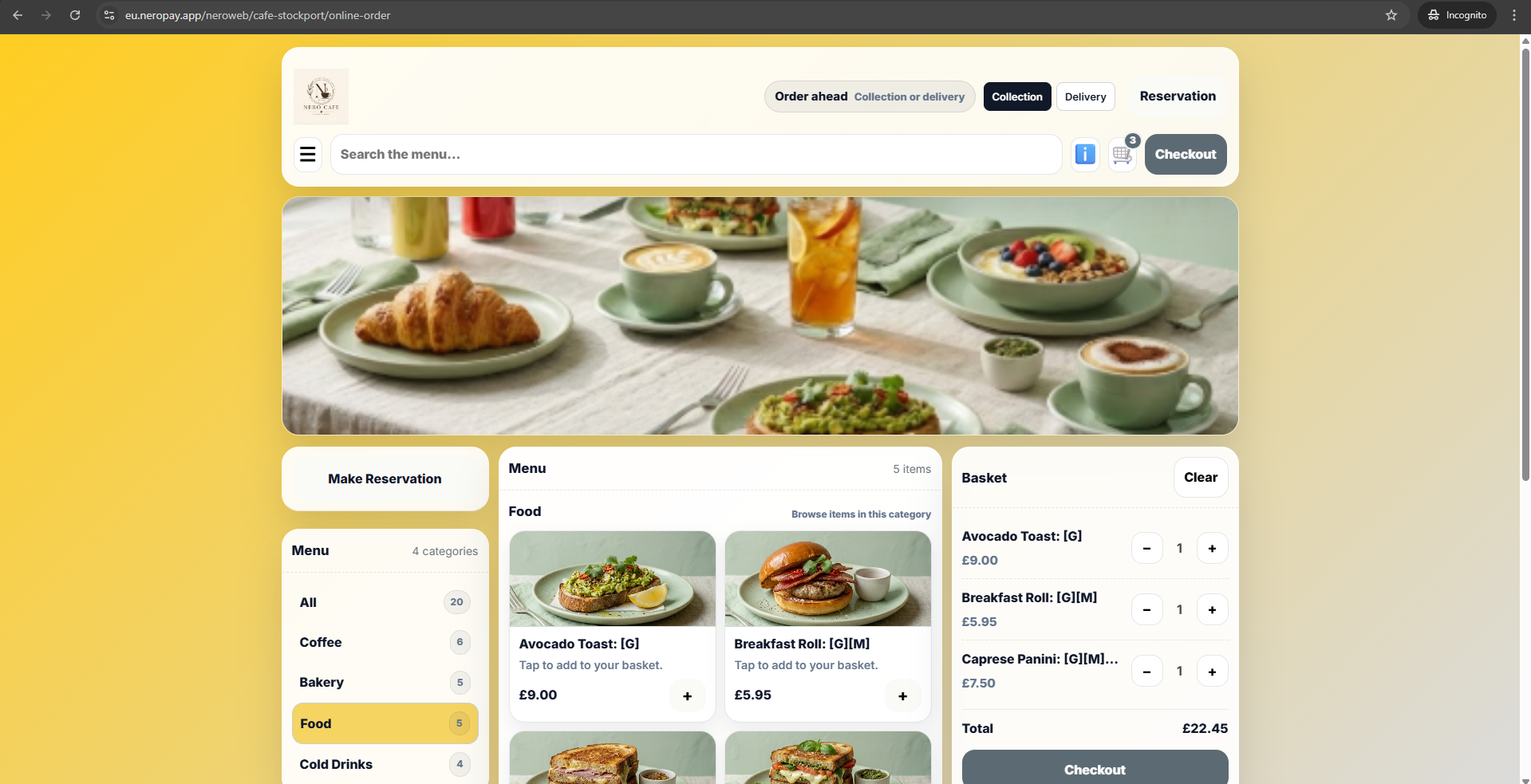
When a customer visits your NeroWeb store they can:
- Browse your menu and product catalogue
- Place an order for delivery or collection
- Make a reservation via your booking page
- See your opening hours, contact details, and location
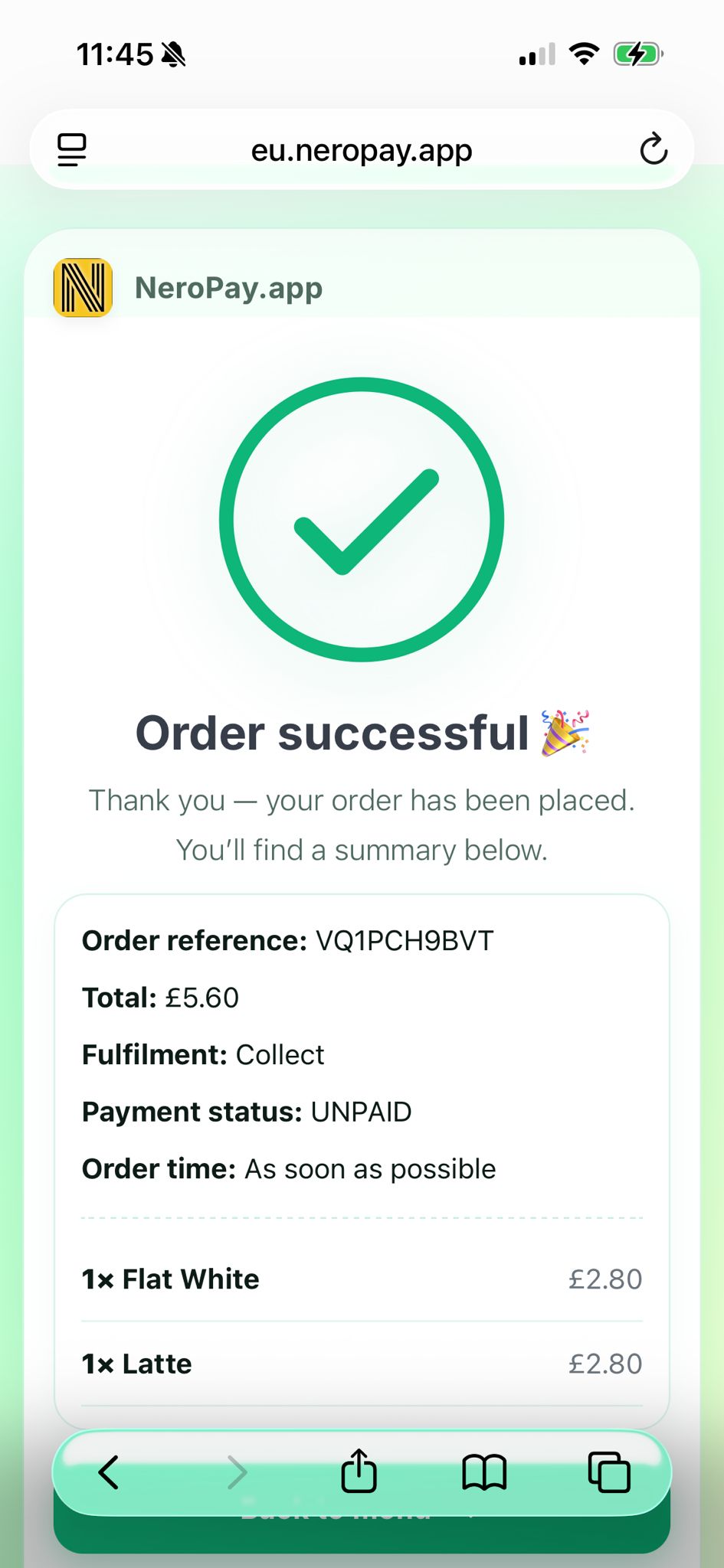
After placing an order, the customer sees a confirmation page with their order details and status.
📸
📸
Managing incoming orders
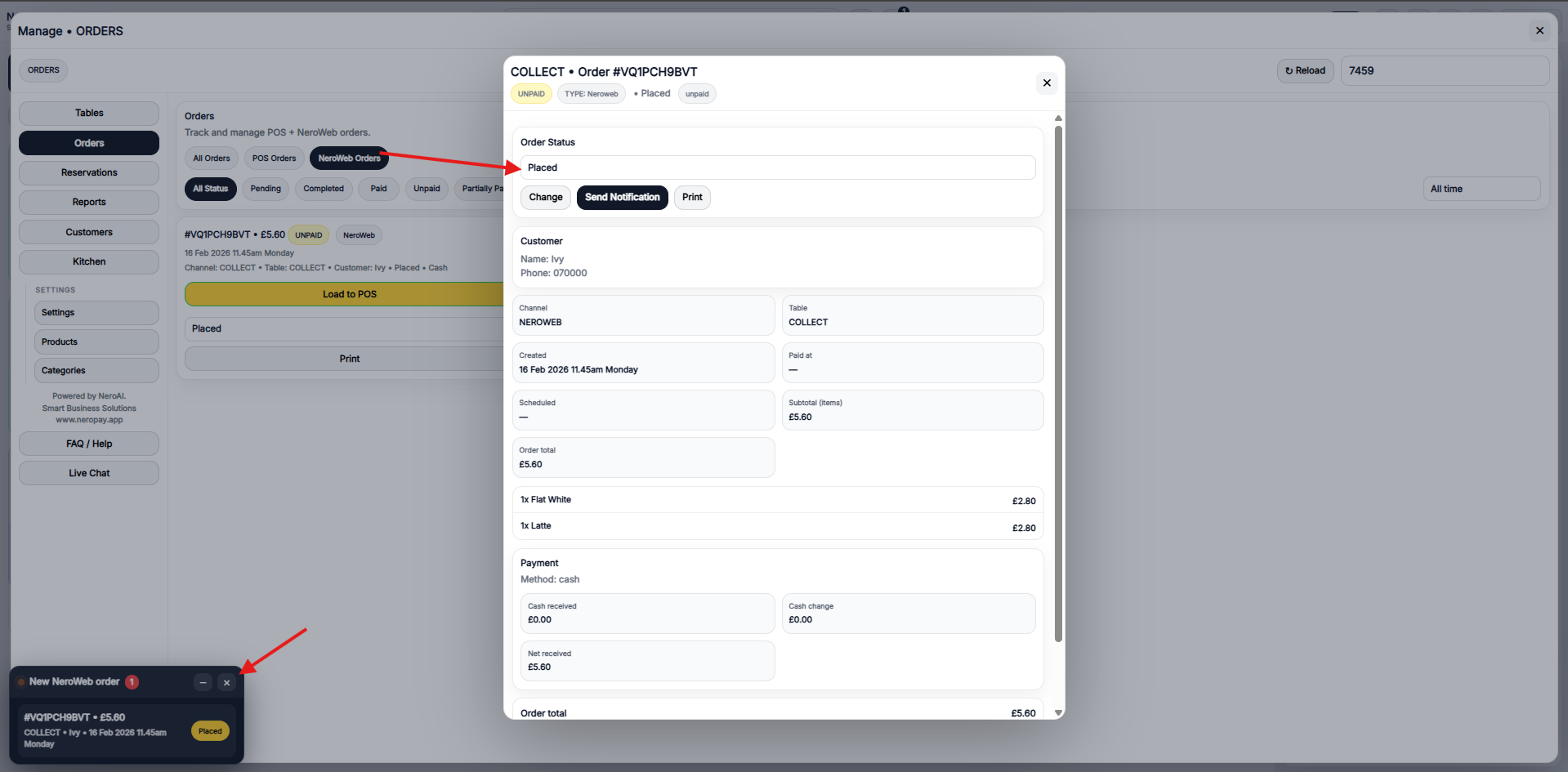
When a new online order comes in, you will see a notification on your EPOS screen. From there:
- Click the notification to open the order
- Review the order details
- Use the status dropdown to update the order status — for example, Accepted, In progress, Ready, or Completed
- The status updates are visible to you from the EPOS and dashboard
📸
What's covered in this section
| Article | What it covers |
|---|---|
| Getting started with NeroWeb → | All NeroWeb settings — general, hours, ordering, printing, delivery fees, discounts, branding, and domain management |
| Adding products to EPOS → | How to add and organise your menu and products |
| Setting up tables, areas and QR codes → | Table map and QR code ordering for dine-in |
Frequently asked questions
Q: Is NeroWeb really free? A: Yes. NeroWeb is included with your NeroPay account at no extra cost. You can also connect a custom domain — your first domain is free.
Q: Can I use NeroWeb without NeroPOS? A: NeroWeb works alongside NeroPOS — your products, categories, and settings are shared across both. We recommend setting up NeroPOS first before going live with NeroWeb.
Q: How do customers find my NeroWeb store? A: Share your store link or QR code — both are found in NeroPOS → NeroWeb → General. You can also connect a custom domain for a fully branded address.
Q: Can I edit the Checkout page? A: No. The Checkout page is a permanent system page and cannot be edited. It is fixed to ensure a consistent and secure checkout experience for customers.
Still need help? Contact us at support@neropay.app or create a ticket