
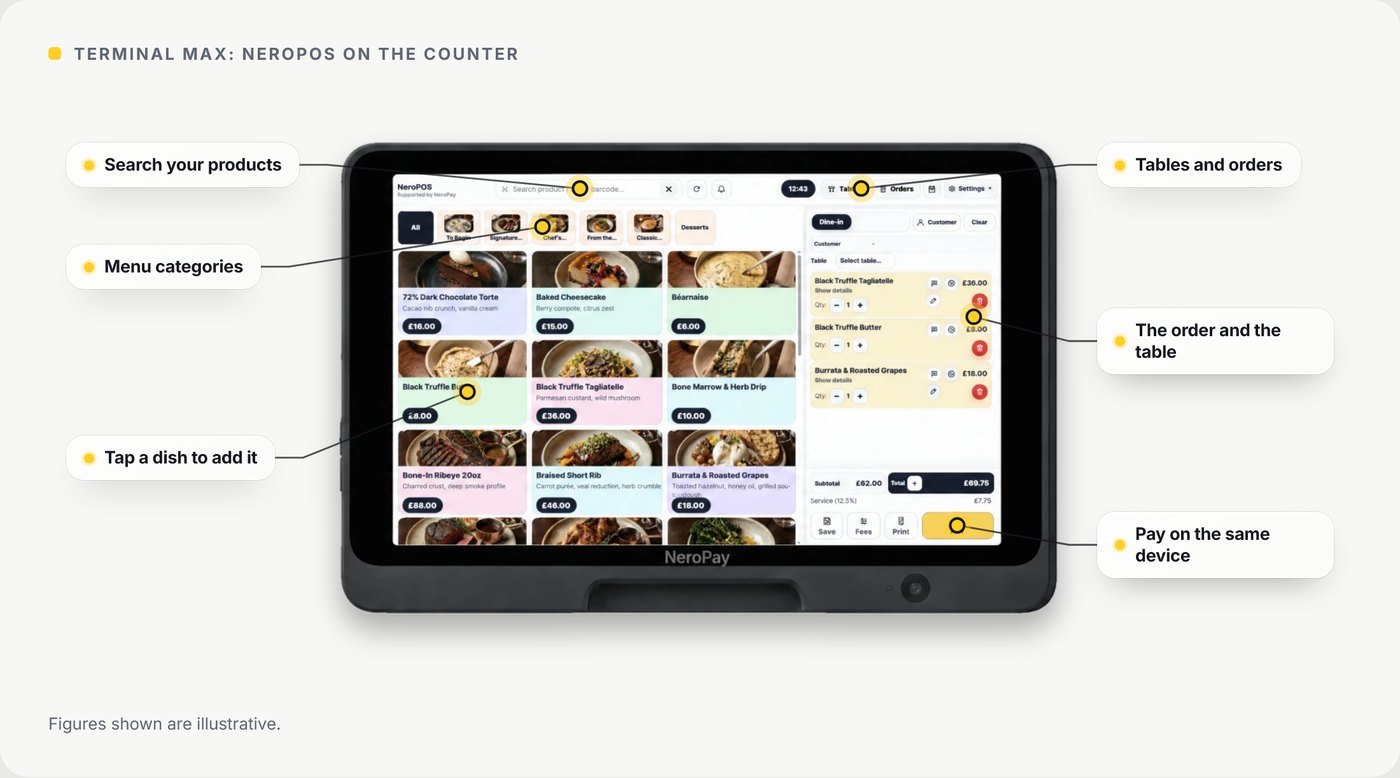
Terminal Max is a countertop till with the card terminal built in. It runs NeroPOS, shows the customer their order on an 8-inch customer-facing display, and takes card payments on the same device.
📸 Terminal Max running NeroPOS. Figures shown are illustrative.
What it does
| Feature | What it means for you |
|---|---|
| Till and card terminal in one | Take the order and the payment on one device, with no separate card reader |
| Customer-facing display | An 8-inch screen shows the customer their order, the total and where to pay |
| NeroPOS | Your menu, tables, staff and reports, the same as on your other NeroPay devices |
| Payments | Contactless, chip and PIN, digital wallets and swipe |
| One flat rate | Visa, Mastercard and American Express, debit or credit, all at the same rate |
| Tables | See your floor plan and which tables are open. See Tables below |
| Self-service kiosk | Customers can browse, order and pay at the counter |
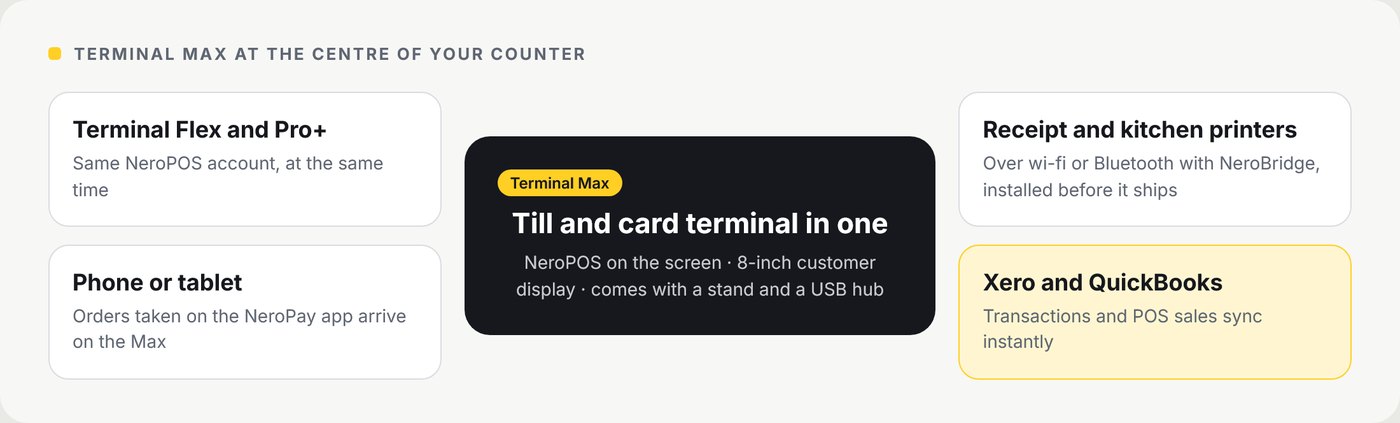
| Printing | Prints to receipt and kitchen printers over wi-fi or Bluetooth |
| Orders from other devices | Orders taken on a tablet or phone with the NeroPay app arrive on the Max |
| NeroBridge | Comes installed and set up before your Max ships. It sends receipts to your printers over wi-fi and Bluetooth |
| Xero and QuickBooks | Your transactions and POS sales sync to Xero and QuickBooks instantly |
📸 How Terminal Max connects to your other devices, printers and accounting software.
Taking a payment
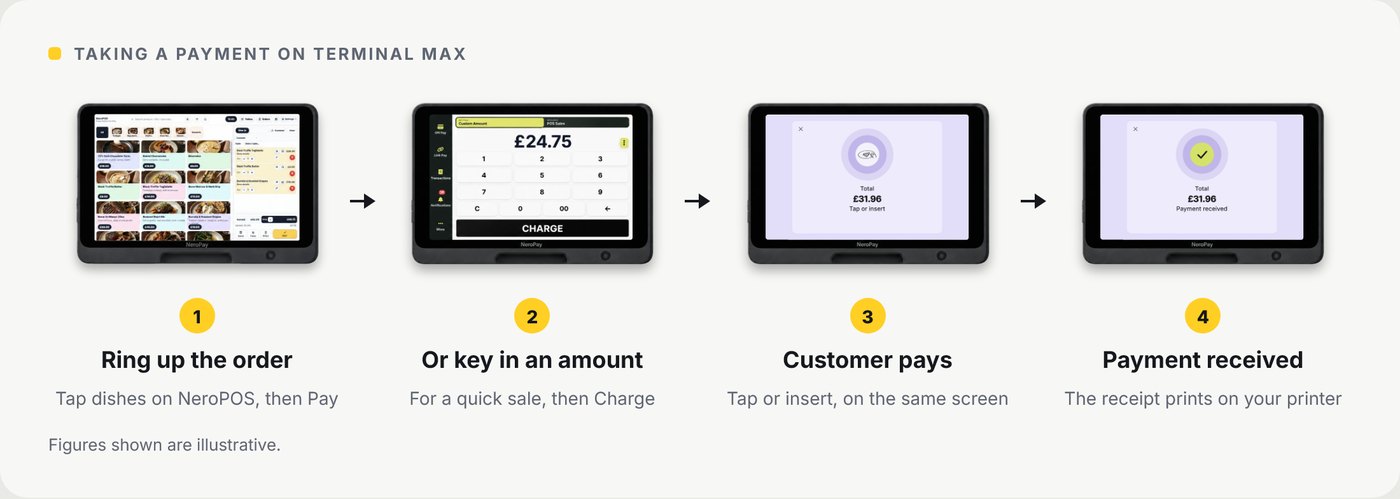
📸 Taking a payment on Terminal Max. Figures shown are illustrative.
| Step | What happens |
|---|---|
| 1 | Ring up the order on NeroPOS and tap Pay |
| 2 | Or, for a quick sale, switch to Custom Amount, key in the amount and tap Charge |
| 3 | The customer taps or inserts their card, or taps their phone, on the Max |
| 4 | The payment is received and the receipt prints on your receipt printer |
Try it yourself
Take an order on Terminal Max: tap dishes to add them to the basket, then press PAY and drag a card onto the terminal, or press Add to table. Switch to Tables or Orders at the top to look around. Nothing here is a real payment.
Tables
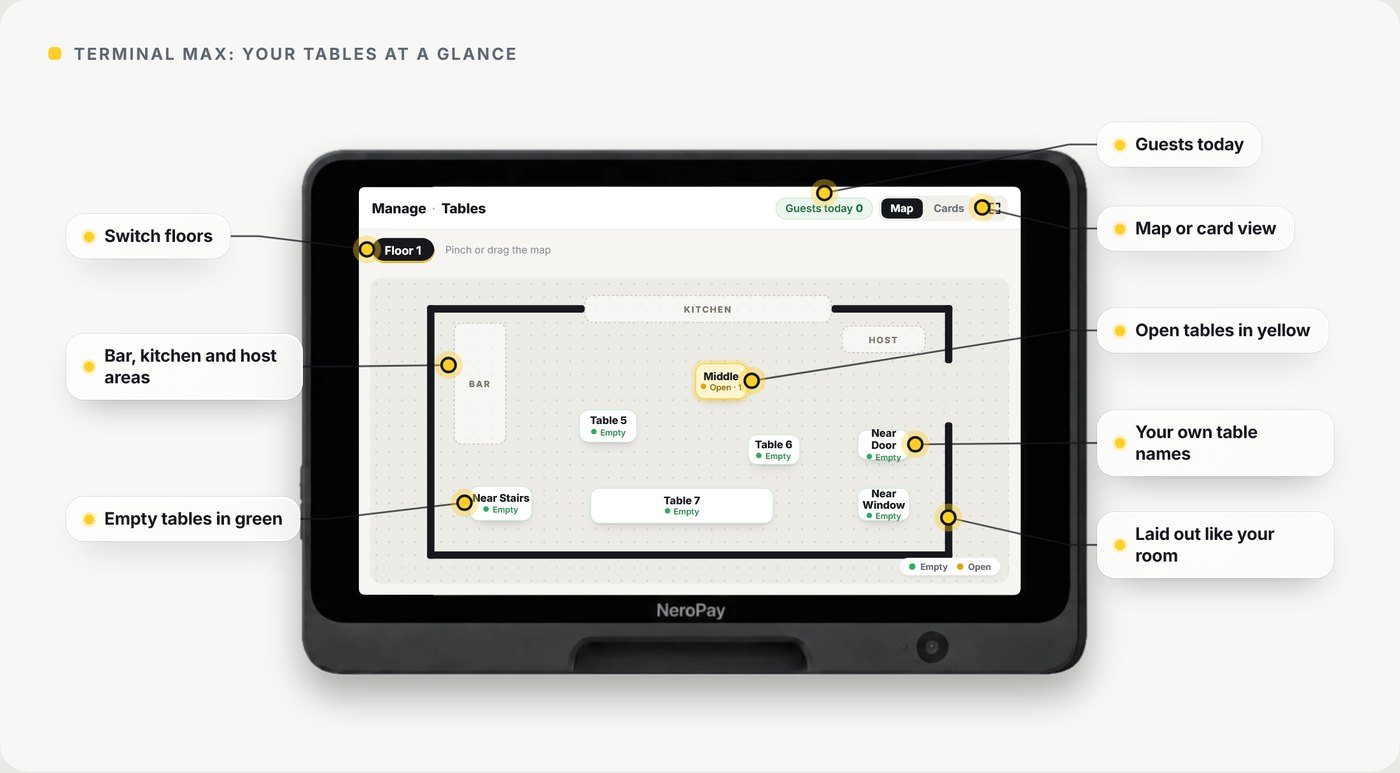
Terminal Max shows your floor plan, so you can see at a glance which tables are free and which are in use. Go to Manage → Tables.
📸 The tables screen on Terminal Max.
| On the screen | What it shows |
|---|---|
| Floors | Switch between the floors of your venue |
| Guests today | The number of guests today |
| Map | Your tables laid out like your room, around areas such as the bar, the kitchen and the host stand |
| Empty tables | Shown in green |
| Open tables | Shown in yellow |
| Map or card view | Pinch or drag the map, open it full screen, or switch to card view |
💡 Note: tables carry your own names, such as Near Window or Table 7, so staff know exactly where to go.
In the box
Terminal Max comes with a stand for the counter and a USB hub for extra connections.
Working with your other NeroPay devices
Terminal Max works alongside Terminal Flex and Terminal Pro+ on the same NeroPOS account, at the same time. An order taken at a table on a Flex, or on a phone with the NeroPay app, can land on the Max and go to your printers. To compare the three, see Choosing a NeroPay terminal.
Specifications
| Item | Detail |
|---|---|
| Display | 8-inch IPS, 1280 × 800 |
| Size | About 205 × 139 mm, 25 mm deep (57 mm with the base) |
| Weight | About 500 g |
| Connections | Wi-fi, Ethernet (with the hub), Bluetooth for accessories |
| System | Android 15, 4 GB RAM, 64 GB storage |
| Security | End-to-end encryption, P2PE-ready, PCI 6.x |
Good to know
- Set up your menu in NeroPOS before you start. Our team can build it for you — see Setup service
- To use it as a kiosk, see Setting up a self-service kiosk
- To pair printers, see POS Settings - Printing
💡 Note: in kiosk mode the Max faces your customers. Staff enter a PIN to leave kiosk mode.
Frequently asked questions
Can Terminal Max replace my current till?
Yes. It runs NeroPOS as your till and takes card payments on the same device.
Does it work with my Terminal Flex?
Yes. Both work on the same NeroPOS account at the same time.
Can customers order on it themselves?
Yes, as a self-service kiosk. See Setting up a self-service kiosk.
Which printers can it use?
Receipt and kitchen printers connected over wi-fi or Bluetooth.
Which payments does it take?
Contactless, chip and PIN, digital wallets and swipe.
Do I need to install any software?
No. NeroBridge is installed and set up before your Max ships.
Does it work with Xero or QuickBooks?
Yes. Your transactions and POS sales sync to both instantly.
How are my card payments kept secure?
See the NeroPay Trust Centre for how NeroPay protects card payments, your account and your data.
Still need help? Contact us at support@neropay.app or create a ticket.