⚠️ Important: A factory reset will erase all local settings on the terminal. Make sure you have your Wi-Fi details to hand before you begin, as you will need to reconnect after the reset.
Step 1 — Perform a factory reset
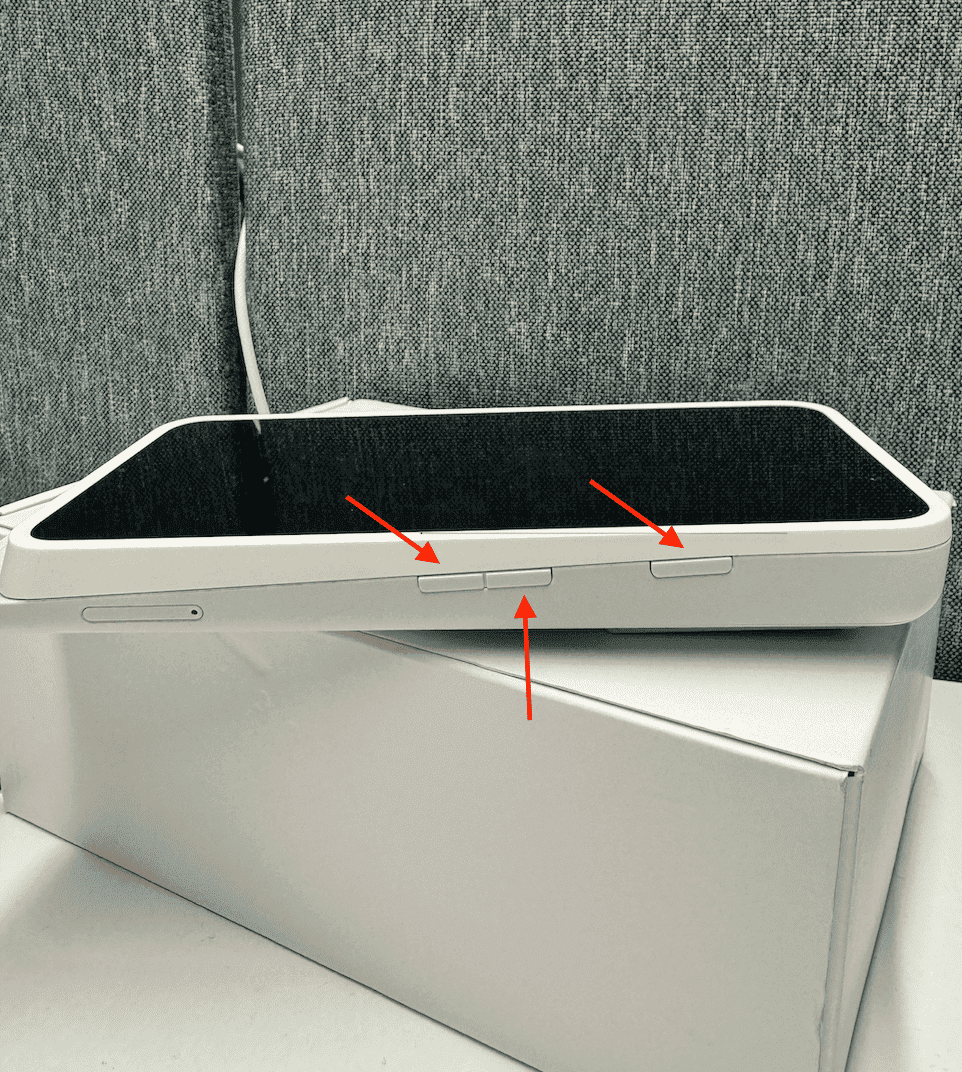
- Press and hold the three buttons simultaneously for approximately 10 seconds
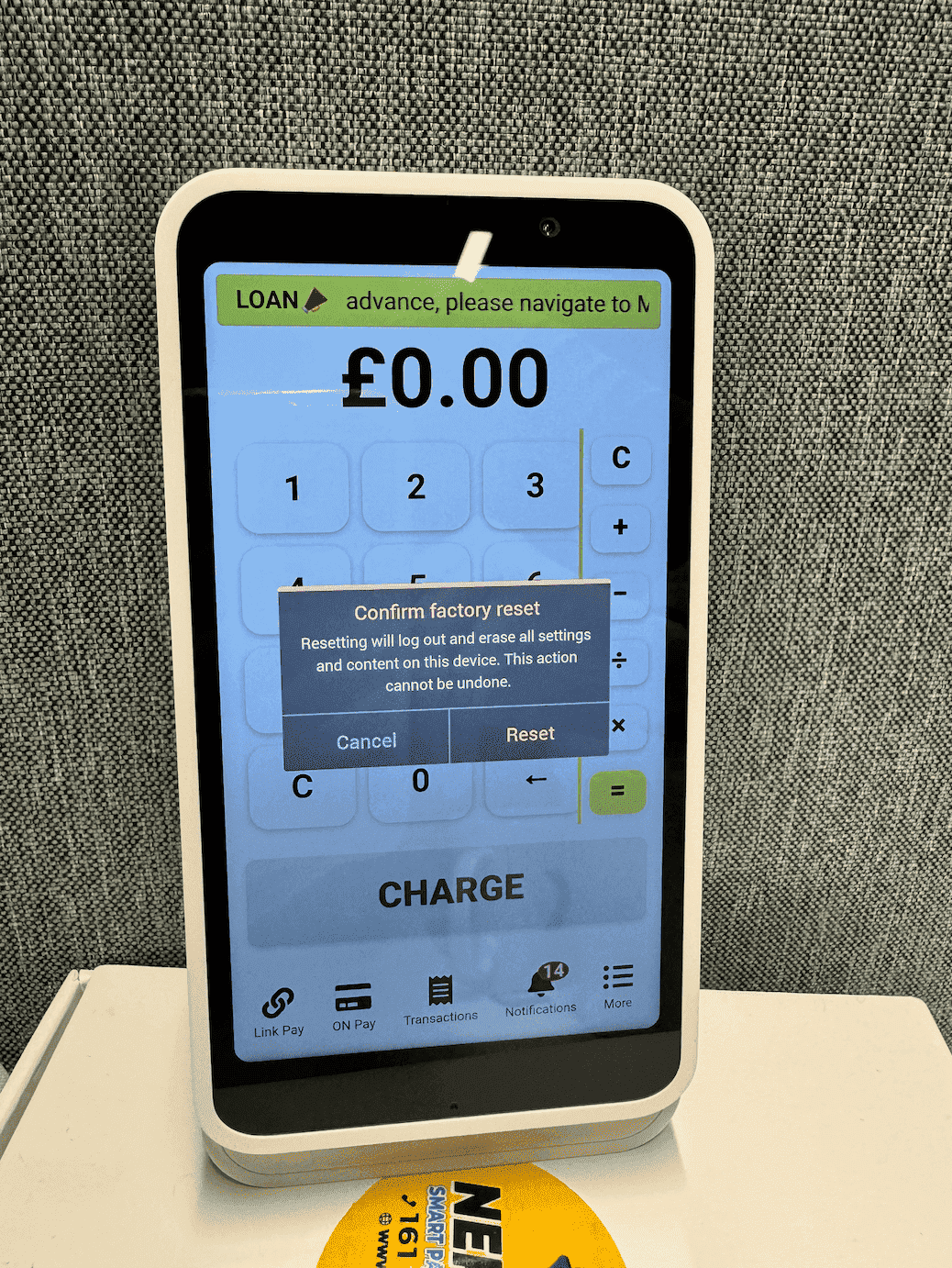
- A window titled Confirm Factory Reset will appear on screen
- Tap Reset to proceed
📸
Step 2 — Set up the terminal again
Once the reset is complete, the terminal will restart automatically. When it turns back on:
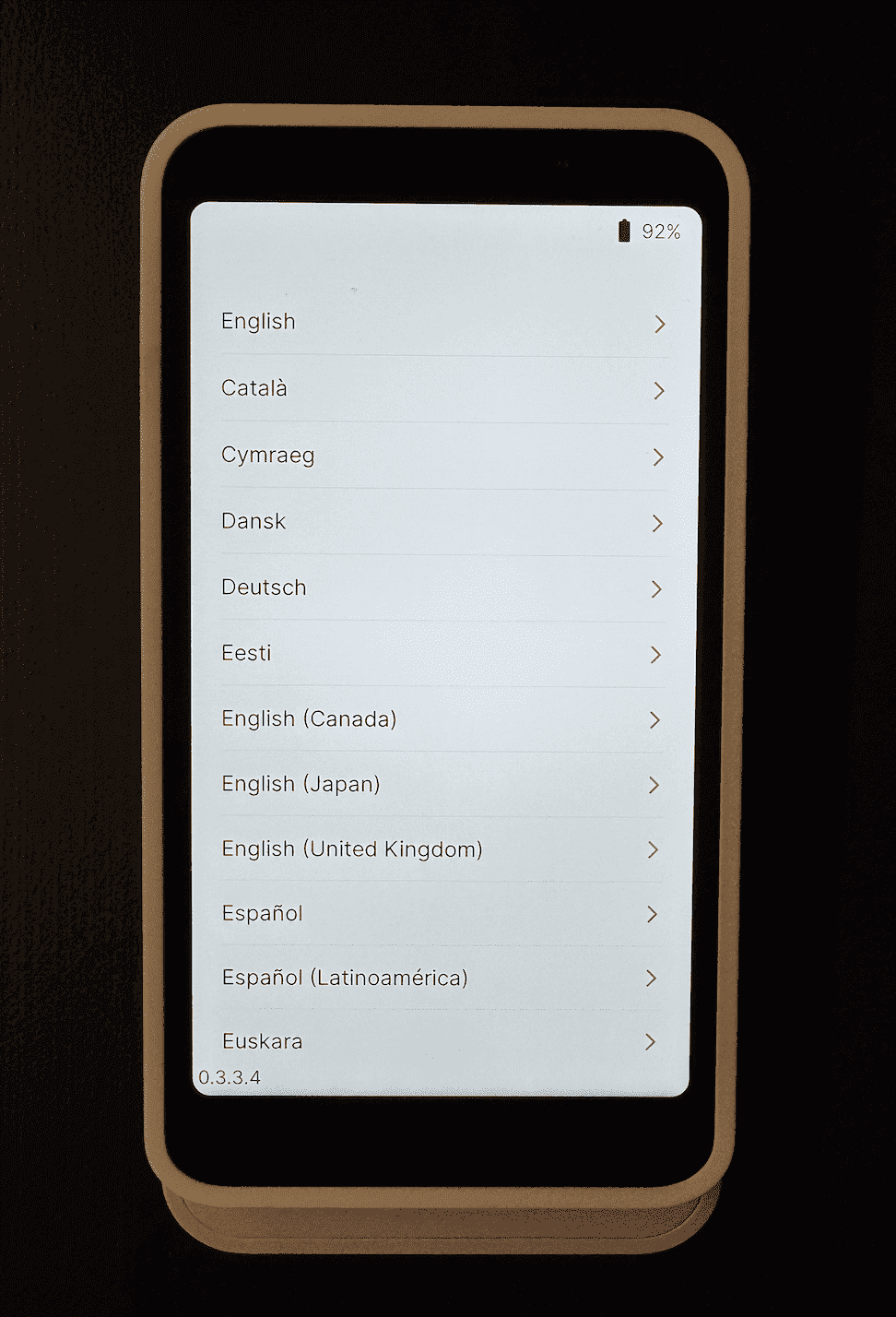
- Select your preferred language
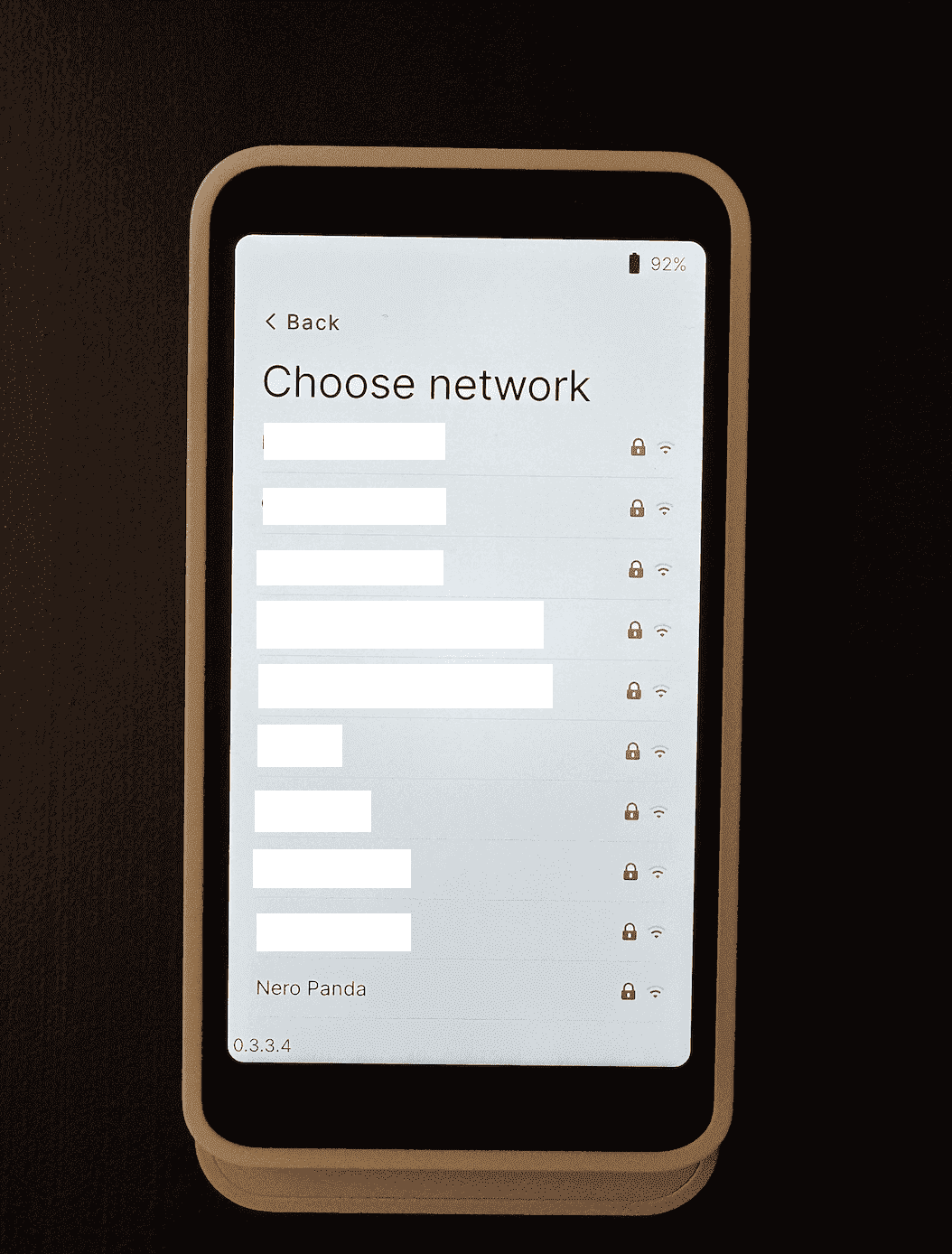
- Connect to your Wi-Fi network
- Log back in to your NeroPay account — see [Setting up your card terminal] if you need a reminder
📸
.
Frequently asked questions
Q: Will a factory reset delete my NeroPay account or transaction history? A: No. A factory reset only affects local settings on the terminal itself. Your account, transaction history, and data are safely stored in the NeroPay system.
Q: Which three buttons do I need to hold? A: Please refer to the diagram above or contact support if you are unsure — holding the wrong buttons could trigger a different function.
Q: Can I reset the terminal myself without being asked by support? A: We recommend only performing a factory reset when instructed by the NeroPay support team, as it may not resolve the issue and will require you to set up the terminal again from scratch.
Still need help? Contact us at support@neropay.app or create a ticket