How it works
Preauthorised payment is a two-step process:
Step 1 — Authorise The customer's card is held for an amount. No money is taken yet — the customer will see a pending hold on their account.
Step 2 — Capture or Cancel Once you know the final amount, you either:
- Capture — collect the funds (in full or partially)
- Cancel — release the hold with no charge to the customer
💡 Typical use cases: car rental deposits, hotel check-ins, damage guarantees — anywhere the final charge may differ from the initial amount.
Setting it up
Navigate to:
Dashboard → Account → Payment Settings → Settings → Capture Method
📸
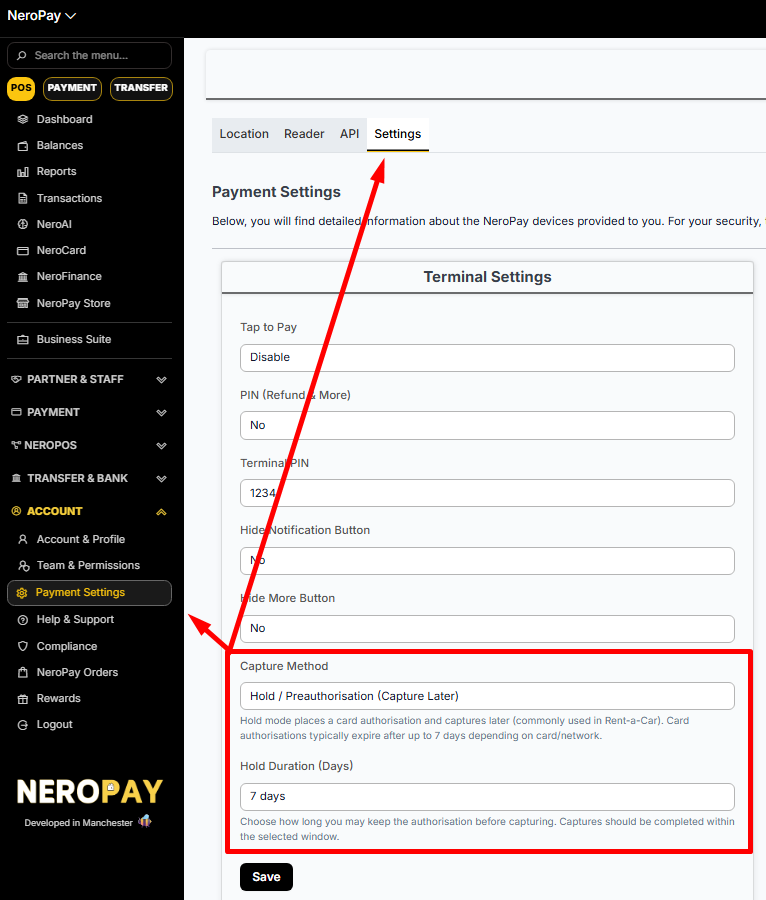
Select Manual, then set your Hold Duration — this is how many days to keep the authorisation open before capturing. The maximum is 7 days.
⚠️ Important: Card networks set their own expiry limits. For in-person payments, Mastercard, Amex, and Discover authorisations can expire in as little as 2 days. Always capture before the window closes — once expired, the hold drops and funds cannot be collected.
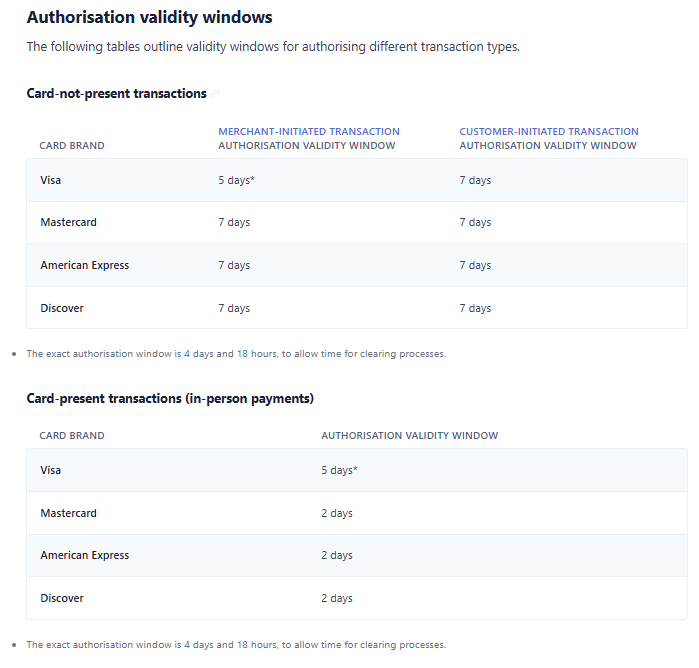
How to capture or cancel
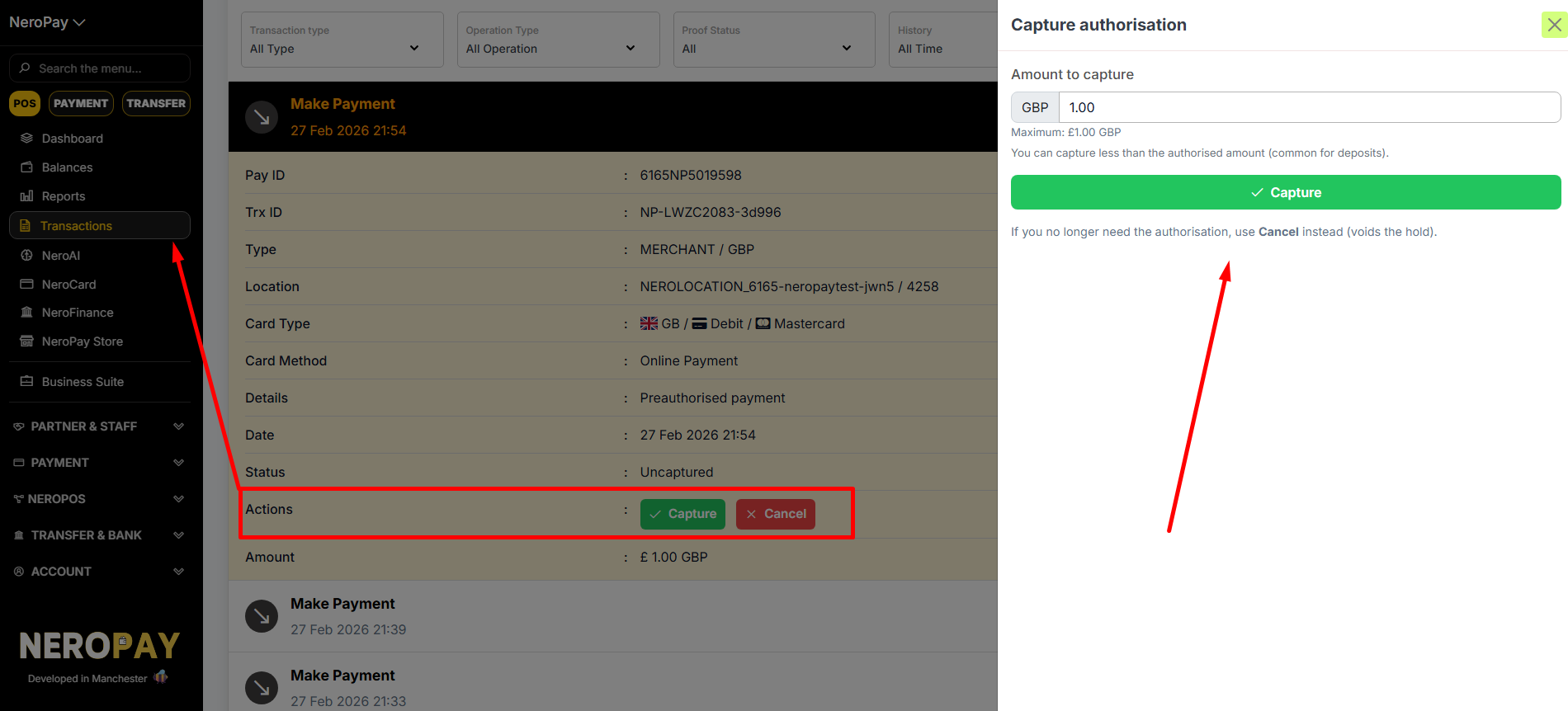
Once a payment is preauthorised, it will show as Uncaptured. You can manage it from two places:
From the Dashboard
- Go to Transactions
- Select the transaction
- Click Capture or Cancel
📸
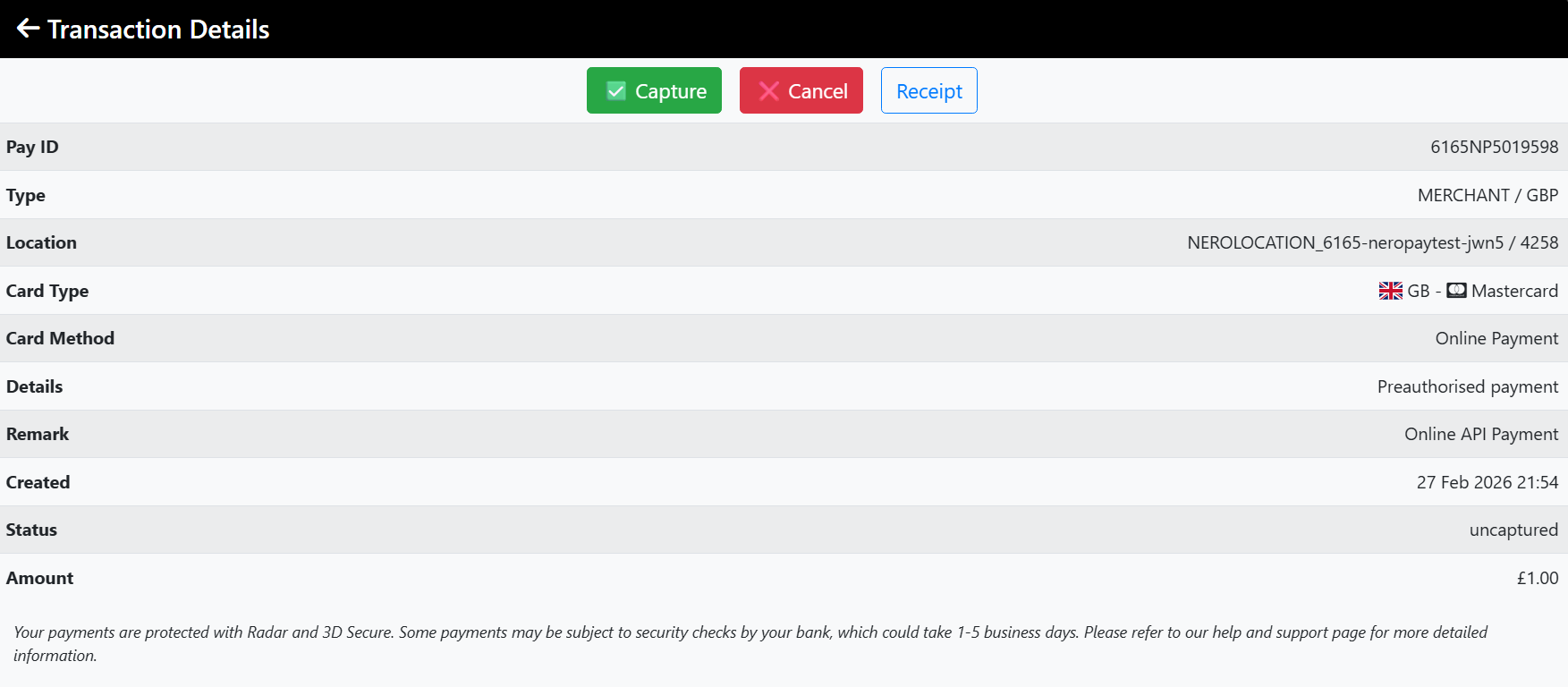
From the Terminal
- Go to Transactions
- Select the transaction
- Tap Capture or Cancel
📸
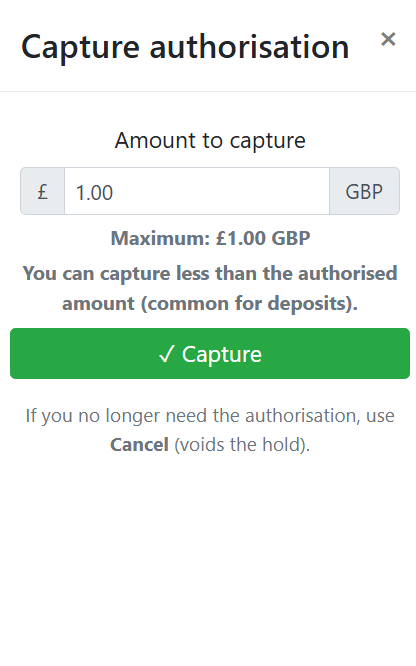
Capturing a different amount
You can capture less than the originally authorised amount. The difference is automatically released back to the customer — no manual action needed.
💡 Example: You authorise £200 as a deposit. The final charge is £35. You capture £35 — the remaining £165 is released to the customer automatically.
Frequently asked questions
Q: What happens if I don't capture in time? A: The authorisation expires and the hold is released. No funds can be collected. You would need to take a new payment from the customer.
Q: Does the customer get charged straight away? A: No. They see a pending hold on their account. The charge only goes through when you capture. If you cancel, the hold disappears with no charge.
Q: Does this apply to online payments too? A: Yes. When Manual capture is enabled, it applies to all payment types — terminal, online, payment links, and tap-to-pay.
Still need help? Contact us at support@neropay.app or create a ticket