How to get there
From your dashboard, follow this path:
Account → Account & Profile → Team & Permissions
How to invite a team member
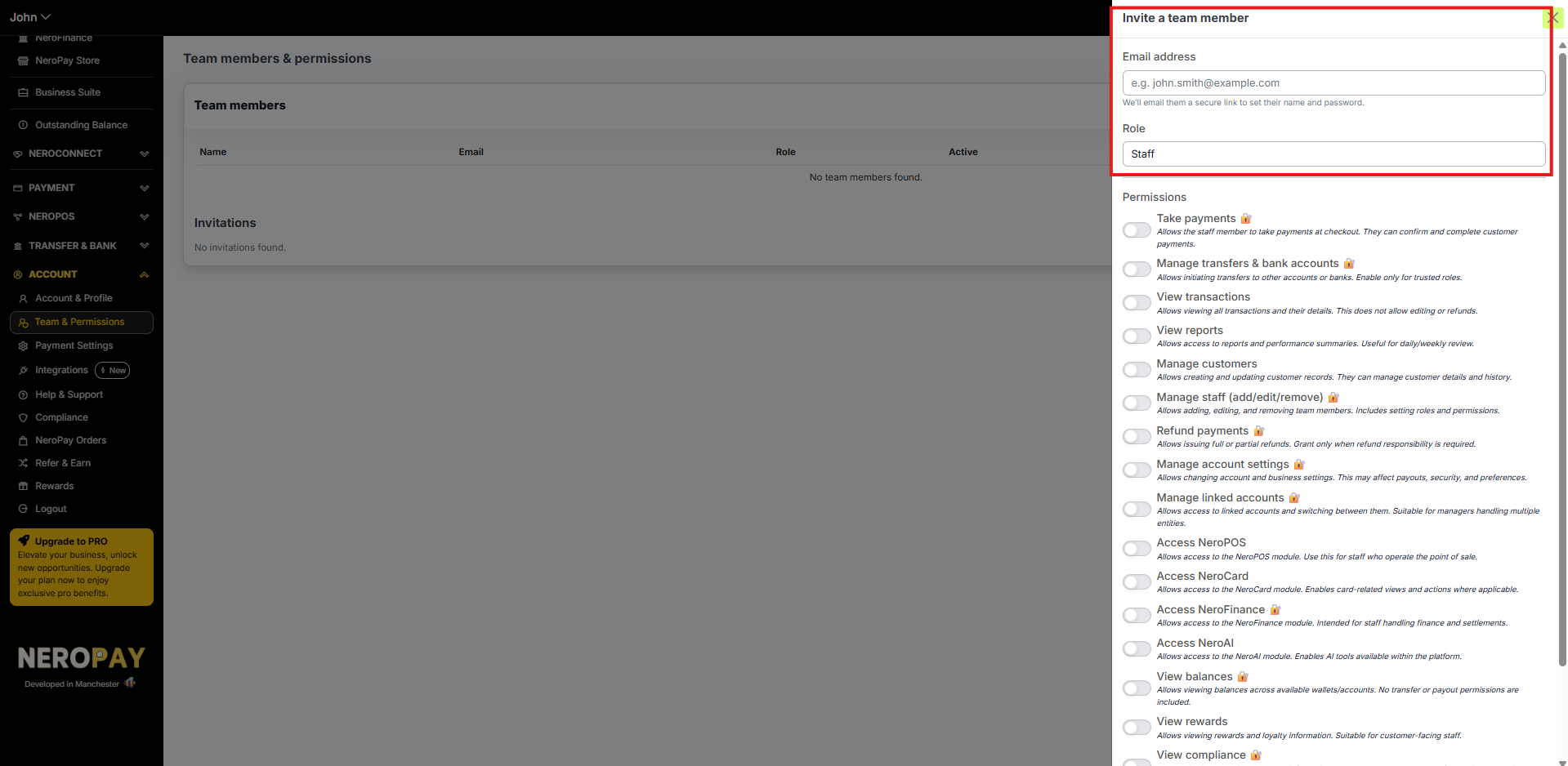
- Click Invite team member
- Enter the team member's email address
- Send the invitation
The invited person will receive an email with a link to join your account. Through this link they can set their own name and password — you do not need to do this for them.
📸
How invitations work
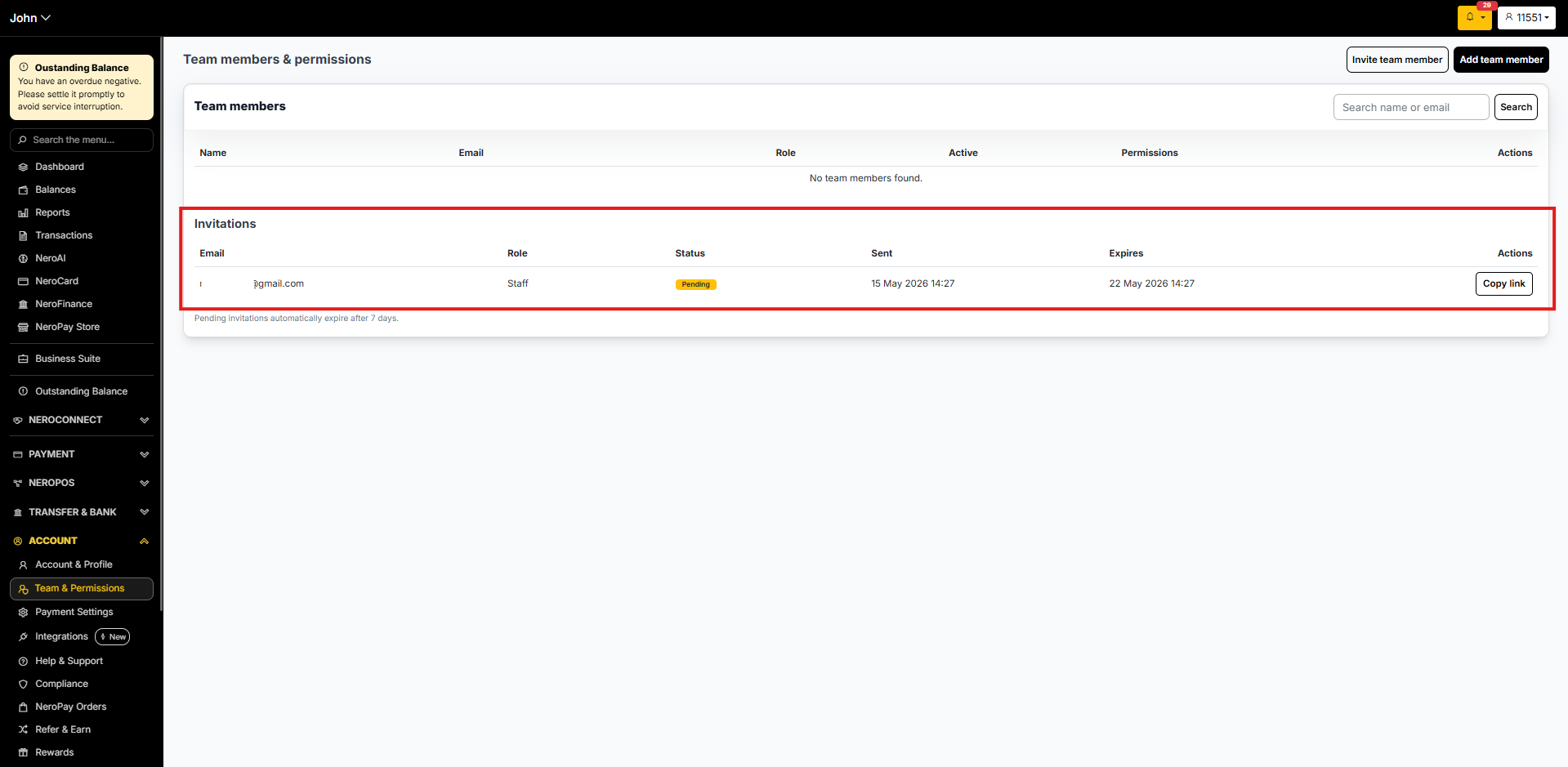
- Each invitation link is valid for 7 days
- If the link is not accepted within 7 days, it expires automatically
- You can send a new invitation at any time from the Team & Permissions page
Invitation statuses:
| Status | What it means |
|---|---|
| Pending | The invitation has been sent and is waiting to be accepted |
| Accepted | The team member has joined your account successfully |
| Expired | The 7-day window has passed — send a new invitation |
| Cancelled | The invitation was cancelled before it was accepted |
Once accepted, you will receive a confirmation that the team member has joined your account.
📸
Helpful notes
- If an invitation has expired, simply send a new one from the Team & Permissions page
- If you see a message saying a team member is "already invited", there may be an existing pending invitation — check the list before sending another
- Invited team members may not see certain notifications that are intended only for the main merchant login — this is expected behaviour
Frequently asked questions
Q: Do I need to create a password for the team member? A: No. The invited person sets their own name and password through the invitation link. You never need to create or share a password.
Q: What happens if the invitation expires? A: The link becomes invalid after 7 days. Go back to Team & Permissions and send a new invitation to the same email address.
Q: Can I cancel an invitation before it is accepted? A: Yes. Find the pending invitation in the list and cancel it. The status will update to Cancelled.
Q: Can team members access everything on my account? A: Invited team members have access based on their assigned role. Certain notifications and settings are restricted to the main merchant login only.
Still need help? Contact us at support@neropay.app or create a ticket