This guide walks you through how to manage your saved customers and keep them informed using NeroPay's built-in notification tools — whether you're working from your merchant dashboard or directly from your point-of-sale screen.
Managing Customers from Your Dashboard
-
Your saved customers list
Head to NEROPOS → Customers in your dashboard to see everyone you've saved. Each customer card shows their name, phone number, email address, and saved address if they have one. From here you can Select a customer to attach them to an order, Edit their details, or Send notification to reach out to them directly.
-
Sending a notification to one customer
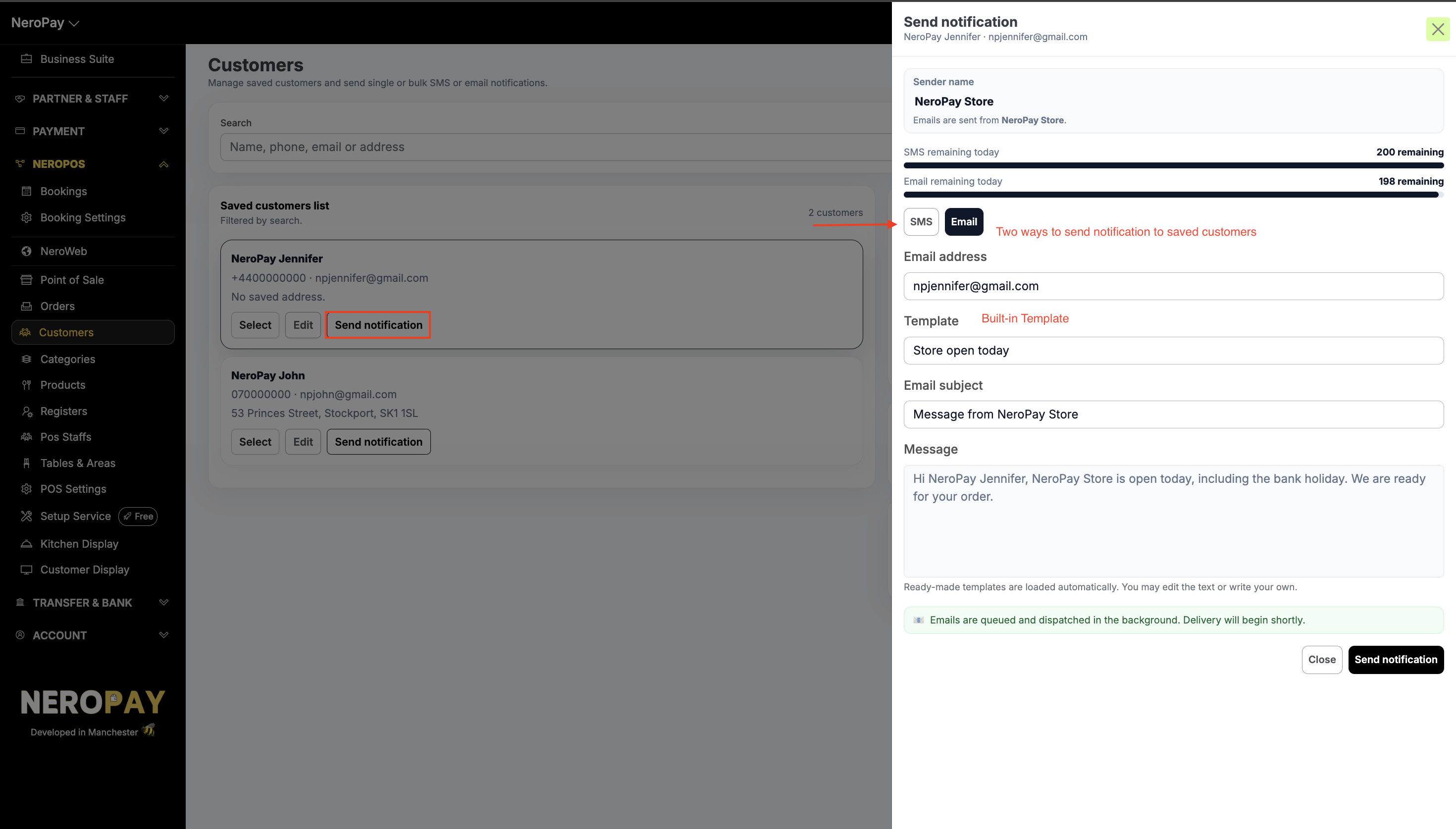
Click Send notification on any customer card to open the notification panel. From here you can choose how you'd like to reach them:
-
-
Toggle between SMS and Email depending on what works best
-
For emails, choose from a ready-made template (such as "Store open today") or write your own message — the subject line and message body will auto-fill based on the template you pick, but you can edit them freely
-
You'll also see how many SMS and emails you have remaining for the day, so you always know where you stand
-
Once you're happy with your message, hit Send notification — emails are queued and delivered in the background, so you can get on with your day
-
-
Managing your blocklist
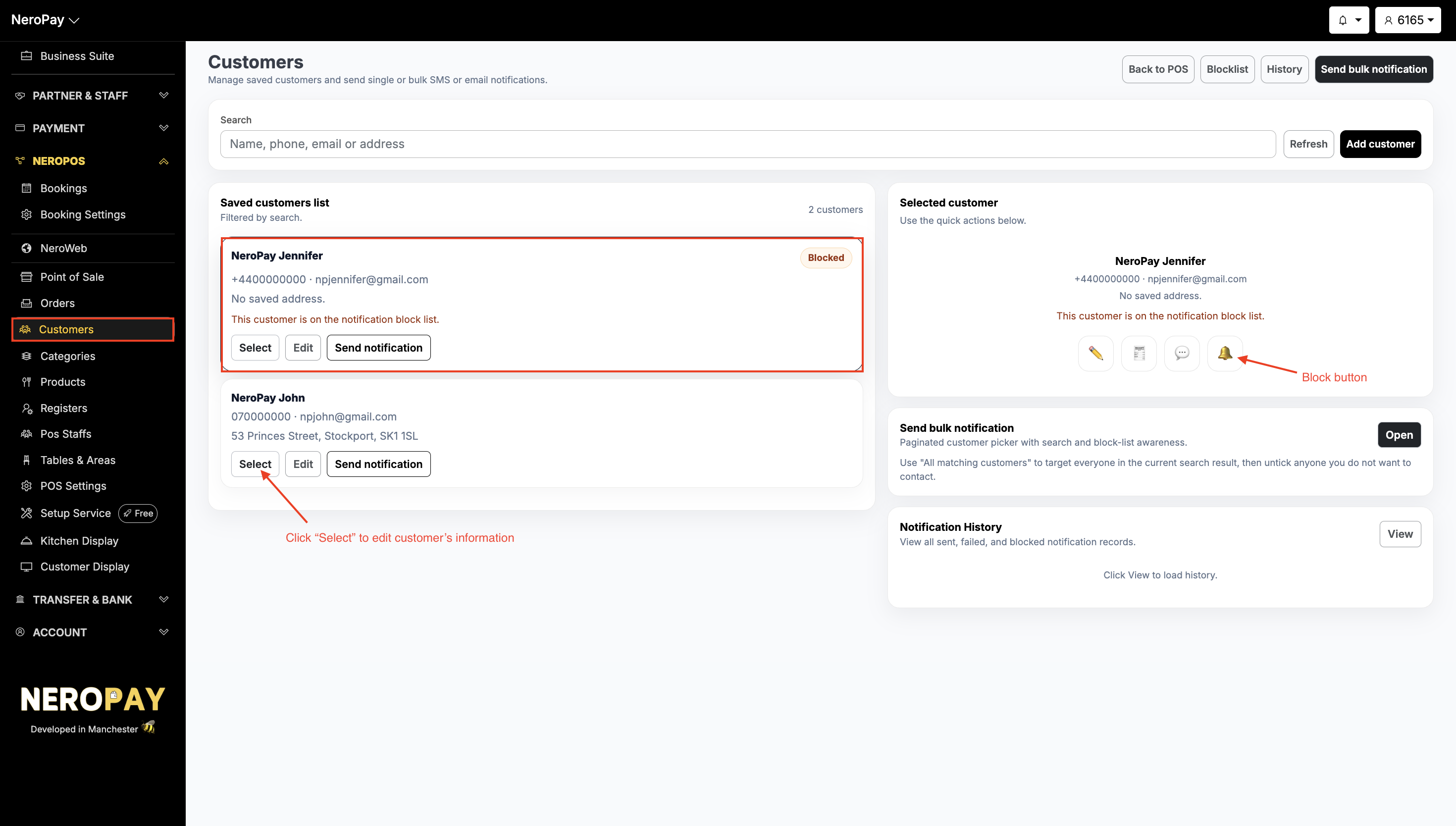
If a customer has asked not to be contacted, you can block them from receiving notifications. Click Blocklist at the top of the Customers page to see everyone currently blocked. Blocked customers are clearly flagged in your main customer list with a red Blocked badge, so there's no risk of accidentally sending them a message. If you ever need to unblock someone, simply click Remove from block list and they'll be able to receive notifications again.
-
Sending a bulk notification
Want to reach all your customers at once? Click Send bulk notification at the top right of the Customers page. Here's how it works:
-
-
Toggle between SMS and Email to choose your channel
-
Use the customer checklist to select who you'd like to contact — you can pick All matching, This page, or select customers individually. Any customers on your blocklist are automatically skipped, so you don't need to worry about removing them manually
-
You can send to a maximum of 50 customers per bulk send
-
Choose a template or write a custom message. For SMS, each 160 characters counts as one message segment, up to a maximum of 640 characters
-
Your messages will be sent from NeroPay Store as the sender name — this is fixed for security and spam prevention purposes
If you have futher questions, please contact us at support@neropay.app
-