When you might be asked for a video
- Your identity needs additional confirmation beyond a document upload
- We need to verify your business premises or trading environment
- Your account requires enhanced compliance checks
What you will need
- A phone or device with a camera
- Good lighting
- Your ID (if the instructions specify)
- The secure link provided by NeroPay — sent by email, live chat, or support ticket
⚠️ Videos must be recorded live using the secure link. Uploading pre-recorded or edited clips from your gallery is not permitted.
Step-by-step: how to record and upload your video
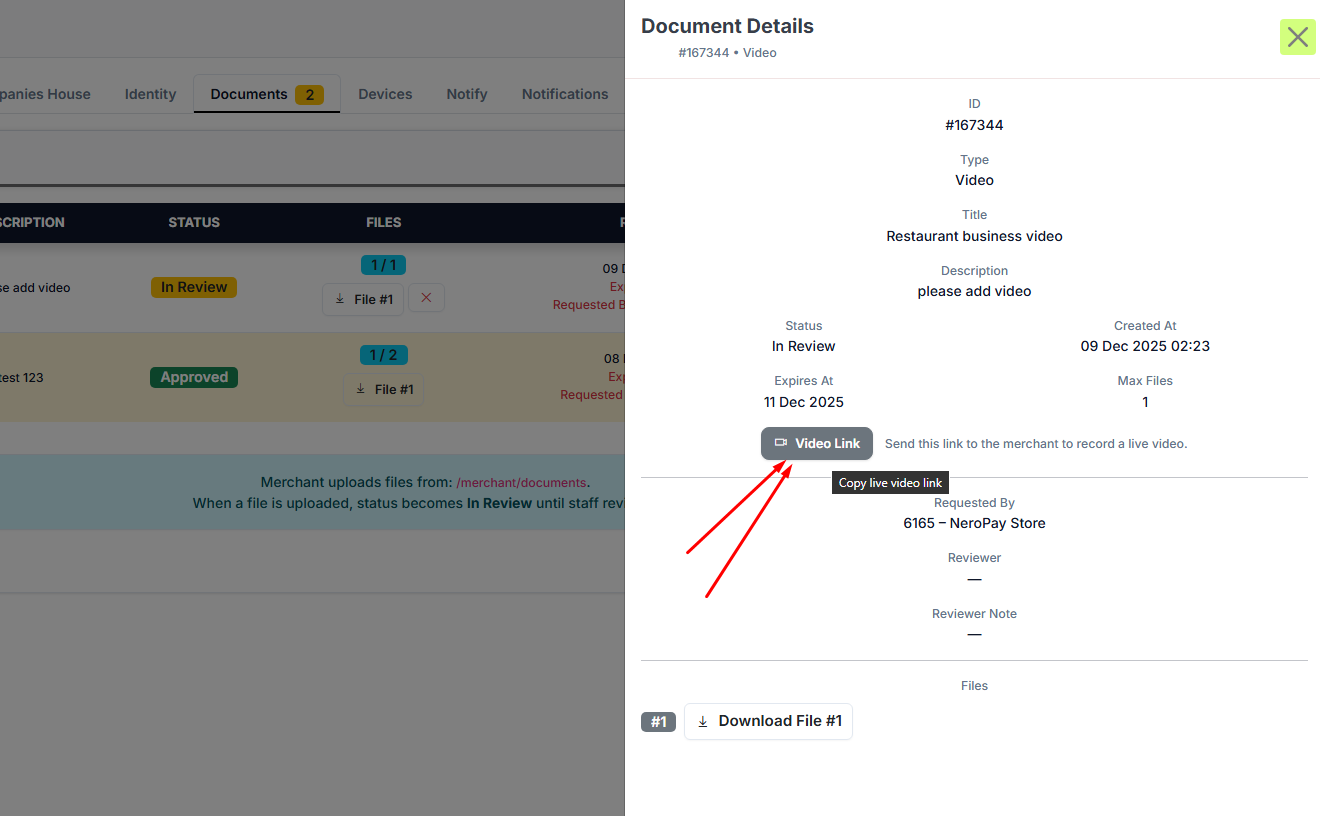
Step 1 — Open the secure link
Open the unique link sent to you by NeroPay on a device with a camera. The link will open a NeroPay-branded page with clear instructions on what to record.
📸
Step 2 — Read the instructions
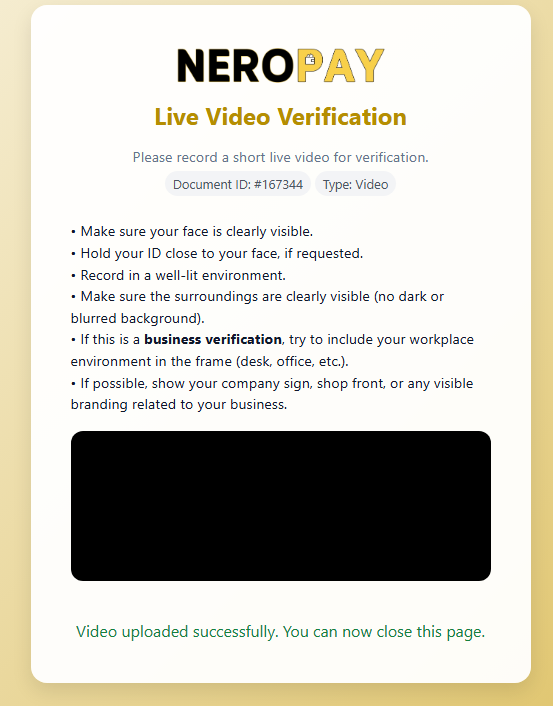
The page will tell you exactly what is needed. Depending on your case, you may be asked to:
- Show your face clearly in a well-lit environment
- Hold your ID next to your face
- Show your shopfront, business signage, counter, or workspace
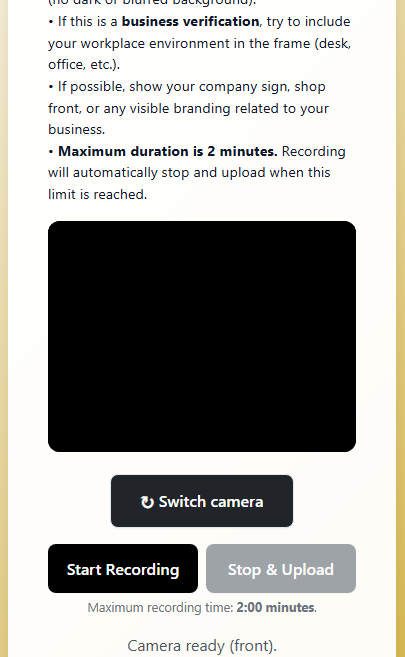
Step 3 — Start recording
Tap Start Recording. A timer will appear. You can record for up to 2 minutes.
Step 4 — Stop and upload
When finished, press Stop & Upload. The video will upload automatically and securely. You do not need to do anything else after this.
Step 5 — Confirmation
Once the upload is complete, you will see a confirmation message on screen. The compliance team will review your video and update your account status. You will be contacted if anything further is needed.
Tips for a successful video
- Make sure your face is fully visible throughout
- Hold your ID clearly in frame if requested
- If verifying your business, show the shop sign, counter, products, or office area
- Avoid filming with a bright light source behind you
- Keep the camera steady and speak clearly if asked to say anything
Frequently asked questions
Q: Can I use a pre-recorded video? A: No. For security reasons, videos must be recorded live through the secure link. Pre-recorded or edited uploads are not accepted.
Q: What if I lose the link? A: Contact NeroPay support via email, live chat, or a support ticket to request a new link.
Q: Can I record the video on a different device from where I received the link? A: Yes. You can copy the link and open it on any device with a camera.
Q: What happens after I upload the video? A: The compliance team will review it and update your account status. You will be contacted if anything further is needed.
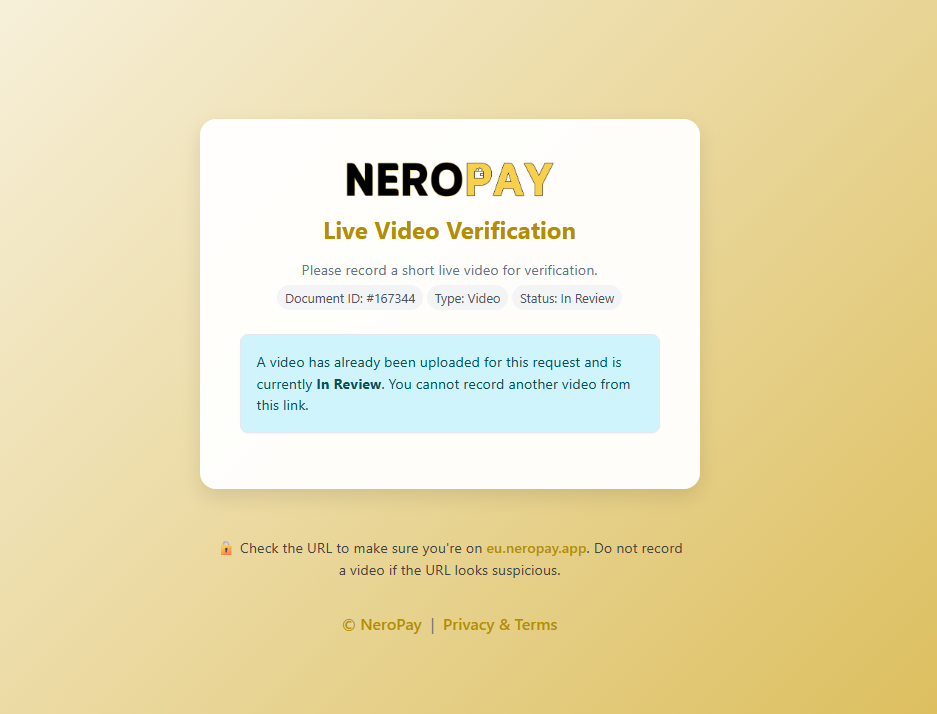
Q: Can I record a second video on the same link? A: No. Once a video has been uploaded to a link, it is locked for review. Contact support if you need to resubmit.
Still need help? Contact us at support@neropay.app or create a ticket from your dashboard.