How to get there
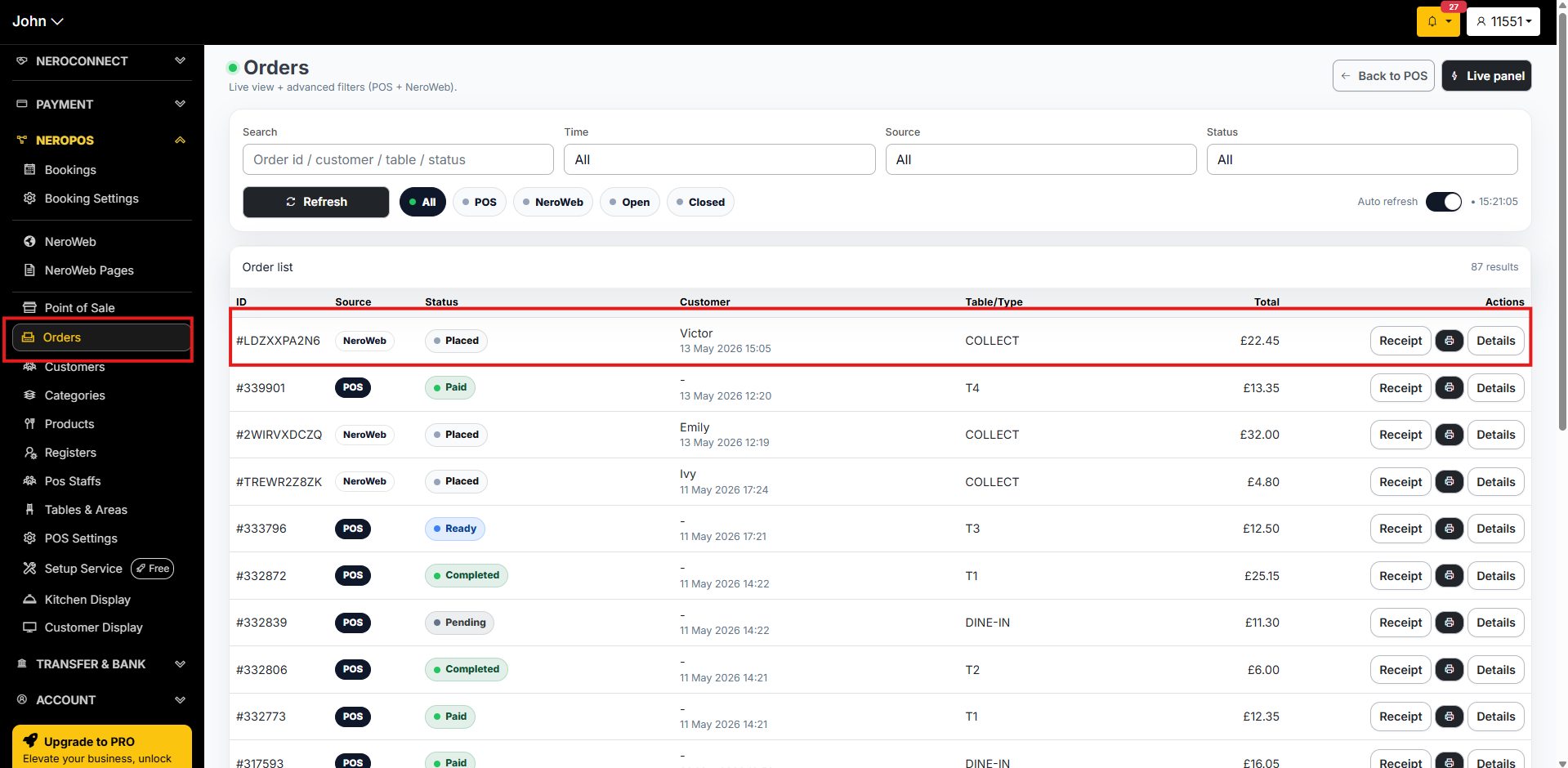
From your EPOS screen or dashboard, follow this path:
NeroPOS → Order
📸
Part 1 — Receiving a new NeroWeb order
When a customer places an online order, a notification will appear at the bottom of your EPOS screen showing:
- The order reference number
- The order total
- The order type — for example, Collect
- The customer name, date, and time
- The status — Placed
Click the notification to open the order directly.
📸
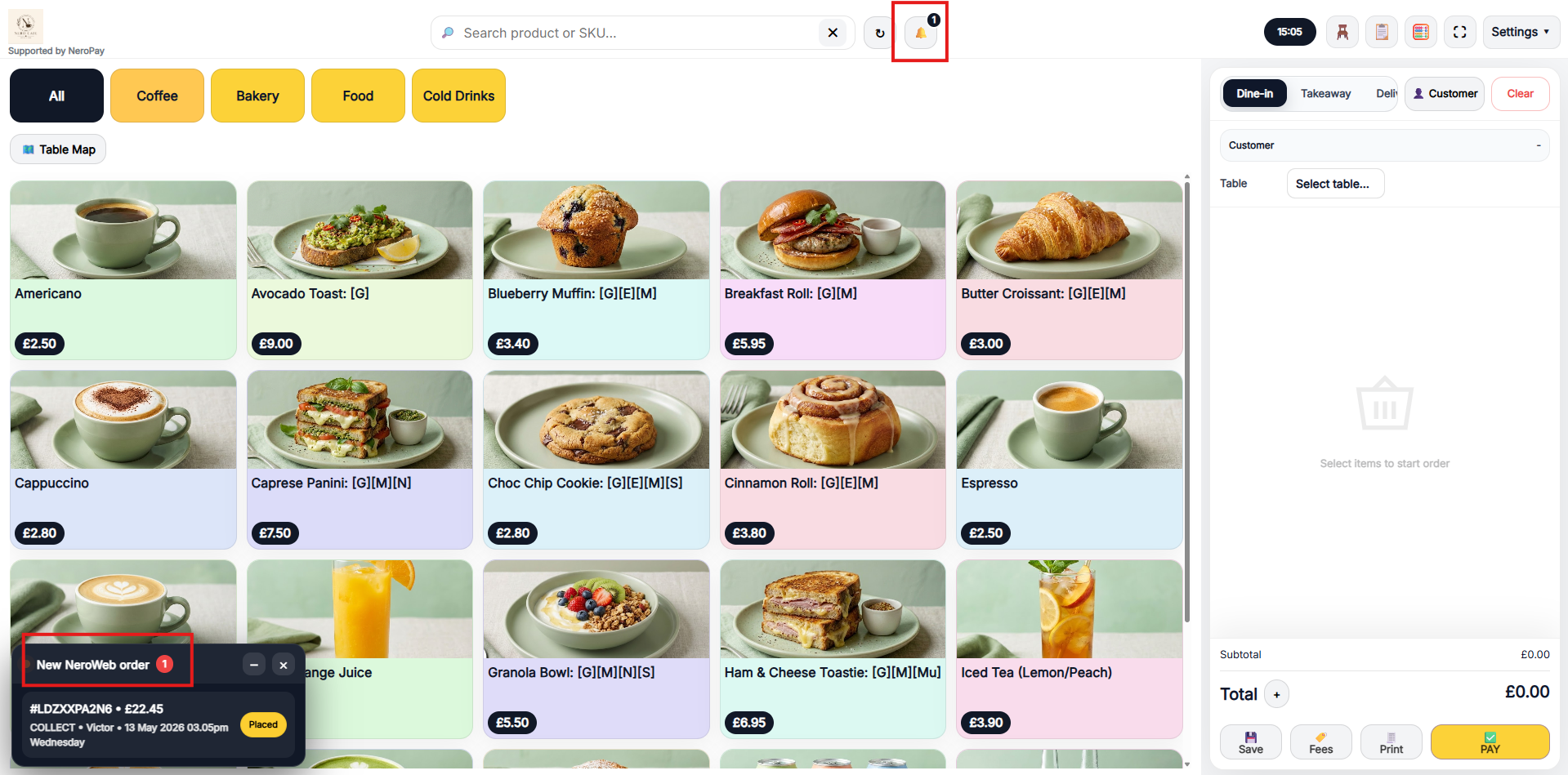
💡 Tip: You can also click the bell icon at the top of your EPOS screen to view all pending notifications.
Part 2 — Managing the order from the EPOS
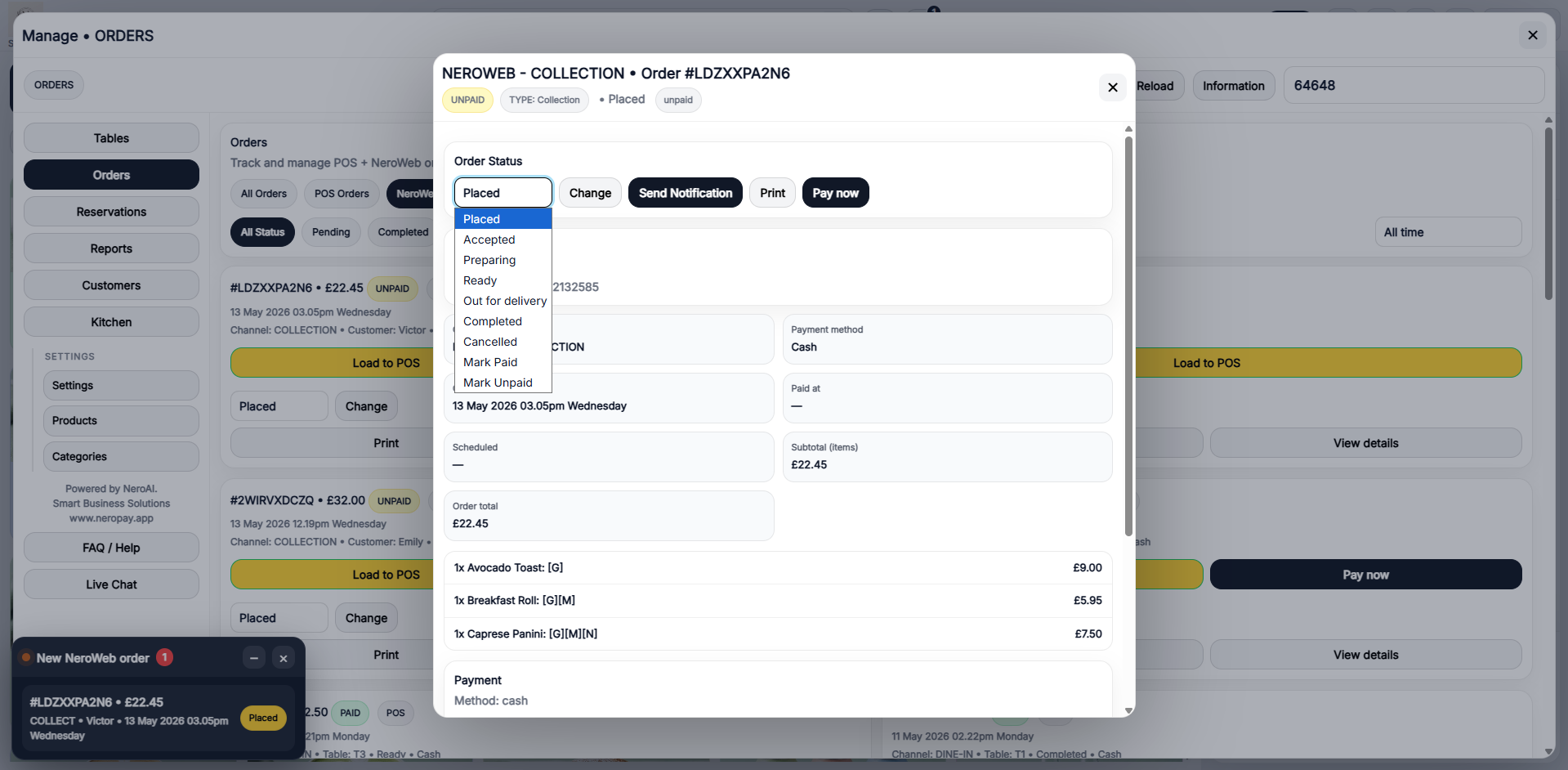
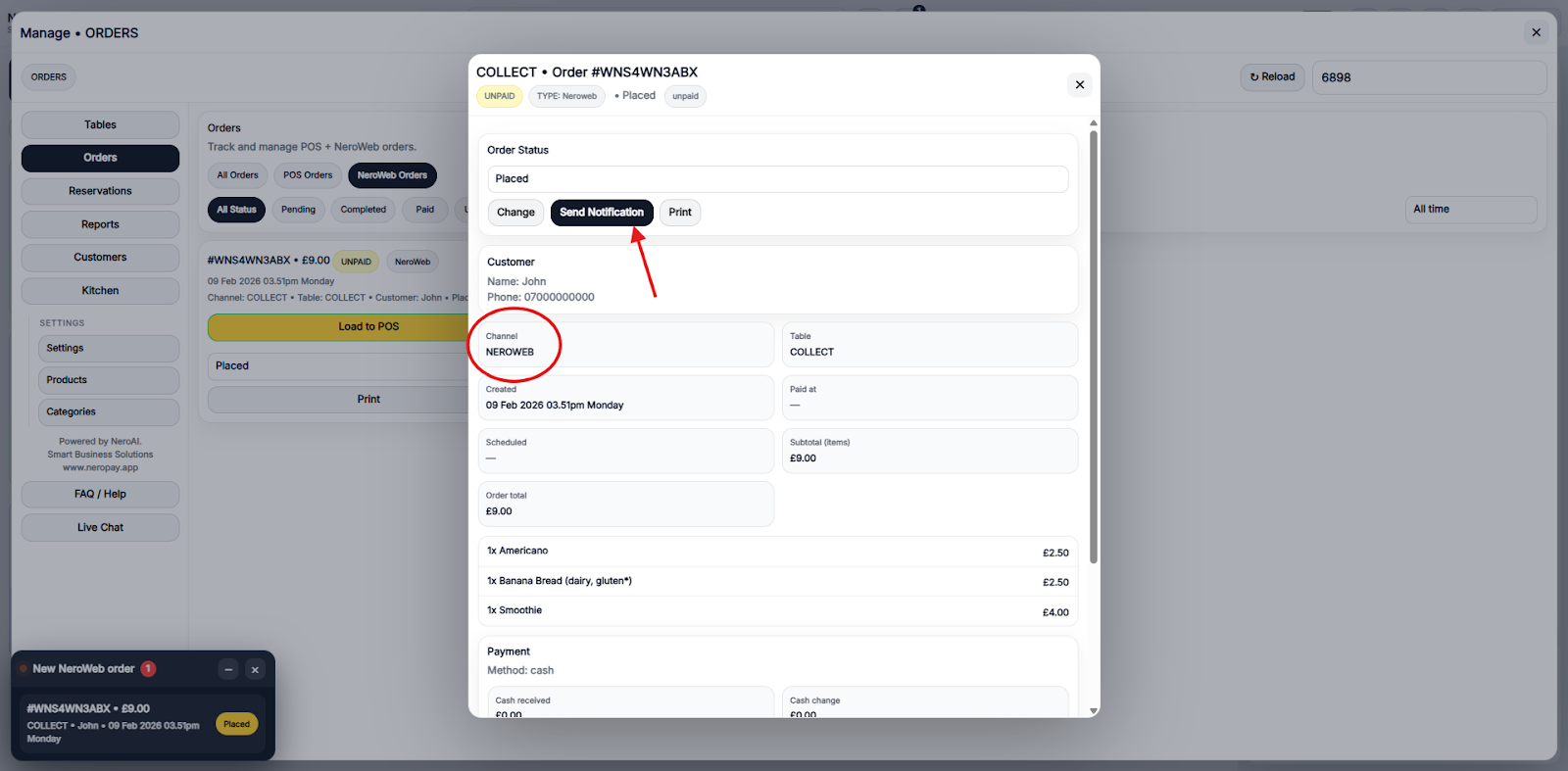
Once you click into the order, a window will open showing the full order details. From here you can:
- Review the items ordered
- Update the order status using the status dropdown
- Send a notification to the customer
Order status options:
| Status | When to use it |
|---|---|
| Placed | Order has been received — awaiting action |
| Accepted | You have confirmed the order and are preparing it |
| Ready | The order is ready for collection or dispatch |
| Completed | The order has been collected or delivered |
| Cancelled | The order has been cancelled |
📸
Part 3 — Managing orders from the Orders centre
For a full view of all your orders, go to:
NeroPOS → Orders
From the Orders management centre you can:
- View all incoming orders in one place
- Apply filters to see NeroWeb orders specifically
- Search by order reference, customer name, or date
- Update order statuses in bulk
- Access full order details for each transaction
📸
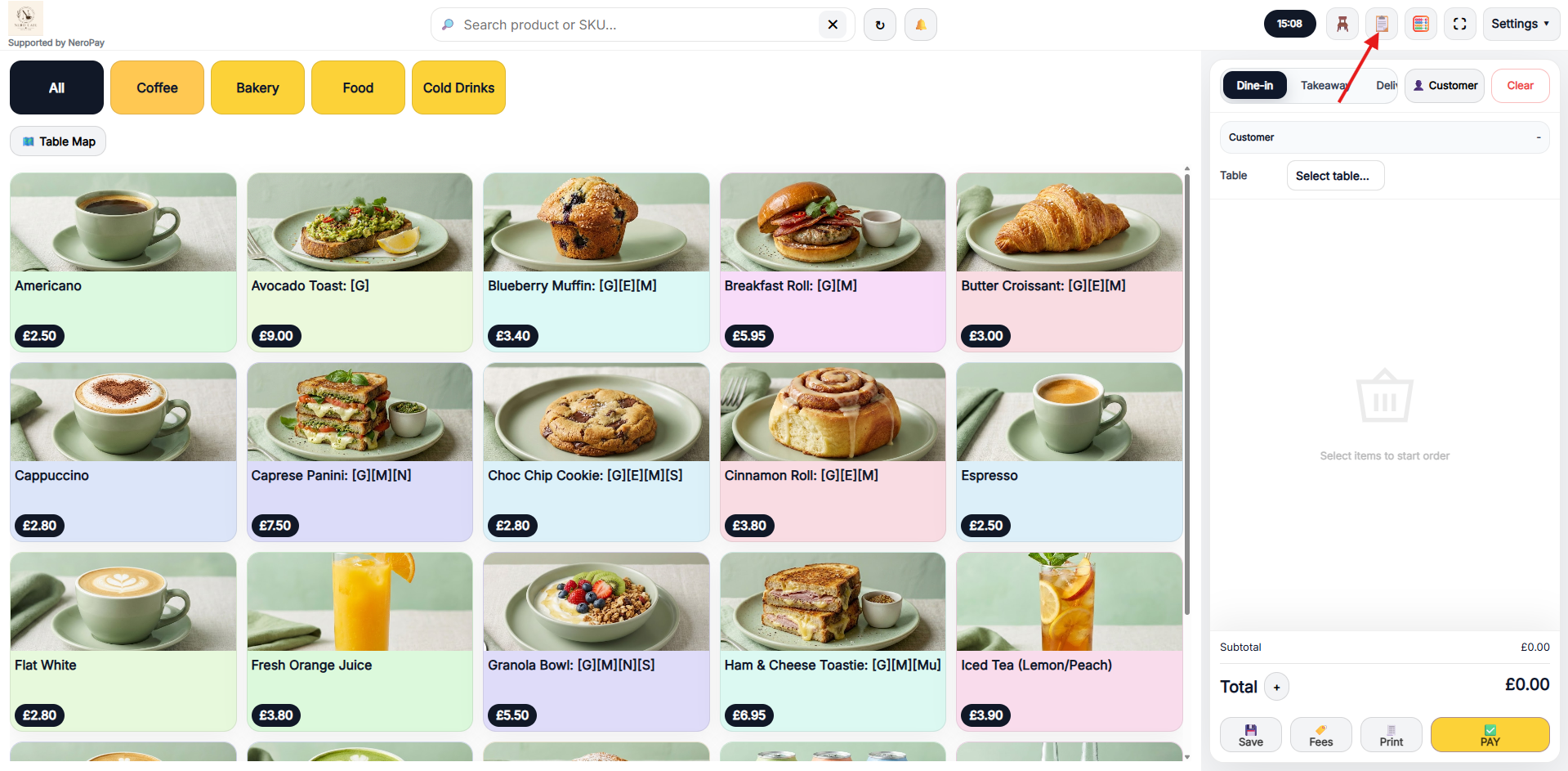
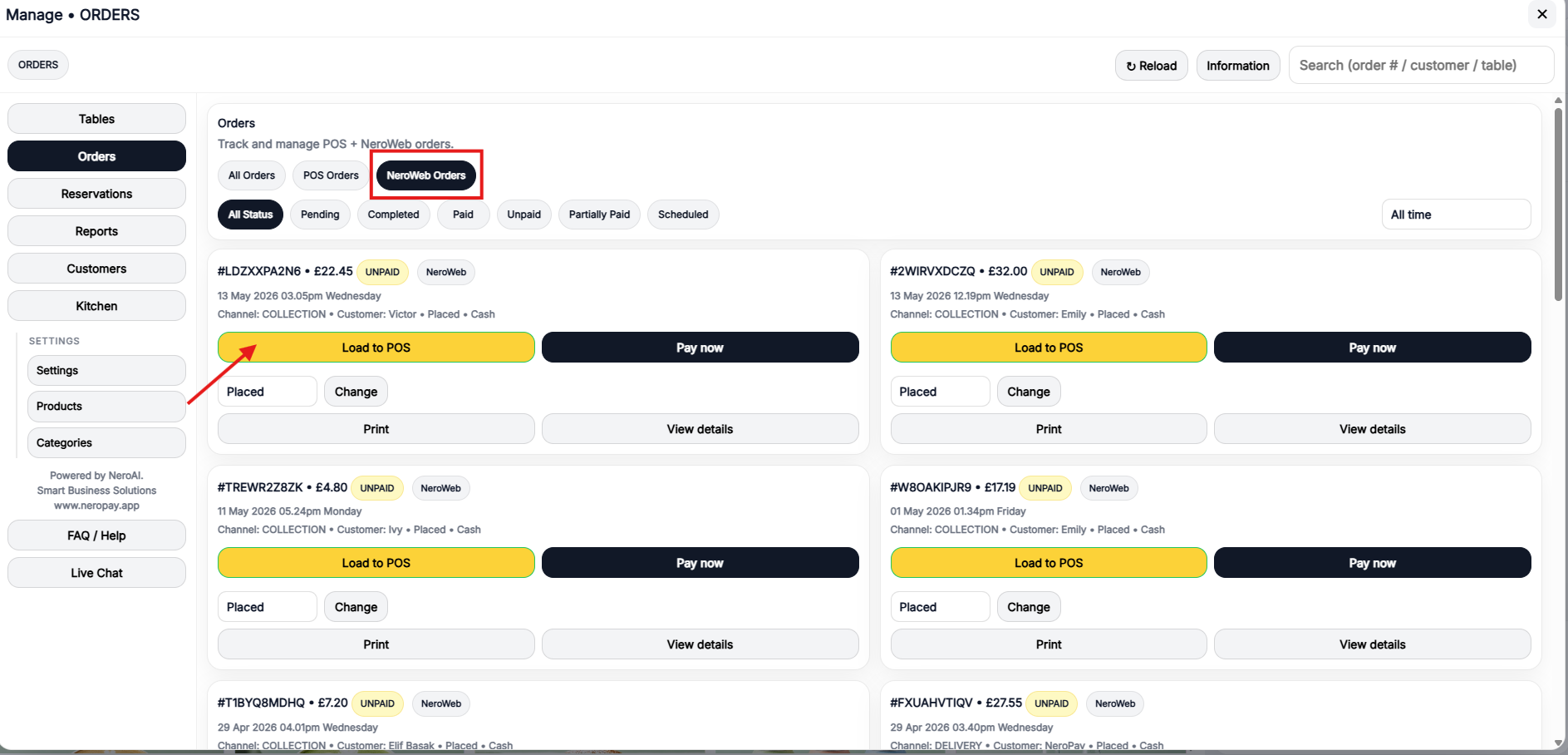
💡 Tip: Use the NeroWeb filter to separate online orders from in-store orders so you can manage them independently during busy periods.
Part 4 — Notifying customers when their order is ready
You can keep customers informed at every stage of their order via SMS or email.
Step 1 — Customer places an order
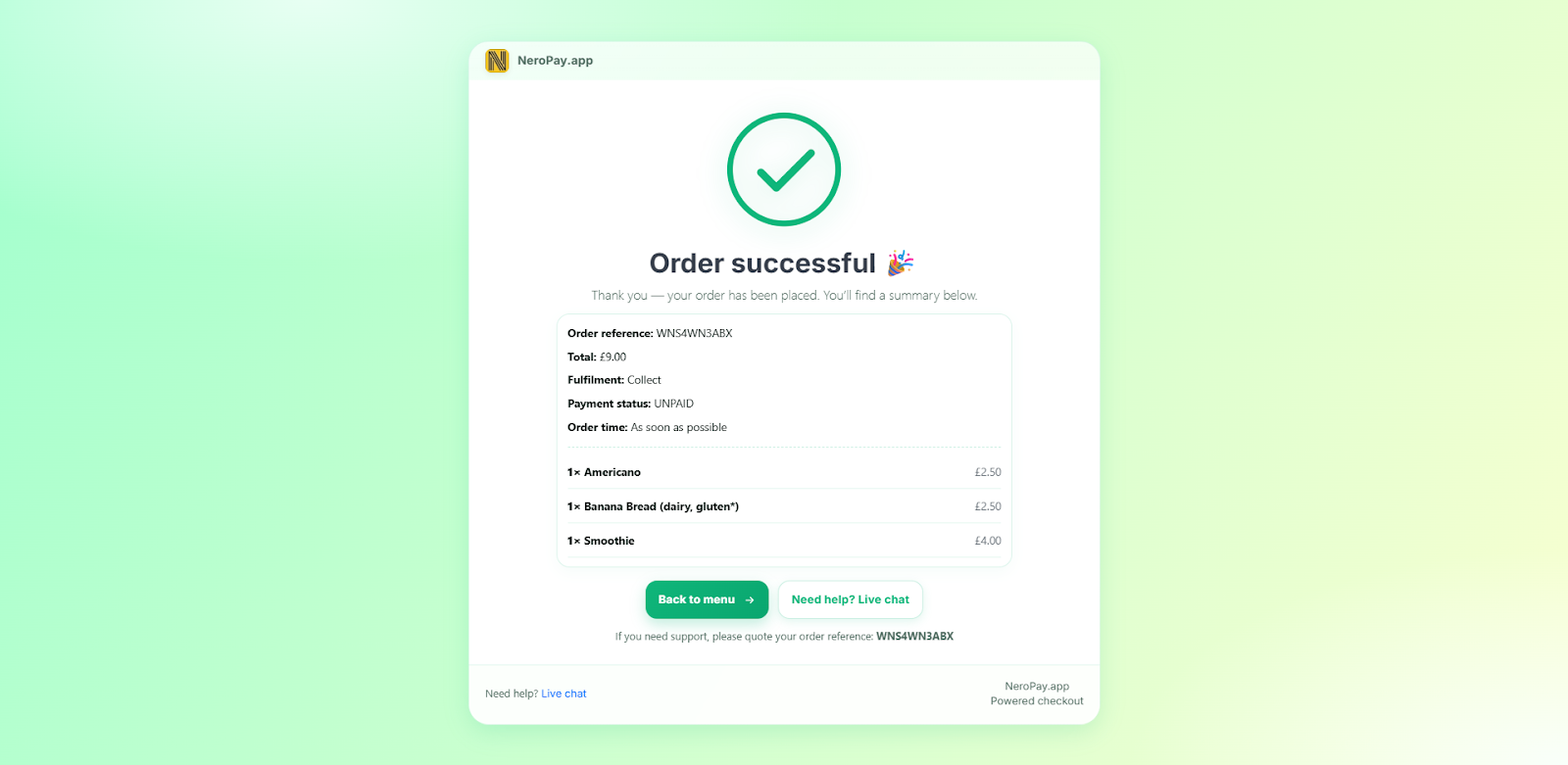
The customer completes their order on your NeroWeb store and sees a confirmation page confirming the order has been received.
📸
Step 2 — You receive the notification on EPOS
The order appears as a notification on your EPOS screen. Click it to open the order window.
Step 3 — Send a ready notification
Once the order is prepared, click Send notification from the order window. Choose your channel:
- SMS — sends a text message directly to the customer's phone
- Email — sends an email confirmation to the customer
📸
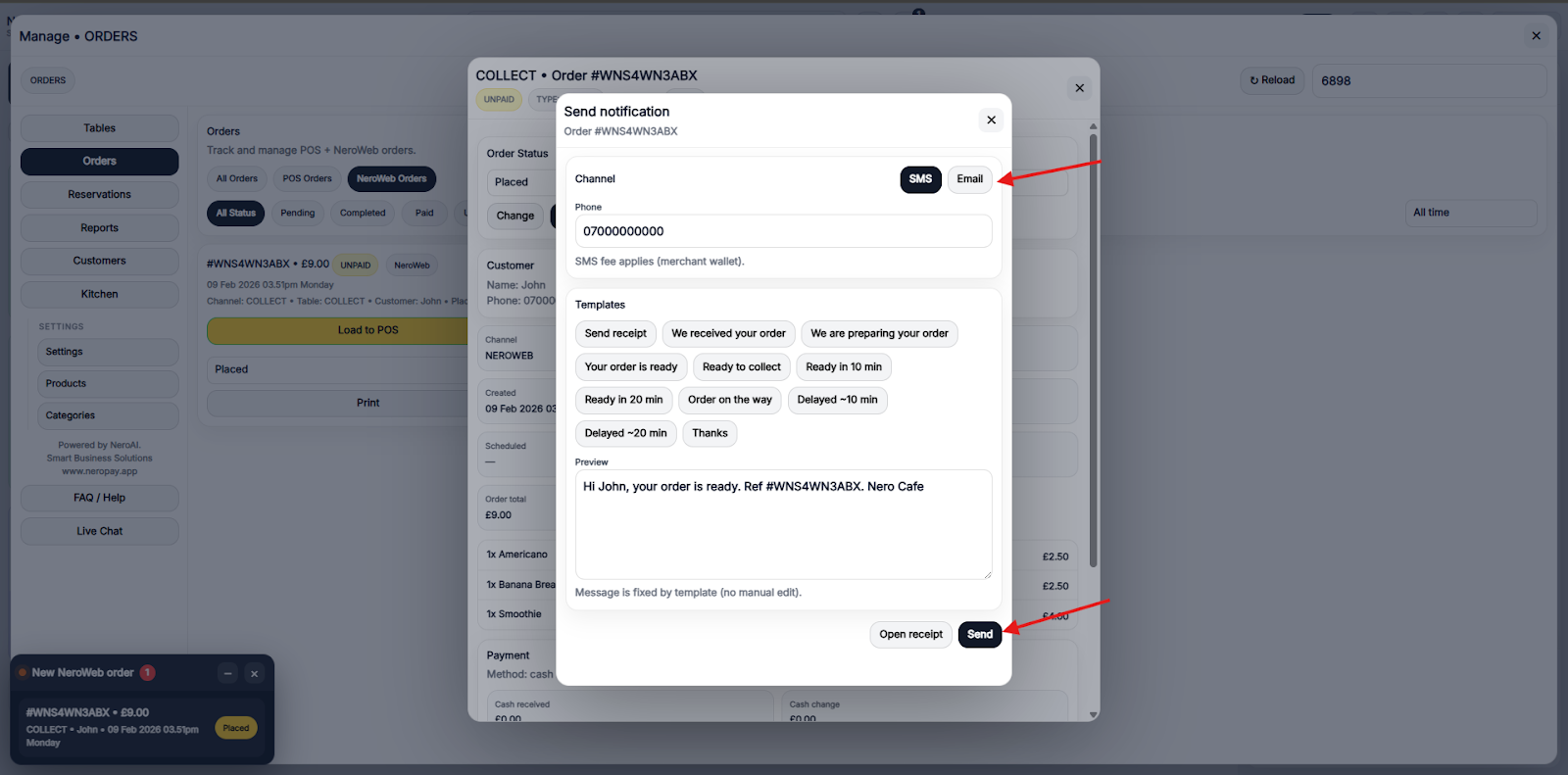
⚠️ Note: SMS notifications are subject to your daily SMS allowance. Check your remaining balance before sending bulk notifications. SMS fees apply.
Frequently asked questions
Q: Where do I see NeroWeb orders on the EPOS? A: A notification appears at the bottom of your EPOS screen when a new online order arrives. You can also view all orders from the bell icon at the top of the screen or by going to NeroPOS → Orders.
Q: Can I cancel a NeroWeb order? A: Yes. Open the order and select Cancelled from the status dropdown. The customer will be notified if notifications are enabled.
Q: How do I filter to see only NeroWeb orders? A: Go to NeroPOS → Orders and use the filter options to select NeroWeb orders only.
Q: Does the customer get notified automatically when I change the status? A: Status changes do not trigger automatic notifications unless you send one manually from the order window. Use the Send notification button to inform customers when their order is ready.
Q: Can I manage orders from my phone? A: Yes. The NeroPay dashboard is accessible on mobile, so you can view and update orders from anywhere.
Still need help? Contact us at support@neropay.app or create a ticket