Tab 1 — Trade Accounts
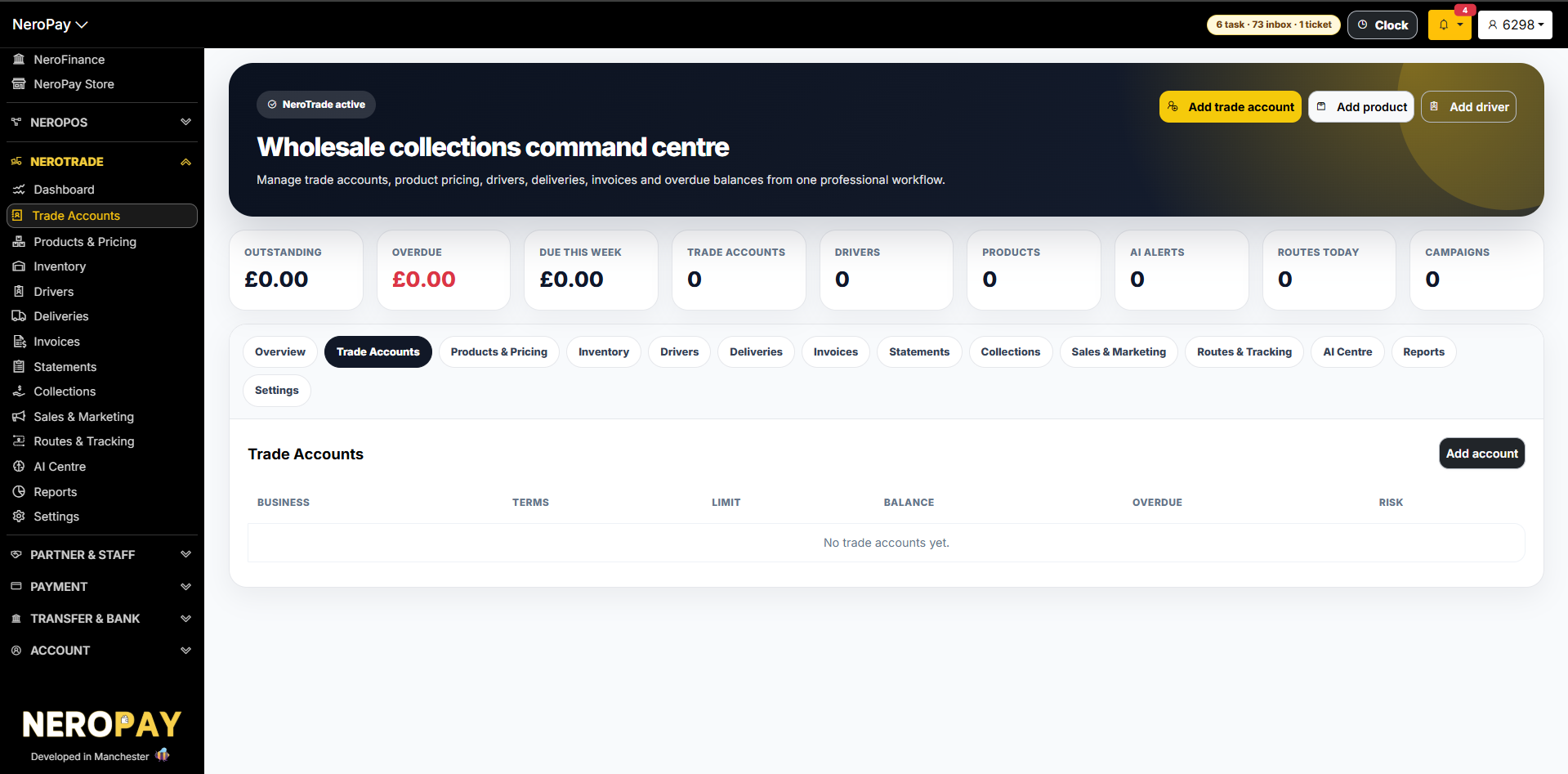
How to get there: NeroTrade → Trade Accounts
Your Trade Accounts list shows all your B2B customers with the following columns:
| Column | What it shows |
|---|---|
| Business | Customer business name |
| Terms | Payment terms — e.g. 7 days, 14 days |
| Limit | Credit limit set for this account |
| Balance | Current outstanding balance |
| Overdue | Amount past the due date |
| Risk | Credit risk status — e.g. Good payer, Cash only, Stop supply |
Click Add account to create a new trade customer. See NeroTrade overview → for the full account creation form.
📸
Tab 2 — Products and Pricing
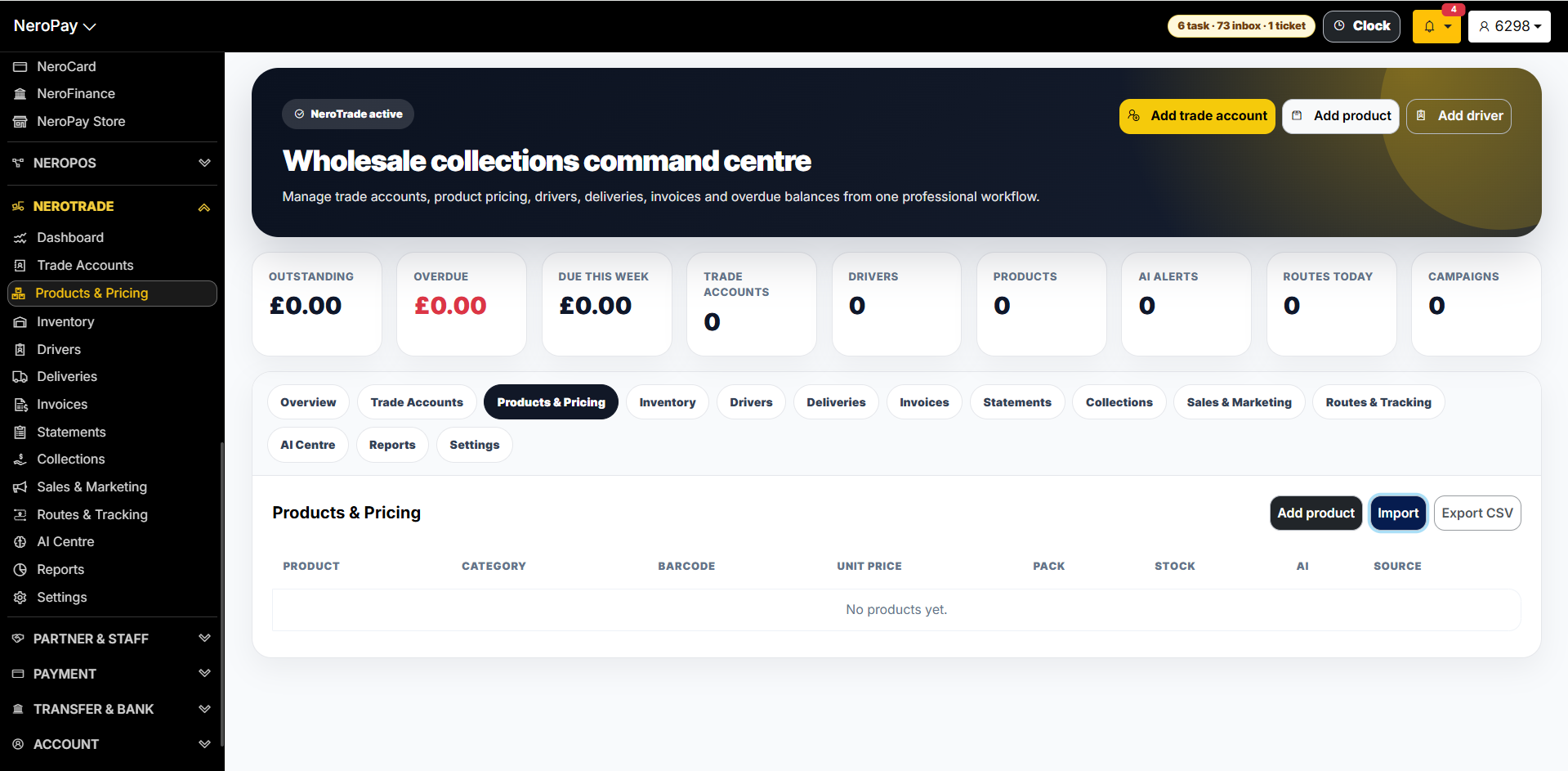
How to get there: NeroTrade → Products & Pricing
This is your wholesale product catalogue — separate from NeroPOS products and designed for trade pricing, wholesale units, and customer-specific rates.
| Column | What it shows |
|---|---|
| Product | Product name |
| Category | Product category |
| Barcode | Product barcode or SKU |
| Unit price | Price per base unit |
| Pack | Pack size and unit |
| Stock | Current stock quantity |
| AI | Whether AI stock watch is enabled |
| Source | How the product was added — manual or import |
From this page you can:
- Click Add product to add a product manually
- Click Import to bulk import products via CSV or NeroAI
- Click Export CSV to download your product list
📸
Tab 3 — Inventory
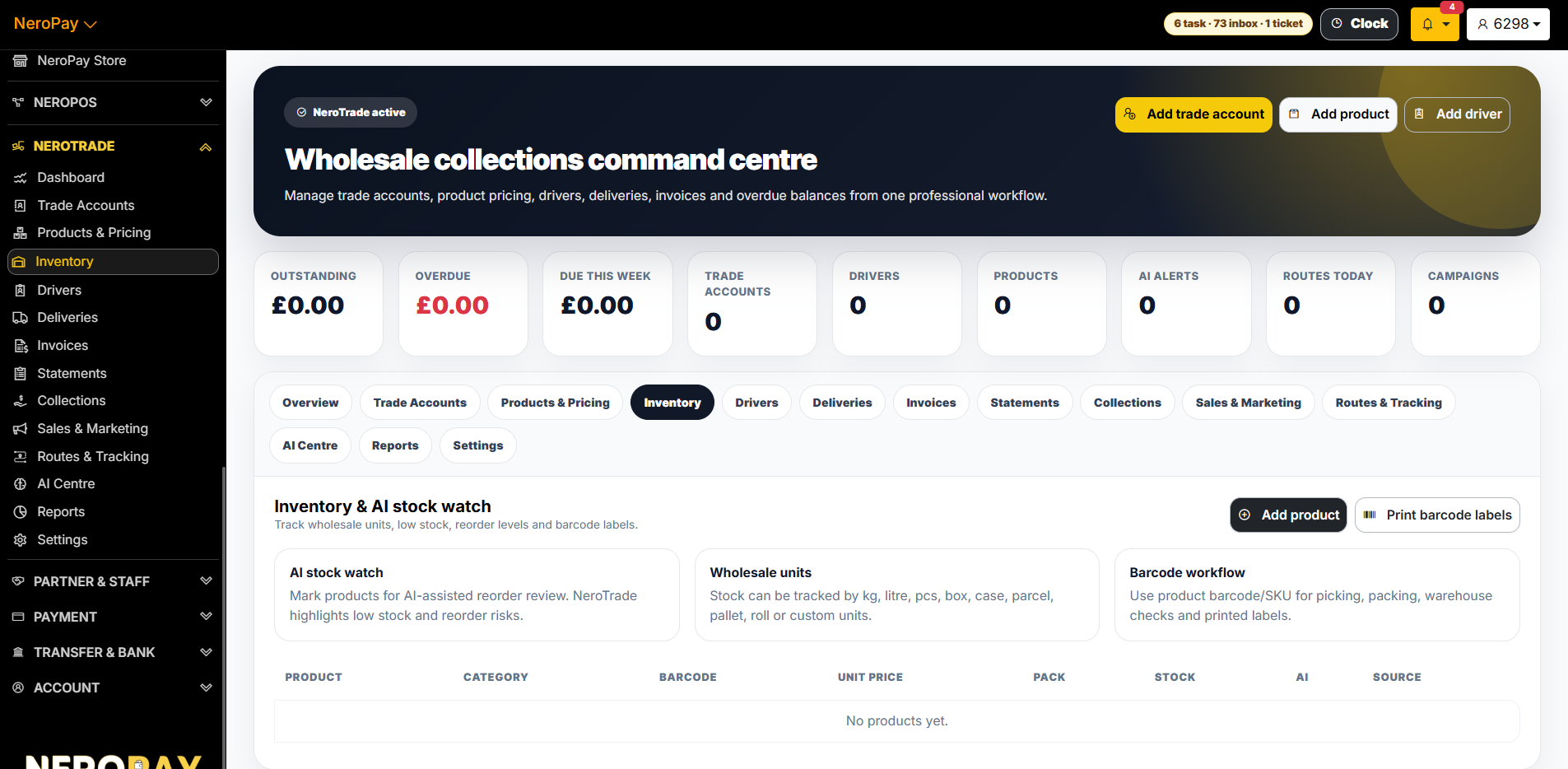
How to get there: NeroTrade → Inventory
The Inventory tab tracks wholesale stock levels, reorder points, and barcode workflows.
Three key features:
| Feature | What it does |
|---|---|
| AI stock watch | Mark products for AI-assisted reorder review. NeroTrade highlights low stock and reorder risks automatically |
| Wholesale units | Stock can be tracked by kg, litre, pcs, box, case, parcel, pallet, roll, or custom units |
| Barcode workflow | Use product barcodes and SKUs for picking, packing, warehouse checks, and printed labels |
Click Add product to add a new item, or Print barcode labels to generate printable labels for your stock.
📸
Tab 4 — Drivers
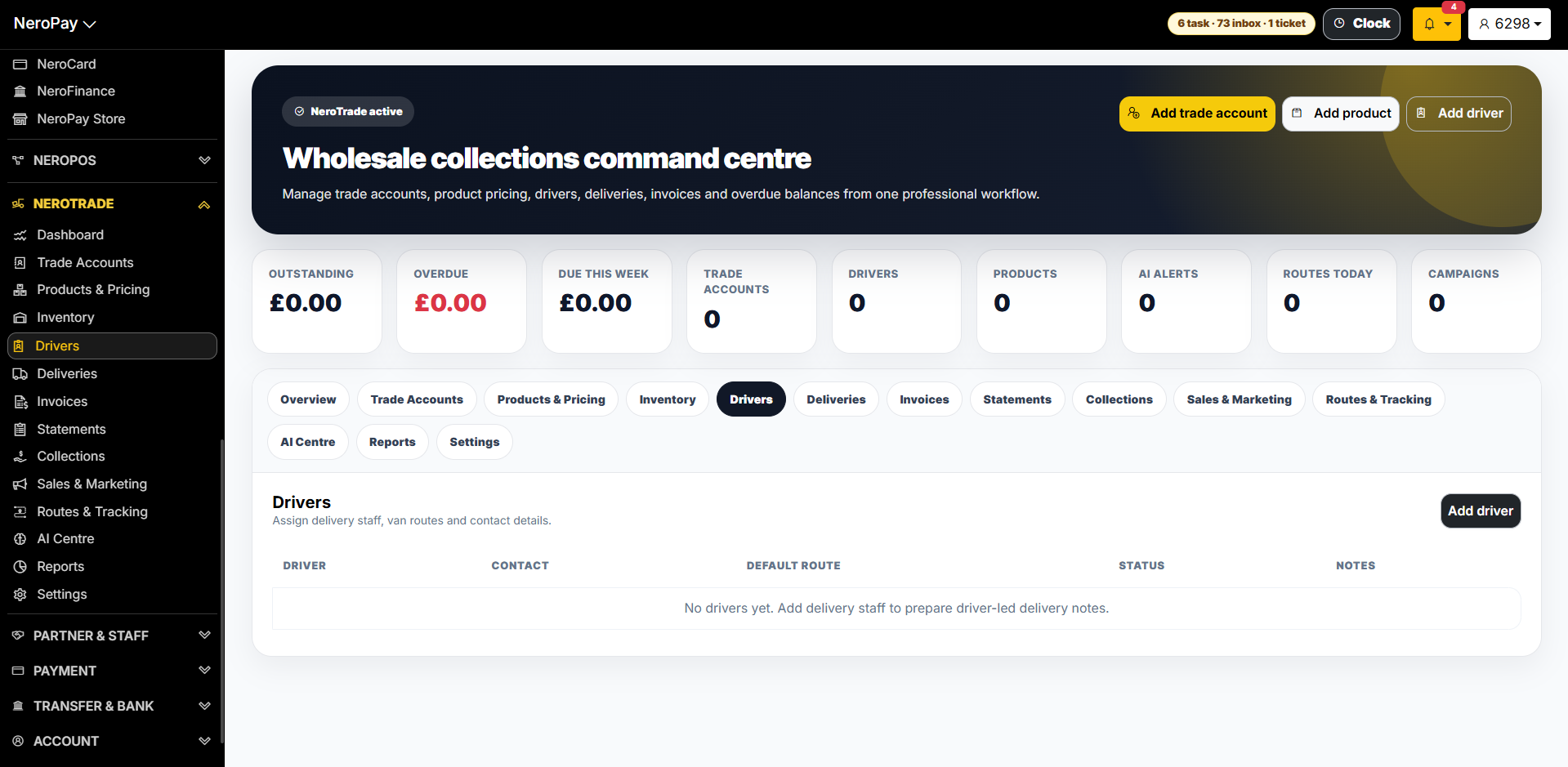
How to get there: NeroTrade → Drivers
Manage your delivery staff, assign routes, and set up proof-of-delivery workflows.
Each driver record shows:
| Column | What it shows |
|---|---|
| Driver | Driver name |
| Contact | Phone and email |
| Default route | Their usual delivery area |
| Status | Active or inactive |
| Notes | Internal driver notes |
Click Add driver to create a new driver record. See NeroTrade overview → for the full driver creation form.
📸
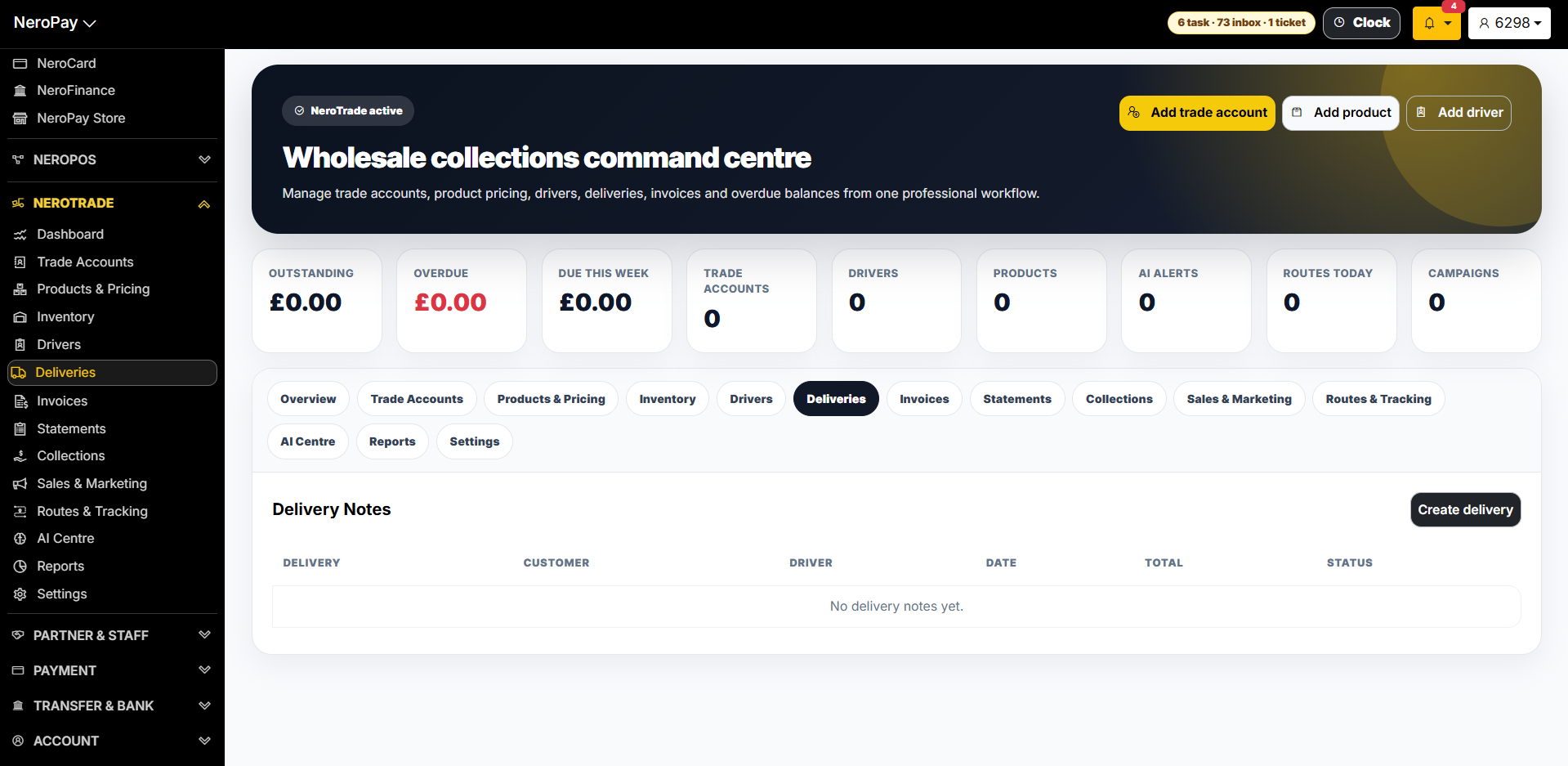
Tab 5 — Deliveries
How to get there: NeroTrade → Deliveries
Create delivery notes, capture proof of delivery, and link deliveries to invoices.
From this tab you can:
- Create a new delivery note
- Assign a driver and route
- Record delivery photos, signatures, and collection notes
- Link a completed delivery to an invoice for billing
📸
Tab 6 — Invoices
How to get there: NeroTrade → Invoices
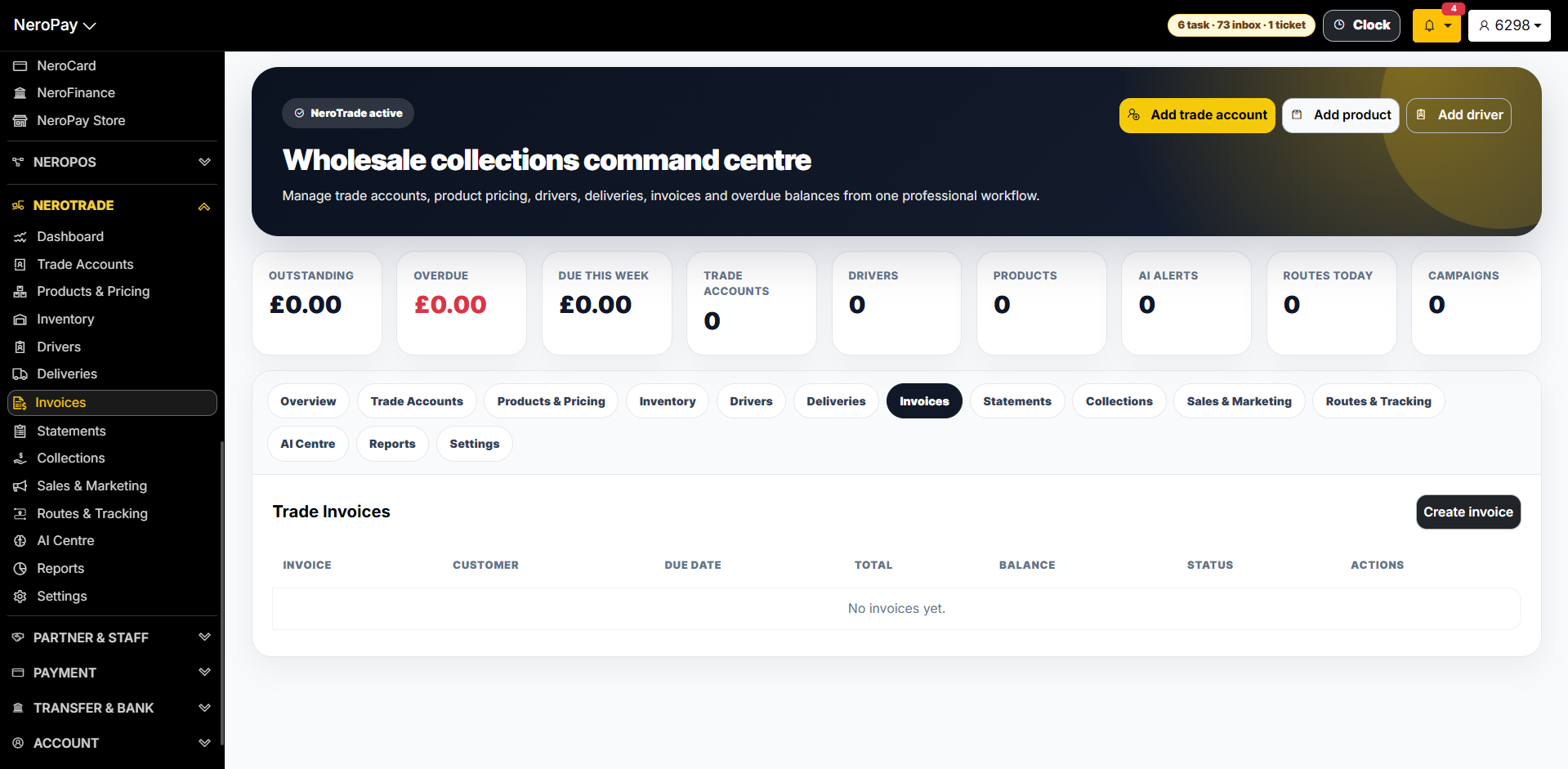
All trade invoices are managed here. Each invoice shows:
| Column | What it shows |
|---|---|
| Invoice | Invoice reference number |
| Customer | Trade account the invoice belongs to |
| Due date | When payment is due |
| Total | Invoice total amount |
| Balance | Remaining unpaid amount |
| Status | e.g. Due, Overdue, Paid, Part paid |
| Actions | Send, view, or record payment |
Click Create invoice to raise a new trade invoice.
📸
Tab 7 — Statements
How to get there: NeroTrade → Statements
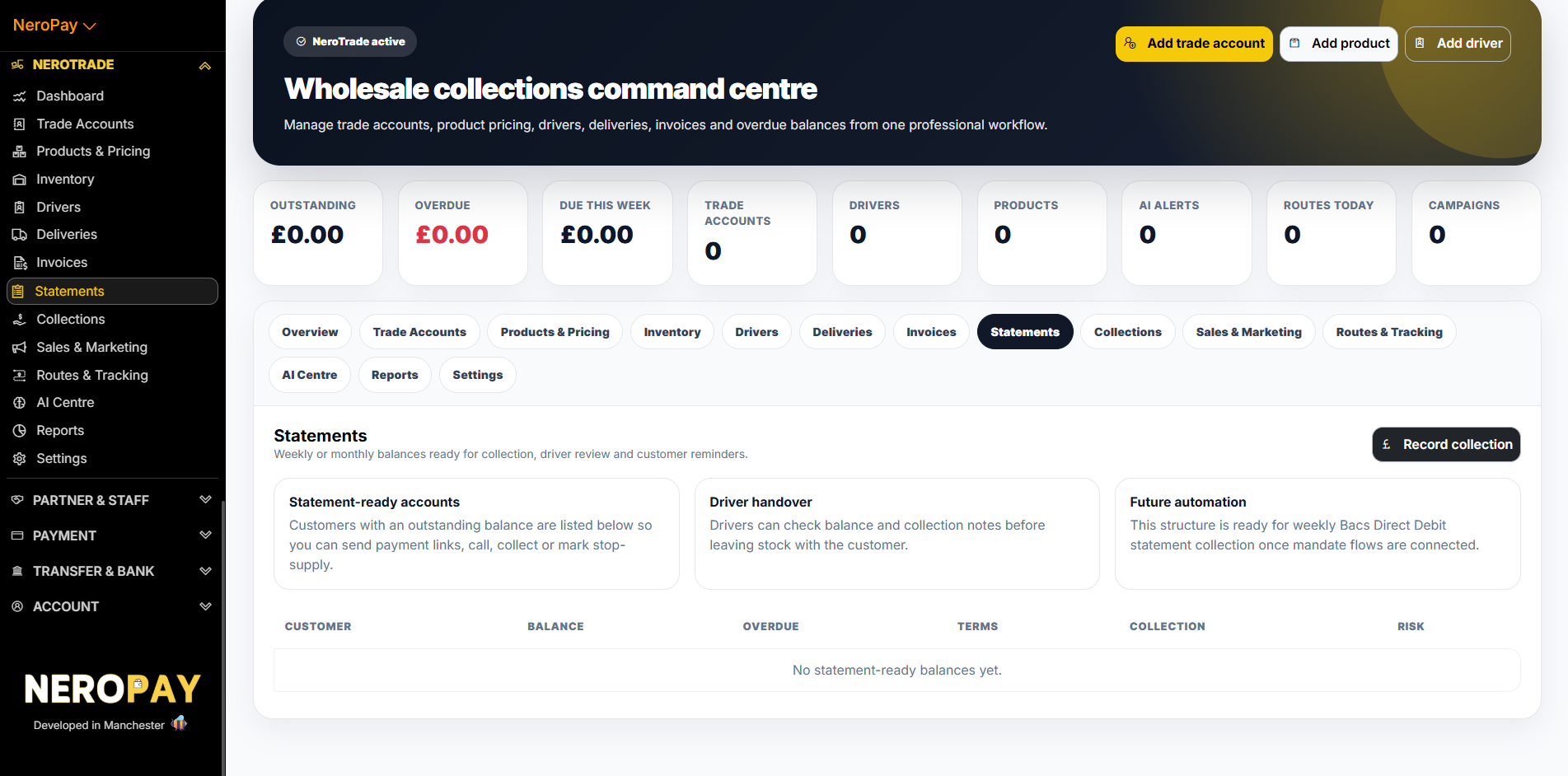
Statements shows all customers with outstanding balances that are ready for collection, driver review, or payment reminders.
Three key features:
| Feature | What it does |
|---|---|
| Statement-ready accounts | Customers with outstanding balances listed so you can send payment links, call, collect, or mark stop-supply |
| Driver handover | Drivers can check balance and collection notes before leaving stock with the customer |
| Future automation | Structure is ready for weekly Bacs Direct Debit statement collection once mandate flows are connected |
Each statement entry shows: Customer, Balance, Overdue amount, Terms, Collection method, and Risk status.
Click Record collection to log a payment received.
📸
Tab 8 — Collections
How to get there: NeroTrade → Collections
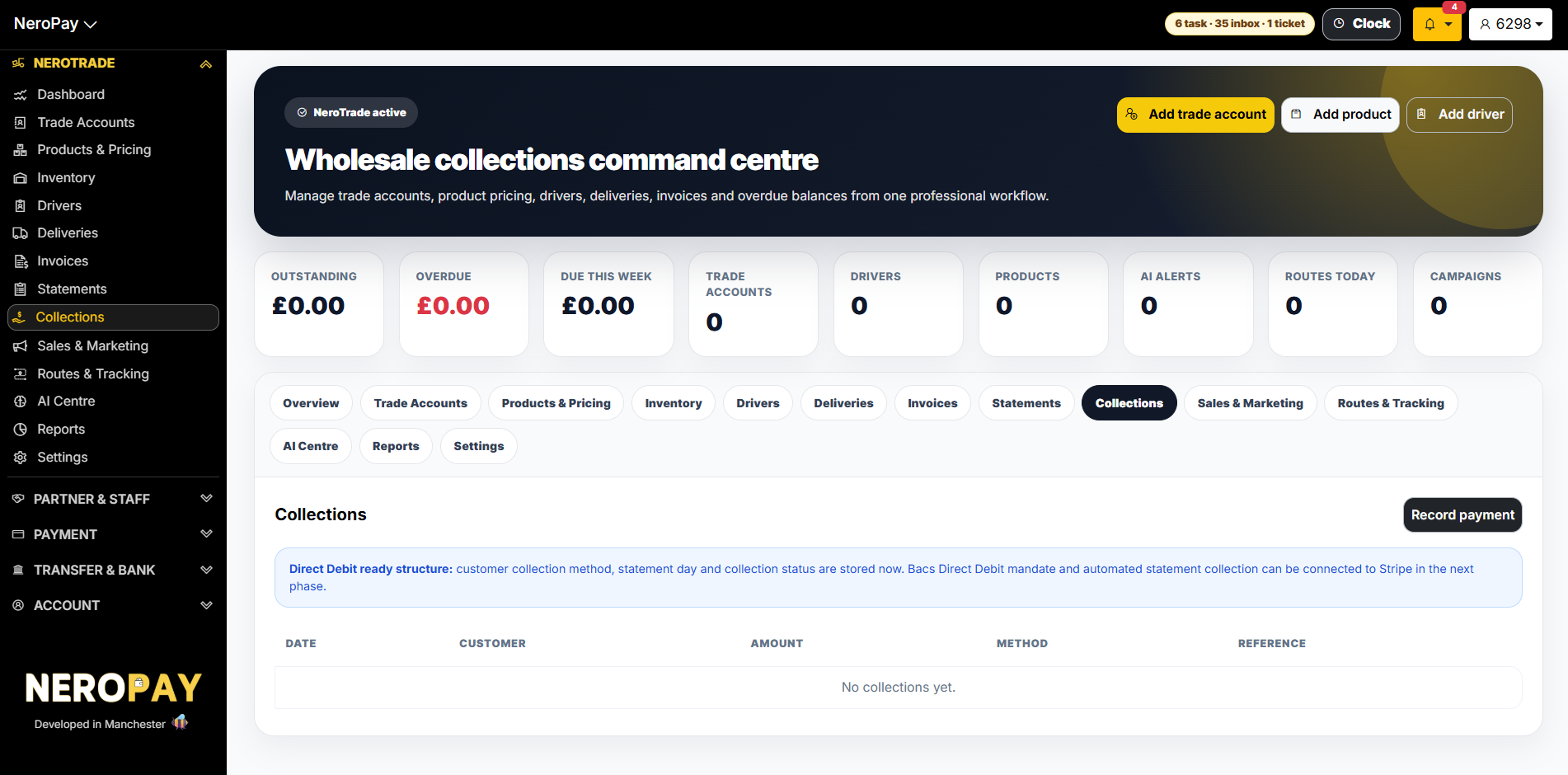
The Collections tab is your central log of all payments received from trade customers.
Each collection record shows: Date, Customer, Amount, Method, and Reference.
💡 Direct Debit ready: Customer collection method, statement day, and collection status are stored now. Bacs Direct Debit mandate and automated statement collection can be connected in the next phase.
Click Record payment to manually log a cash, card, bank transfer, or payment link collection.
📸
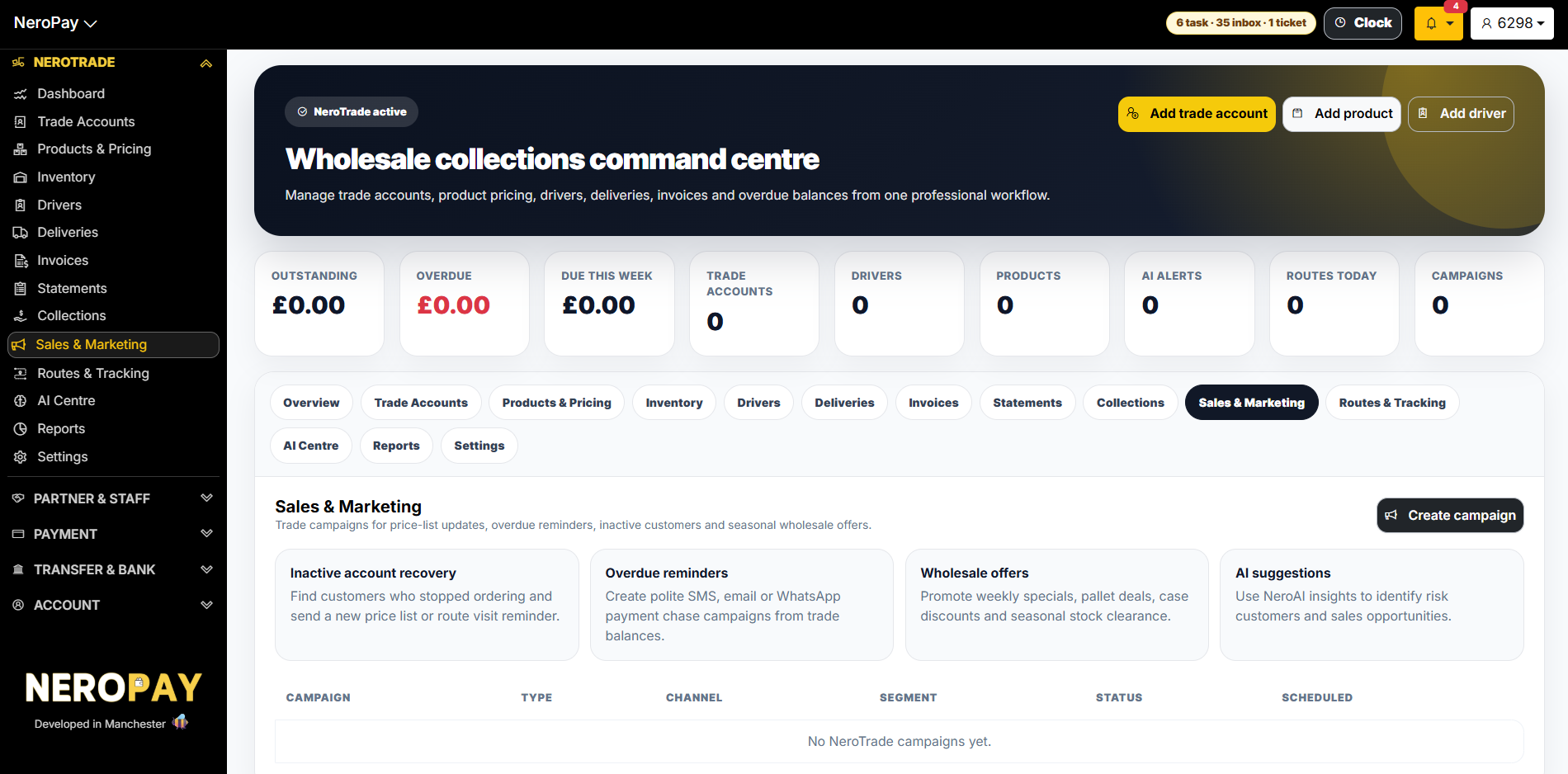
Tab 9 — Sales and Marketing
How to get there: NeroTrade → Sales & Marketing
Run trade campaigns to re-engage inactive customers, chase overdue balances, and promote wholesale offers.
Four campaign types:
| Type | What it does |
|---|---|
| Inactive account recovery | Find customers who stopped ordering and send a new price list or route visit reminder |
| Overdue reminders | Create SMS, email, or WhatsApp payment chase campaigns from trade balances |
| Wholesale offers | Promote weekly specials, pallet deals, case discounts, and seasonal stock clearance |
| AI suggestions | Use NeroAI insights to identify risk customers and sales opportunities |
Each campaign shows: Campaign name, Type, Channel, Segment, Status, and Scheduled date.
Click Create campaign to build and send a new campaign.
📸
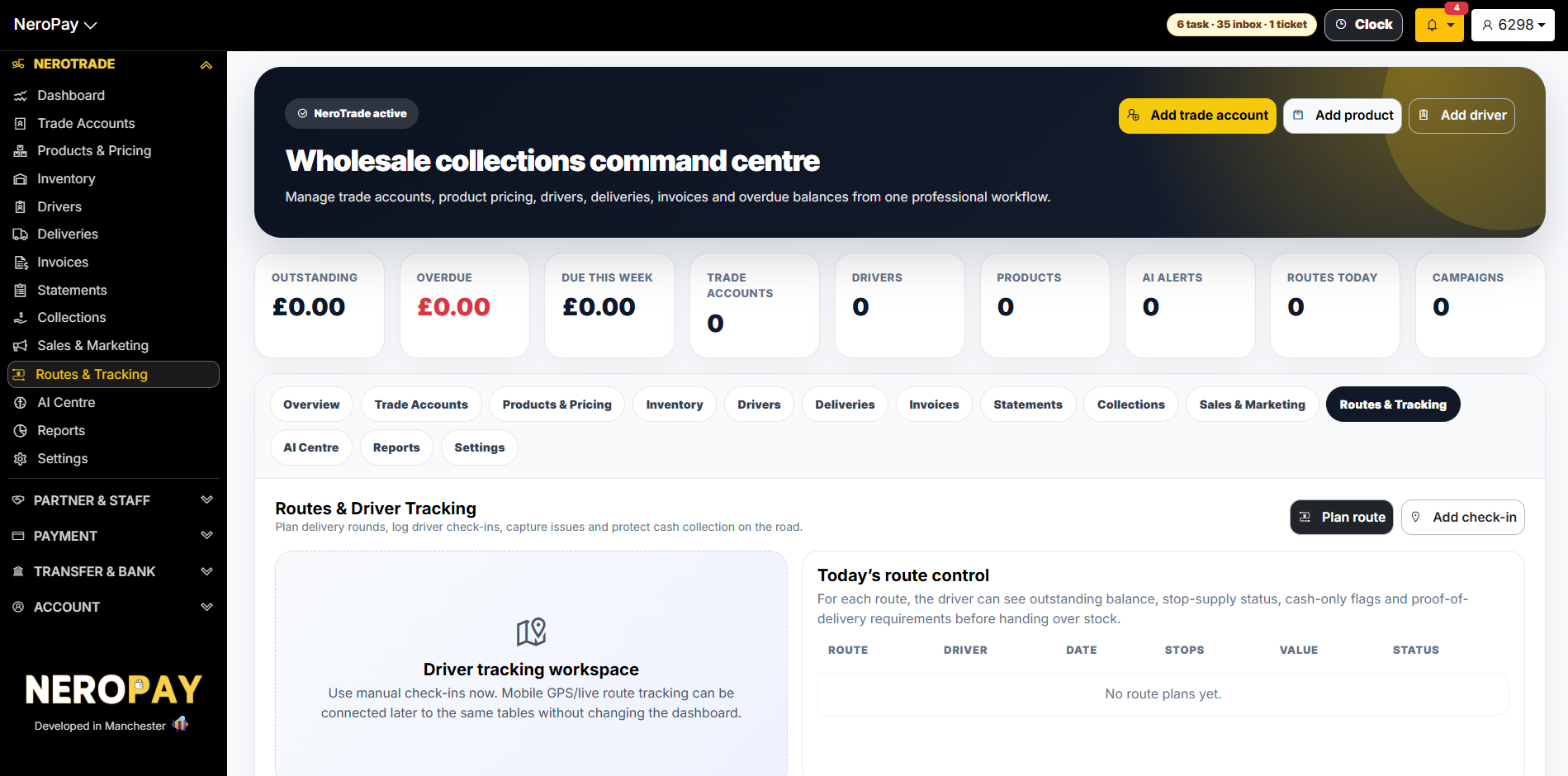
Tab 10 — Routes and Tracking
How to get there: NeroTrade → Routes & Tracking
Plan delivery rounds, log driver check-ins, capture issues, and protect cash collection on the road.
Today's route control shows for each route:
| Column | What it shows |
|---|---|
| Route | Route name or area |
| Driver | Assigned driver |
| Date | Delivery date |
| Stops | Number of customer stops |
| Value | Total value of deliveries on the route |
| Status | Current route status |
For each route, the driver can see outstanding balance, stop-supply status, cash-only flags, and proof-of-delivery requirements before handing over stock.
Click Plan route to create a new delivery route, or Add check-in to log a driver check-in manually.
💡 Note: Manual check-ins are available now. Mobile GPS and live route tracking can be connected later to the same tables without changing the dashboard.
📸
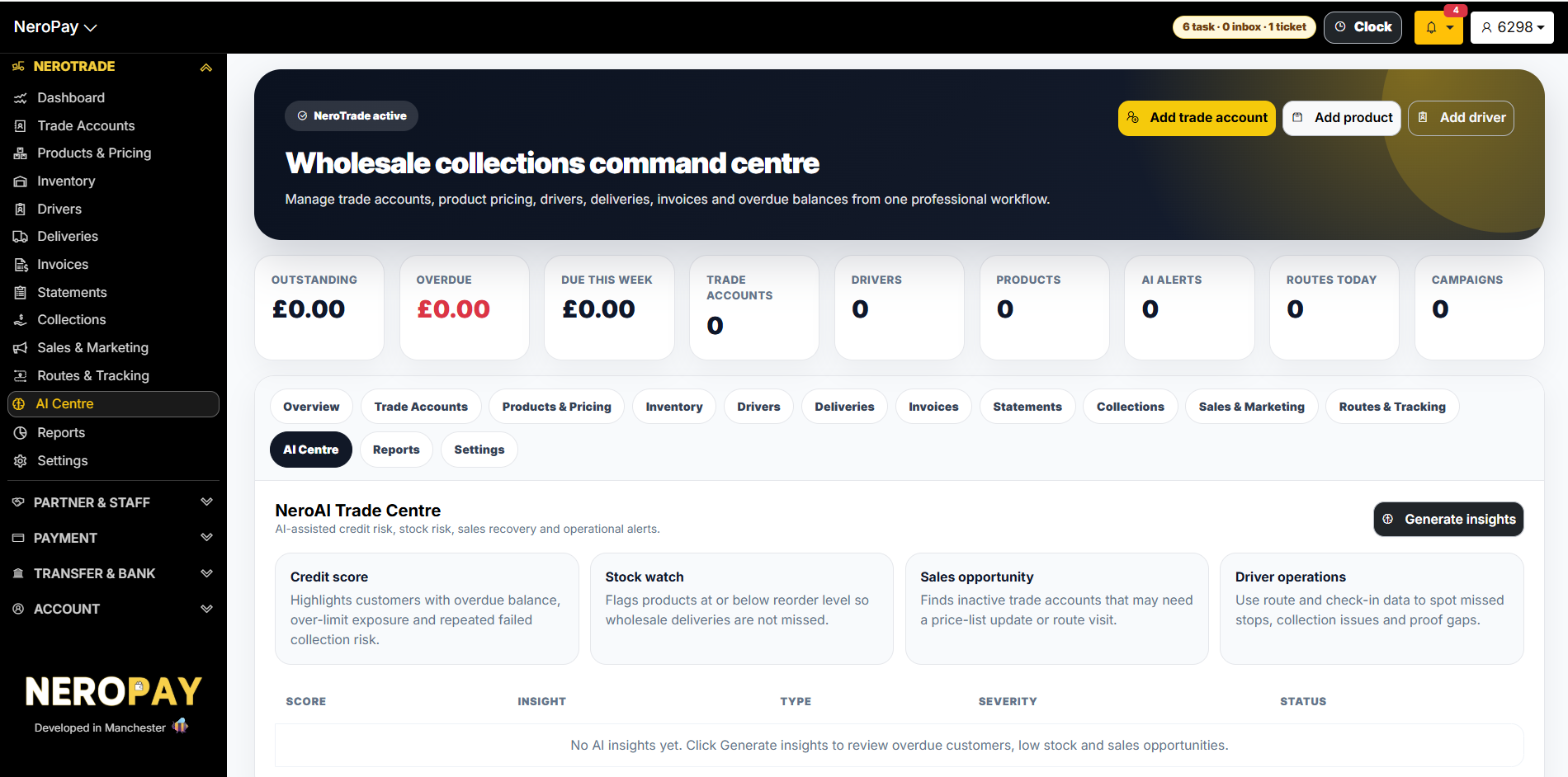
Tab 11 — AI Centre
How to get there: NeroTrade → AI Centre
The NeroAI Trade Centre provides AI-assisted insights across credit risk, stock, sales recovery, and driver operations.
Four insight types:
| Type | What it does |
|---|---|
| Credit score | Highlights customers with overdue balances, over-limit exposure, and repeated failed collection risk |
| Stock watch | Flags products at or below reorder level so wholesale deliveries are not missed |
| Sales opportunity | Finds inactive trade accounts that may need a price-list update or route visit |
| Driver operations | Uses route and check-in data to spot missed stops, collection issues, and proof gaps |
Click Generate insights to run a fresh AI analysis across your trade data.
Each insight shows: Score, Insight description, Type, Severity, and Status.
📸
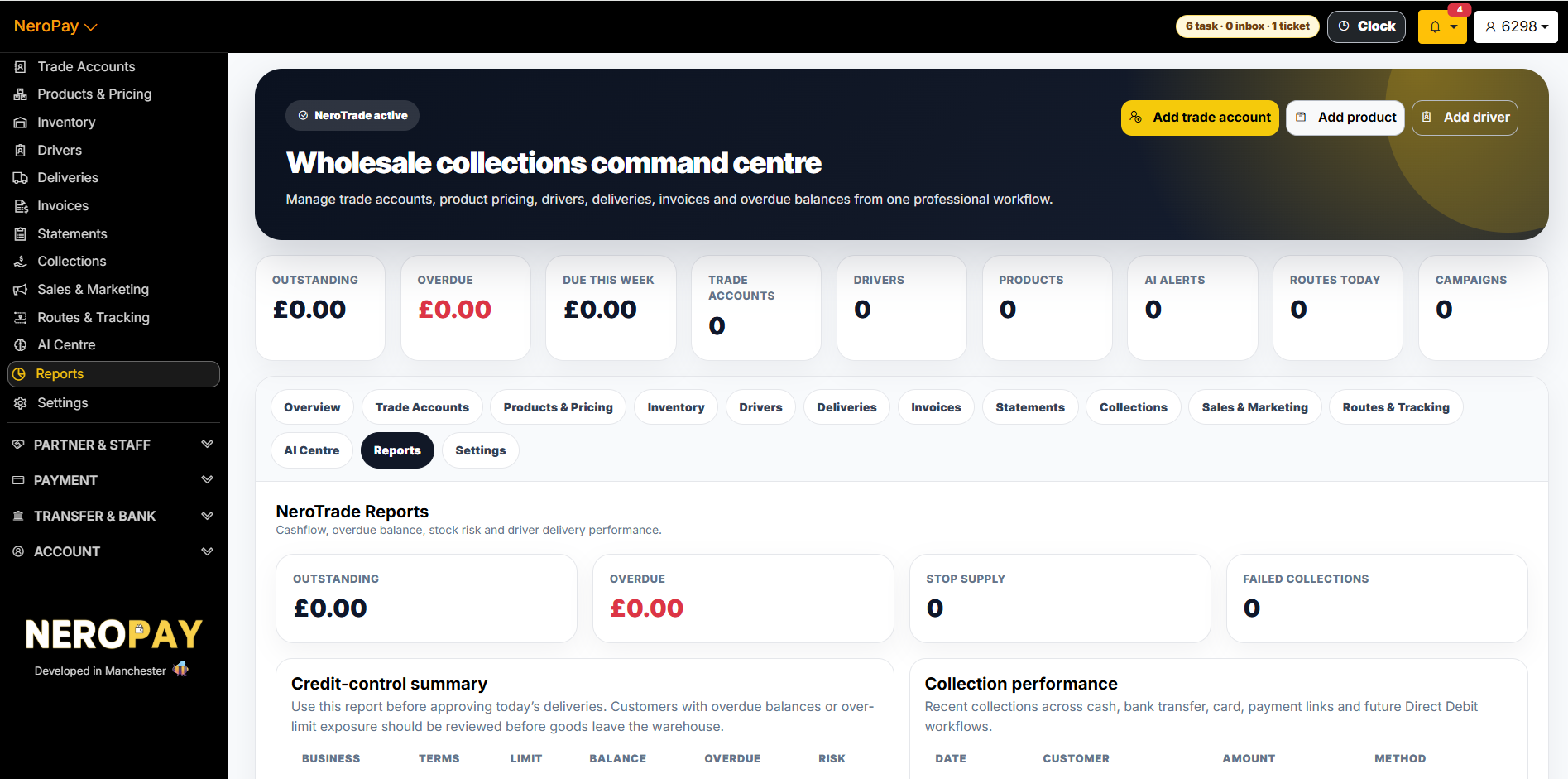
Tab 12 — Reports
How to get there: NeroTrade → Reports
NeroTrade Reports gives you a cashflow, overdue balance, stock risk, and driver delivery performance overview.
Key metrics at the top:
| Metric | What it shows |
|---|---|
| Outstanding | Total outstanding across all trade accounts |
| Overdue | Total amount past due date |
| Stop supply | Number of accounts flagged for stop supply |
| Failed collections | Number of failed payment collection attempts |
Credit-control summary Use this report before approving today's deliveries. Customers with overdue balances or over-limit exposure should be reviewed before goods leave the warehouse.
Shows: Business, Terms, Limit, Balance, Overdue, Risk.
Collection performance Recent collections across cash, bank transfer, card, payment links, and future Direct Debit workflows.
Shows: Date, Customer, Amount, Method.
📸
Tab 13 — Settings
How to get there: NeroTrade → Settings
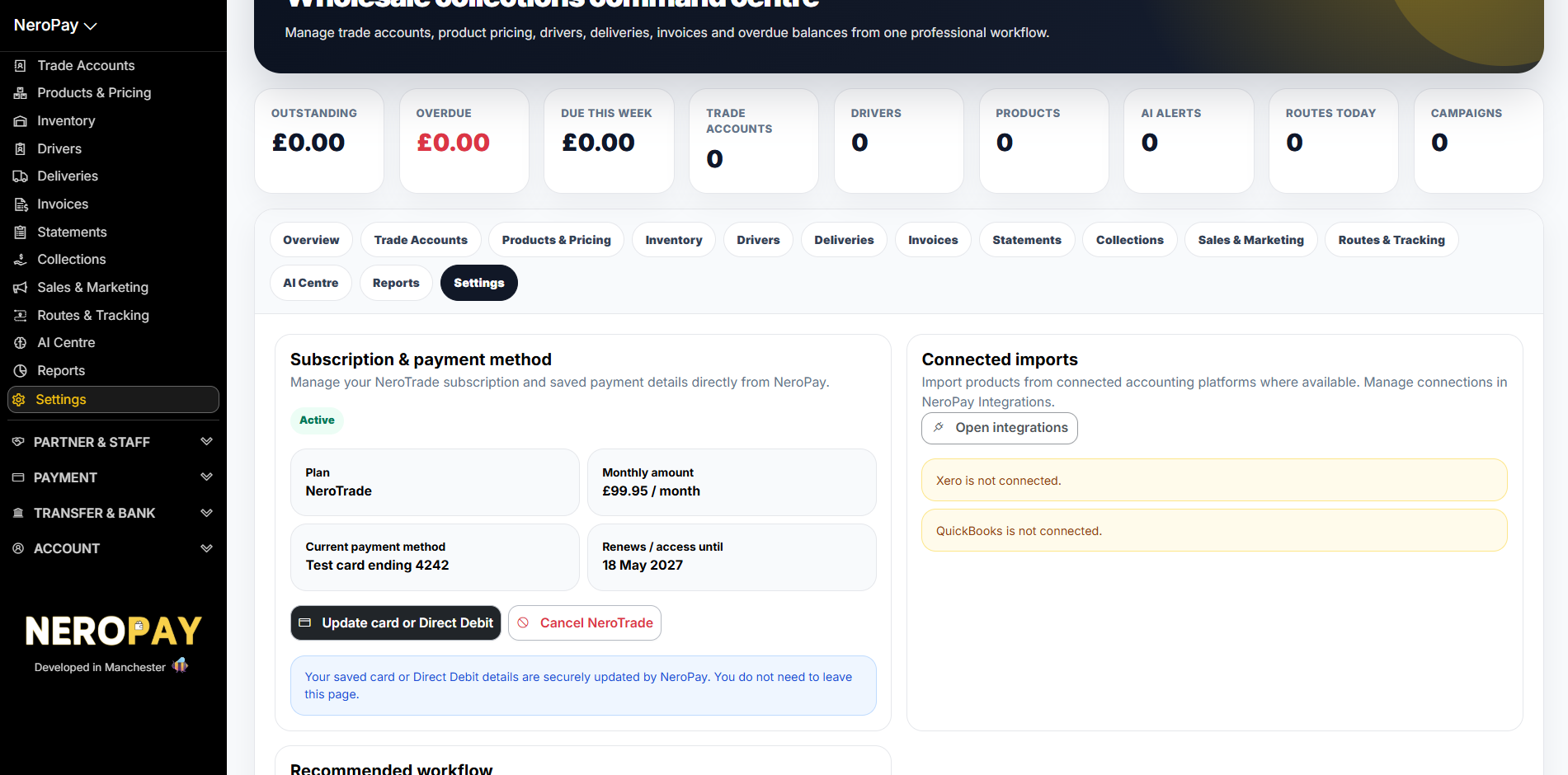
Subscription and payment method
| Field | What it shows |
|---|---|
| Plan | NeroTrade |
| Monthly amount | £99.95/month |
| Current payment method | Your saved card or Direct Debit |
| Renews / access until | Your next renewal date |
Click Update card or Direct Debit to change your payment method. Click Cancel NeroTrade to cancel your subscription.
💡 Note: Your saved card or Direct Debit details are securely updated by NeroPay. You do not need to leave this page.
Connected imports
Import products from connected accounting platforms. Supported integrations:
- Xero
- QuickBooks
Click Open integrations to connect your accounting platform. See Integrations → for setup guidance.
📸
Frequently asked questions
Q: Can I import products in bulk instead of adding them one by one? A: Yes. Go to Products & Pricing and click Import to upload a CSV, or use NeroAI to extract products from a PDF or image price list.
Q: How do I record a cash payment collected on a route? A: Go to Collections and click Record payment, or use the Statement tab to record a collection directly against a customer's outstanding balance.
Q: Can drivers see which customers to avoid before a delivery? A: Yes. The Routes & Tracking tab shows stop-supply status, cash-only flags, and outstanding balances for each stop on the route before the driver leaves.
Q: What is the difference between Statements and Collections? A: Statements shows which customers have balances ready for collection — it's the review and action page. Collections is the log of payments already received.
Q: How do I cancel NeroTrade? A: Go to NeroTrade → Settings and click Cancel NeroTrade.
Still need help? Contact us at support@neropay.app or create a ticket