Overview
How to get there
From your dashboard, follow this path:
Payment → Virtual Terminal
Step 1 — Log in to your NeroPay account
Open the NeroPay app or dashboard and log in with your merchant account credentials.
📸 [Screenshot: NeroPay login screen — mobile] 📸 [Screenshot: NeroPay login screen — desktop]
Step 2 — Navigate to Virtual Terminal
From the main menu, select Payment, then tap or click Virtual Terminal.
📸 [Screenshot: Payment menu showing Virtual Terminal option — mobile] 📸 [Screenshot: Payment menu showing Virtual Terminal option — desktop]
Step 3 — Choose your payment method
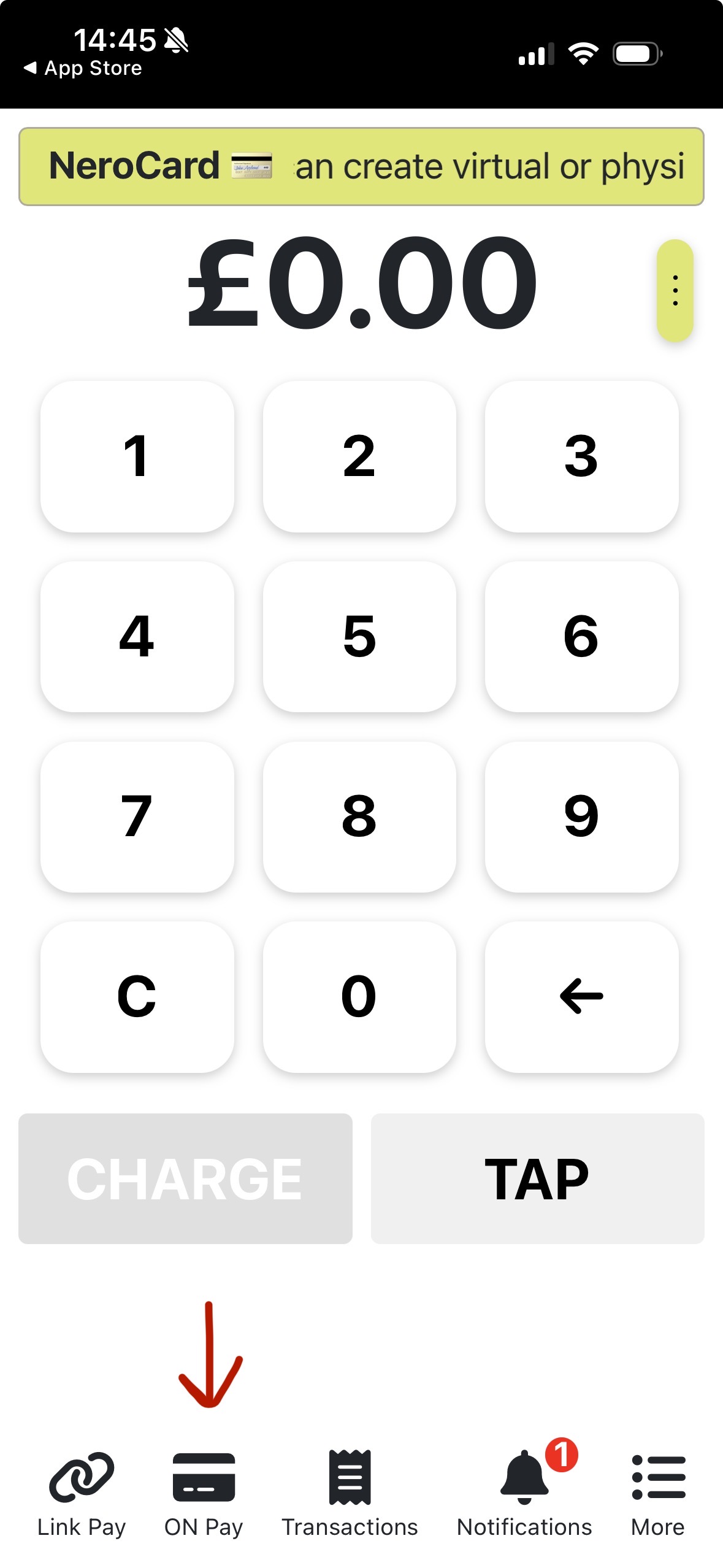
On the Virtual Terminal screen, select how you want to take payment:
Option A — LinkPay Send a secure payment link directly to the customer.
- Enter the payment amount
- Choose the recipient type — SMS or Email
- Enter the customer's phone number or email address
- Send the link — the customer completes payment on their own device
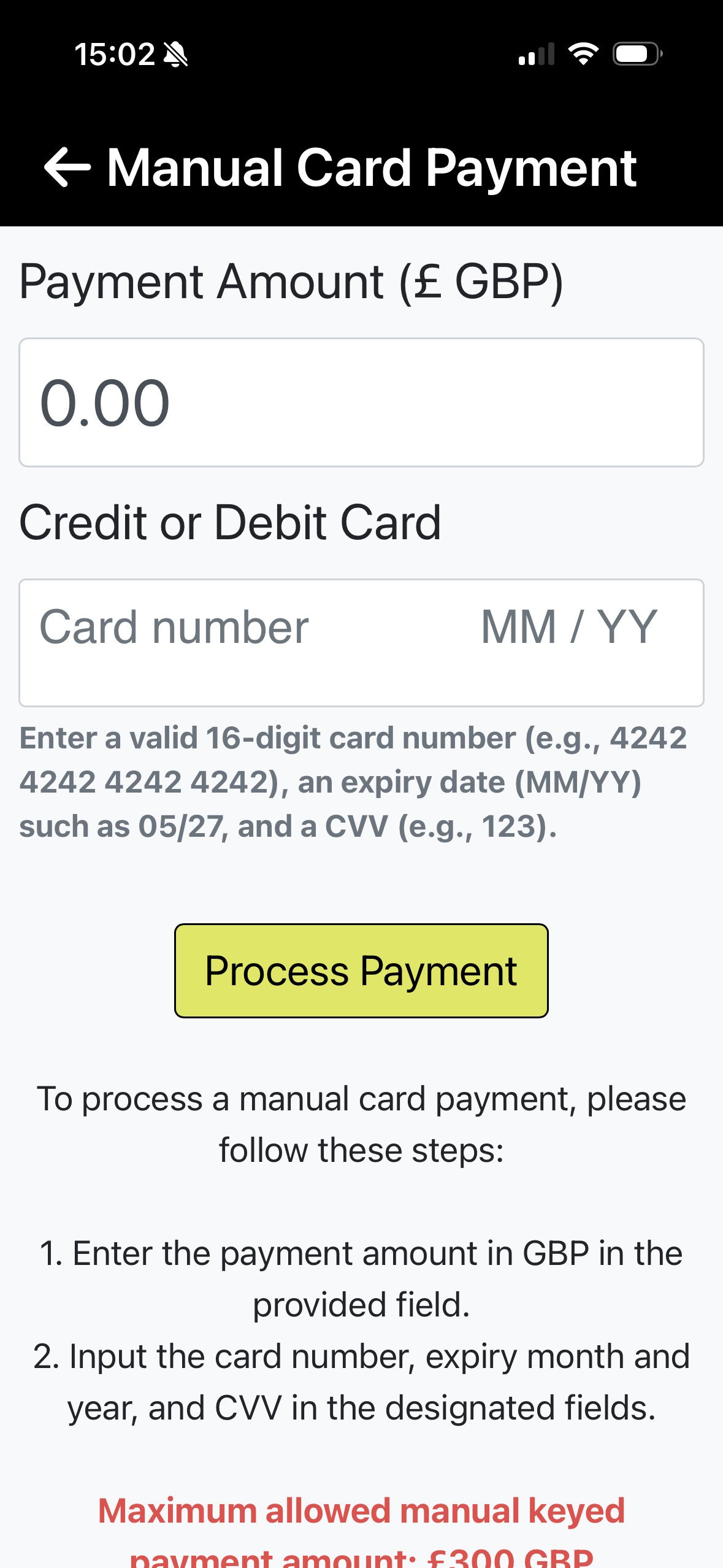
Option B — OnPay Enter the customer's card details directly into the terminal-style interface.
- Enter the payment amount
- Key in the customer's card number, expiry date, and CVV
- Confirm to process the payment
📸 [Screenshot: Virtual Terminal screen showing LinkPay and OnPay options — mobile] 📸 [Screenshot: Virtual Terminal screen showing LinkPay and OnPay options — desktop]
Step 4 — Confirm and process
Review the payment details before confirming:
- For LinkPay — the customer receives a secure link and completes payment on their end. The transaction appears in your dashboard once paid.
- For OnPay — the card is charged immediately. A confirmation will appear once the payment is processed.
⚠️ Note: Always ensure you have the customer's consent before entering their card details via OnPay. Keep card details secure and never store them outside of the NeroPay system.
📸 [Screenshot: Payment confirmation screen — mobile] 📸 [Screenshot: Payment confirmation screen — desktop]
Frequently asked questions
Q: What is the difference between LinkPay and OnPay? A: LinkPay sends the customer a secure link to complete payment themselves — no card details are shared with you. OnPay lets you enter the customer's card details directly, useful for phone orders where the customer reads their details to you.
Q: Can I use the Virtual Terminal on my phone? A: Yes. The Virtual Terminal is available on both mobile and desktop through the NeroPay app and dashboard.
Q: Is there a fee for using the Virtual Terminal? A: Standard processing fees apply. See Fees, rewards and pricing → for details.
Q: Where do I see Virtual Terminal transactions? A: All transactions processed through the Virtual Terminal appear in your Transactions page. See Transactions → for details.
Still need help? Contact us at support@neropay.app or create a ticket
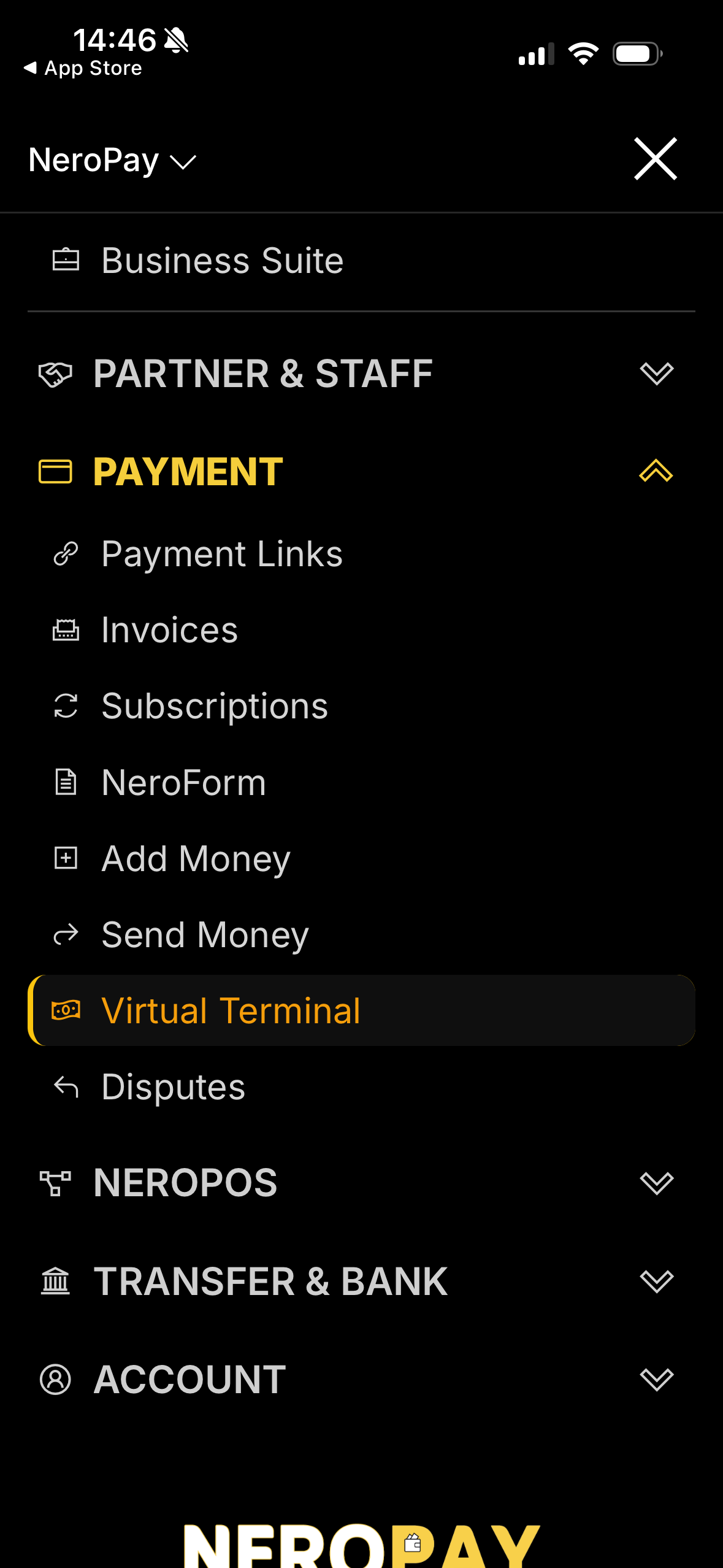
Step 2 — Navigate to Virtual Terminal
From the main menu, select Payment, then tap Virtual Terminal.
📷
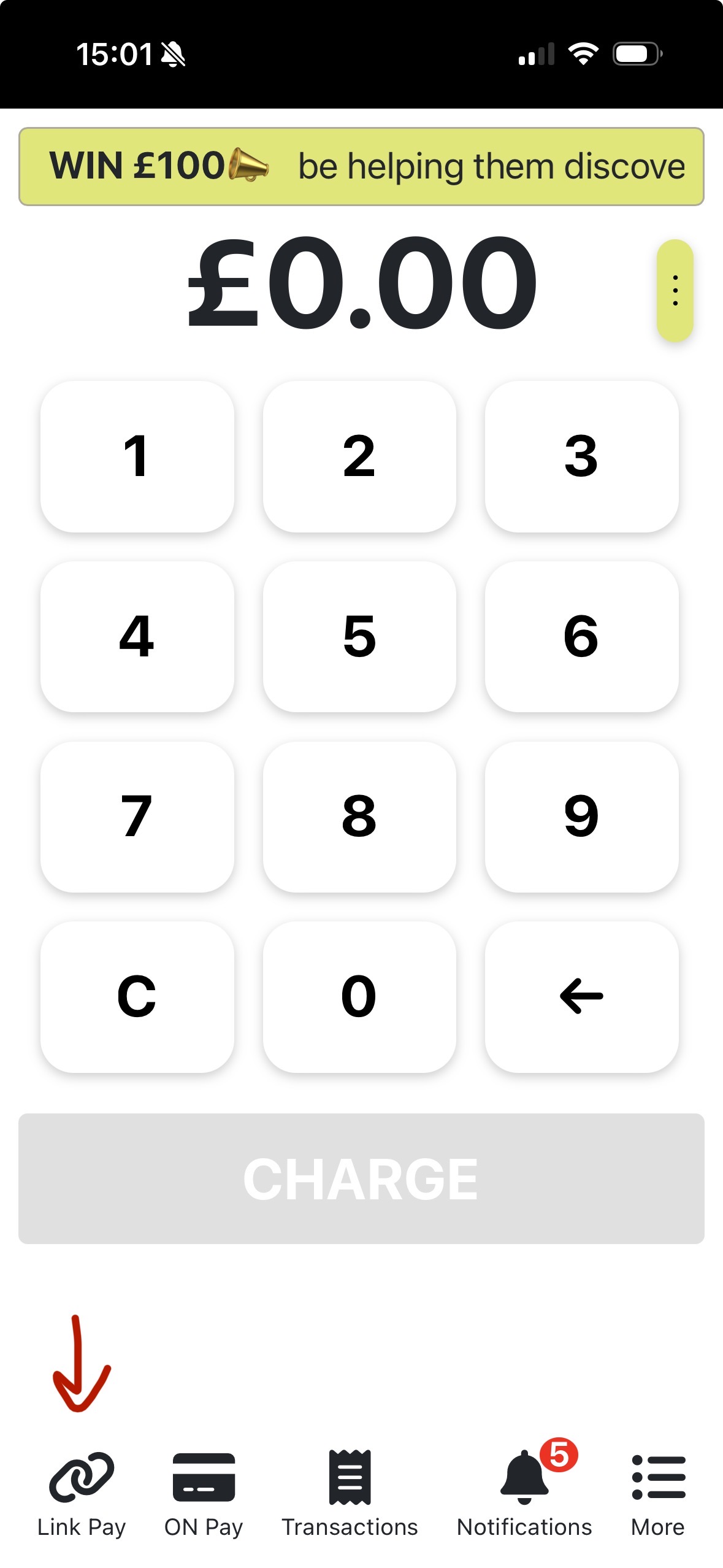
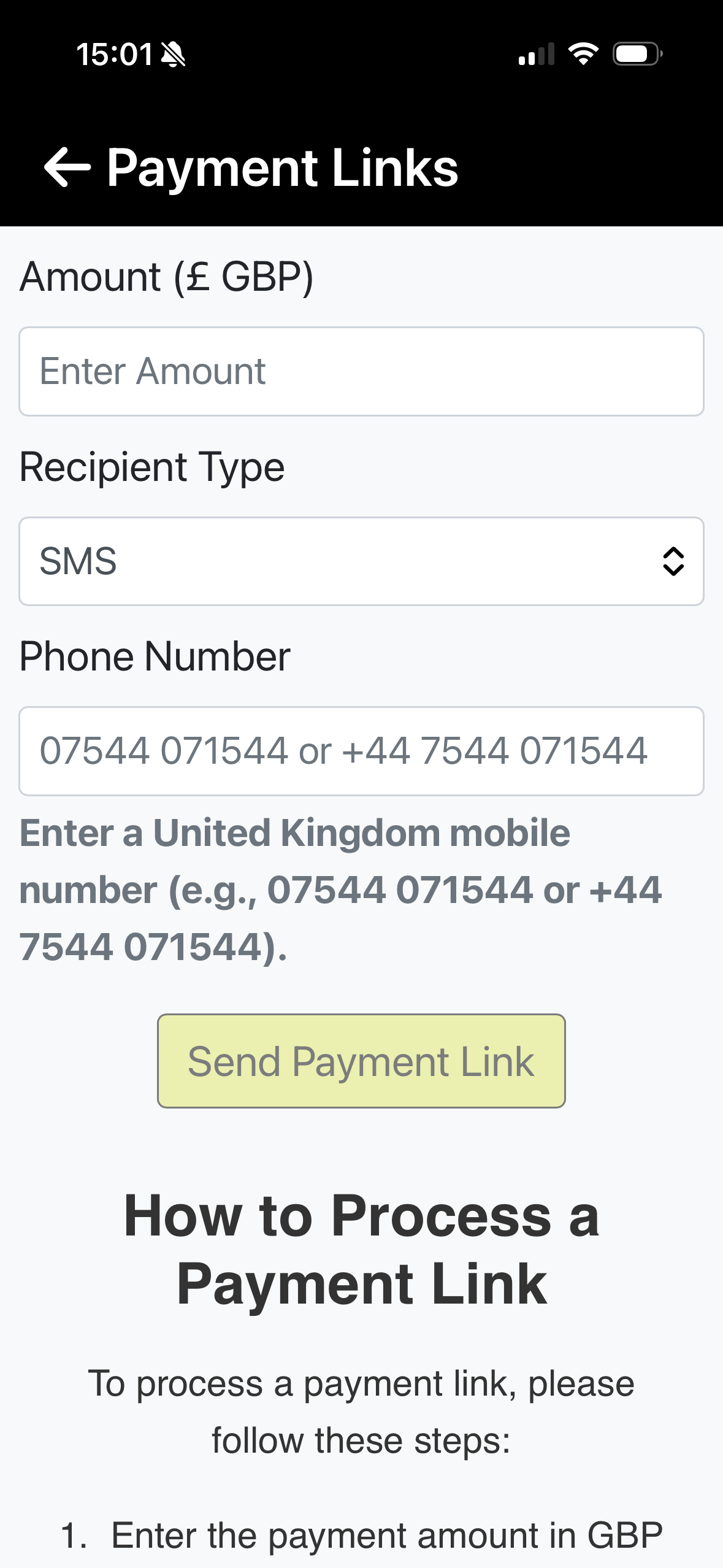
Step 3 — Choose how to take payment
On the Virtual Terminal screen, select the payment method you want to use.
-
Link Pay: Enter the amount, choose the recipient type, and add the customer’s phone number to send a secure payment link.
-
On Pay: Enter the customer’s card details directly into the terminal-style interface.
📸
Step 4 — Confirm and process
Review the payment details, then confirm to process the transaction. Your customer will either receive a payment link (Link Pay) or be charged via the card details you entered (On Pay).
Still need help?
If you have further questions, contact us at support@neropay.app or reach out through our Support Centre