Transfer
Pay Out Funds
Updated 16 Apr 2026
Step 1 – Go to Payouts / Allocation
- Log into your NeroPAY account.
- Navigate to the Payouts or Pay Out Funds section.
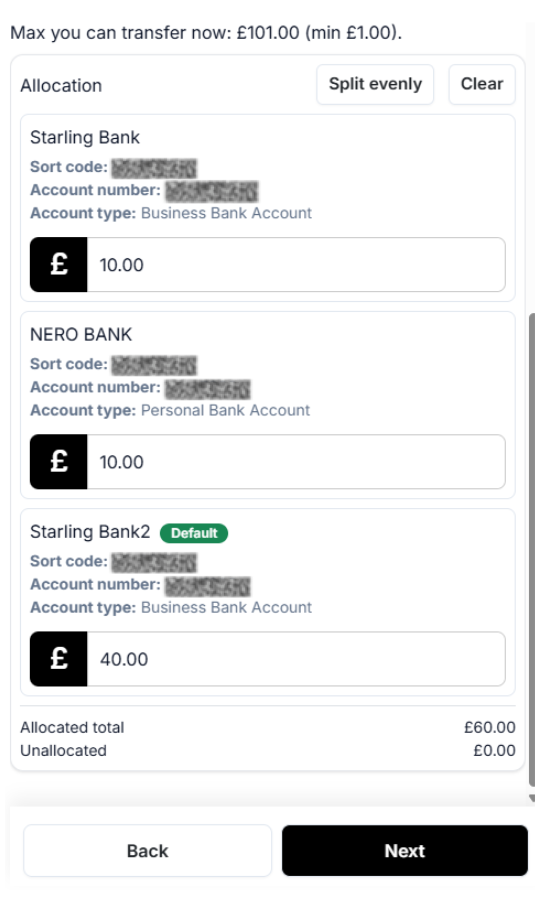
- You’ll see the maximum available balance at the top (e.g. “Max you can transfer now: £101.00”).
- Below, you’ll see the connected bank accounts where funds can be allocated.
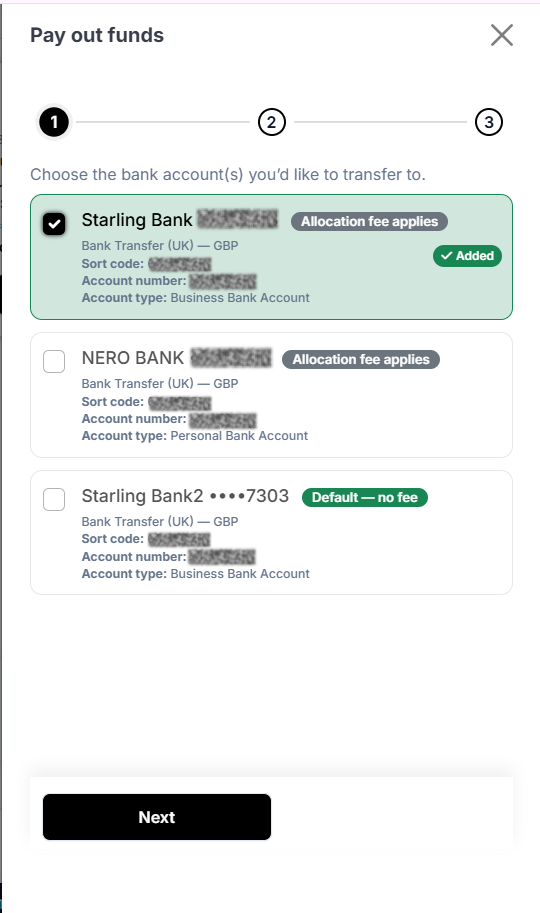
Step 2 – Allocate Funds
- You have two options:
- Manual Allocation – Type in the exact amount (£) you want to send to each bank.
- Split Evenly – Click the Split evenly button to automatically divide the balance across your selected accounts.
- You can also Clear if you need to reset the amounts.
- As you enter the amounts, the Allocated total will update at the bottom.
- Make sure Unallocated = £0.00 before moving on.
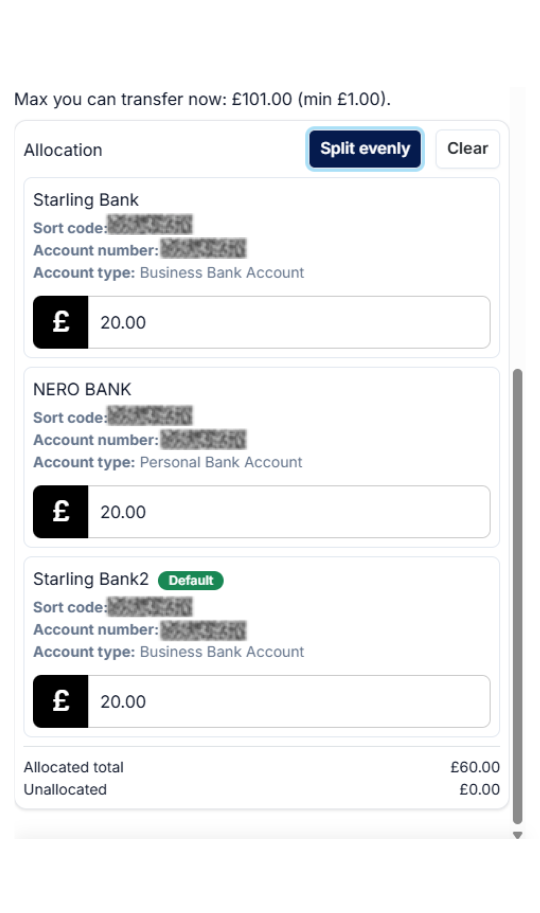
Step 3 – Confirm Accounts
- Click Next.
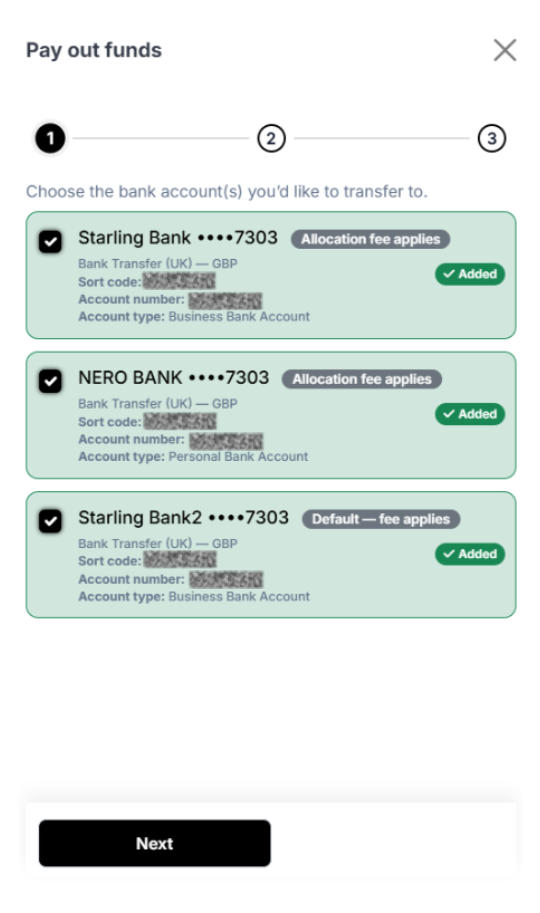
- On the next screen, you’ll see the accounts you selected to transfer to.
- Each account shows:
- Bank name (e.g., Starling Bank, Nero Bank).
- Sort code & account number.
- Account type (Business or Personal).
- Fee info (e.g., “Allocation fee applies” or “Default – fee applies”).
- Make sure the correct accounts are ticked.
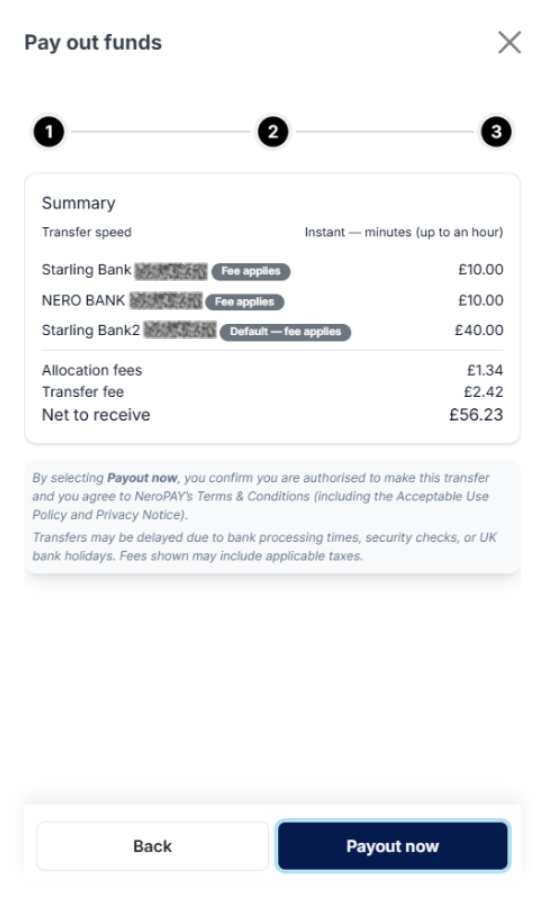
Step 4 – Review: Pay Out
- Check the total amount allocated.
- Check the accounts selected.
- Check any fees applied.
- When you’re happy, click Next to confirm.
- NeroPAY will process the payout, transferring the allocated funds to your chosen accounts.
Tips
- Always make sure the Unallocated amount = £0.00 before moving forward.
- If you need to change your allocation method, click Clear and re-enter or use Split Evenly.
- Check labels like Default or Fee applies before confirming.