1. Payment links
Payment links let you request payment from a customer without needing a terminal. Simply set the amount, choose how to send it, and share the link.
How to get there
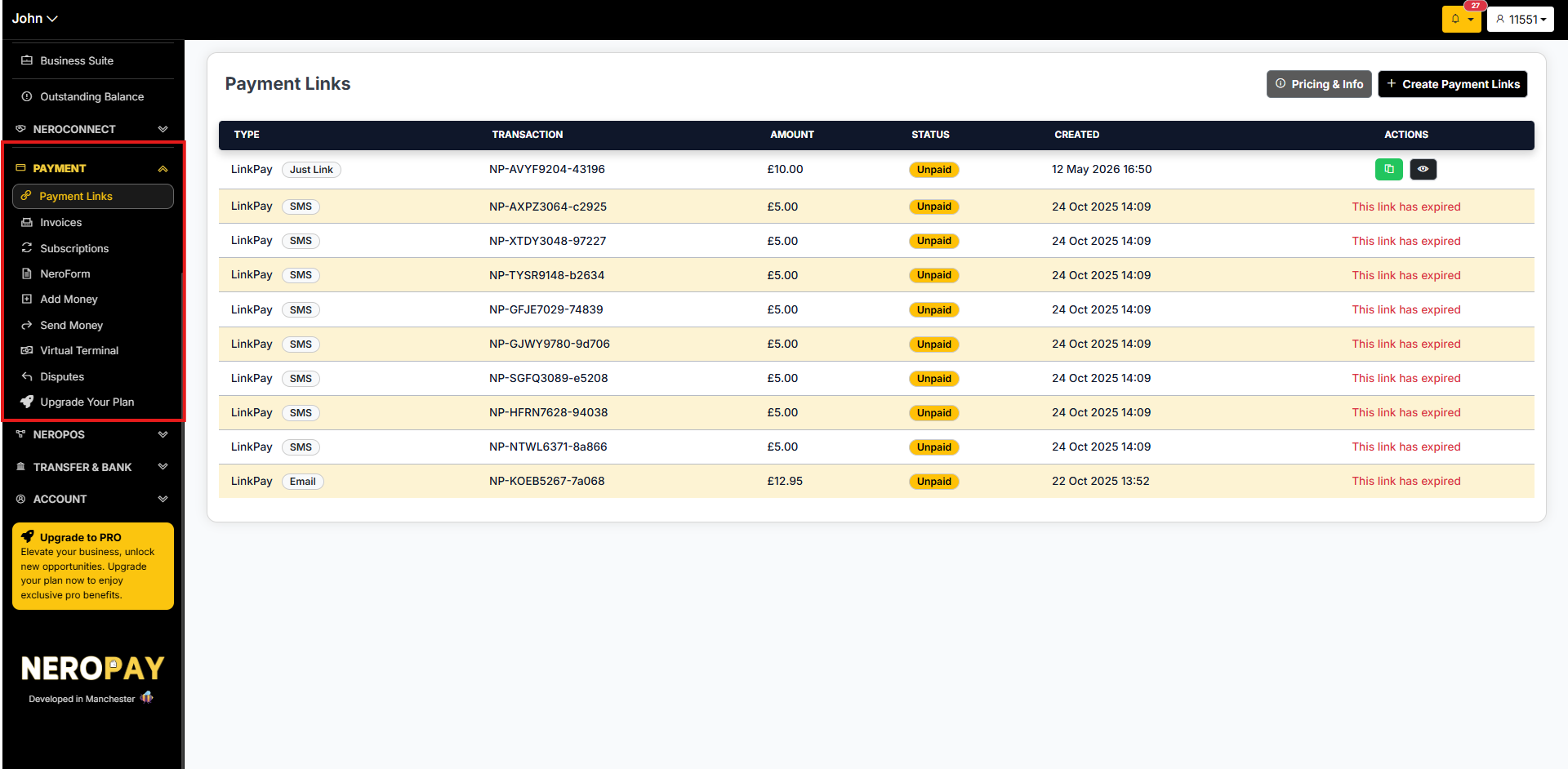
Payment → Payment Links → + Create Payment Links
How to create a payment link
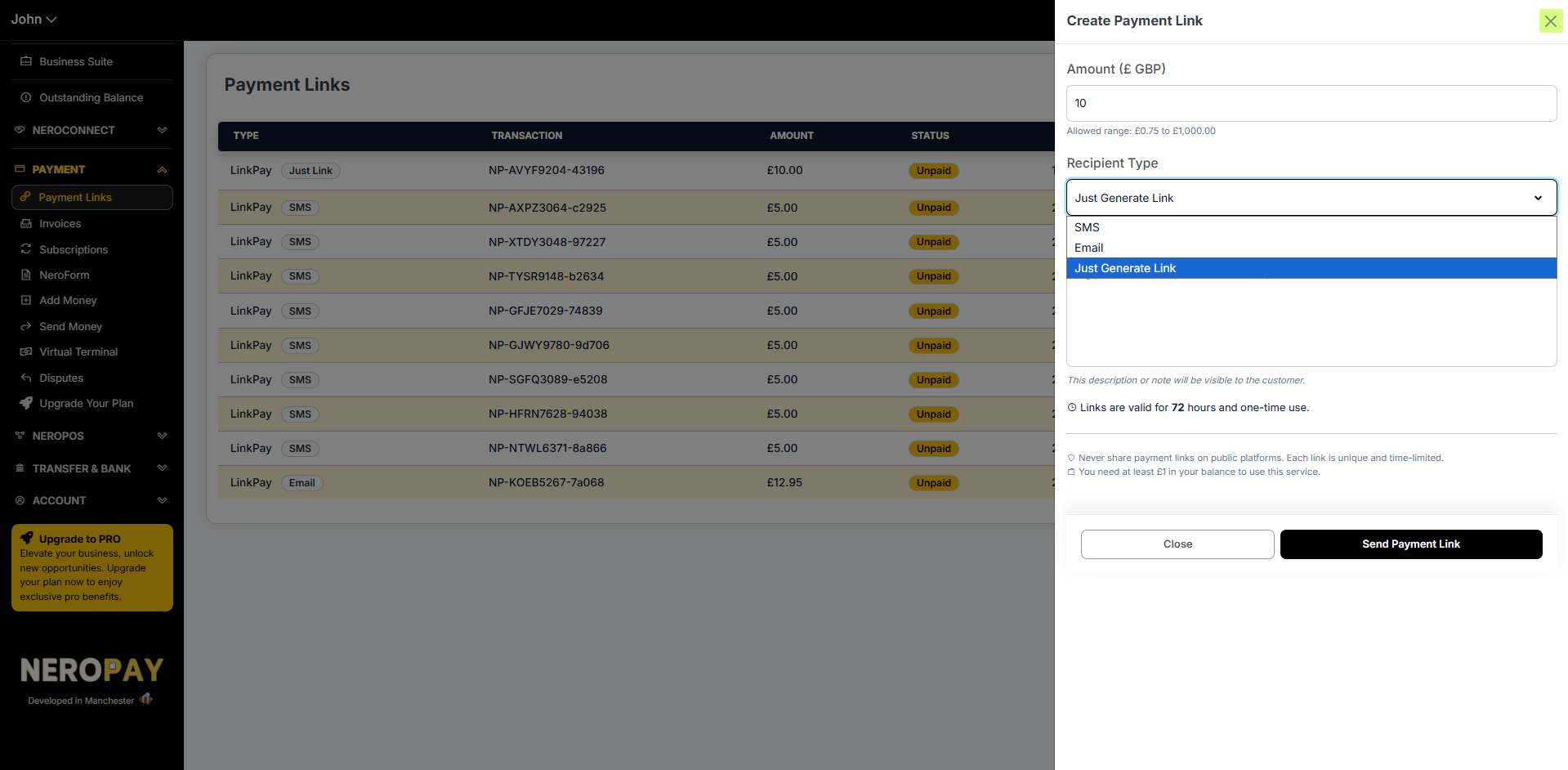
- Enter the amount you want to charge (£0.75 to £1,000.00)
- Choose your recipient type:
| Option | What it does |
|---|---|
| SMS | Sends the payment link directly to the customer's phone number |
| Sends the payment link to the customer's email address | |
| Just Generate Link | Creates the link only — you copy and share it yourself |
- Add an optional note or description visible to the customer
- Click Send Payment Link
⚠️ Note: Links are valid for 72 hours and are one-time use only. Never share payment links publicly — only send to trusted customers. You need at least £1 in your balance to use this service.
📸
Viewing and sharing your links
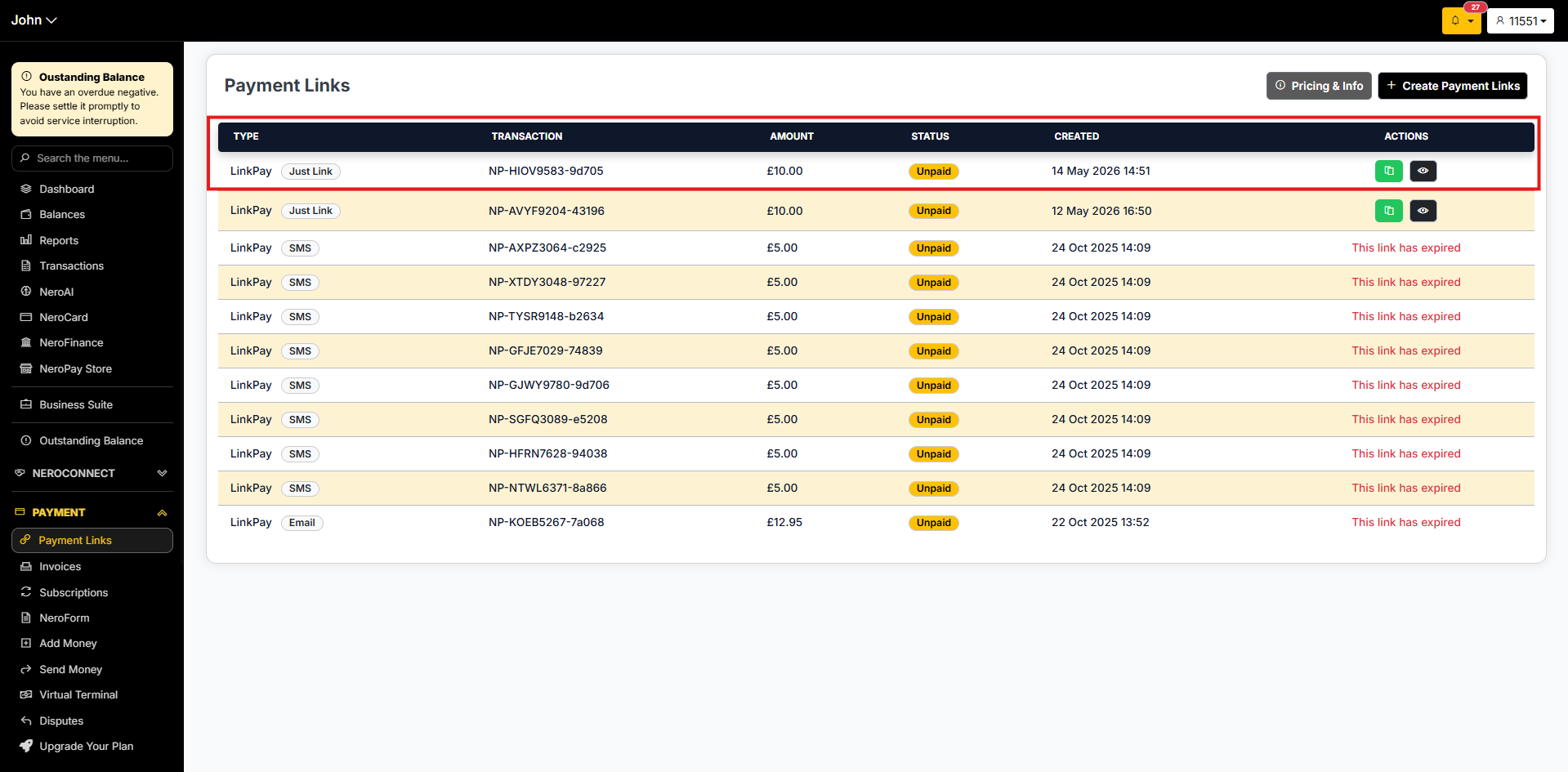
Once created, the link appears in your Payment Links list. Use the copy icon to copy the link and share it directly with your customer.
📸
What the customer sees
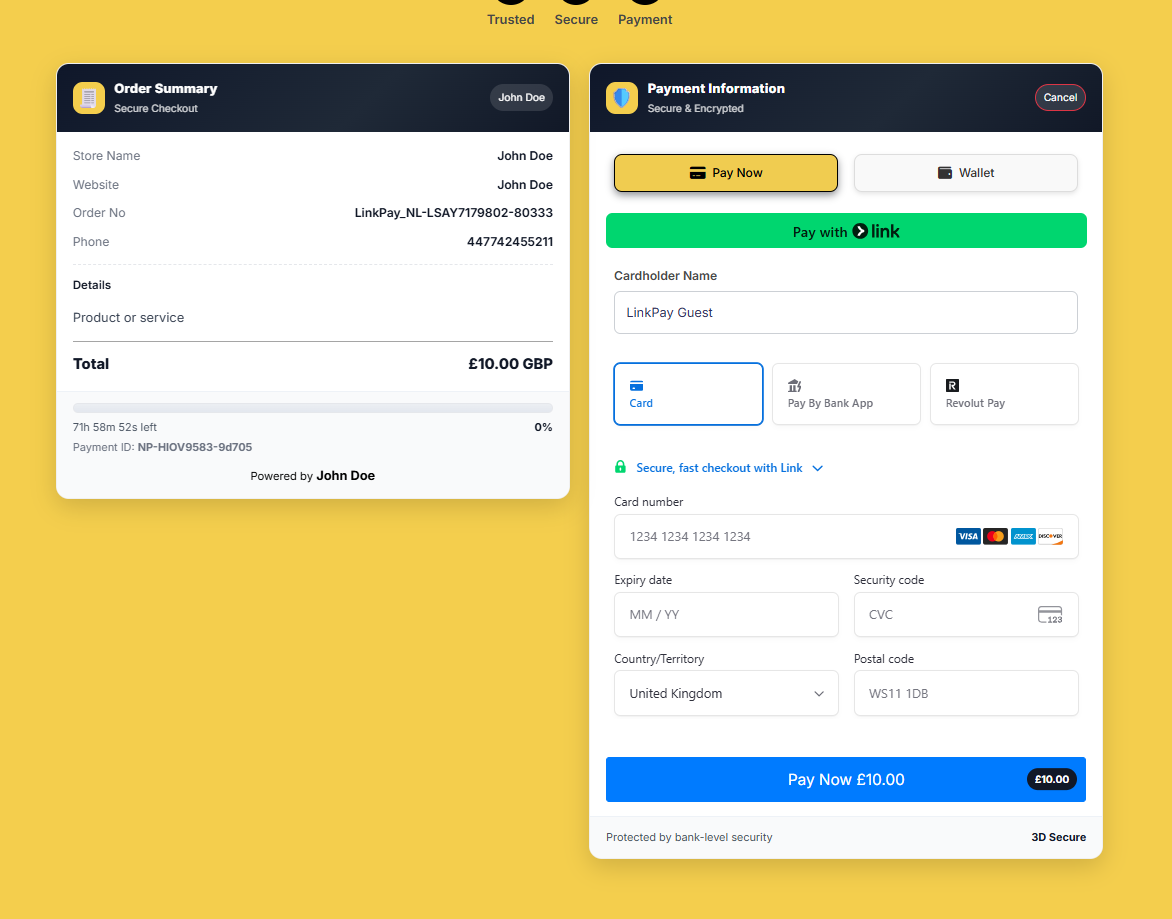
When the customer opens the link, they will see a secure checkout page showing the order summary and total. They can pay by card, wallet, Pay by Bank App, or Revolut Pay.
📸
2. Invoices
Create and send professional invoices directly to your customers via email or SMS.
How to get there
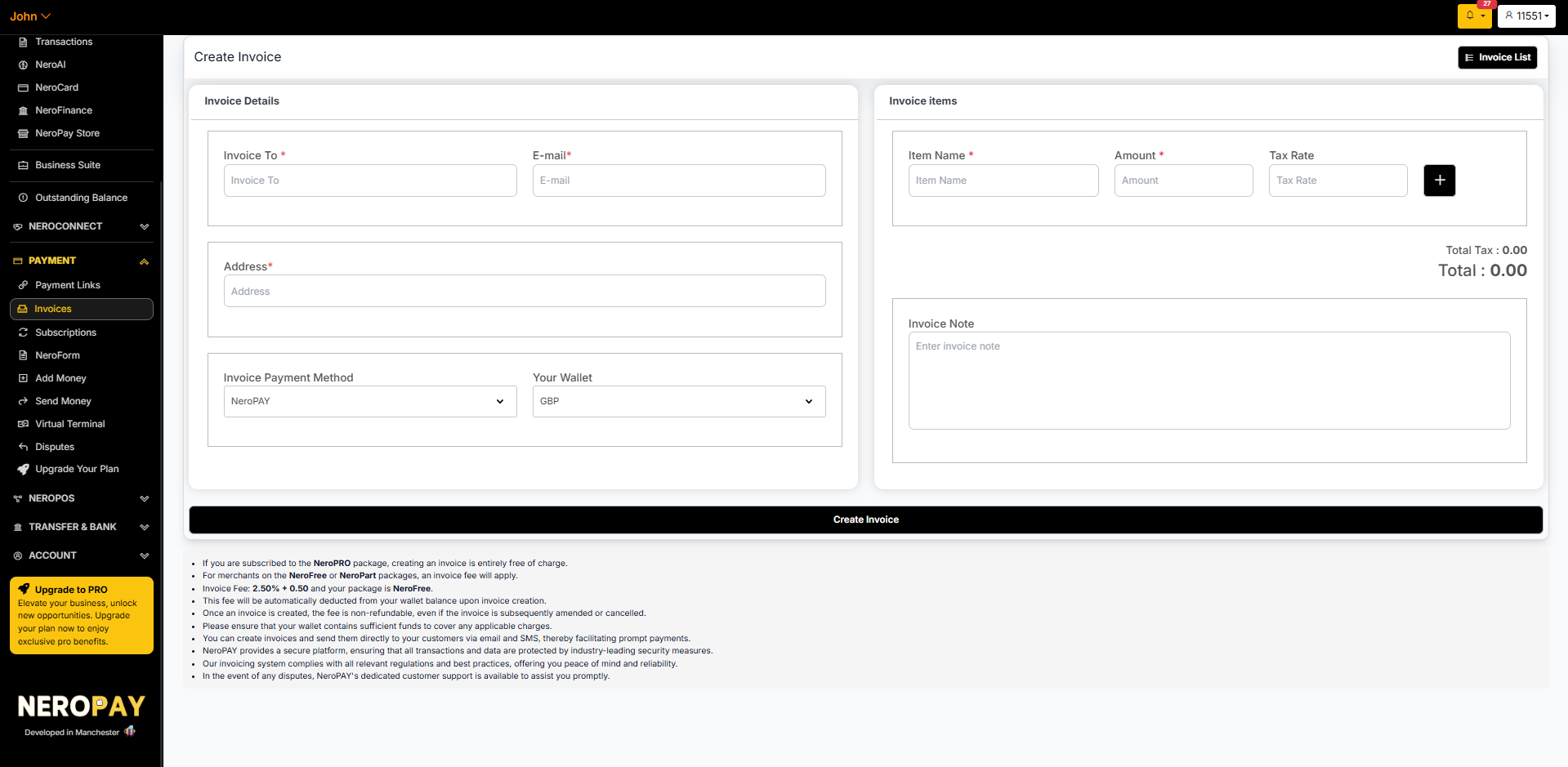
Payment → Invoices → Create Invoice
Fill in the following details:
| Field | What to enter |
|---|---|
| Invoice To | Customer or company name |
| Customer email address | |
| Address | Customer billing address |
| Invoice Payment Method | Select NeroPay |
| Your Wallet | Select your currency — e.g. GBP |
| Invoice Items | Add item name, amount, and tax rate for each line item |
| Invoice Note | Optional note shown on the invoice |
Click Create Invoice to send.
⚠️ Invoice fees: Creating an invoice is free on the NeroPRO package. A fee of 2.50% + £0.50 applies on NeroFree and NeroPart packages. This fee is deducted from your wallet balance automatically upon creation and is non-refundable even if the invoice is later cancelled.
📸
3. Subscriptions
Subscriptions let you automate recurring payments — ideal for businesses that bill customers on a regular basis.
How to get there
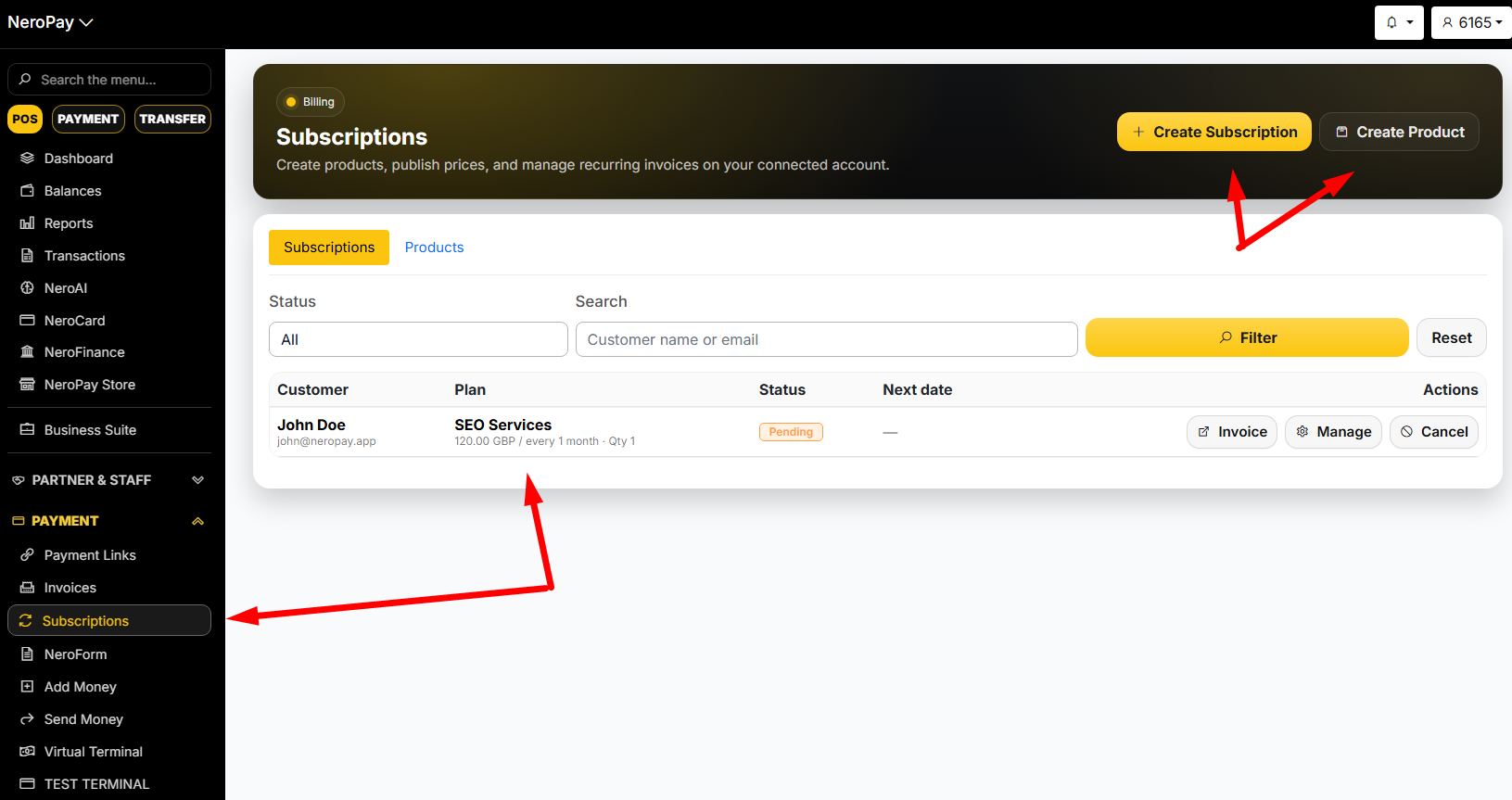
Payment → Subscriptions → Create Subscription
How it works
- Set up — create a product (e.g. SEO Services) and a price (e.g. £120/month)
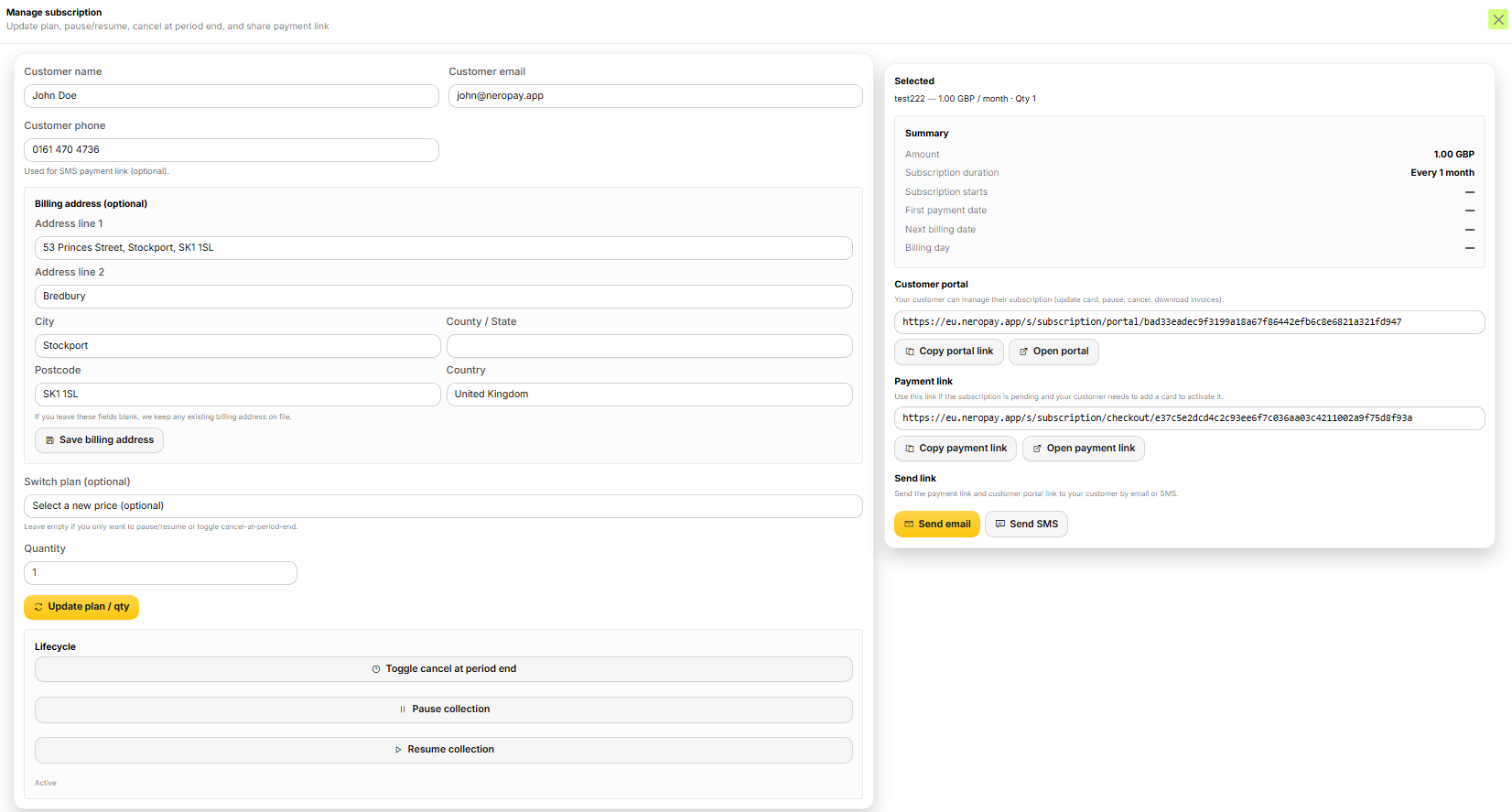
- Share — send the payment link to your customer via email or SMS
- Activate — once the customer adds their card details and confirms, the subscription becomes active
- Automate — NeroPay charges the customer automatically at every billing interval
Billing intervals: Daily, weekly, monthly, or yearly.
Is this right for my business?
| Subscriptions are ideal for | Use invoices or payment links instead for |
|---|---|
| Accountants — monthly retainers, payroll, VAT | One-time purchases |
| Agencies — SEO, social media, maintenance | Variable amounts that change each month |
| Gyms and studios — weekly or monthly memberships | One-off deposits |
| SaaS — software licences and support plans | Milestone-based project payments |
Key features
- Full control — pause, resume, or cancel subscriptions instantly from your dashboard
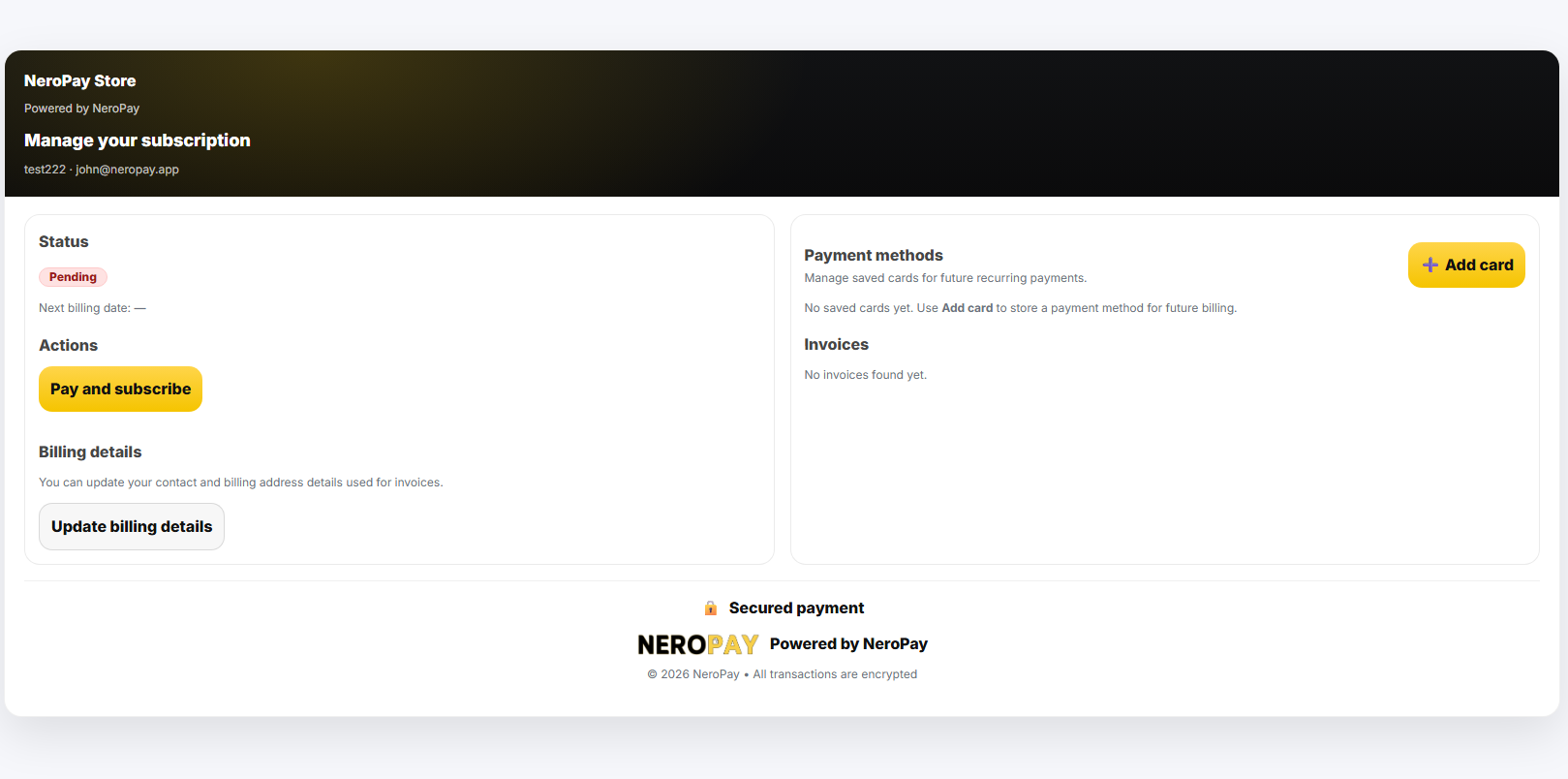
- Customer portal — customers can update their own card details and download invoices
- Quantity support — bill per unit, for example £10 per employee
Understanding subscription statuses
| Status | What it means |
|---|---|
| Pending | The customer has received the link but has not set up payment yet |
| Active | The subscription is live — payments are collected automatically |
| Cancelled | The subscription has ended — no further charges will occur |
📸
4. NeroForm — QR code payment
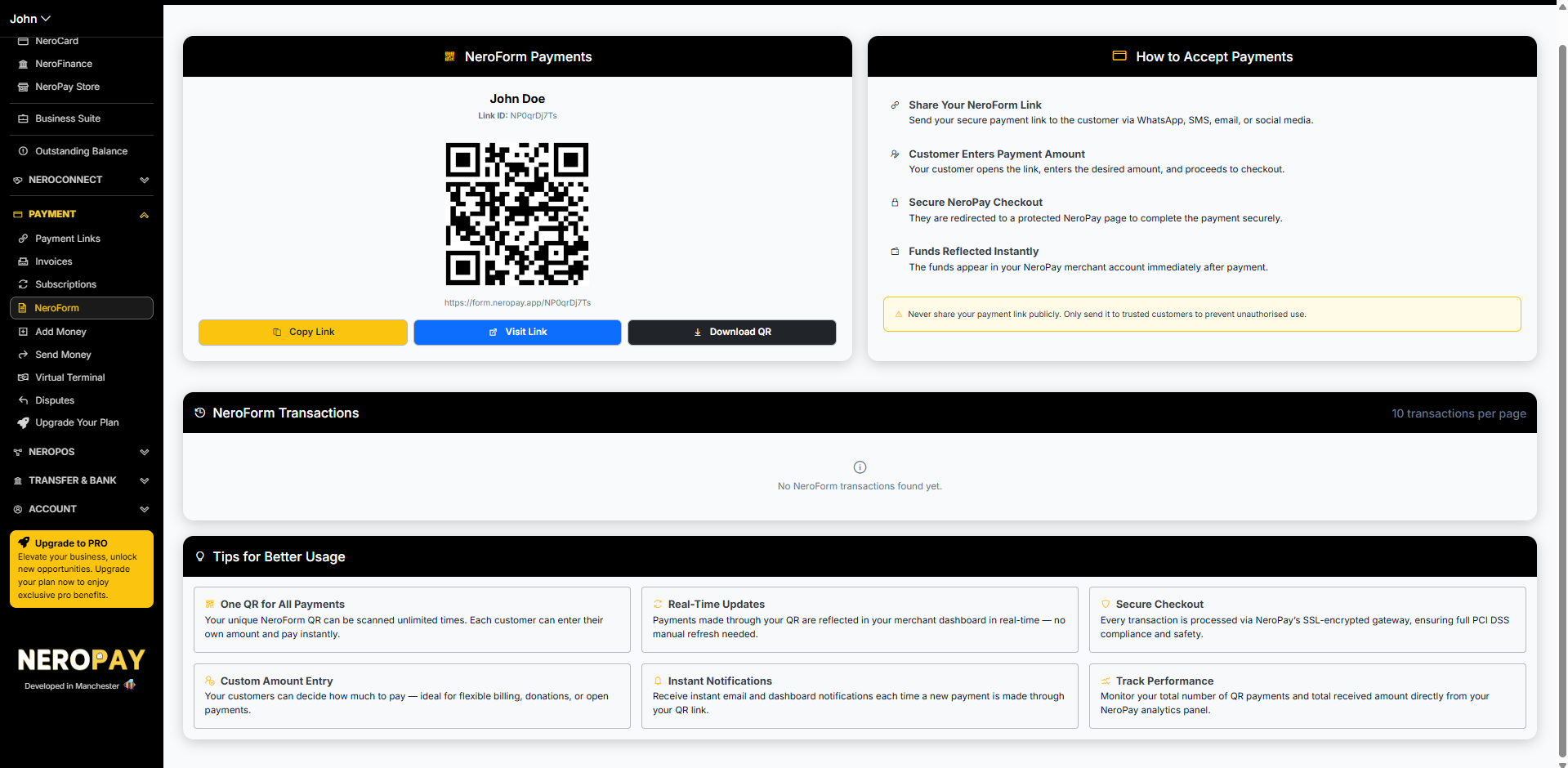
NeroForm gives you a unique QR code that customers can scan to pay you any amount. It is ideal for flexible billing, donations, or open payments where the amount varies.
How to get there
Payment → NeroForm
Your unique NeroForm link and QR code are displayed on this page. You can:
- Copy Link — share your link via WhatsApp, SMS, email, or social media
- Visit Link — preview what the customer sees
- Download QR — print and display your QR code at your counter or on marketing materials
What the customer sees
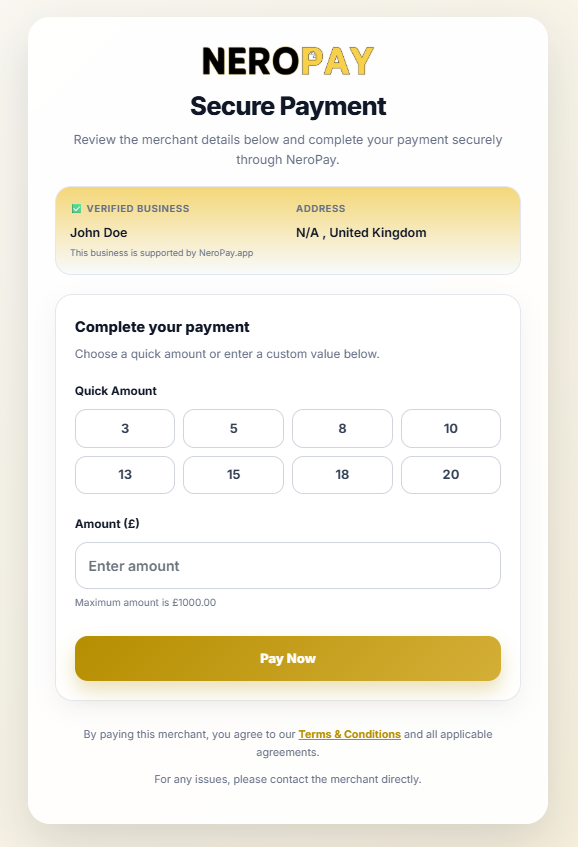
When a customer scans your QR code or opens your link, they see a secure payment page where they can choose a quick amount or enter a custom amount and pay instantly.
⚠️ Security: Never share your NeroForm link publicly on open platforms. Only send it to trusted customers.
📸
📸
5. Add money
Top up your NeroPay balance directly from a credit or debit card.
How to get there
Payment → Add Money
- Select your wallet — e.g. GBP
- Select your gateway — e.g. Credit or Debit Card
- Enter the amount (limit: £10.00 to £5,000.00)
- Review the summary — a small charge applies
- Click Continue
6. Send money
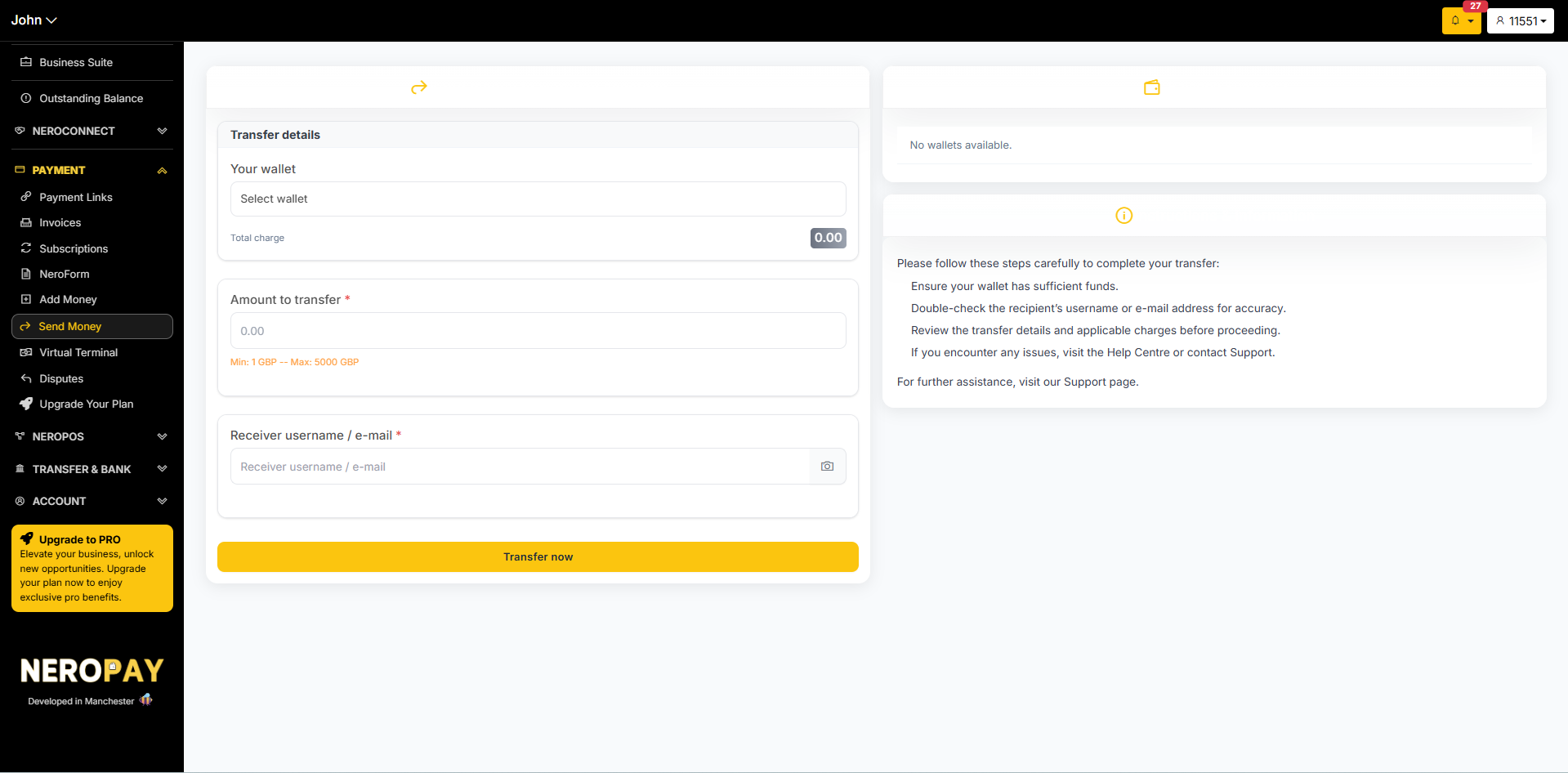
Transfer funds from your NeroPay balance to another account.
How to get there
Payment → Send Money
📸
7. Virtual terminal
The virtual terminal lets you take card payments by manually entering card details — useful for phone or remote orders. See Using the virtual terminal → for full details.
8. Disputes
If a customer raises a chargeback, it will appear here. See Managing disputes and chargebacks → for guidance on how to respond and resolve disputes.
Frequently asked questions
Q: How long is a payment link valid for? A: Payment links are valid for 72 hours from the time of creation and can only be used once.
Q: Can I reuse my NeroForm QR code? A: Yes. Your NeroForm QR code is permanent and can be scanned unlimited times — each customer enters their own amount and pays independently.
Q: What happens if a subscription payment fails? A: NeroPay will attempt to retry the payment automatically. If the issue persists, the subscription status will update and you can contact the customer to update their card details via the customer portal.
Q: Is there a minimum amount for payment links? A: Yes — the minimum is £0.75 and the maximum is £1,000.00 per payment link.
Q: Can I add money to my NeroPay balance and use it for invoices? A: Yes. Your NeroPay balance is used to cover invoice fees and other charges. Make sure your wallet has sufficient funds before creating invoices.
Still need help? Contact us at support@neropay.app , or create a ticket