How to get there
From your dashboard: Transfer & Bank
What's in this section
| Feature | What it does |
|---|---|
| Transfer Money | Manually move funds from your NeroPay balance to a linked bank account |
| NeroDisburse | Set up automatic recurring transfers to suppliers or recipients — fees deducted from your end |
| Transfer History | View a full record of all completed and attempted transfers |
| Transfer Schedule | Set up a regular automatic payout to your bank — link unlimited accounts and choose your schedule |
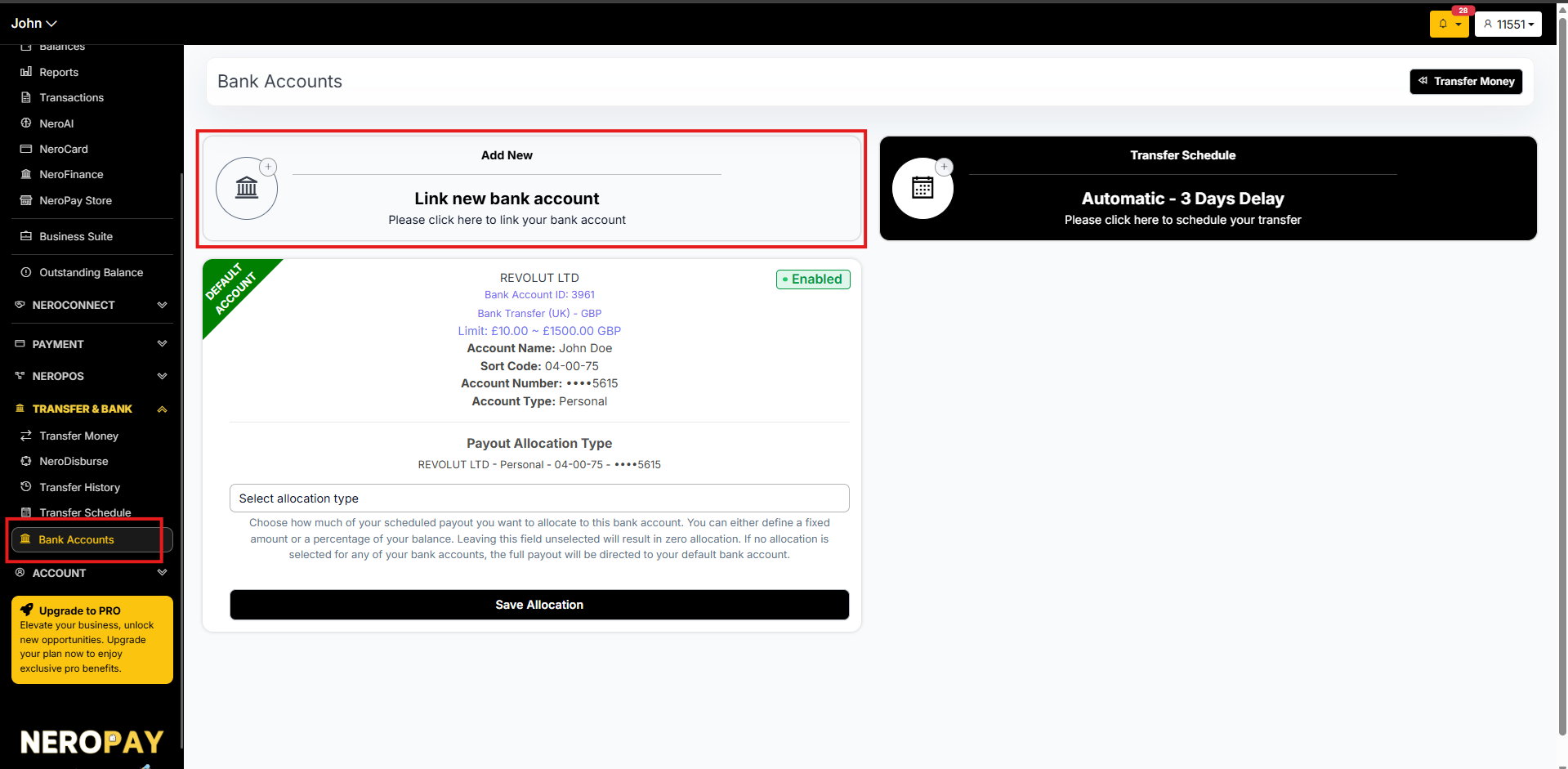
| Bank Accounts | Link and manage all bank accounts connected to your NeroPay account |
Adding a bank account
Before you can transfer funds, you need to link at least one bank account.
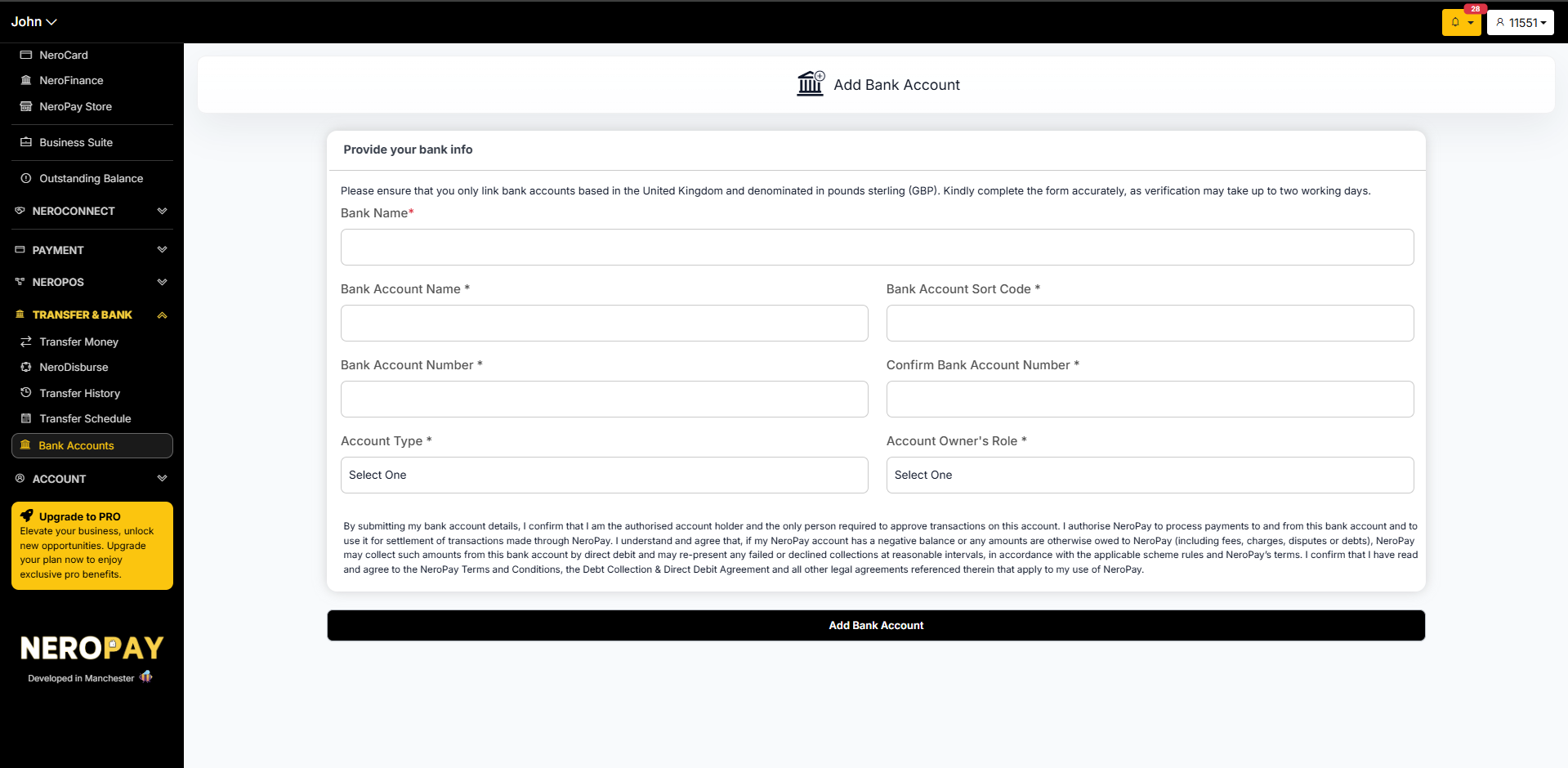
- Go to Transfer & Bank → Bank Accounts → Add New
- Fill in the following details:
| Field | What to enter |
|---|---|
| Bank name | The name of your bank — e.g. Barclays, HSBC |
| Account name | The full name registered on the account |
| Sort code | Your 6-digit UK sort code |
| Account number | Your 8-digit account number |
| Confirm account number | Re-enter your account number for accuracy |
| Account type | e.g. Current Account or Savings Account |
| Account owner's role | e.g. Account Holder or Business Owner |
- Read the declaration and agree to NeroPay's Terms and Conditions
- Click Add Bank Account
💡 Tip: Always double-check your sort code and account number before submitting — errors will cause delays in verification.
⚠️ Note: Bank account verification is completed within two working days. You will receive an email notification once verified.
📸
Choosing the right transfer method
| I want to... | Use this |
|---|---|
| Send a one-off payment to my bank | Transfer Money |
| Pay a supplier the exact amount every week | NeroDisburse |
| Set up regular automatic payouts to my bank | Transfer Schedule |
| See all my past transfers | Transfer History |
| Add or manage bank accounts | Bank Accounts |
Transfer Schedule — payout options
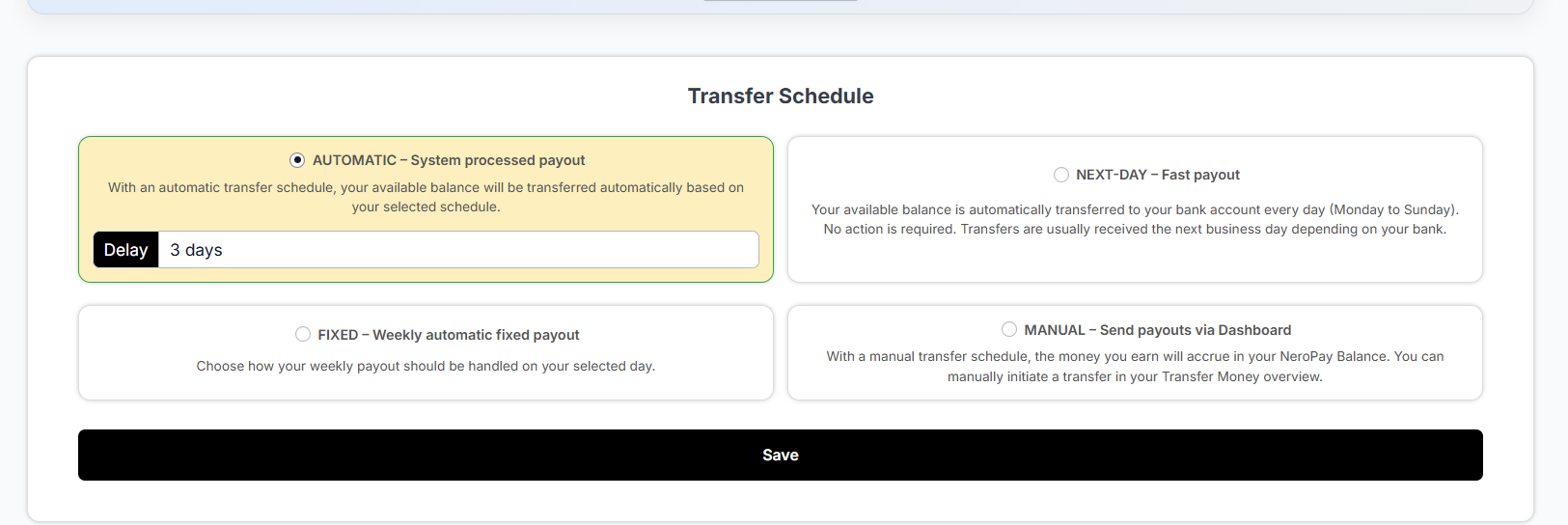
Your transfer schedule options
| Option | How it works | Fee | Speed |
|---|---|---|---|
| Automatic | Your available balance transfers automatically on your chosen schedule — with a delay you set (e.g. 3 days) | Free | 1–2 business days |
| Next-Day | Your balance transfers to your bank every day, Monday to Sunday — no action needed | Small fee applies | Usually next business day |
| Fixed | A weekly automatic payout processed on your chosen day | Free | 1–2 business days |
| Manual | Your earnings stay in your NeroPay balance until you manually initiate a transfer via Transfer Money | Free | 1–2 business days |
💡 Tip: If speed is a priority and you don't mind a small fee, choose Next-Day. If you prefer free payouts and can wait 1–2 business days, Automatic or Fixed are the better options.
📸
How to set up your schedule
- Go to Transfer & Bank → Transfer Schedule
- Select the option that suits your business
- If you choose Automatic, set your preferred delay — for example, 3 days
- If you choose Fixed, select the day of the week for your weekly payout
- Click Save
Related guides
Still need help? Contact us at support@neropay.app or create a ticket