
What the customer sees after booking
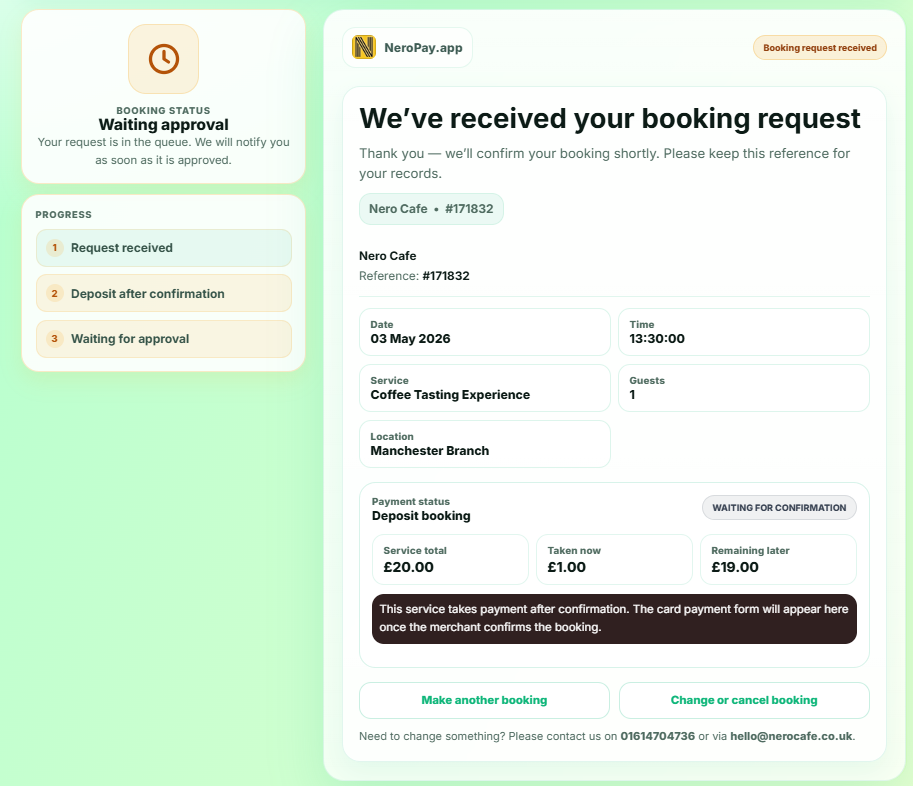
Once a customer completes a booking, they land on a confirmation page. This page is divided into the following sections:
Booking status Shows the current state of the booking — for example Approved or Pending depending on your approval settings.
📷
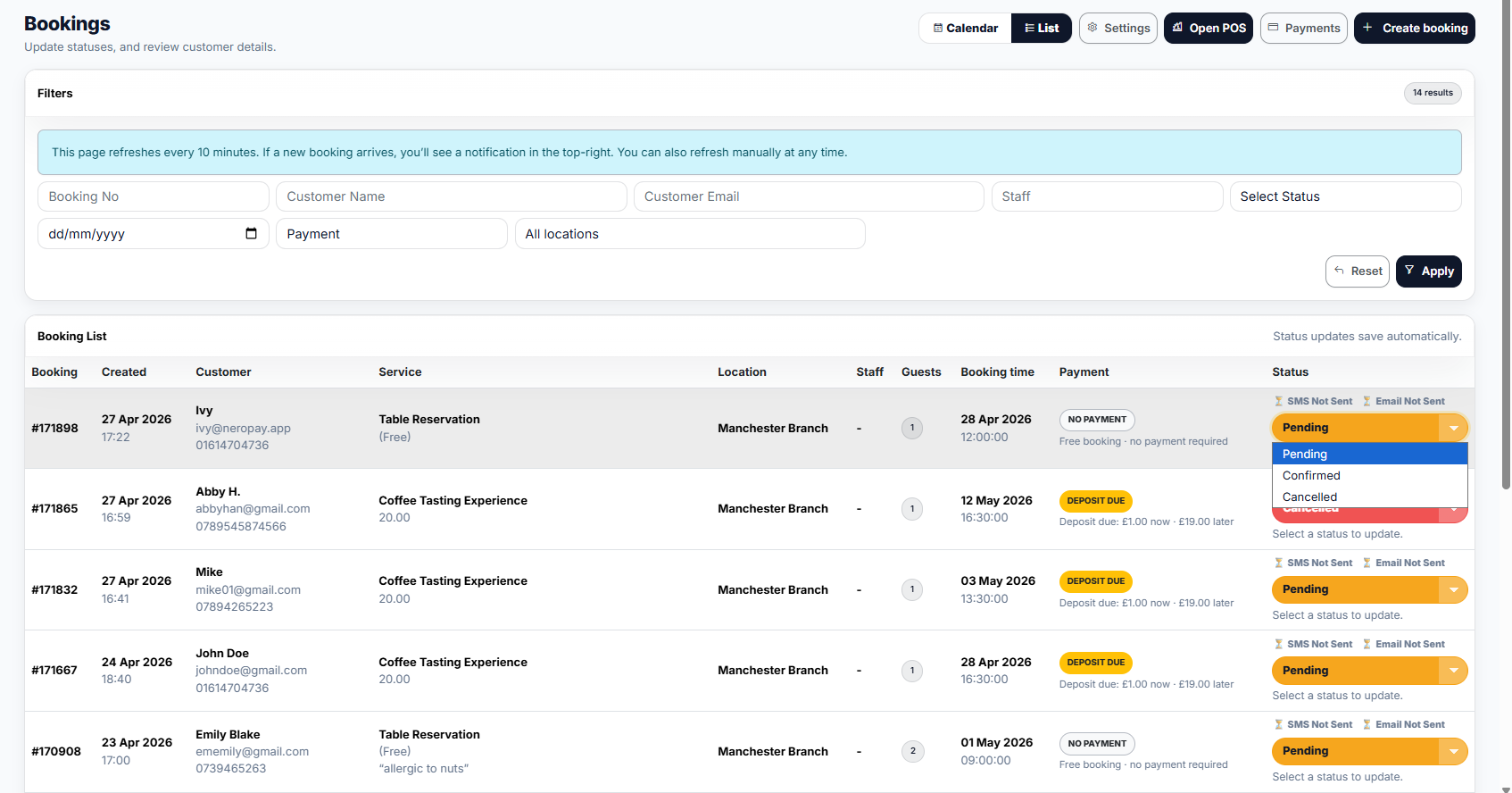
Progress steps
A visual indicator showing where the booking is in the process:
| Step | Status |
|---|---|
| 1 | Request received |
| 2 | Deposit received |
| 3 | Booking confirmed |
Booking details
- Date and time
- Service booked
- Assigned staff member
- Location
- Number of guests
Payment details
| Field | What it shows |
|---|---|
| Service total | The full base price of the service |
| Taken now | The deposit or full amount paid at booking |
| Remaining later | The balance due at the venue |
| Payment status badge | For example Deposit booking or Paid deposit |
📸
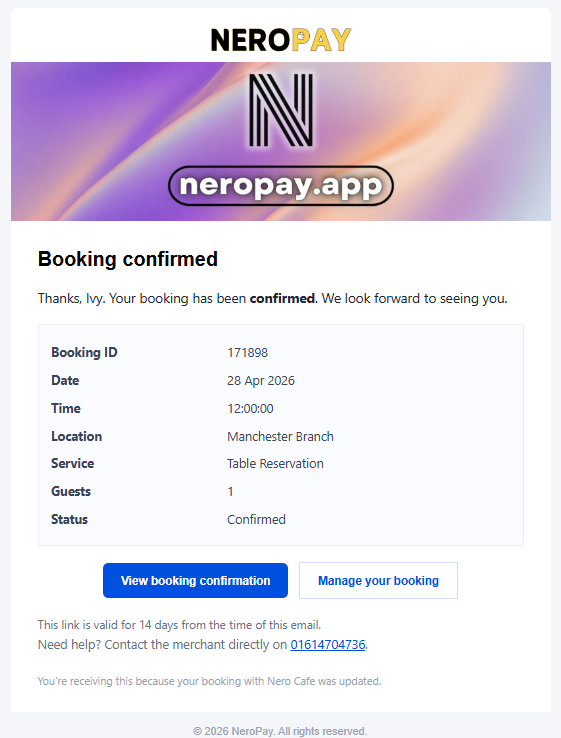
Email and SMS confirmation
If email or SMS notifications are enabled, customers will receive a message mirroring the same information shown on the confirmation page, including:
- Booking reference
- Business name and contact details
- Date, time, service, and staff
- Payment summary — amount paid and remaining balance
💡 Note: The wording and contact information in these messages can be updated in Booking Settings → Company and your notification settings.
📸
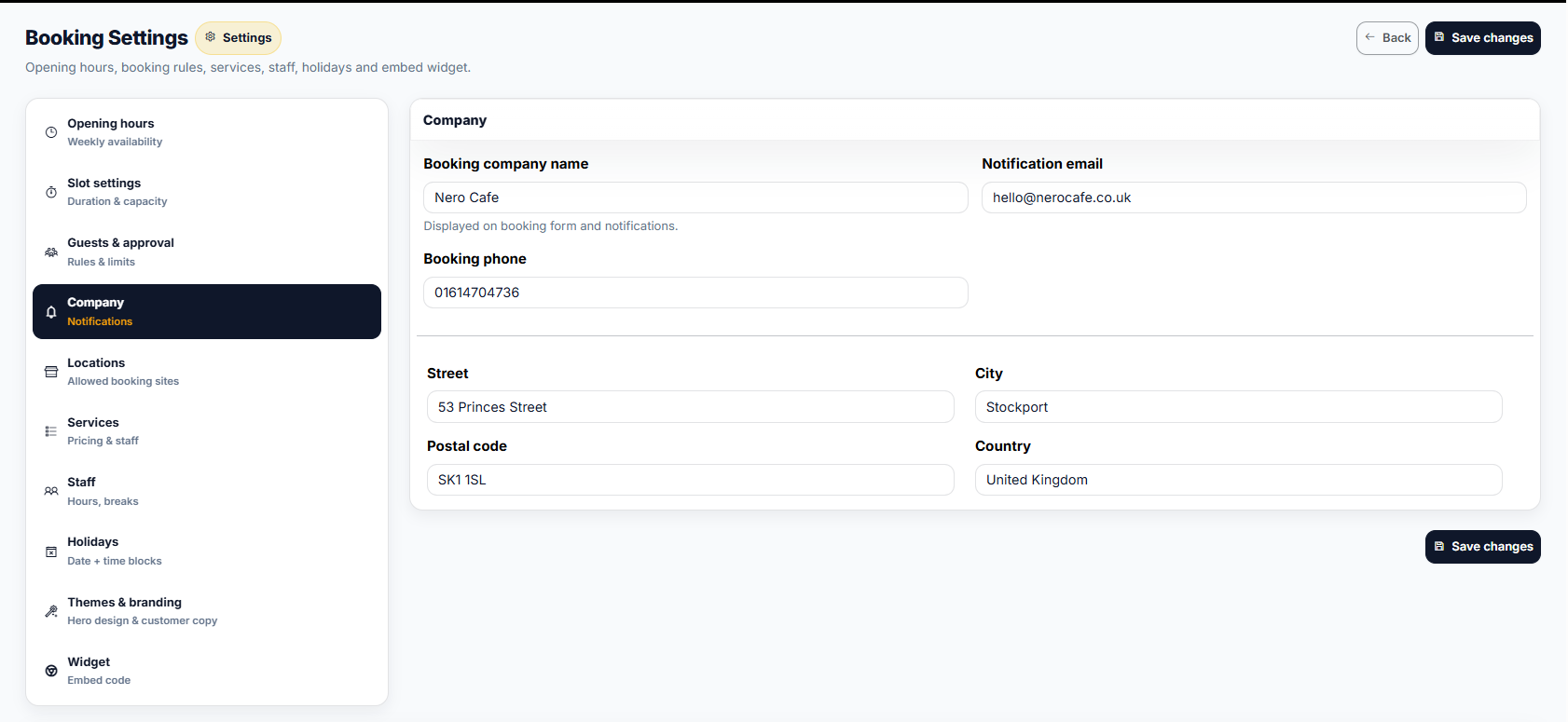
Editing your confirmation content
To update what customers see and receive, go to:
NeroPOS → Bookings → Booking Settings → Company
From here you can edit:
| Field | What it is |
|---|---|
| Logo | Your business logo shown on the confirmation page and emails |
| Phone number | The contact number displayed to customers |
| Email address | Where customers can reach you |
| Policy links | Cancellation policy and any other relevant terms |
⚠️ Recommended minimum: Make sure your confirmation always includes at least the following three things:
- How to contact you
- Your cancellation policy
- The balance remaining to pay on arrival
📸
Best practice — confirmation copy examples
The text customers see should always match your actual deposit settings. Here are two examples to guide you:
For deposit bookings:
"Thank you for your booking. We've taken a £1 deposit to secure your reservation. The remaining £19 is due at the venue on the day. If you need to cancel or make changes, please contact us at least 24 hours in advance."
For fully paid bookings:
"Thank you for your booking. You're fully paid — no payment is due on arrival. If you need to cancel or make changes, please contact us at least 24 hours in advance."
⚠️ Important: Always check that the wording in your confirmation matches your actual deposit configuration in Booking Settings. Inconsistent information — for example, telling customers no payment is due when a balance is still owed — leads to confusion and disputes at the venue.
Frequently asked questions
Can I customise the confirmation page layout?
You can update the content shown — logo, contact details, and policy links — via Booking Settings → Company. Full layout customisation is not currently available.
How do I turn email or SMS notifications on?
Go to your notification settings in Booking Settings and toggle the relevant options on. Make sure your company contact details are filled in before enabling notifications.
What does the Pending status mean on the confirmation page?
Pending means the booking is waiting for your manual approval. Once you confirm it from your dashboard, the status will update to Approved and the customer will be notified.
A customer says they didn't receive a confirmation email — what should I do?
Ask them to check their spam or junk folder first. If it's still missing, verify that their email address was entered correctly at the time of booking and that email notifications are enabled in your settings.
Still need help? Contact us at support@neropay.app or create a ticket