If a business you introduced signed up without your link or QR code, you can add it to your partner dashboard yourself. You need three details from the business, all on its own NeroPay dashboard.
📸 The three details, the form and what happens next.
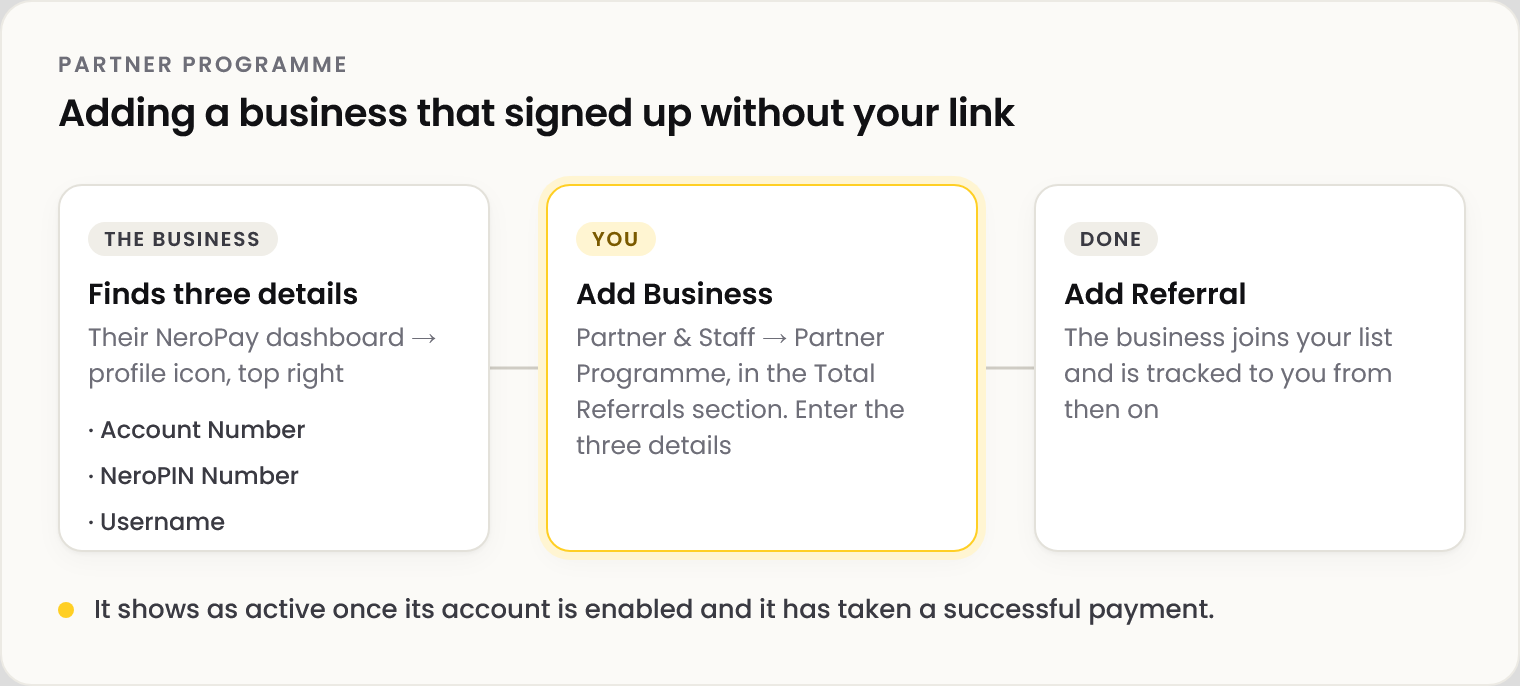
Add the business
| Step | What happens |
|---|---|
| 1 | Go to Partner & Staff → Partner Programme |
| 2 | Select Add Business, bottom right of the Total Referrals section |
| 3 | Ask the business for the three details below |
| 4 | Enter them exactly as given and select Add Referral. The business joins your list and is tracked to you from then on |
The three details
| Field | Where the business finds it |
|---|---|
| Business Account Number | Its NeroPay dashboard → profile icon, top right → Account Number |
| Business NeroPIN Number | Its NeroPay dashboard → profile icon, top right → NeroPIN Number |
| Business Username | Its NeroPay dashboard → profile icon, top right → Username |
💡 Note: What to tell the business: select your profile icon in the top-right corner of your NeroPay dashboard. Your Account Number, NeroPIN Number and Username are all listed there.
⚠️ A business counts once it is active: its account is enabled and it has taken at least one successful payment.
Frequently asked questions
The business can't find its Account Number or NeroPIN.
Ask it to select the profile icon in the top-right corner of its NeroPay dashboard. All three details are listed there.
Is there a deadline for adding a business?
Add it as soon as you can. Sharing your link or QR code from the start avoids the need.
Why isn't the business showing as active yet?
It shows as active once its account is enabled and it has taken its first successful payment.
Will the business know I added it?
The introduction is recorded on your partner account. For anything about the business's own account, contact support.
Still need help? Contact us at support@neropay.app or create a ticket.