NeroConnect tells you in three places when a merchant needs something from you: the attention queue at the top of the dashboard, the banners on Connected Accounts, and the Attention column in the register. This article explains what each signal means, what it expects you to do, and how to read a stalled onboarding — including the one rule that matters most: NeroConnect surfaces the case, but you chase the merchant.
The attention queue
Go to NeroConnect → NeroConnect Dashboard. The top block, Connected accounts needing attention, runs independently of any date filter on the page and leaves out closed cases and information already under review. That is deliberate: an empty queue means nothing is outstanding, not that the filter is hiding something.
| Counter | What it requires of you |
|---|---|
| Disputes | Chargebacks where the merchant must supply a response before a deadline. Contact the merchant and make sure the response is provided in time |
| Transaction proof | Payments where evidence has been requested. Ask the merchant for the proof of the transaction |
| Compliance | Accounts with an open compliance check or missing information. Get the merchant to provide or replace what NeroPay has asked for |
Each row in the queue shows the merchant, its connected account number, the reason, the case reference, the amount and a hard Respond by timestamp in UK time. View account opens the merchant's panel.
📸 The attention queue at the top of the NeroConnect Dashboard, with the three counters and a dispute row showing its case reference and respond-by deadline. Figures shown are illustrative.
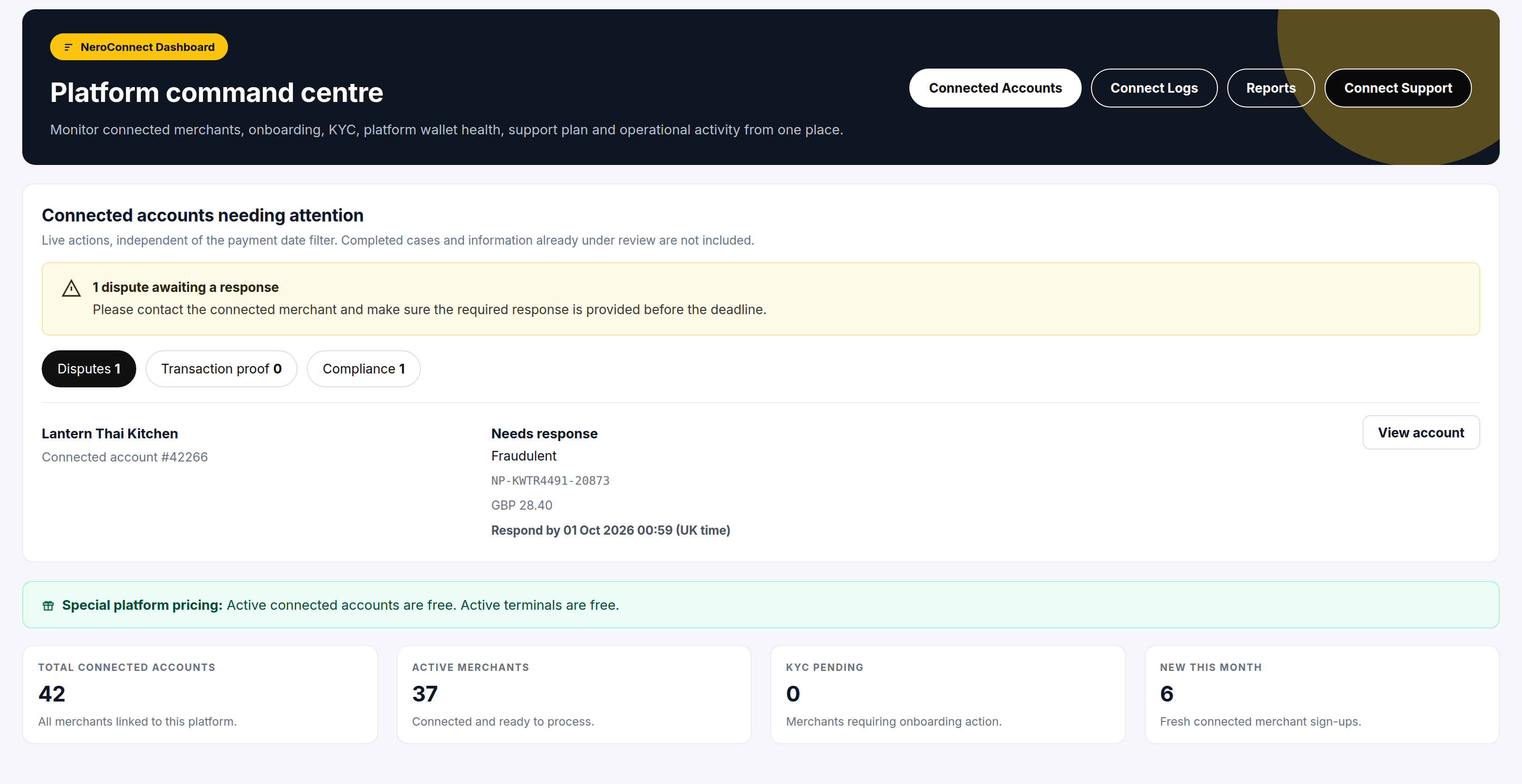
⚠️ Needs response means you are expected to chase the merchant. NeroConnect does not answer a dispute on the merchant's behalf, and the deadline does not move because the platform is still gathering information.
The banners on Connected Accounts
Go to NeroConnect → Connected Accounts. Beneath the fee-arrangement banner, up to three attention banners appear when relevant, each with a jump-off button.
| Banner | What it tells you |
|---|---|
| Onboarding attention required | How many accounts are incomplete, and how many have made no progress for a period of days |
| Connected account disputes need attention | How many disputes are awaiting a response. Review disputes takes you to the cases |
| Compliance attention required | How many accounts have an open compliance check, and how many are waiting for required information |
📸 The three attention banners as they appear above the register on Connected Accounts.
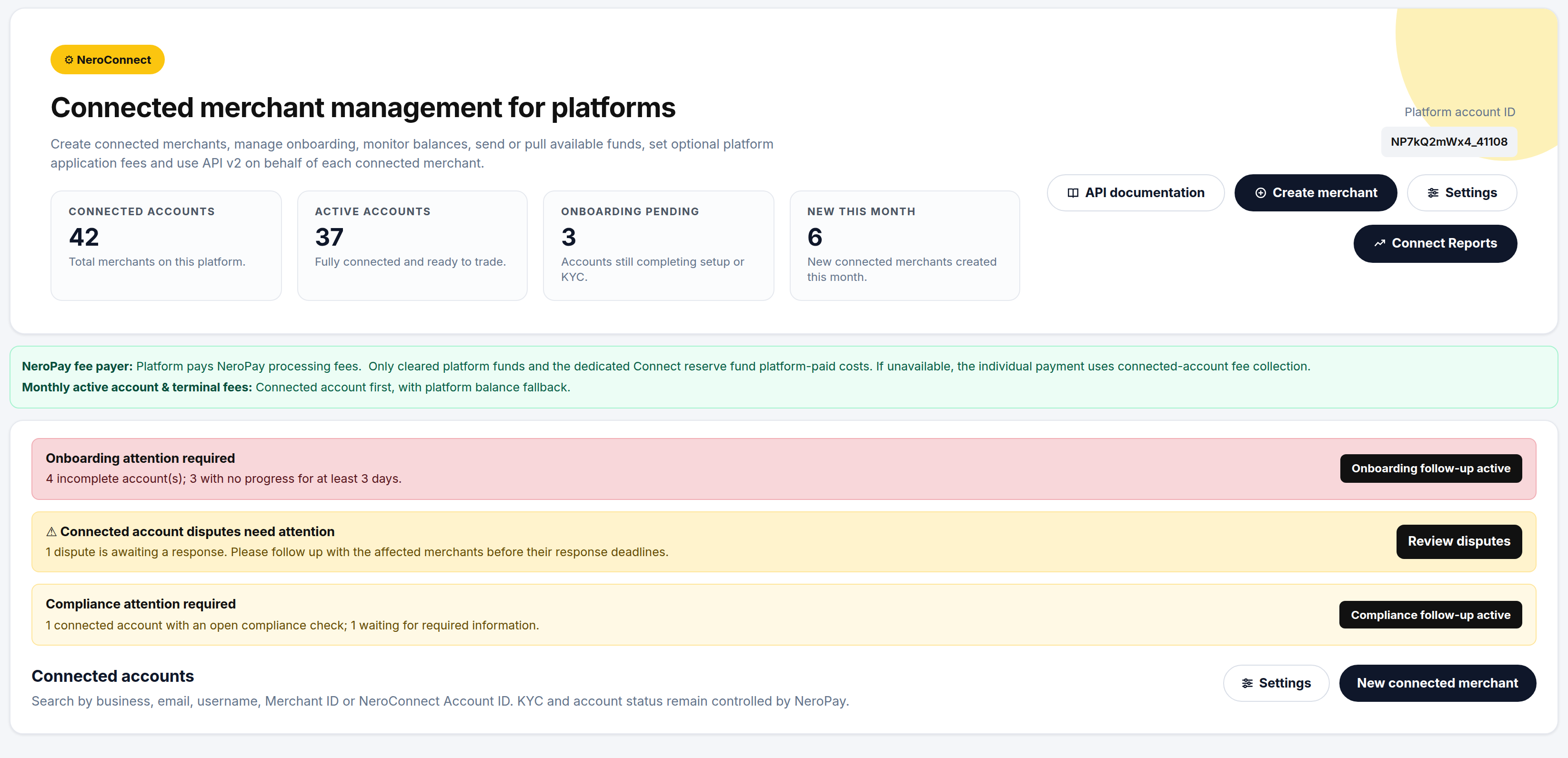
💡 Note: A banner only appears while there is something to act on. If none are showing, the register has nothing waiting.
Reading a stalled onboarding
In the register, the Attention column reads No action for a healthy account. For a merchant who has not finished setting up, it shows the step they stopped at, its state and how long ago — for example "Step 1 · In progress, 1 week ago" or "Step 1 · Stuck, 3 weeks ago".
| In progress | Stuck | |
|---|---|---|
| What it means | The merchant has started the step but not finished it | The step has shown no progress for an extended period |
| First action | Press Send reminder | Contact the merchant directly |
| What Send reminder does | Re-sends the automated prompt | Re-sends the same automated prompt — it does not escalate |
💡 Note: Send reminder only repeats the message the merchant has already received. Once an onboarding reads Stuck, a phone call or a personal email from your team is the step that usually moves it.
What to do
| Situation | What to do |
|---|---|
| A dispute shows Needs response | Note the respond-by time, contact the merchant and confirm the response is submitted before it |
| Transaction proof has been requested | Ask the merchant for the evidence for that payment and make sure it is supplied |
| An account has an open compliance check | Get the merchant to provide or replace the information NeroPay has asked for. The case leaves the queue once it is under review |
| Onboarding reads In progress | Press Send reminder and give the merchant time to finish the step |
| Onboarding reads Stuck | Contact the merchant directly; a reminder will not escalate |
| Onboarding is Connected but KYC is Unverified | Wait for NeroPay's check, or generate a fresh link from the Identity verify tab if the merchant needs to complete verification |
| You want to hear about these cases without opening the dashboard | Turn on the platform email notifications for disputes, transaction proof and compliance in Settings → Notifications |
The four platform email notifications are off by default and are independent of anything your merchants receive. Which cases each one covers, who can be copied in and what happens when you first enable one are explained in Notifications and alerts.
Frequently asked questions
I changed the date filter on the dashboard and the queue did not change. Is that right?
Yes. The attention queue shows live actions and ignores the payment date filter, so a case stays visible until it is closed or under review, whatever period the rest of the page is showing.
Will NeroConnect respond to the dispute for my merchant?
No. Needs response means the platform is expected to chase the merchant so that the required response is provided before the deadline. The queue tells you the case exists; the merchant still has to answer it.
What time zone is the respond-by deadline in?
UK time, and it is labelled as such on the row. Allow for the difference if your merchant is in another market.
A merchant submitted their compliance information but the counter has not dropped. Why?
The queue excludes information already under review, so once NeroPay has received it the case should leave the queue. If it is still listed, the information NeroPay asked for has not been received or something is still missing.
I pressed Send reminder on a Stuck onboarding. Does that escalate it?
No. Send reminder re-sends the automated prompt the merchant has already had. Stuck is the signal to contact them directly.
Still need help? Contact us at support@neropay.app or create a ticket.