How to get there
From your dashboard, follow this path:
NeroPOS → Customers
Part 1 — Your saved customers list
The Customers page shows everyone you have saved. Each customer card displays their:
- Name
- Phone number
- Email address
- Saved address (if available)
From any customer card you can:
- Select — attach the customer to an open order
- Edit — update their details
- Send notification — contact them directly
Part 2 — Sending a notification to one customer
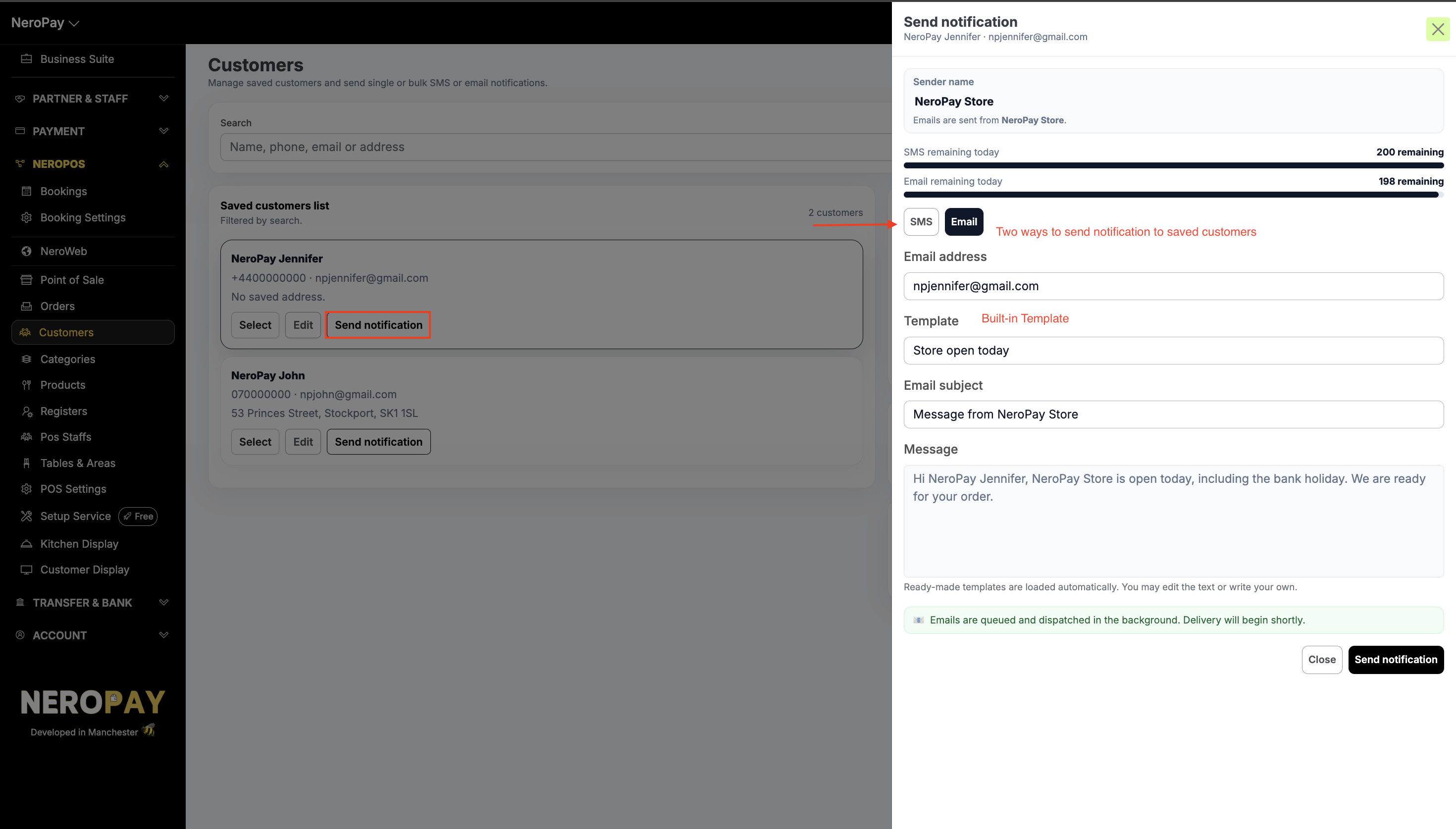
- Click Send notification on any customer card
- Choose your channel — toggle between SMS and Email
- For emails, choose from a ready-made template such as "Store open today", or write your own message. The subject line and message body will auto-fill based on the template you pick, but you can edit them freely
- Check how many SMS messages and emails you have remaining for the day — this is shown in the panel so you always know where you stand
- Click Send notification when ready — emails are queued and delivered in the background so you can get on with your day
📸
Part 3 — Managing your blocklist
If a customer has asked not to be contacted, you can block them from receiving any notifications.
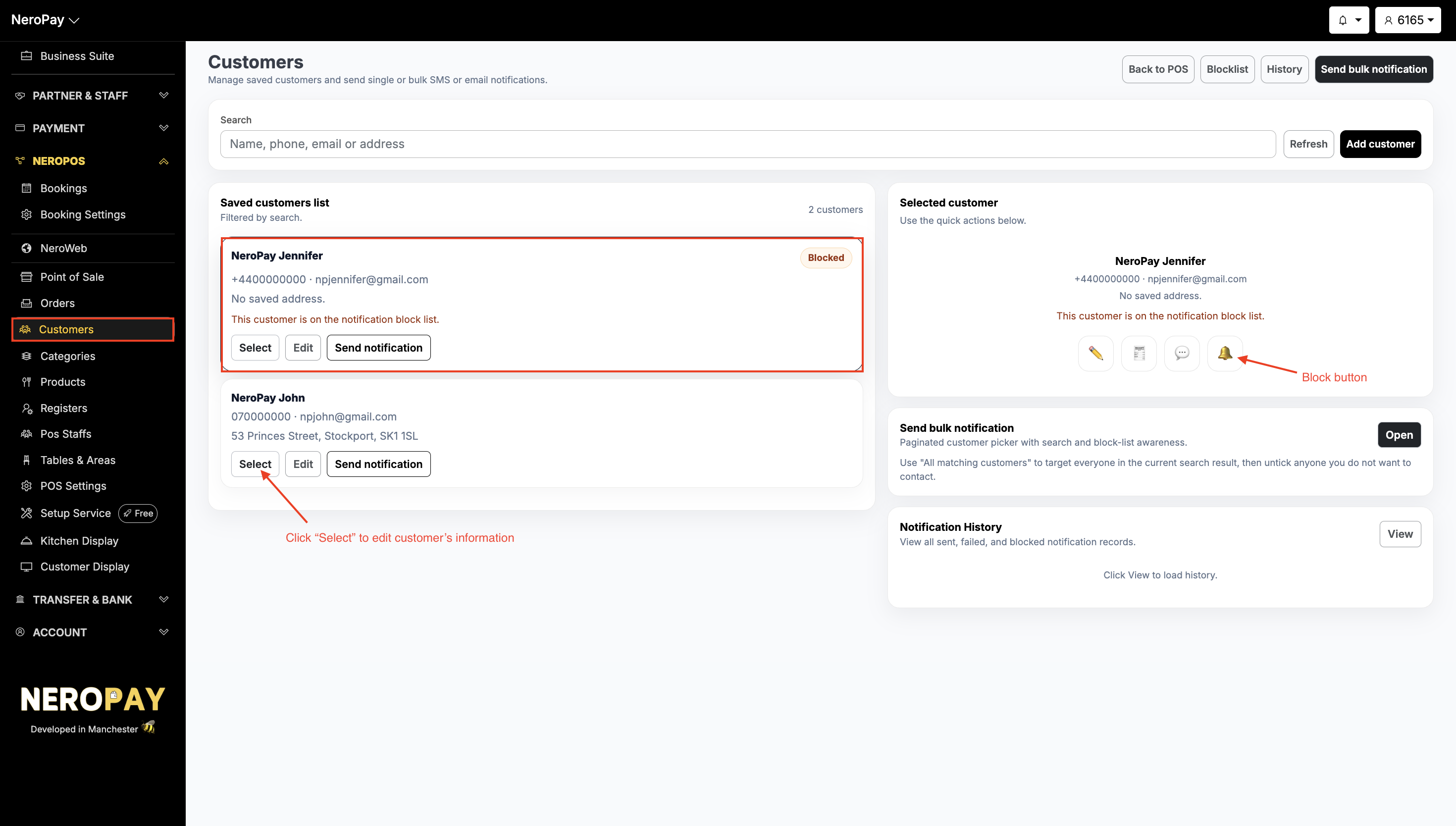
- Click Blocklist at the top of the Customers page to see all currently blocked customers
- Blocked customers are flagged with a red Blocked badge in your main customer list — so there is no risk of accidentally sending them a message
- To unblock someone, click Remove from block list and they will be able to receive notifications again
📸
⚠️ Note: Blocked customers are automatically skipped in bulk sends — you do not need to remove them manually before sending.
Part 4 — Sending a bulk notification
To reach multiple customers at once:
- Click Send bulk notification at the top right of the Customers page
- Toggle between SMS and Email to choose your channel
- Use the customer checklist to select who you want to contact:
- All matching — selects everyone in your current filtered view
- This page — selects only the customers visible on screen
- Individual selection — pick customers one by one
- Choose a template or write a custom message
- Click Send when ready
💡 SMS character limit: Each 160 characters counts as one message segment, up to a maximum of 640 characters per message.
⚠️ Bulk send limit: You can send to a maximum of 50 customers per bulk send.
⚠️ Sender name: Your messages will be sent from NeroPay Store as the sender name. This is fixed for security and spam prevention purposes and cannot be changed.
Part 5 — Saving a customer's favourite table
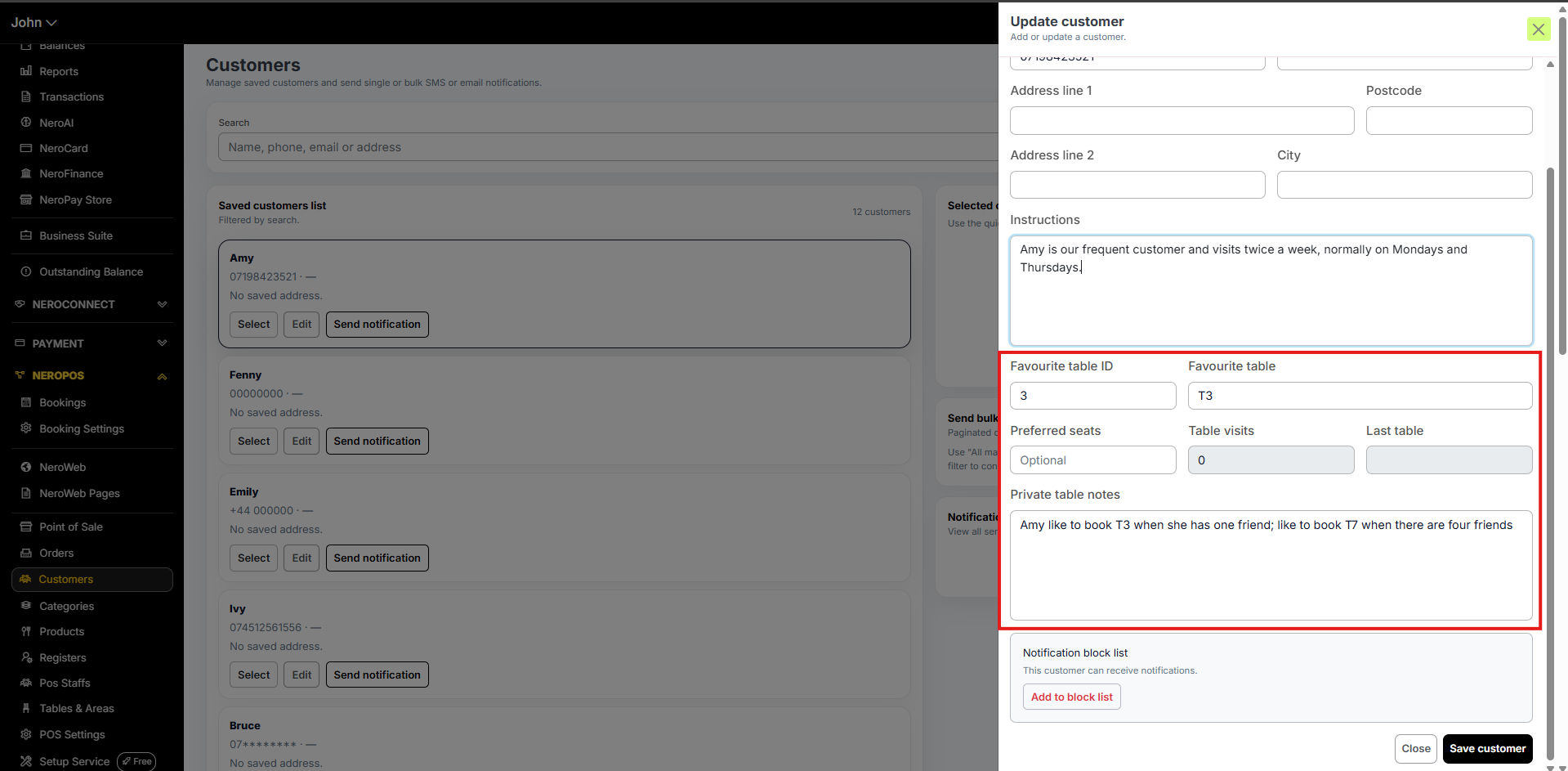
You can save a customer's preferred table to their profile, making it easier to deliver personalised service every time they visit.
From the dashboard:
Go to NeroPOS → Customers, open the customer's profile and update their favourite table from there.
📸
From the EPOS screen:
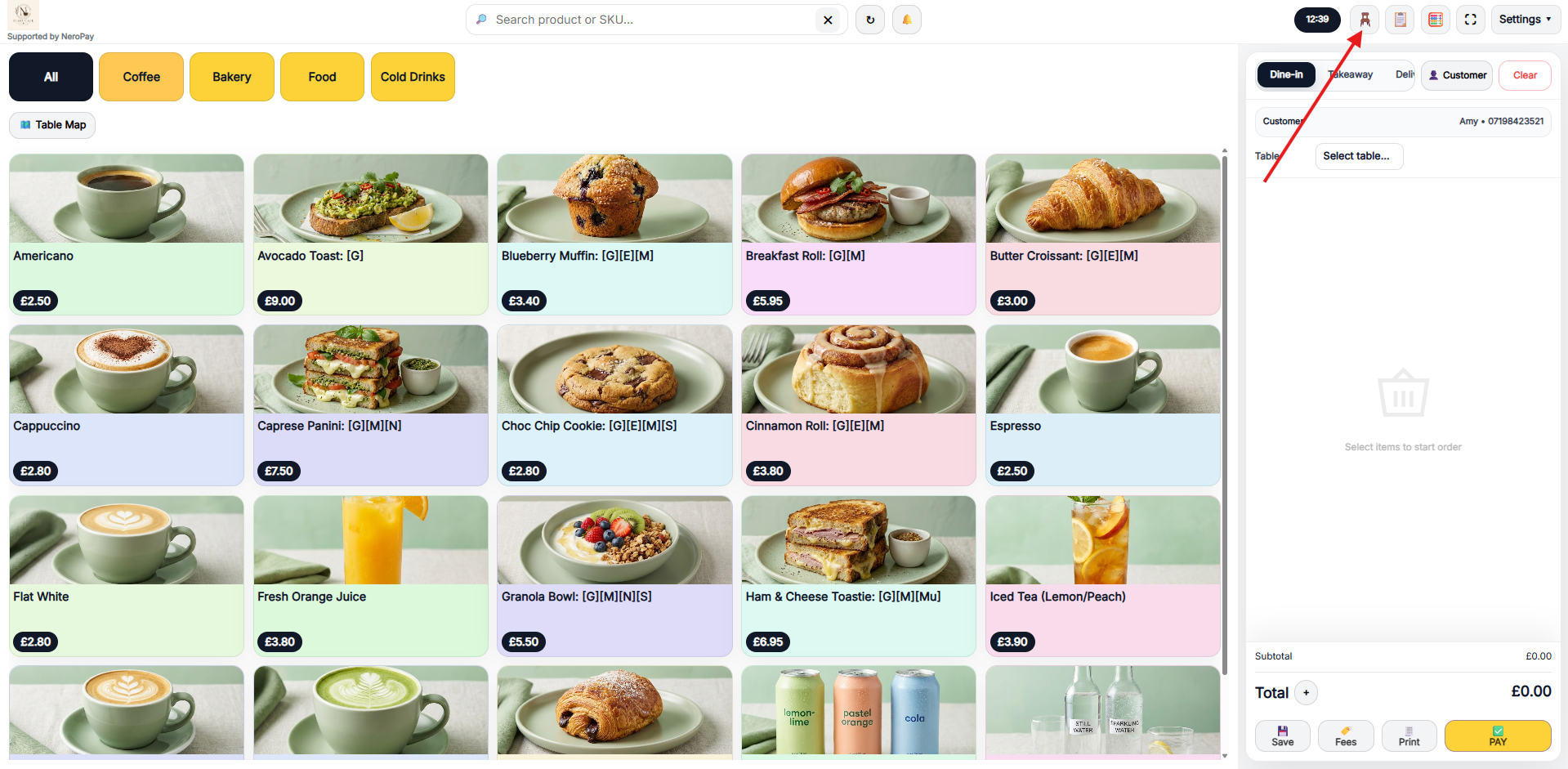
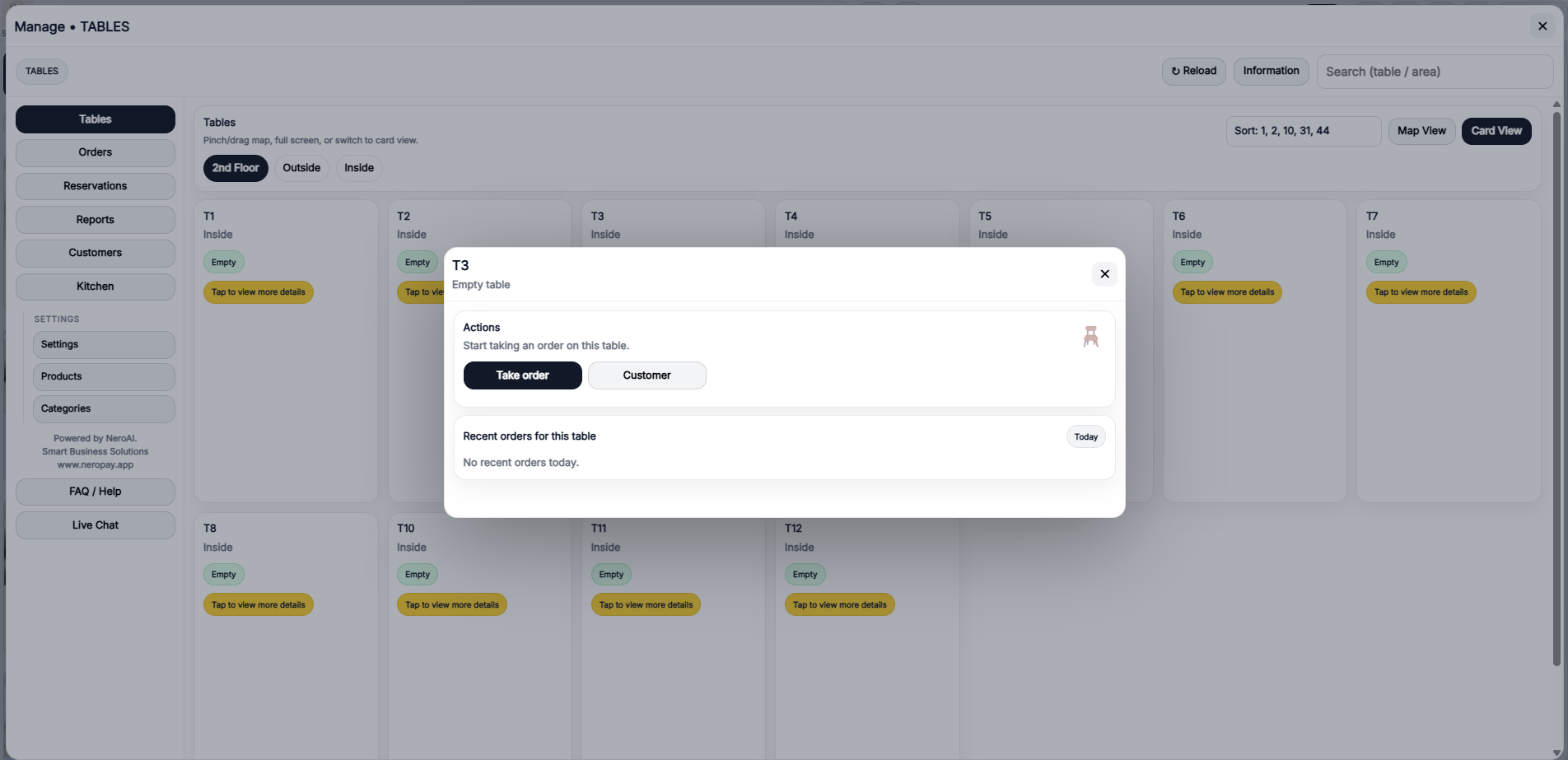
- Open your EPOS and look for the chair icon in the top-right corner of the screen
- Click on the table your customer prefers — for example, T3
- Search for the customer by name
- Save the table to their profile
📸
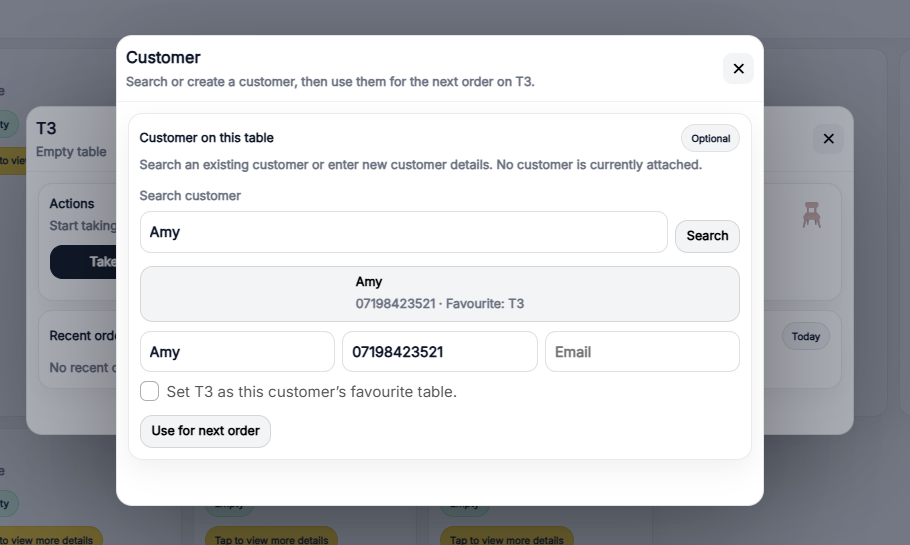
💡 Tip: This links back to the Track favourite tables setting in POS Settings — once enabled, the system stores each customer's favourite table, last table used, and visit count automatically. See NeroPOS settings — General →
Frequently asked questions
Q: How many notifications can I send per day? A: Your daily SMS and email allowance is shown in the notification panel when you send a message. Check this before sending to avoid running out mid-campaign.
Q: Can I send a notification to a customer who is on the blocklist? A: No. Blocked customers are automatically excluded from all notifications — both individual and bulk sends.
Q: Can I customise the sender name on SMS messages? A: No. All messages are sent from NeroPay Store as the sender name. This is fixed for security and spam prevention purposes.
Q: What happens if I send a bulk notification to more than 50 customers? A: The bulk send is capped at 50 customers per send. If you need to reach more customers, split your list and send in batches.
Q: Can I create my own notification templates? A: You can write a fully custom message in the message body field at any time. Ready-made templates are also available to speed up common messages, such as "Store open today."
Still need help? Contact us at support@neropay.app or create a ticket