How to get there
From your dashboard, follow this path:
NeroPOS → Campaigns
Dashboard summary
At the top of the page, you'll see a live snapshot:
| Metric | What it shows |
|---|---|
| Customers | Total saved customers in your account |
| Active promotions | Number of currently active promotions |
| Gift-card balance | Total outstanding balance across all issued gift cards |
| Loyalty | Whether your loyalty programme is on or off |
Tab 1 — Promotions
Promotions is your central discount engine for in-store POS, online ordering, and bookings. Create one reusable offer with flexible rules so staff and customers always understand the offer.
How to create a promotion
Click + Create promotion and fill in the following:
| Field | What to enter |
|---|---|
| Name | Internal name for the promotion — e.g. Weekend dining offer |
| Code | Customer-facing code — e.g. WEEKEND50 |
| Promotion type | e.g. Discount |
| Discount type | Fixed amount off or Percentage |
| Fixed amount / credit | Amount to discount if using fixed type |
| Percentage | Discount percentage if using percentage type |
| Minimum spend | Minimum basket value before the discount applies |
| Maximum discount | Optional cap on the discount amount |
| Per-customer limit | How many times one customer can use the code |
Where the offer can be used — Channels:
- NeroPOS
- NeroWeb
- NeroBooking
Order types:
- Delivery
- Collection
- Dine-in
- Booking
Product and category rules
Apply the promotion to specific products or categories only — leave empty to apply to the whole basket.
Buy X get Y rules
Set a Buy quantity and Free quantity for buy-one-get-one or similar promotions.
Time and customer rules
Restrict the promotion to specific days or times, and limit it to certain customers if needed.
📸
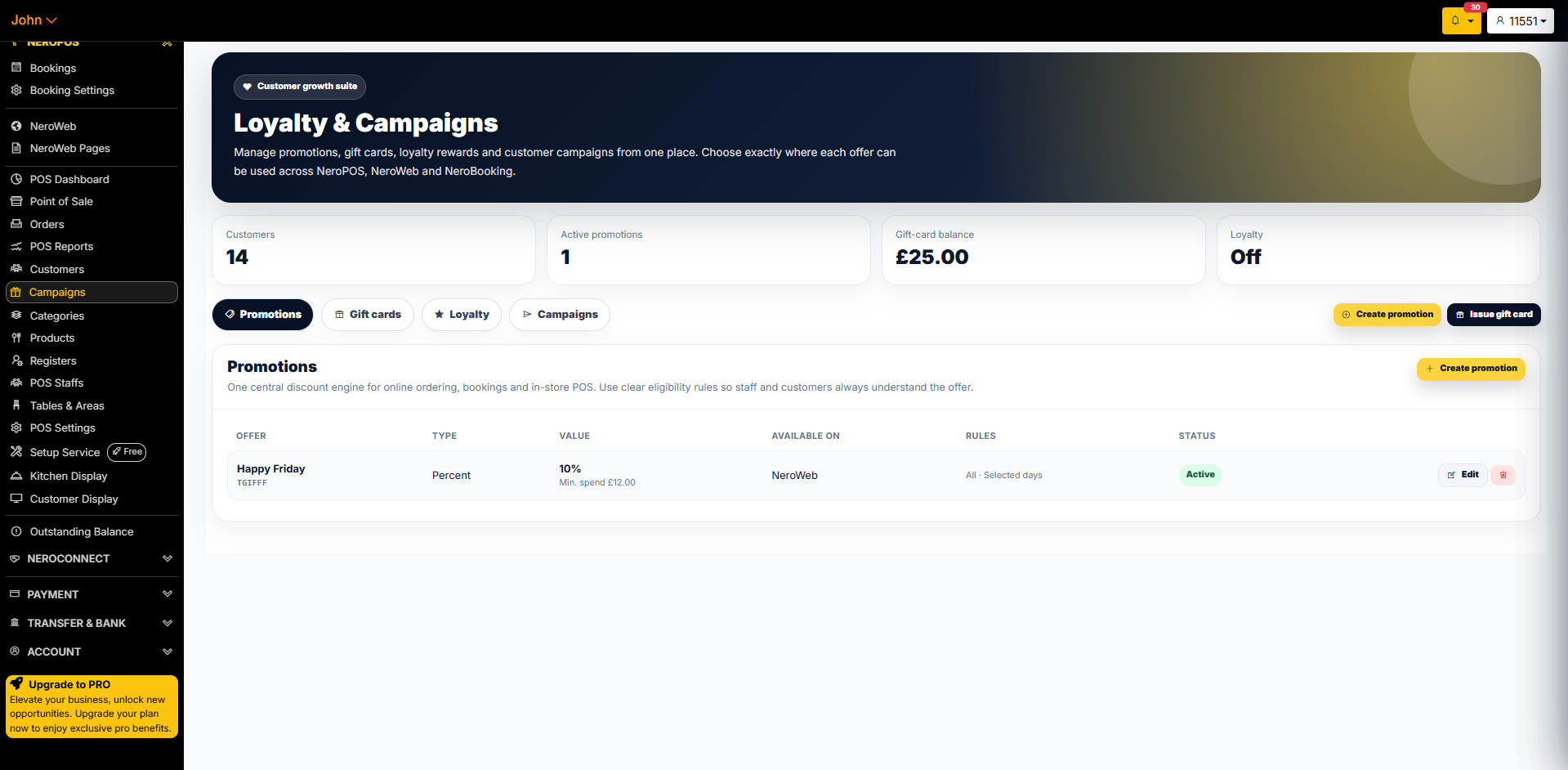
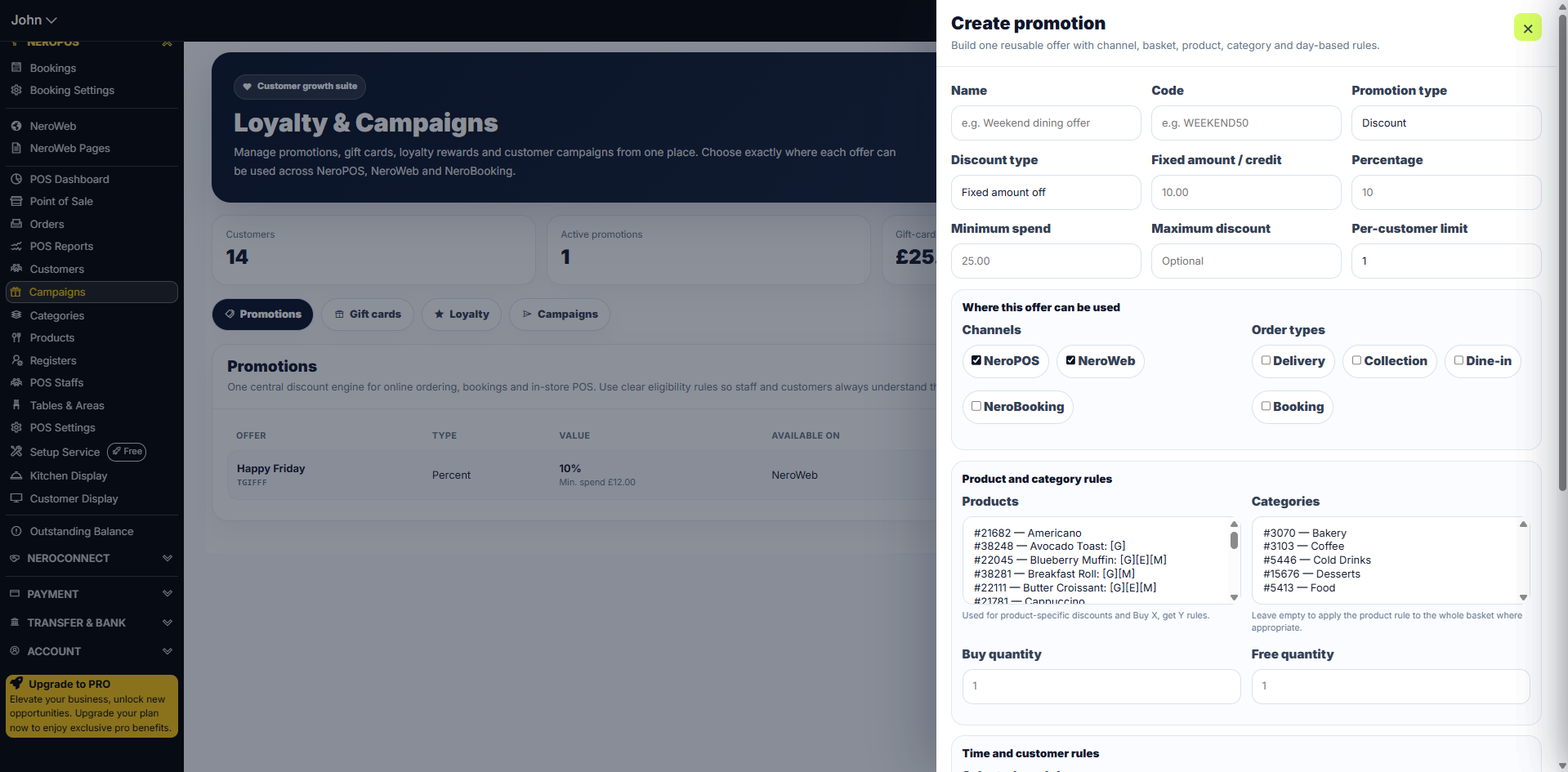
💡 Example: Create a "Happy Friday" promotion with code TGIFFF — 10% off, minimum spend £12, available on NeroWeb only, on selected days.
Tab 2 — Gift cards
Issue branded NeroPay digital gift cards that customers can spend across your approved channels.
How to issue a gift card
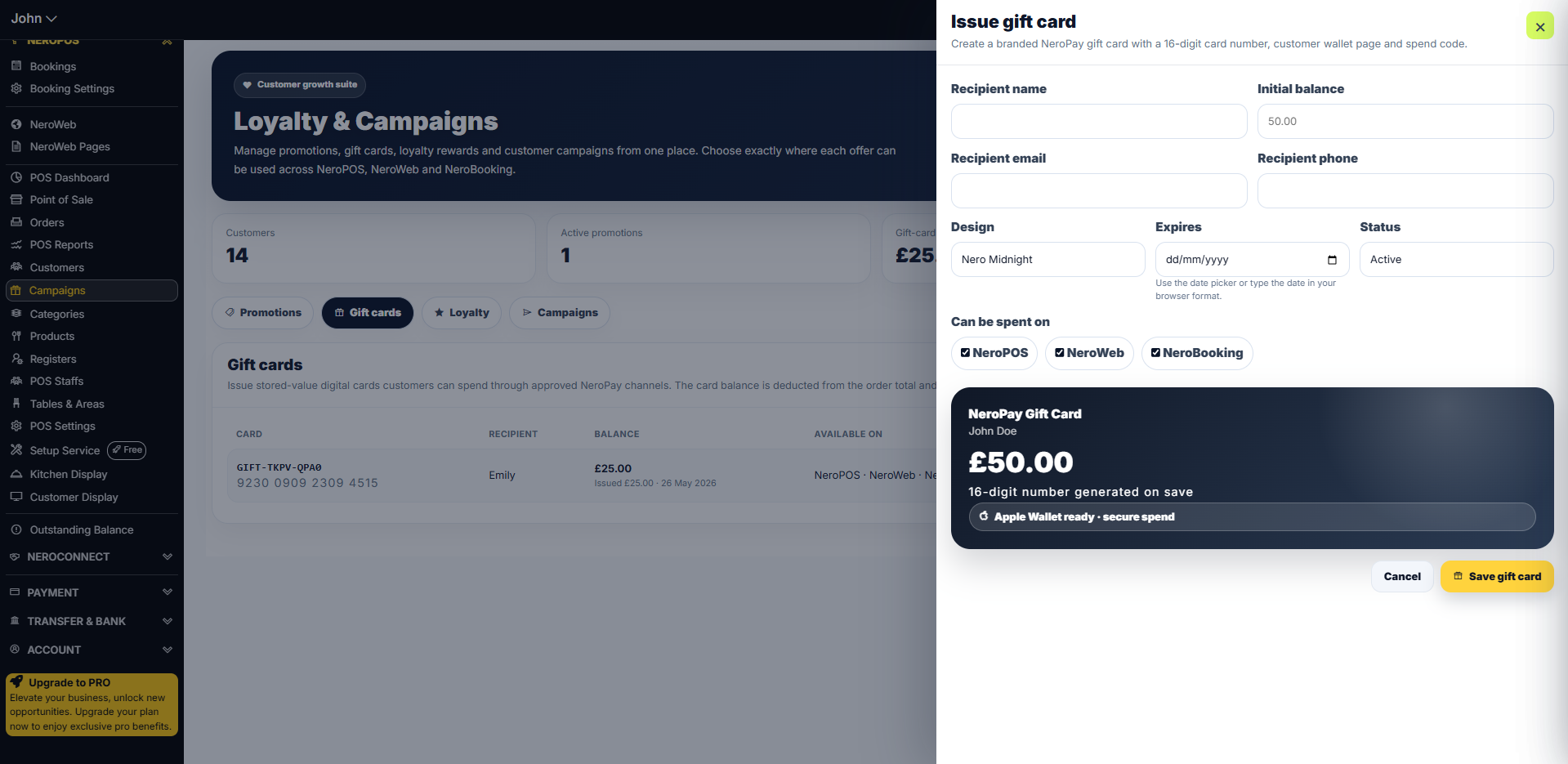
Click Issue gift card and fill in:
| Field | What to enter |
|---|---|
| Recipient name | The customer's name |
| Initial balance | The starting value — e.g. £50.00 |
| Recipient email | Email address to send the card to |
| Recipient phone | Phone number for SMS delivery |
| Design | Choose a card design — e.g. Nero Midnight |
| Expires | Set an expiry date |
| Status | Active or inactive |
| Can be spent on | Tick NeroPOS, NeroWeb, and/or NeroBooking |
Click Save gift card — a 16-digit card number is generated automatically.
📸
What the customer sees
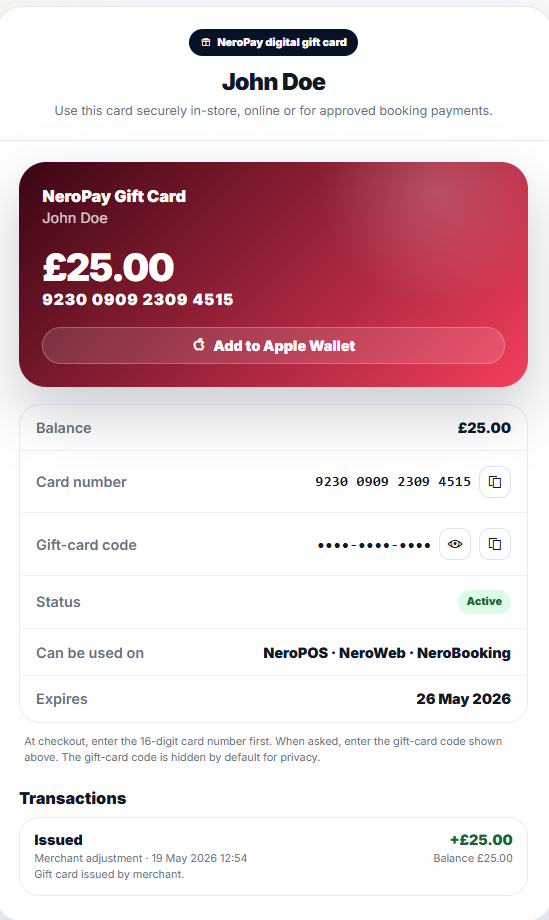
The customer receives a branded digital gift card showing:
- Card balance and 16-digit number
- Gift-card code (hidden by default — customer clicks to reveal)
- Where it can be used — NeroPOS, NeroWeb, NeroBooking
- Expiry date
- Transaction history
- Add to Apple Wallet option
📸
How a customer uses a gift card at checkout
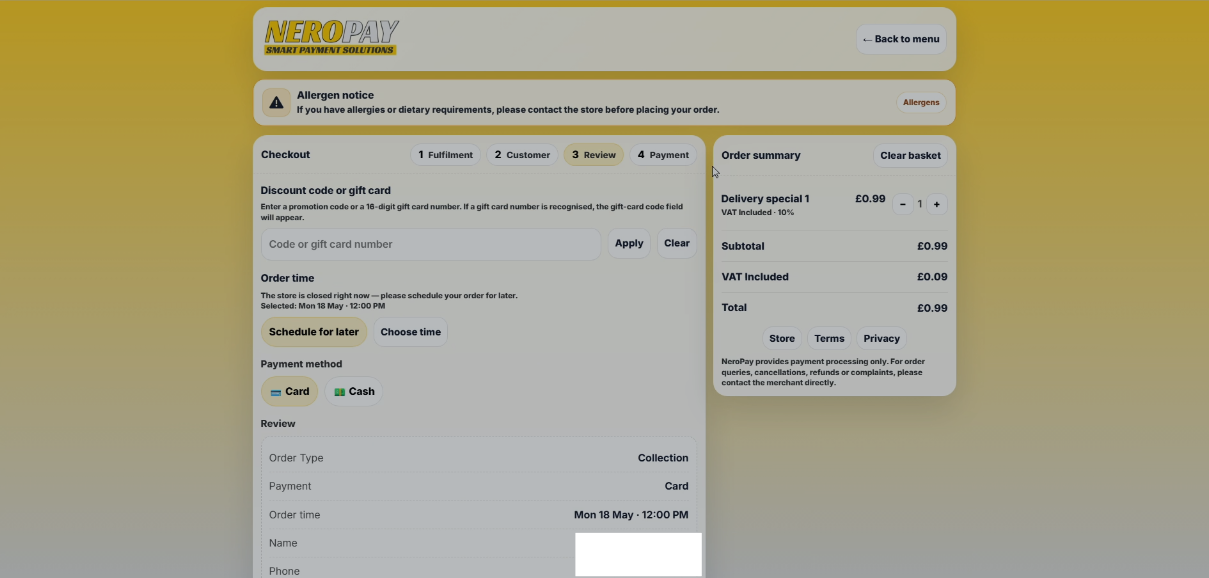
On NeroWeb checkout, the customer enters their 16-digit card number in the Discount code or gift card field. If the card number is recognised, the gift-card code field will appear for them to complete the payment.
📸
How to accept a gift card on the EPOS
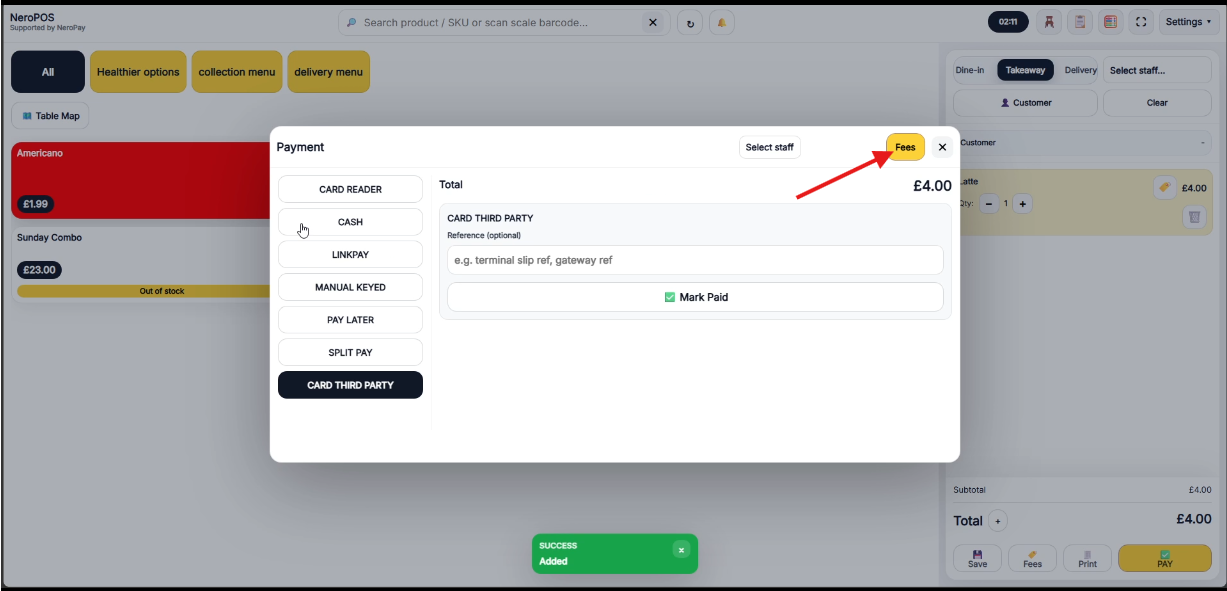
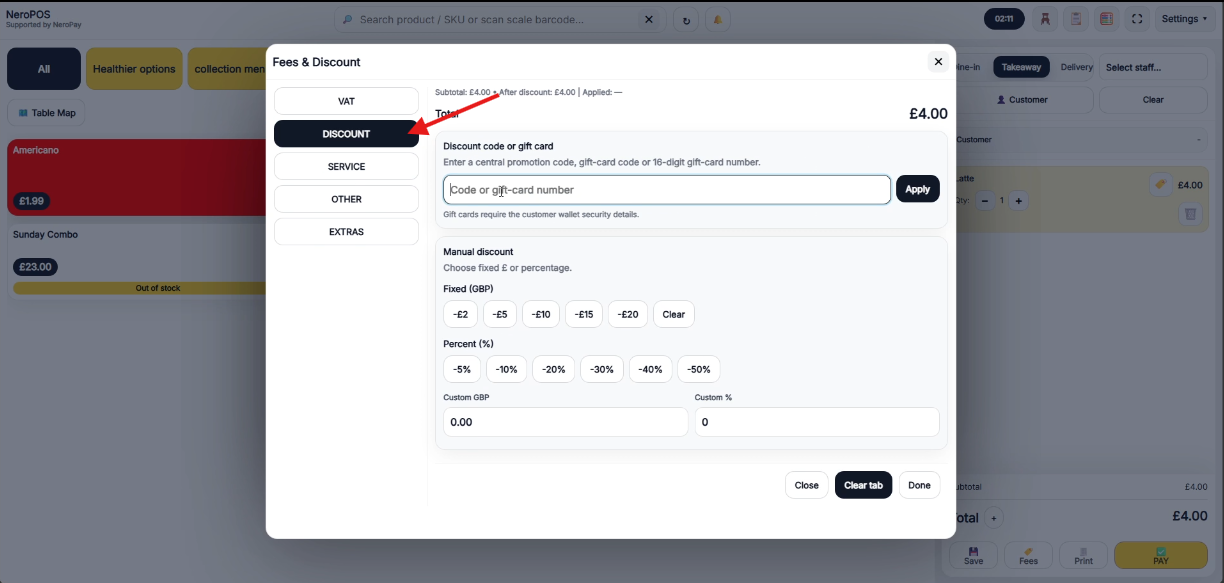
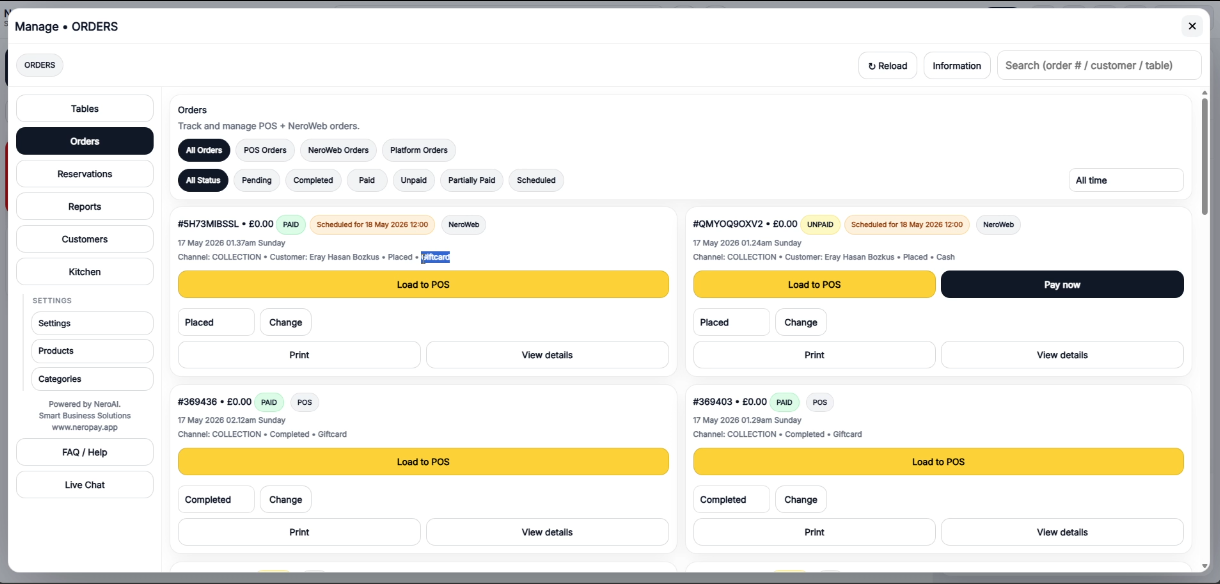
- At the payment screen, tap Fees
- Select Discount
- Enter the gift card number or promotion code in the Discount code or gift card field
- Tap Apply
📸
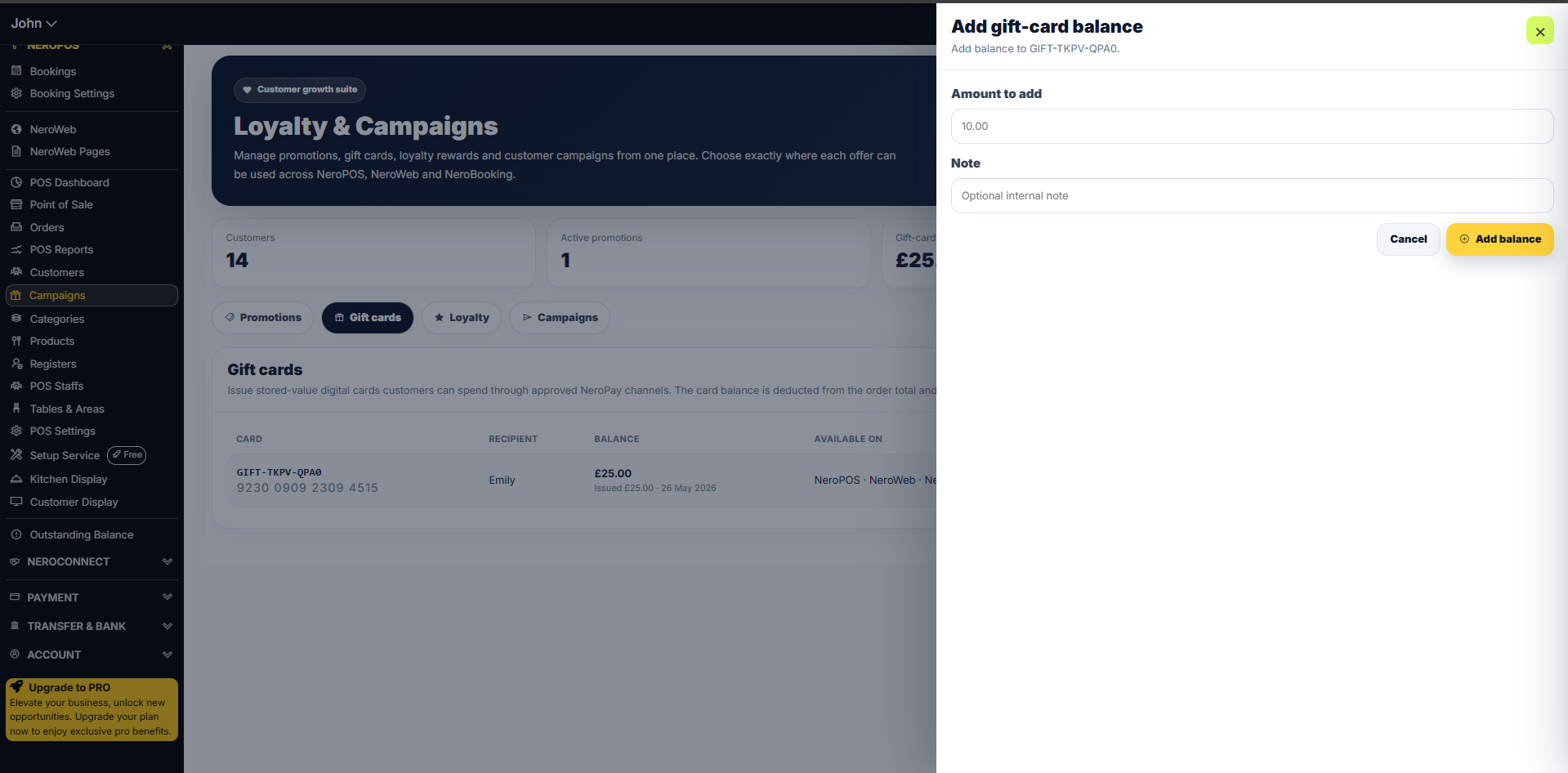
Topping up a gift card
To add more balance to an existing gift card:
- Go to NeroPOS → Campaigns → Gift cards
- Find the card in the list
- Click Add balance
- Enter the amount to add and an optional internal note
- Click Add balance to confirm
📸
Tab 3 — Loyalty
Set up a loyalty programme to reward customers for repeat visits. When enabled, customers earn points that can be redeemed against future orders.
How to get there
NeroPOS → Campaigns → Loyalty
📸
Tab 4 — Campaigns
Send professional email or SMS campaigns to your customers — connected to your promotions for a targeted, measurable approach.
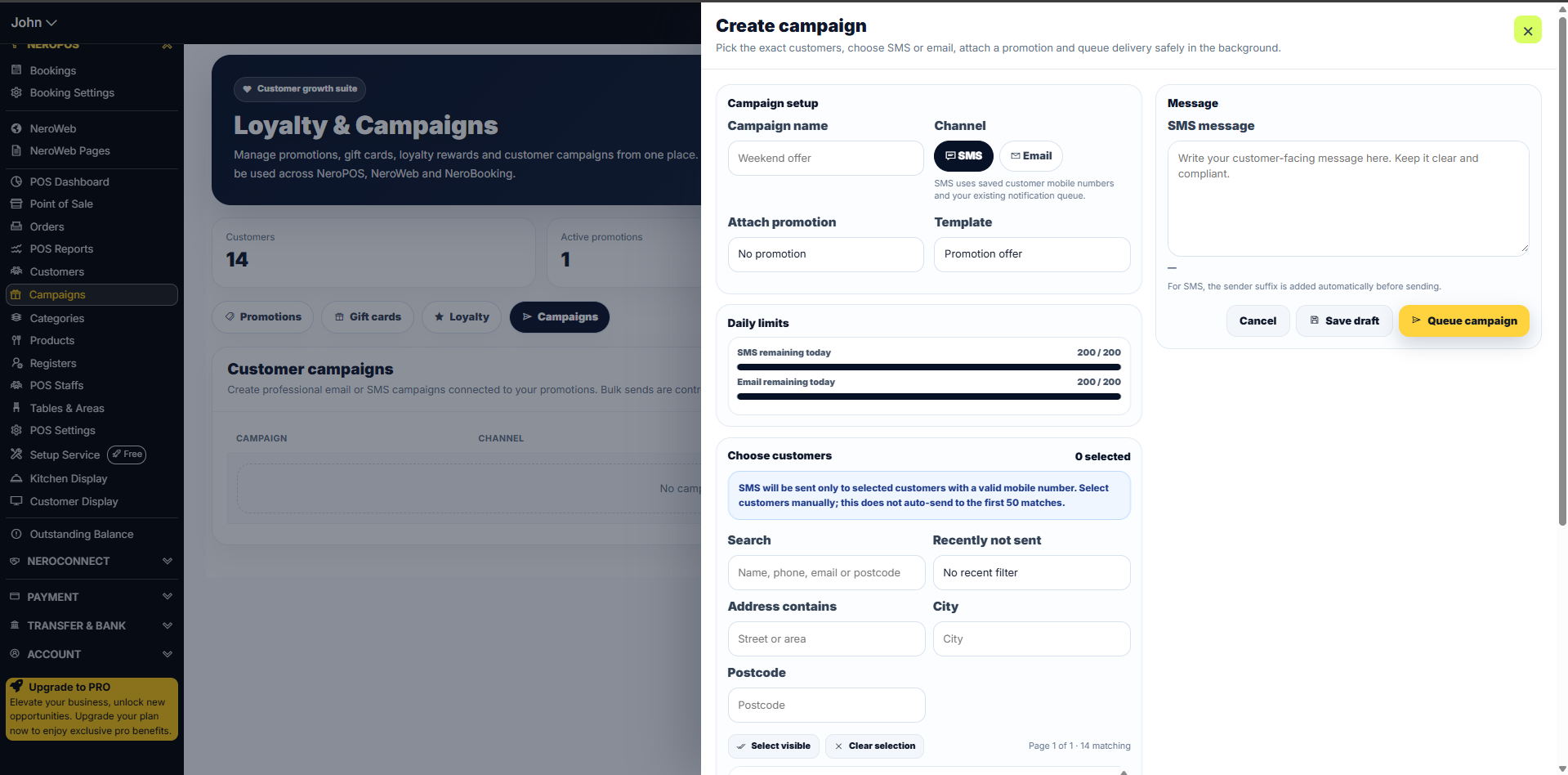
How to create a campaign
Click Create campaign and fill in:
| Field | What to enter |
|---|---|
| Campaign name | Internal name — e.g. Weekend offer |
| Channel | SMS or Email |
| Attach promotion | Link an existing promotion to the campaign |
| Template | Choose a message template |
| SMS / Email message | Write your customer-facing message — keep it clear and compliant |
Choosing customers
Use the filters to select who receives the campaign:
- Search by name, phone, email, or postcode
- Filter by Recently not sent to avoid re-contacting the same customers
- Filter by address or city
- Use Select visible to select all matching customers or pick individually
⚠️ Note: SMS is sent only to customers with a valid mobile number. Campaigns do not auto-send to the first 50 matches — you must select customers manually.
Daily limits
Your daily sending allowance is shown in the panel:
- SMS remaining today
- Email remaining today
Once ready, click Queue campaign to schedule delivery, or Save draft to come back to it later.
Part 5 — Sending bulk notifications via Customers
Once your campaign or promotion is set up, you can also send bulk notifications directly from the Customers page.
How to get there
NeroPOS → Customers
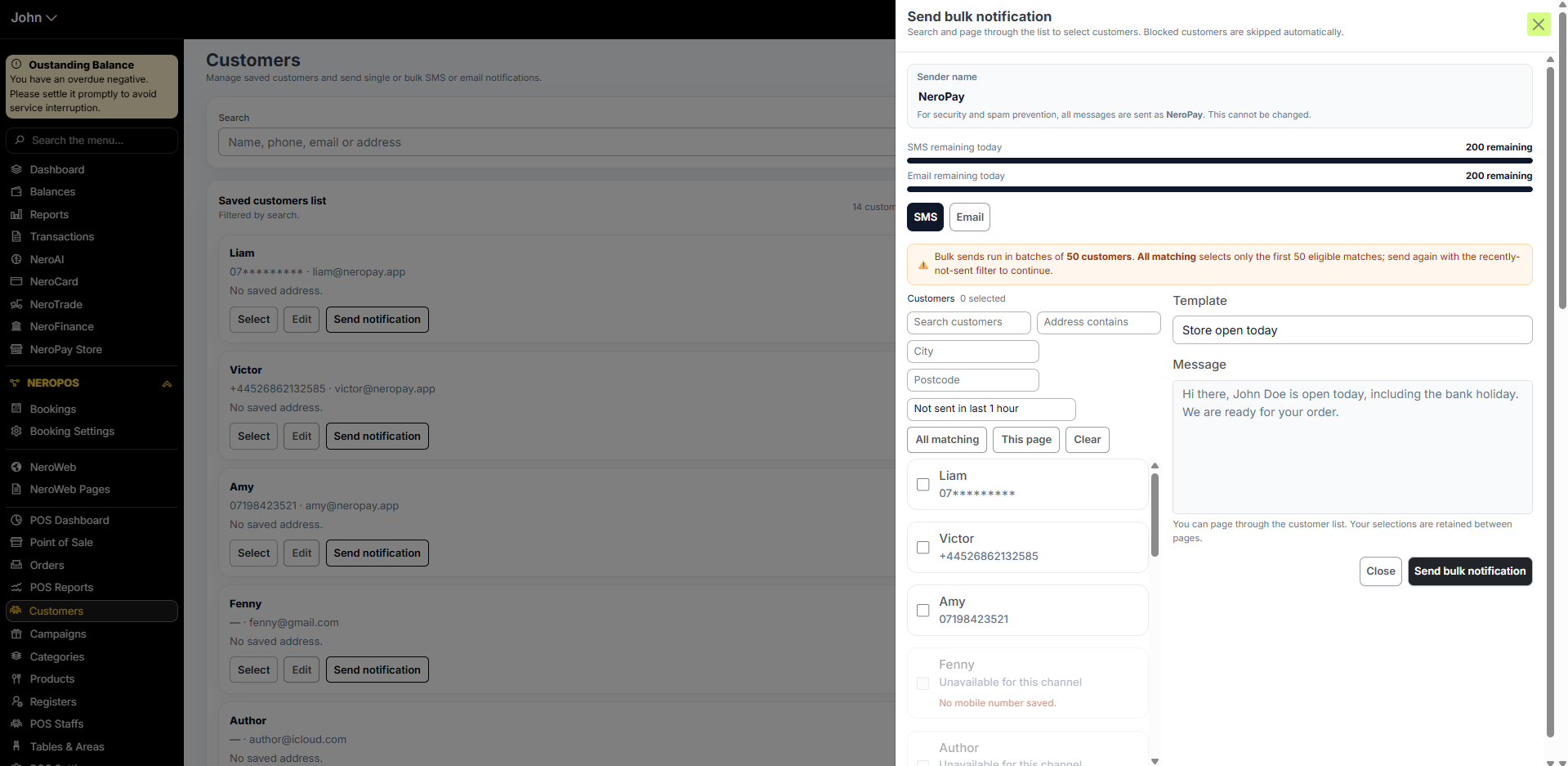
Click Send bulk notification at the top right of the Customers page.
How to send a bulk notification
- Choose your channel — SMS or Email
- Use the filters to find the right customers:
- Search by name, phone, email, or address
- Filter by city or postcode
- Use Not sent in last X hours to avoid re-contacting customers too soon
- Select customers using:
- All matching — selects the first 50 eligible matches
- This page — selects only customers visible on screen
- Individual checkboxes to pick manually
- Choose a template — for example, Store open today
- Edit the message as needed
- Click Send bulk notification
⚠️ Important notes:
- Bulk sends run in batches of 50 customers. If you need to reach more, send again using the recently-not-sent filter to continue with the next batch
- Customers without a saved mobile number will show as Unavailable for this channel and will be skipped automatically
- All messages are sent from NeroPay as the sender name — this cannot be changed
- Your daily SMS and email allowances are shown at the top of the panel
📸
Frequently asked questions
Q: Can I use a promotion on both NeroPOS and NeroWeb at the same time? A: Yes. When creating a promotion, tick both NeroPOS and NeroWeb under Channels. The same code will work across both.
Q: Can a customer use a gift card and a promotion code together? A: This depends on your promotion rules. If the promotion allows combined use, yes — the gift card covers the balance and the promotion applies the discount separately.
Q: Can I add more money to a gift card after it's been issued? A: Yes. Go to Campaigns → Gift cards, find the card, and click Add balance.
Q: What happens if a gift card expires before the customer uses it? A: The card becomes inactive on the expiry date. Contact support if you need to extend or reactivate a card.
Q: Is there a limit on how many campaigns I can send per day? A: Yes. Your daily SMS and email allowances are shown in the Create campaign panel. Contact support if you need higher limits.
Still need help? Contact us at support@neropay.app or create a ticket