Payout limits in NeroConnect run in one direction only. NeroPay sets a hard cap on what each connected account can pay out; your platform defaults can lower it, and a value on an individual account can lower it further, but nothing you enter can raise a merchant above NeroPay's limit. This article covers the eight limit fields, what effective value means, where to set defaults and per-account values, and where to confirm what is actually in force.
The eight limits
The same eight fields appear in two places: as platform defaults under NeroConnect → Settings → Pricing, and per merchant on the Connected-account payout limits tab of the account panel. Seven are amounts; the daily transfer count is a number of transfers.
| Limit | What it controls |
|---|---|
| Standard minimum | The smallest standard payout the merchant can make |
| Standard daily / transfer maximum | The most a standard payout can be, per transfer and per day |
| Instant minimum | The smallest instant payout the merchant can make |
| Instant daily / transfer maximum | The most an instant payout can be, per transfer and per day |
| Weekly standard maximum | The total the merchant can pay out by standard payout in a week |
| Weekly instant maximum | The total the merchant can pay out by instant payout in a week |
| Daily transfer count | How many transfers the merchant can make in a day |
| NeroDisburse daily maximum | The most the merchant can send through NeroDisburse in a day |
💡 Note: Instant payout is also an additional service with its own fee. The limits here decide how much and how often a merchant can pay out; what they are charged for it is set in pricing — see Additional service pricing and the protected base.
Effective value, NeroPay value and blank
On the per-account tab each field shows two figures: the effective value — the limit the merchant is actually held to — beside the NeroPay value, which is the hard cap NeroPay has assigned to that account. The panel is marked Hard cap protected to make the relationship explicit.
| What you enter | What becomes the effective value |
|---|---|
| Nothing — the field is blank | The limit is inherited from the level above: the platform default, or NeroPay's limit if there is no default |
| A value stricter than the level above | Your value |
| A value looser than NeroPay's cap | NeroPay's cap — a platform value can only make a limit stricter |
⚠️ Blank means inherit, not zero. Clearing a field hands the limit back to the level above it; it does not remove the limit.
The one-direction rule
Three levels feed into every effective value, and each can only tighten what it receives from the level above.
| Level | What it can do |
|---|---|
| NeroPay hard cap | Sets the ceiling for the account. Owned by NeroPay; not editable in NeroConnect |
| Platform default | May lower the cap for every merchant it applies to |
| Per-account value | May lower it further for that one merchant |
The Pricing tab states the same thing in its own words: account-specific choices override the platform defaults, but the account's admin limit is always the final hard cap. If a merchant needs a higher limit than NeroPay has assigned, that is a request to NeroPay, not a setting in NeroConnect.
Platform defaults and per-account values
Go to NeroConnect → Settings → Pricing and scroll to Default connected-account payout limits. Each field's placeholder reads Use NeroPay limit, and a Saved default line beneath it shows what is currently stored. Enter a value only where you want every connected account held to something stricter than NeroPay's limit.
📸 The Default connected-account payout limits section on the Pricing tab, with all eight fields left blank so NeroPay's limits apply. Figures shown are illustrative.
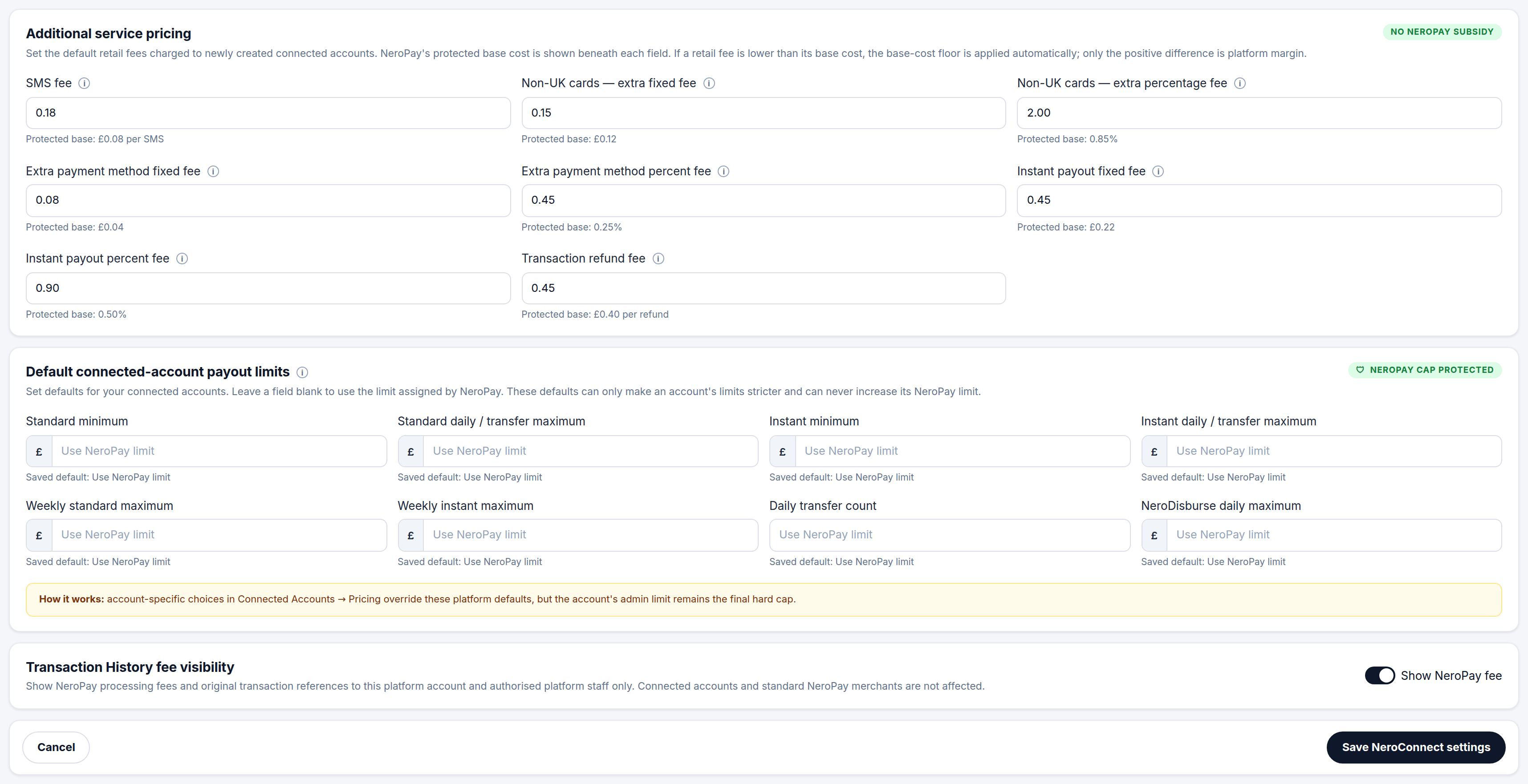
To limit one merchant differently, go to NeroConnect → Connected Accounts, open the account and use the Connected-account payout limits tab. The eight fields are the same; the difference is that here each one also shows the effective value against NeroPay's value for that specific account.
| Platform defaults | Per-account values | |
|---|---|---|
| Where | Settings → Pricing | Account panel → Connected-account payout limits |
| Applies to | Your connected accounts as a whole | That one merchant |
| Blank means | Use NeroPay's limit | Inherit the platform default, or NeroPay's limit |
| Can raise a limit | No | No |
Confirming what is in force
The Rates & limits tab on the account panel is read only and shows the result once your defaults, the account's own values and NeroPay's caps have all been applied — including the eight effective transfer limits. When a merchant asks why a payout was refused, this tab is the place to look, because it shows the number the merchant was actually held to rather than the number you typed.
⚠️ The Connected-account payout limits tab saves separately from the main Save NeroConnect settings button. Save the tab itself before moving on, and check Rates & limits afterwards — leaving without saving is a common cause of a limit that never took effect.
Frequently asked questions
I entered a higher daily maximum for a merchant but the effective value did not change. Why?
Your value was above NeroPay's cap, so the cap stayed in force. Platform and per-account values can only make a limit stricter. To raise a merchant's limit, contact NeroPay.
What happens if I leave every field blank?
Each merchant is held to the limit NeroPay has assigned to it. Blank inherits; it does not remove the limit or set it to zero.
I set a platform default. Does it apply to a merchant that already has its own value?
Account-specific values override platform defaults, so a merchant with its own value keeps it. Merchants whose field is blank inherit the new default.
Where do I see the limit a merchant is actually held to?
Open the account and check the Rates & limits tab. It is read only and shows the eight effective transfer limits after every level has been applied.
I changed a limit on the account panel and it has not applied. What did I miss?
The payout limits tab has its own save and is not covered by the Save NeroConnect settings button used elsewhere. Go back to the tab, save it, and confirm on Rates & limits.
Still need help? Contact us at support@neropay.app or create a ticket.