Connect Reports answers four questions: what your merchants traded, what you earned, what NeroPay charged you, and whether the ledger agrees with itself. This article walks the page top to bottom, explains the platform wallet, and ends with the numbers that most often look wrong but are not.
Filters and exports
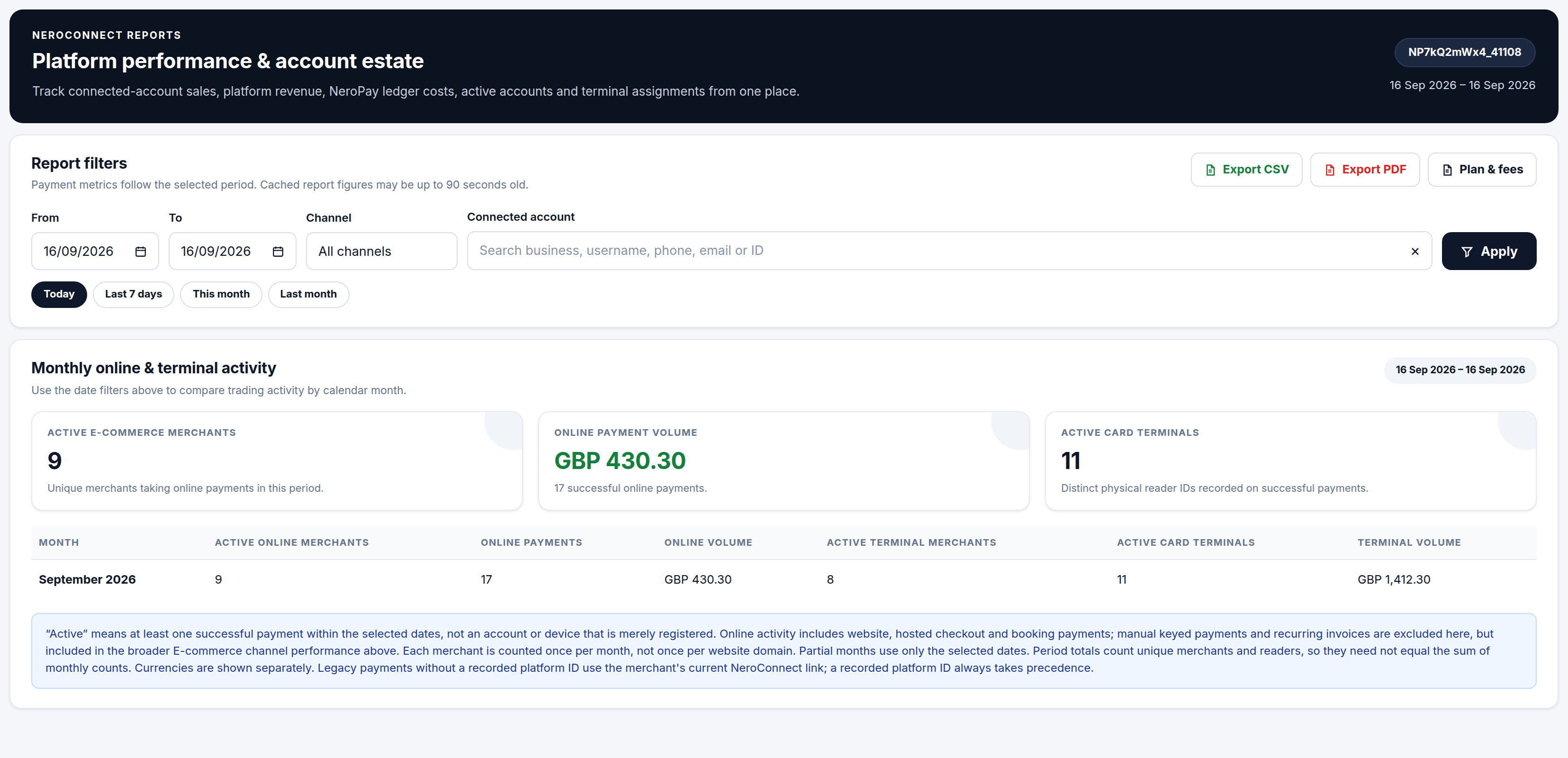
Go to NeroConnect → Connect Reports. The filters at the top run across the whole page — every section below responds to them once you press Apply.
| Control | What it does |
|---|---|
| From / To, with quick ranges | Date range for every figure — today, last 7 days, this month or last month in one press |
| Channel | All channels, or one payment channel |
| Connected account | Narrows the page to one merchant |
| Export CSV / Export PDF | Downloads the report |
| Plan & fees | Opens your pricing summary |
💡 Note: Report figures are cached and can be up to 90 seconds old, so a payment taken a moment ago may not appear yet.
Monthly online and terminal activity
The first section compares trading by calendar month: three headline tiles above a per-month table.
| Tile | Means |
|---|---|
| Active e-commerce merchants | Unique merchants that took at least one successful online payment in the period |
| Online payment volume | Value of successful online payments, with the payment count beneath |
| Active card terminals | Distinct physical reader IDs recorded on successful payments |
The table beneath adds online payment count, active terminal merchants and terminal volume per month. Throughout this section, active means at least one successful payment inside the selected dates. A registered but untraded merchant, or an assigned terminal that has not taken a payment, does not count. Each merchant is counted once per month, not once per website domain.
Two differences that are correct
Online activity here covers website, hosted checkout and booking payments. Manual keyed payments and recurring invoices are excluded from this figure but included in the e-commerce channel figure further down the page, so the two can legitimately disagree. Separately, period totals count unique merchants and readers across the whole range, so a total need not equal the sum of the monthly counts.
📸 The report filters and the monthly activity section, with the definition of "active" printed beneath the table. Figures shown are illustrative.
Estate and ledger tiles
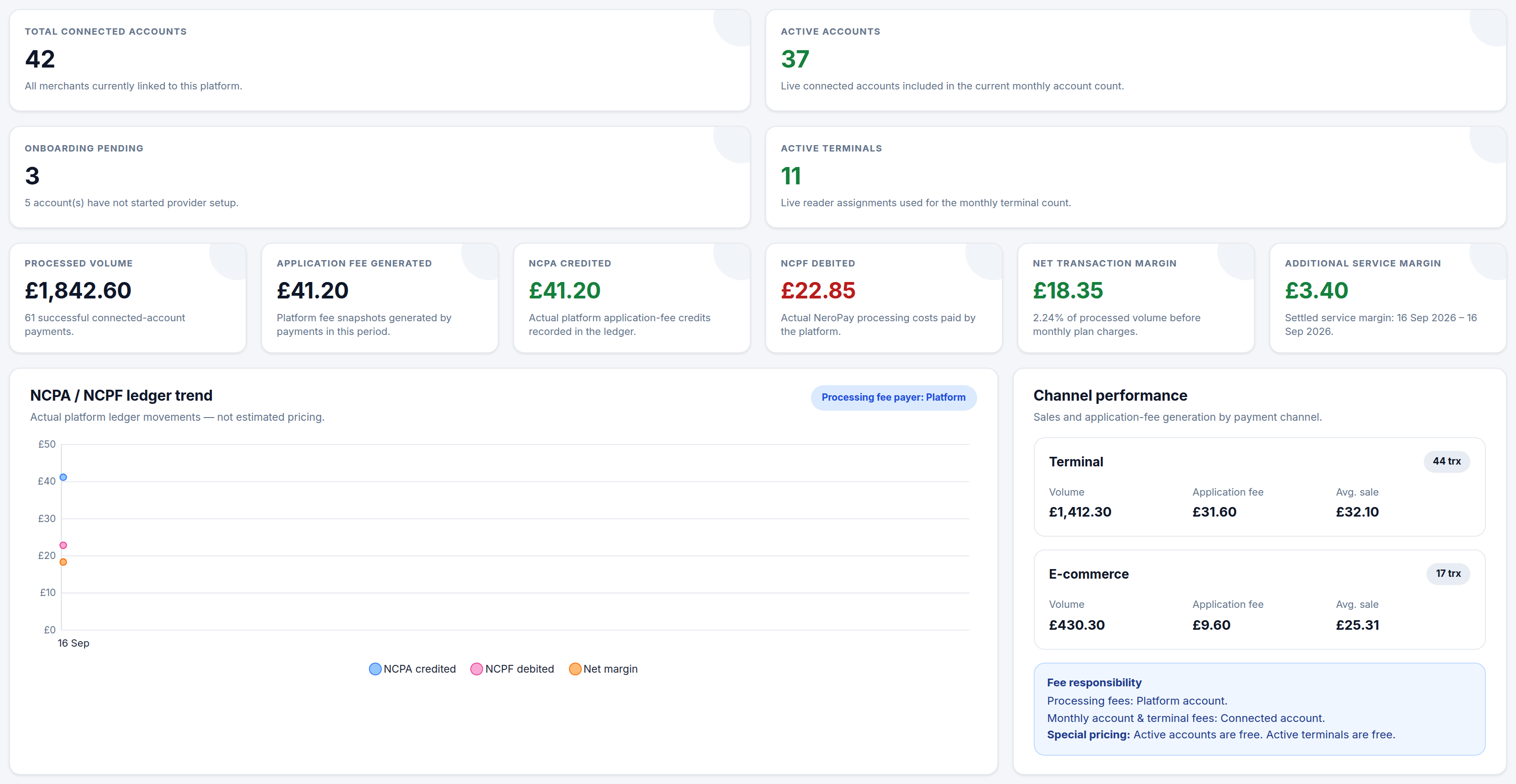
Four estate tiles come first — total connected accounts, active accounts, onboarding pending and active terminals — followed by the six ledger tiles that describe your money.
| Tile | Definition |
|---|---|
| Processed volume | Value of successful connected-account payments in the period |
| Application fee generated | Platform fee snapshots produced by those payments — what your pricing says you should earn |
| NCPA credited | Actual platform application-fee credits recorded in the ledger |
| NCPF debited | Actual NeroPay processing costs paid by the platform |
| Net transaction margin | NCPA less NCPF, before monthly plan charges — also shown as a percentage of processed volume |
| Additional service margin | Settled margin on SMS, card-origin, extra payment method, instant payout and refund pricing |
💡 Note: Application fee generated is an expectation; NCPA credited is what the ledger recorded. When they differ, the reconciliation section below is where to look.
Ledger trend and channel performance
The NCPA / NCPF ledger trend chart plots NCPA credited, NCPF debited and net margin from actual ledger movements, not estimated pricing. A badge states who currently pays NeroPay's processing fee.
Beside it, Channel performance puts Terminal and E-commerce side by side: transaction count, volume, application fee and average sale. Beneath is a Fee responsibility summary restating who pays processing fees, who pays monthly account and terminal fees, and any special pricing in force — the quickest way to confirm your arrangement. See How pricing works — who sets what.
📸 Estate tiles, the six ledger tiles, the ledger trend chart and channel performance with the fee responsibility summary. Figures shown are illustrative.
Additional service economics
This section shows what your platform earned on additional services, NeroPay's base cost and what you kept, then a per-service table with earned, base cost, margin, margin percentage and settled entry count. Only successfully settled entries are counted, and a service row appears only once a merchant has used that service — a missing row means no usage, not a fault.
💡 Note: A margin of 0.00% means you resold that service at exactly NeroPay's base cost. See Additional service pricing and the protected base.
Reconciliation and the fee report
Ledger reconciliation restates NCPA, NCPF and NET as accounting records, with a status line confirming whether any application-fee difference was found in the latest rows.
⚠️ Monthly account, terminal and transfer charges are outside this calculation. It checks payment fees against the ledger; it is not a full statement of your platform balance.
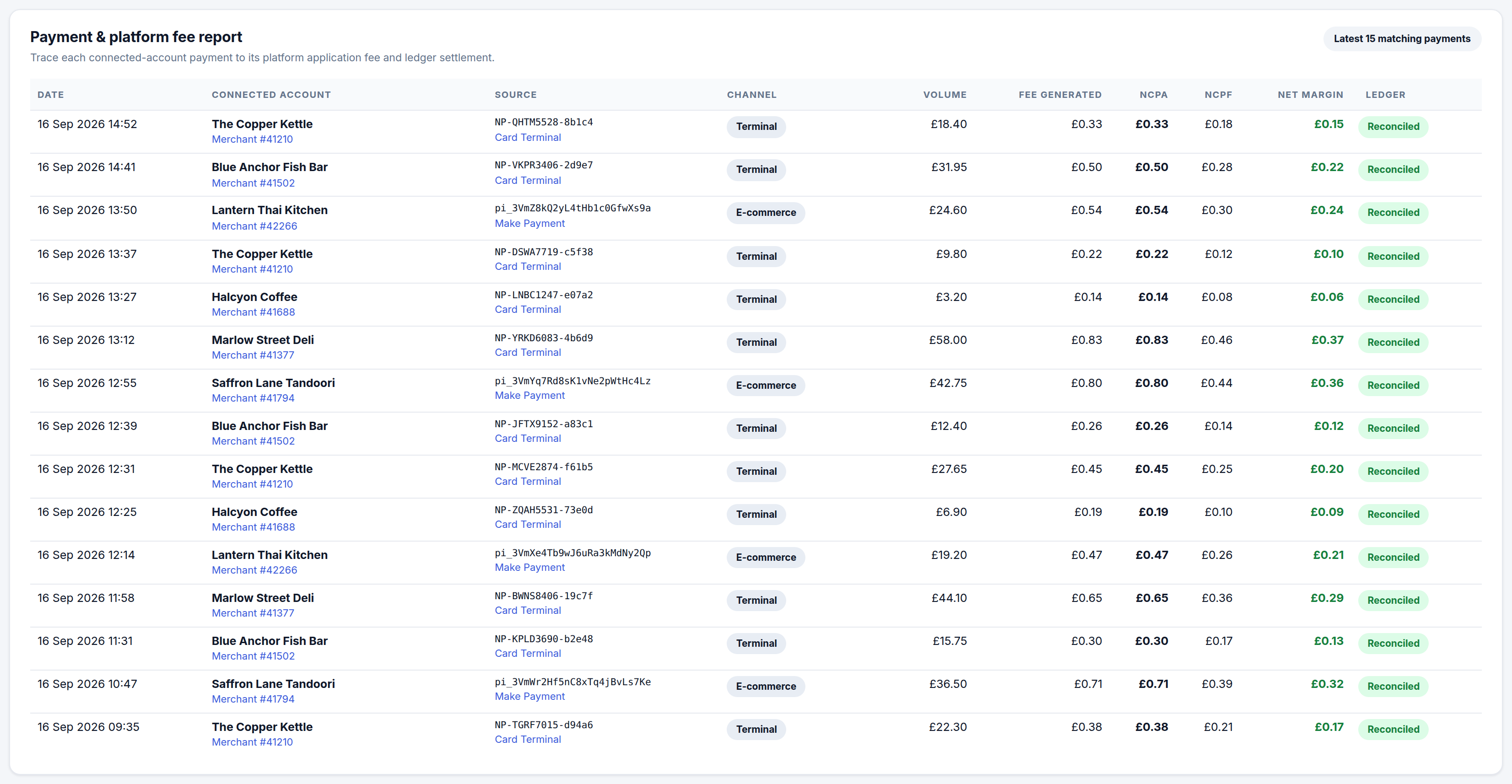
The Payment & platform fee report lists the latest matching payments and traces each one from payment to fee to ledger settlement: date, connected account and merchant number, source reference, channel, volume, fee generated, NCPA, NCPF, net margin and a ledger status. Reconciled means the fee and its ledger settlement agree; any other status is worth a look.
📸 The payment and platform fee report, tracing each payment to its application fee, NCPA, NCPF, net margin and ledger status. Figures shown are illustrative.
For the same trace on a single payment, open it in Connect Logs.
Connected account and terminal inventory
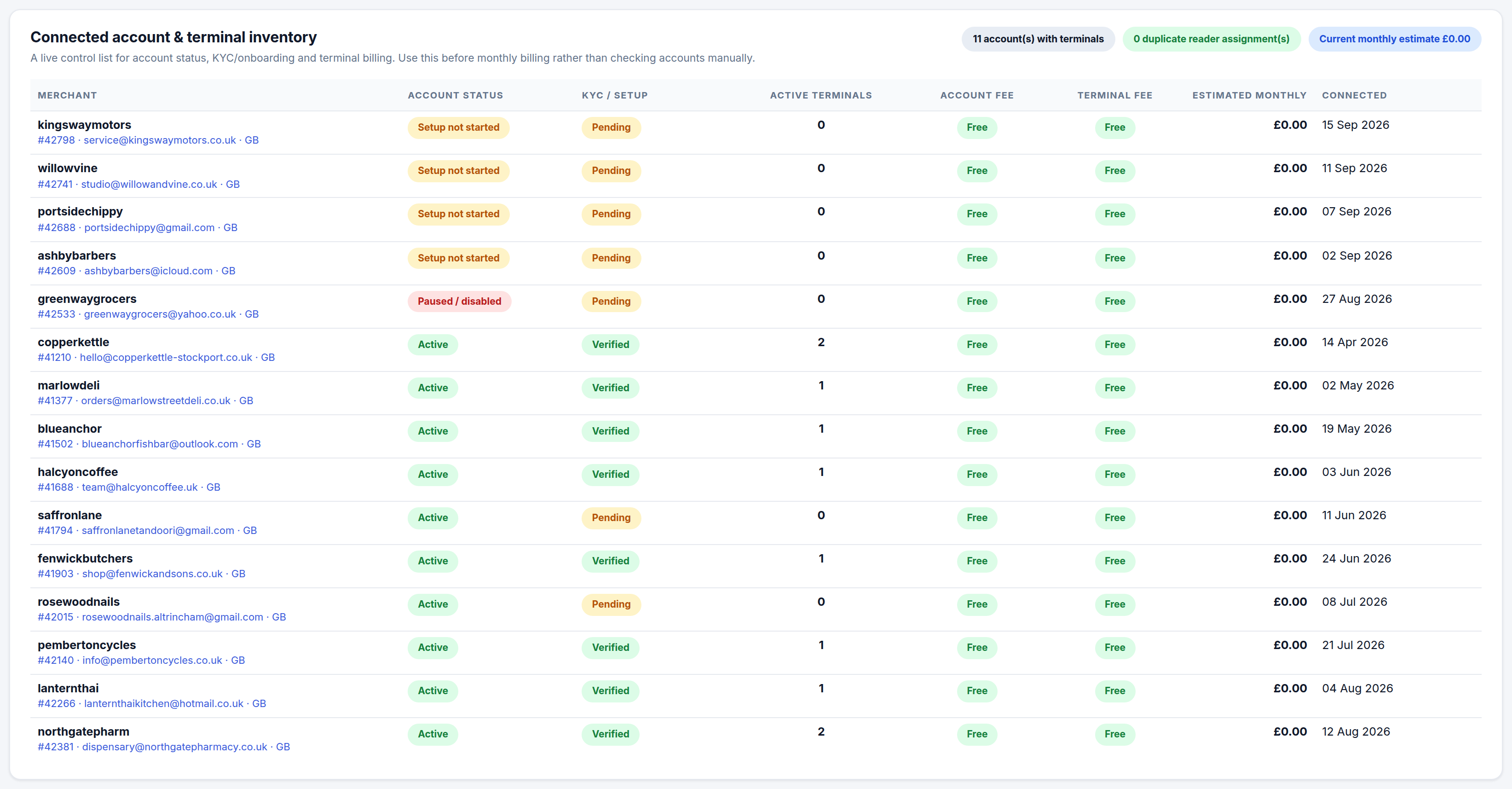
The final section is a live control list of every connected account: account status, KYC and setup state, active terminals, the account and terminal fee that applies, the estimated monthly charge and the connection date. Use it before monthly billing rather than opening accounts one by one.
📸 The connected account and terminal inventory, one row per merchant with status, KYC state, active terminals and the monthly fee columns. Figures shown are illustrative.
The platform wallet
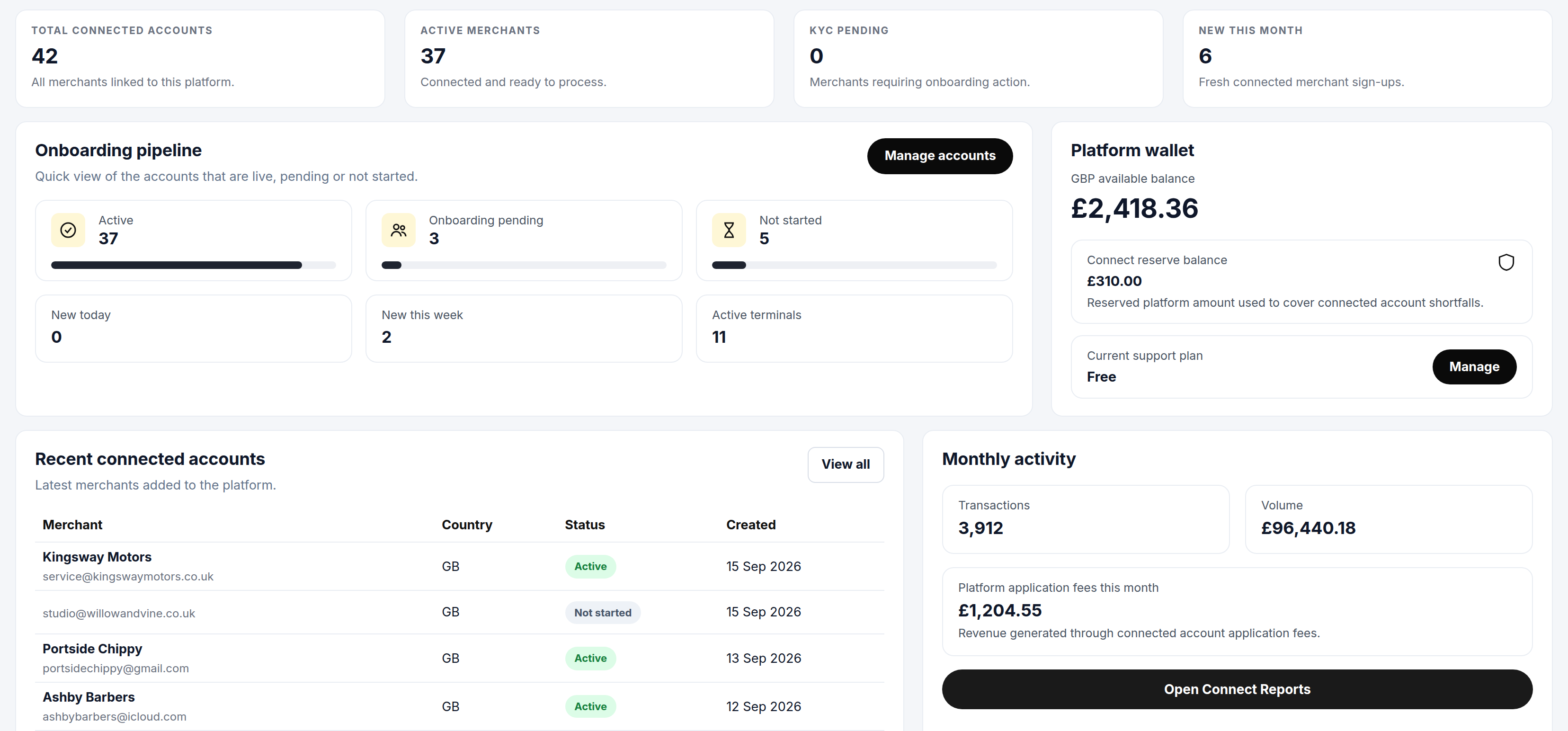
Go to NeroConnect → Dashboard. The Platform wallet panel shows two balances and your support plan.
| Balance | Means |
|---|---|
| Available balance | Cleared platform funds you can use |
| Connect reserve balance | Ring-fenced amount used to cover connected-account shortfalls — the buffer that keeps platform-paid processing working when the main balance is thin |
The platform protection rule
When your platform pays NeroPay's processing fees, each payment's cost is drawn only from cleared platform funds and the Connect reserve. If neither can cover it, that individual payment falls back to connected-account fee collection — NeroPay collects its cost from the merchant for that payment — rather than creating an unfunded balance on your account. This is why the reserve matters day to day: a healthy reserve keeps every payment in platform-paid mode.
📸 The lower half of the NeroConnect Dashboard, with the platform wallet showing the available balance, the Connect reserve balance and the current support plan. Figures shown are illustrative.
When a number looks wrong
| What you see | Why |
|---|---|
| Fewer active merchants than accounts in the register | Active means at least one successful payment in the dates selected; registered but untraded accounts are excluded |
| Online volume lower than e-commerce channel volume | Manual keyed payments and recurring invoices are excluded from the online figure but included in the channel figure |
| Period total does not equal the monthly rows added together | Totals count unique merchants and readers; one merchant active in several months is counted once |
| Application fees earned reads zero | Merchant pricing is set at cost, so no platform fee is generated |
| A service shows 0.00% margin | The service is priced exactly at its protected base — pass-through at cost |
| A service row is missing from additional service economics | Rows appear only once a settled entry exists for that service |
| Reconciliation agrees but the platform balance moved by more | Monthly account, terminal and transfer charges sit outside the reconciliation calculation |
| An old payment is attributed to the platform unexpectedly | Legacy payments without a recorded platform ID follow the merchant's current NeroConnect link; a recorded platform ID always takes precedence |
Frequently asked questions
What is the difference between application fee generated and NCPA credited?
Application fee generated is the fee snapshot your pricing produced when each payment was taken. NCPA credited is the credit actually recorded in the ledger. The ledger reconciliation section confirms whether the two agree for the latest rows.
Why does net transaction margin not match the movement on my platform balance?
Net transaction margin is NCPA less NCPF on payments only, before monthly plan charges. Monthly account, terminal and transfer charges, and hardware supply costs, move your balance but are not part of that figure.
What happens if my available balance and reserve run low?
Nothing is processed on credit. A payment whose NeroPay cost cannot be covered by cleared funds and the reserve falls back to connected-account fee collection for that payment. Keeping the reserve topped up avoids that fallback.
Can I run the report for one merchant?
Yes. Use the Connected account filter, press Apply, and every section on the page — activity, ledger tiles, channel performance and the fee report — narrows to that account. Export CSV and Export PDF are on the same page.
Does a merchant see any of this?
No. Connect Reports is a platform-only view. What merchants see on their own statements is controlled separately — see Fee visibility and statement reports.
Still need help? Contact us at support@neropay.app or create a ticket.