After you pay, your app appears under Your mobile apps in the Mobile Apps section of the dashboard. From its card you can track preparation, download builds, create store artwork with NeroAI, check billing and cancel renewal.
Your mobile apps
Each app has its own card. The tabs filter your apps, and + New app starts another one.
| Tab | What it shows |
|---|---|
| Active | Apps with an active subscription |
| Published | Apps that are live on a store |
| Checkout drafts | Apps started but not yet paid for |
| Cancelled renewals | Apps whose renewal you have cancelled |
| All apps | Every app on your account |
📸 An app card on the Active tab, ready for store submission. Figures shown are illustrative.
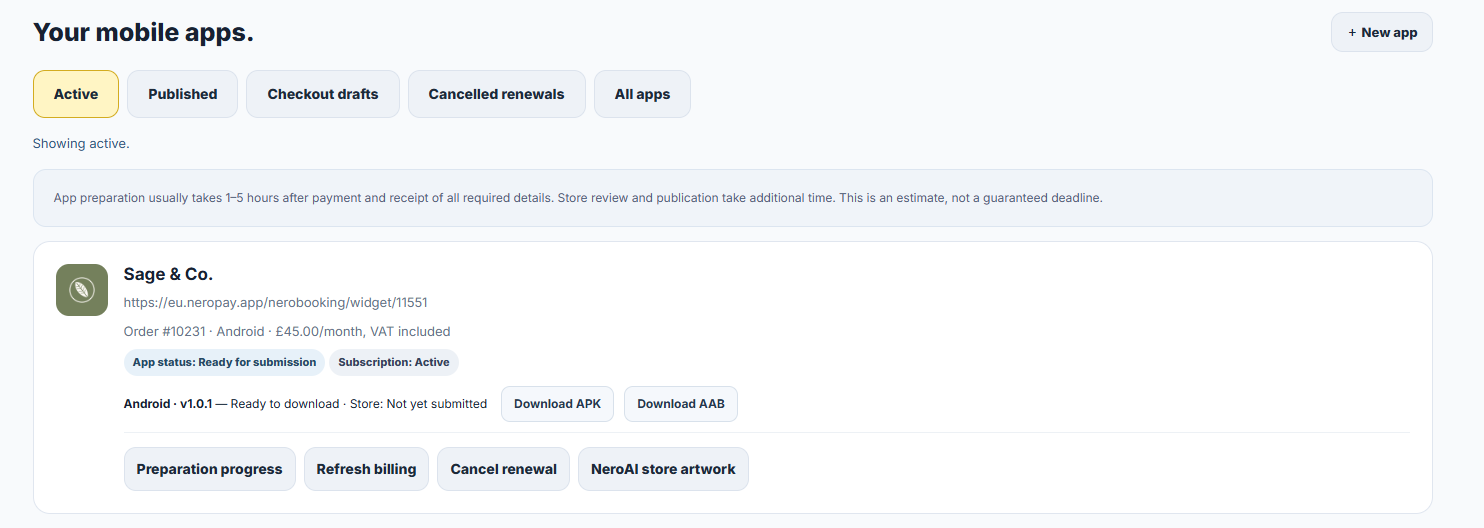
Reading an app card
| Item | What it shows |
|---|---|
| Name and web address | The app name and the page it opens |
| Order line | Order number, platform and monthly price, VAT included |
| App status | Where the app is, for example Ready for submission |
| Subscription | Billing status, for example Active or Payment being checked |
| Build line | Platform, version, whether it is ready to download and its store status |
| Button | What it does |
|---|---|
| Preparation progress | Opens the preparation panel for this app |
| Refresh billing | Checks your subscription status again |
| Cancel renewal | Stops future monthly payments |
| NeroAI store artwork | Creates a set of store screenshots from your app screens |
| Download APK / Download AAB | Downloads the prepared Android build |
Downloading your Android build
When preparation finishes, the build line shows Ready to download. Download the format you need from the app card or the Preparation progress panel.
| File | Use it for |
|---|---|
| APK | Installing the app directly on your own Android phone to test it |
| AAB | The Android App Bundle, the format Google Play uses when an app is uploaded |
📸 A prepared Android build in the Preparation progress panel.
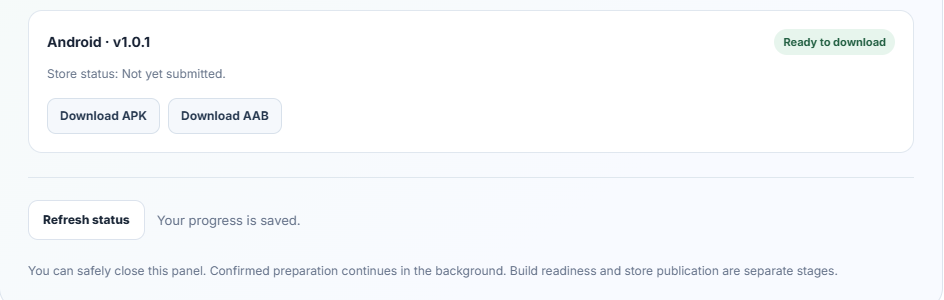
💡 Note: Ready to download means the build is prepared. Publishing to the store is a separate stage, and the store status on the card shows whether the app has been submitted.
Creating store artwork with NeroAI
Store listings need screenshots. NeroAI store artwork creates a matching set of three phone store images: NeroAI designs the background, and your real app screens are placed on it without inventing or redrawing features. You download a ZIP, review it, and upload it to the store yourself or share it with whoever publishes your app.
| Field | What to enter |
|---|---|
| Screenshot package | The store and phone size, for example Google Play · Android phone · 1080 × 1920 px |
| Brand background colour | The main colour for the artwork |
| Describe your artwork | Your brand, preferred colours and visual style |
| 3 different screenshots | Portrait PNG or JPEG, at least 600px wide, up to 4 MB and 8 megapixels each |
Tick the confirmation box, then select Create 3 screenshots.
📸 NeroAI store artwork: three phone screenshots on a designed background.
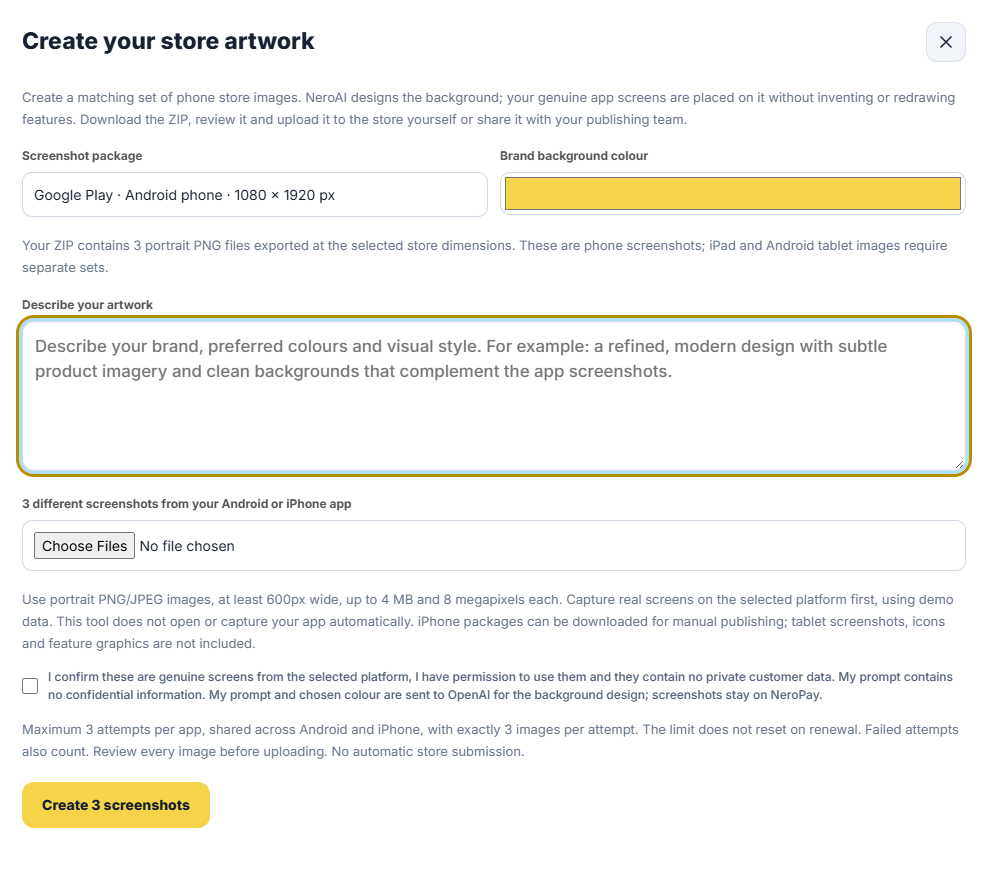
⚠️ Each app has a maximum of three attempts, shared across Android and iPhone, with exactly three images per attempt. Failed attempts count, and the limit does not reset on renewal. Nothing is submitted to the store automatically.
| Before you create | Why |
|---|---|
| Capture real screens first | The tool does not open or capture your app; take screenshots on the chosen platform |
| Use demo data | Screenshots must not show private customer data |
| Keep the description general | Your description and colour are sent to OpenAI to design the background; screenshots stay on NeroPay |
| Plan for other sizes | The ZIP holds phone screenshots only; iPad and Android tablet images, icons and feature graphics need separate sets |
Billing and cancelling
Your plan is a monthly subscription, VAT included, billed from the day you paid. If the subscription status on the card looks out of date, select Refresh billing.
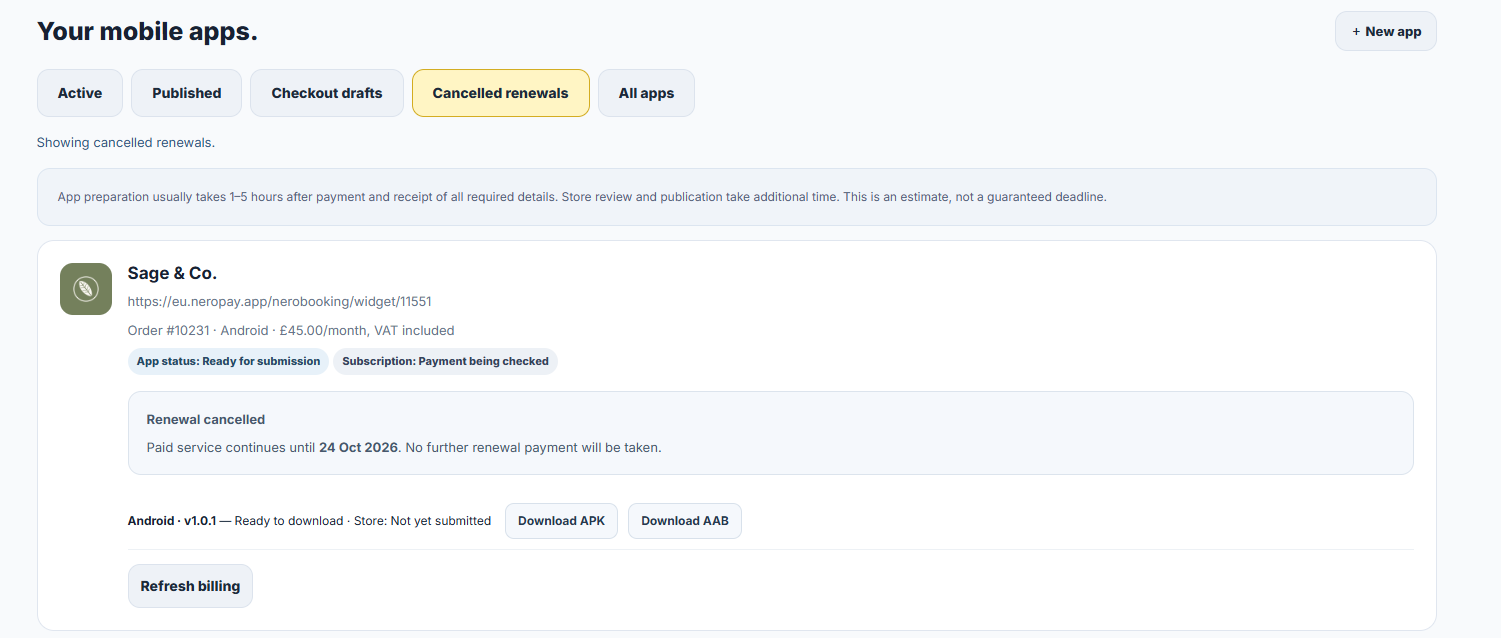
To stop future payments, select Cancel renewal. The app moves to the Cancelled renewals tab, and the card shows the date your paid service runs until.
| After cancelling | What happens |
|---|---|
| Paid service | Continues until the end of the period you have paid for |
| Renewal payments | No further renewal payment is taken |
| Downloads | Builds stay available on the card |
📸 An app with renewal cancelled. Figures shown are illustrative.
Frequently asked questions
How long until my app is in the store?
Preparation usually takes 1–5 hours after payment and receipt of all required details. Store review and publication then take additional time, set by Google or Apple.
What is the difference between the APK and the AAB?
The APK installs directly on an Android phone, so use it to test the app yourself. The AAB is the Android App Bundle that Google Play uses for publishing.
Can I create store artwork more than once?
Yes, up to three attempts per app in total, shared across Android and iPhone. Failed attempts count, and the limit does not reset on renewal.
If I cancel, does my app stop straight away?
No. Paid service continues until the date shown on the card, and no further renewal payment is taken.
Why does my subscription say Payment being checked?
The latest payment is still being confirmed. Select Refresh billing to check again, and contact support with your order number if the status does not change.
Still need help? Contact us at support@neropay.app or create a ticket.