How to get there
From your dashboard, follow this path:
NeroPOS → POS Dashboard
Filters
At the top of the page, use the filters to adjust what data is shown:
| Filter | What it does |
|---|---|
| Range | Select a time period — e.g. Today, This Week |
| From / To | Set a custom date range |
| Location | Filter by branch or location |
| Register | Filter by till |
| POS Staff | Filter by staff member |
Click Refresh to update the data after changing any filter.
📸
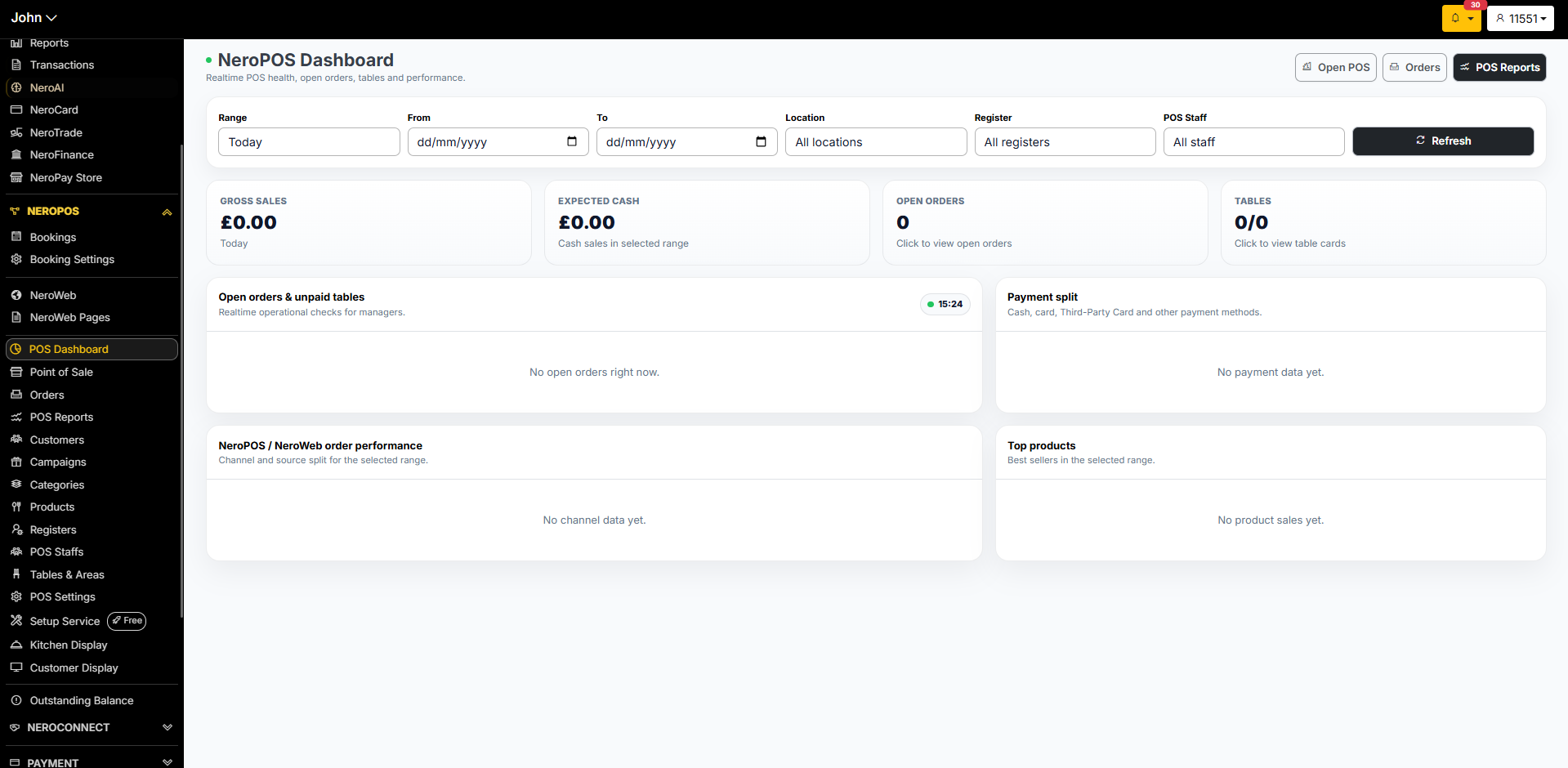
Key metrics
| Metric | What it shows |
|---|---|
| Gross sales | Total revenue for the selected period |
| Expected cash | Total cash sales in the selected range |
| Open orders | Number of unpaid or incomplete orders — click to view |
| Tables | Current table status — occupied vs total — click to view table cards |
Open orders and unpaid tables
This section shows real-time operational data for managers — all open orders and unpaid tables at the current moment. Use this to check the floor status before closing the day.
POS Report
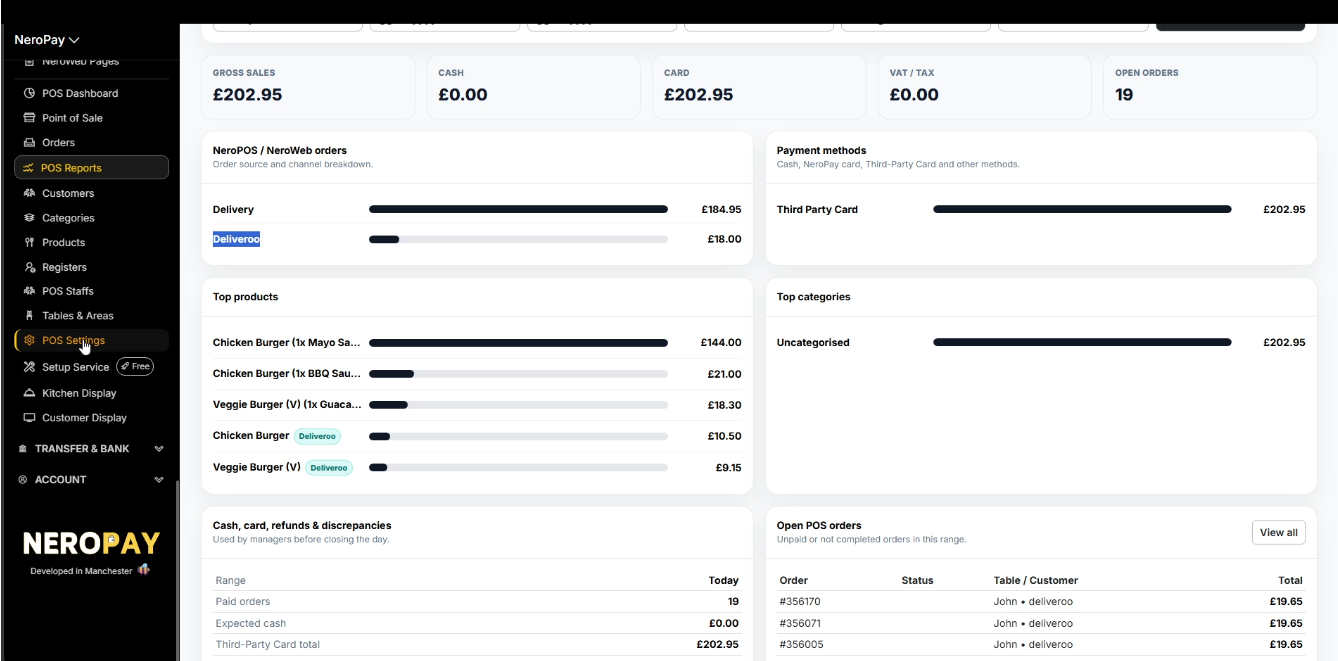
See a breakdown of orders by channel and source — for example, in-store EPOS orders, NeroWeb online orders, and third-party platform orders such as Deliveroo or Uber Eats.
💡 Using Deliveroo or Uber Eats? If you have a third-party delivery platform integrated, orders from those platforms will appear here alongside your own NeroWeb and NeroPOS orders. See Setting up integrations with Uber Eats and Deliveroo → to connect your platforms.
📸
Payment split
Shows how payments were made across all orders in the selected range — broken down by Cash, NeroPay card, Third-Party Card, and other methods.
Top products
See your best-selling products for the selected period, ranked by revenue. Products from integrated third-party platforms such as Deliveroo will also appear here with a platform label alongside them.
Top categories
A revenue breakdown by product category — useful for understanding which parts of your menu are driving the most sales.
POS Reports
For a more detailed financial breakdown — including cash, card, refunds, and discrepancies — click POS Reports at the top right of the dashboard. This is the report managers use before closing the day.
The POS Reports view shows:
- Gross sales, cash, card, and VAT totals
- Order source breakdown — Delivery, Deliveroo, NeroWeb, and others
- Payment method breakdown
- Top products and top categories
- Cash, card, refunds and discrepancies summary
- Open POS orders — unpaid or incomplete orders in the selected range
Frequently asked questions
Q: How often does the dashboard data update? A: The dashboard updates in real time. Click Refresh at any time to pull the latest data.
Q: Can I filter by a specific staff member? A: Yes — use the POS Staff filter at the top of the page. Note that the Show staff in reports setting must be enabled in POS Settings for staff data to appear. See NeroPOS settings — General →
Q: Why are some orders showing a Deliveroo or Uber Eats label? A: These are orders received through your integrated third-party delivery platforms. See Setting up integrations with Uber Eats and Deliveroo → if you haven't connected these yet.
Q: Where do I find the end-of-day cash reconciliation report? A: Click POS Reports at the top right of the POS Dashboard. The Cash, card, refunds and discrepancies section is designed specifically for managers closing the day.
Still need help? Contact us at support@neropay.app or create a ticket