How to get there
From your dashboard, follow this path: Account → Help & Support
📸
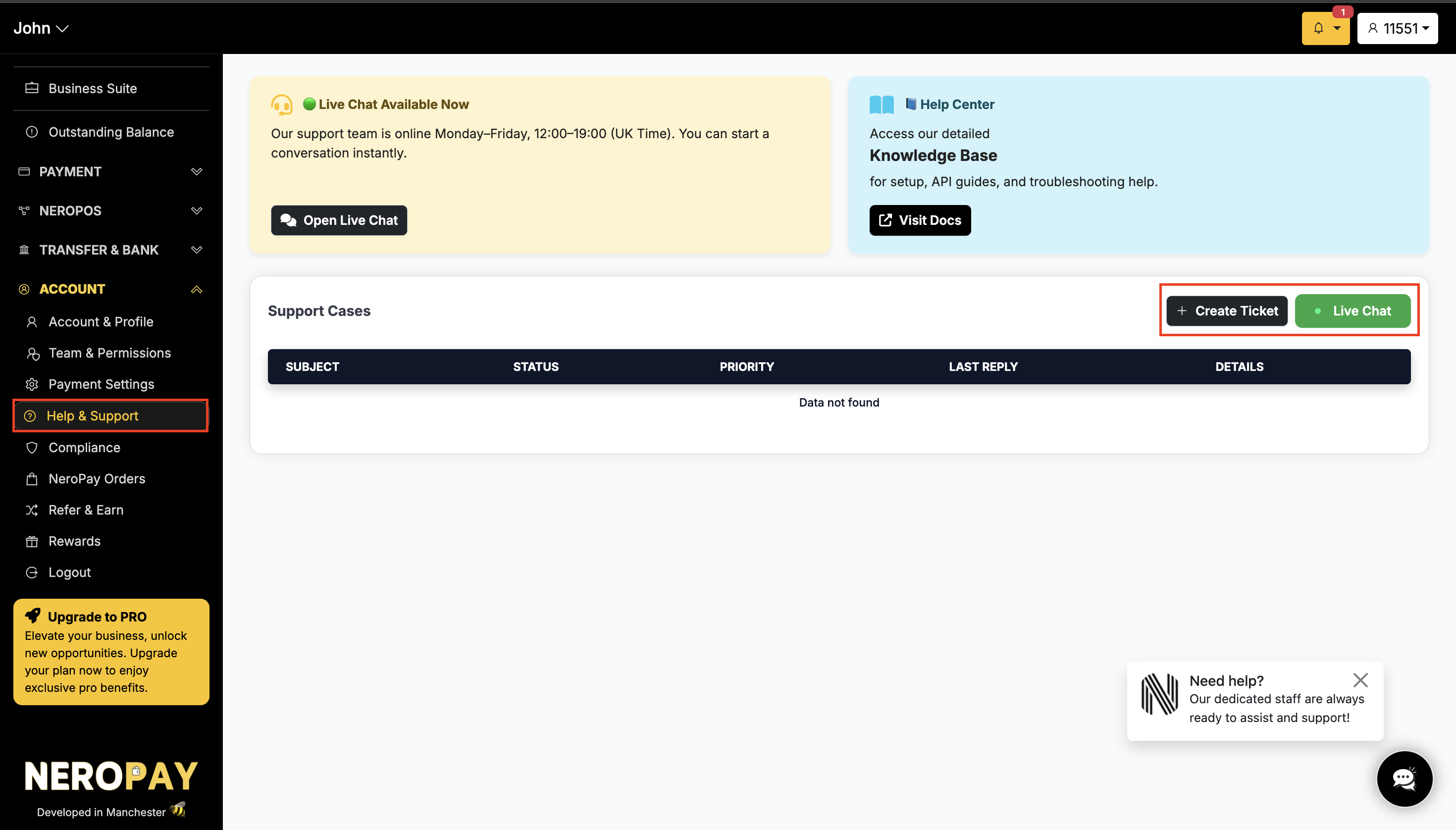
How to choose the right support channel
Use the table below to find the right starting point based on your question.
| I need help with… | Best channel |
|---|---|
| New account, pricing quote, terminal options | WhatsApp or social media (sales team) |
| Account settings, fees, verification, payouts | Dashboard → Help & Support → Create Ticket |
| Quick operational question during support hours | Live Chat |
| Technical issue with a card terminal | Support ticket |
| API, integrations, or platform bugs | Support ticket |
Sales enquiries — WhatsApp and social media
For sales-related questions such as new accounts, pricing quotes, terminal options, or campaigns, contact the NeroPay sales team directly:
- WhatsApp: +44 161 470 4730
- Facebook: facebook.com/neropayapp
- Instagram: instagram.com/neropayapp
⚠️ These channels are for sales and general enquiries only. They cannot help with payments, verification, or account configuration.
Live Chat
Live Chat connects you instantly with the NeroPay support team for quick operational questions.
Support hours: Monday to Friday, 12:00–19:00 (UK time)
How to start a live chat
- Go to Account → Help & Support
- Click the Live Chat button
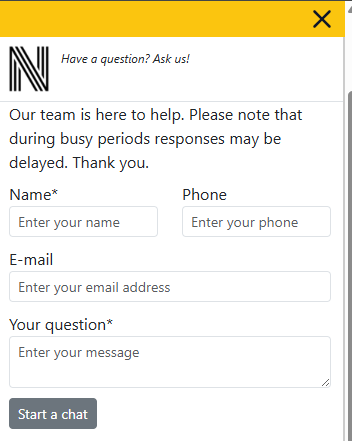
- Enter your name, phone number (optional), email address, and your question
- Click Start a chat
📸
💡 Live Chat is available to existing NeroPay merchants. If you do not yet have an account, use WhatsApp or social media to ask about pricing, products, or getting started.
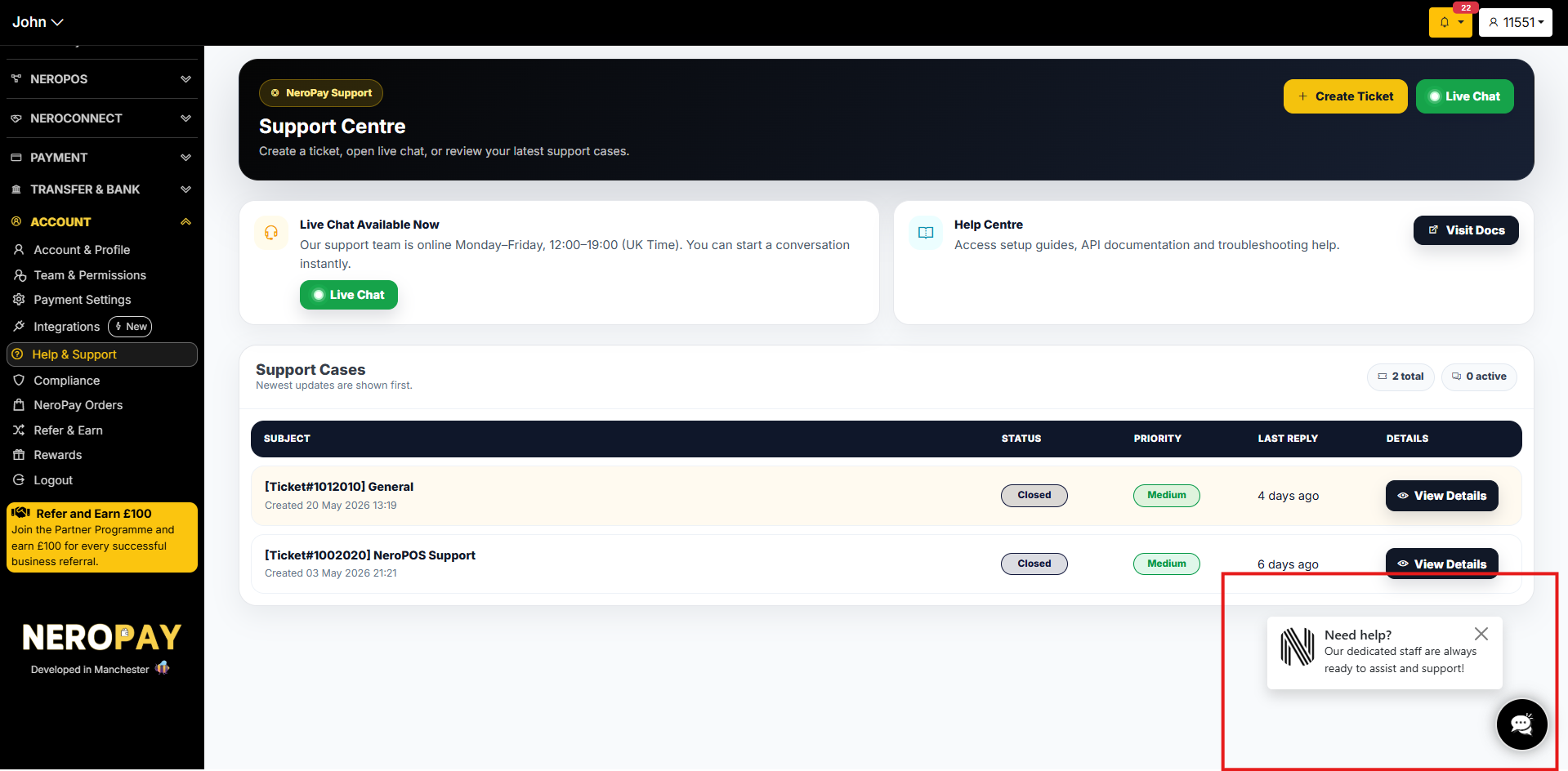
Support tickets
Support tickets are the official way to get help from NeroPay. Every ticket gets a case number, is routed to the right team, and creates a full audit trail of your issue.
When to create a ticket
| Reason | Examples |
|---|---|
| Security | Suspicious activity, account compromise, fraud attempts |
| Payments | Failed transactions, chargebacks, payout delays, refund issues |
| API & Integrations | Webhook errors, authentication issues, SDK bugs |
| Account & Compliance | KYC verification, account access, fee breakdown, user permissions |
| Bugs & Outages | Platform errors, dashboard glitches, performance issues |
| General queries | Anything not covered in documentation |
How to create a ticket
Step 1 — Go to Help & Support
- Sign in to your NeroPay dashboard
- Go to Account → Help & Support
- Click + Create Ticket in the top right corner
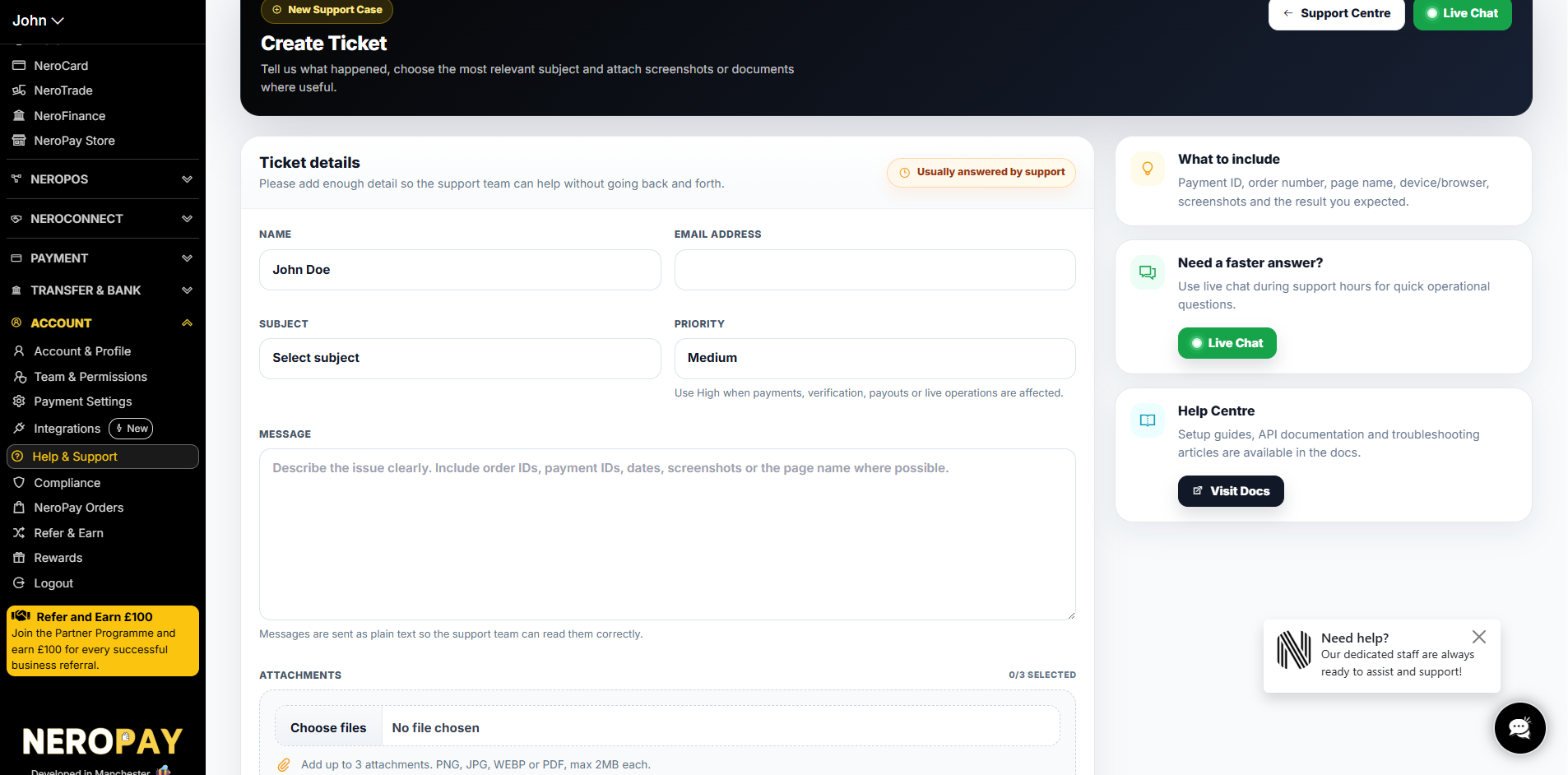
Step 2 — Fill in the ticket form
Provide as much detail as possible so the team can help without going back and forth:
| Field | What to enter |
|---|---|
| Name | Your full name (pre-filled from your account) |
| Email address | Your contact email |
| Subject | Select the most relevant topic |
| Priority | Low, Medium, or High — use High when payments, verification, payouts, or live operations are affected |
| Message | Describe the issue clearly — include order IDs, payment IDs, dates, the page name, and what you expected to happen |
| Attachments | Up to 3 files — PNG, JPG, WEBP, or PDF, max 2MB each |
💡 The more detail you include upfront, the faster your ticket will be resolved. Include example transactions (date, amount, last four digits of card) where relevant.
⚠️ Never include full card numbers, raw API keys, or passwords in your ticket. Always redact sensitive data.
Step 3 — Submit
Click Submit ticket. You will receive a confirmation and your case will appear in the Support Cases table.
📸
Step 4 — Track your ticket
Once submitted, go back to Account → Help & Support to view all your cases. The Support Cases table shows:
| Column | What it shows |
|---|---|
| Subject | Your ticket title and reference number |
| Status | Open, In Progress, Awaiting Your Reply, or Closed |
| Priority | The priority level assigned to the case |
| Last Reply | When the team last responded |
| Details | Click to read updates or add a reply |
📸 [Screenshot: Support Cases table showing ticket subjects, statuses, priorities, last reply times, and View Details buttons]
Common support topics
Account settings For help with login, business details, payout bank account, or user permissions — go to Account → Help & Support → Create Ticket and describe your issue. Attach any relevant screenshots or documents.
Pricing and fee breakdown For questions about your fees or a specific transaction charge — create a ticket and include example transactions (date, amount, last four digits of card) so the team can investigate. You can also email support@neropay.app with the same details.
Enhanced verification (KYC) If your account has been temporarily deactivated or NeroPay has requested additional documents — create a ticket and select the verification or KYC option. A KYC specialist will confirm which documents are needed and guide you through uploading them.
Card terminal technical support The NeroPay helpdesk can provide remote troubleshooting for card terminals. If the issue cannot be resolved remotely, a replacement terminal will be arranged along with setup guidance.
Why use a support ticket?
| Benefit | What it means for you |
|---|---|
| Tracking and accountability | Every issue gets a case number — nothing gets lost |
| Faster resolutions | The right team sees your case from the start |
| Clear communication | All updates, replies, and attachments are in one thread |
| Priority handling | Urgent or security-sensitive issues can be flagged as High |
| Audit trail | You have a full record of reported issues, timelines, and resolutions |
Frequently asked questions
Q: Can I get support outside of live chat hours? A: Yes. Create a support ticket at any time from your dashboard or email support@neropay.app. The team will respond during standard support hours (Monday to Friday, 12:00–19:00 UK time).
Q: What if I do not have a NeroPay account yet? A: Contact the sales team via WhatsApp (+44 161 470 4730) or social media. Once your account is active, use the in-app Help & Support for all account-related issues.
Q: How do I know when my ticket has been updated? A: You will receive an email notification when the team replies. You can also check the Support Cases table in your dashboard at any time.
Q: What priority should I select? A: Use High when payments, verification, payouts, or live operations are affected. Use Medium for most account and configuration questions. Use Low for general queries or documentation requests.
Q: Can I attach files to my ticket? A: Yes — up to 3 attachments per ticket. Accepted formats are PNG, JPG, WEBP, and PDF, with a maximum size of 2MB per file.
Still need help? Contact us at support@neropay.app or create a ticket from your dashboard.