How to get there
From your dashboard, follow this path: Account → Rewards
Dashboard summary
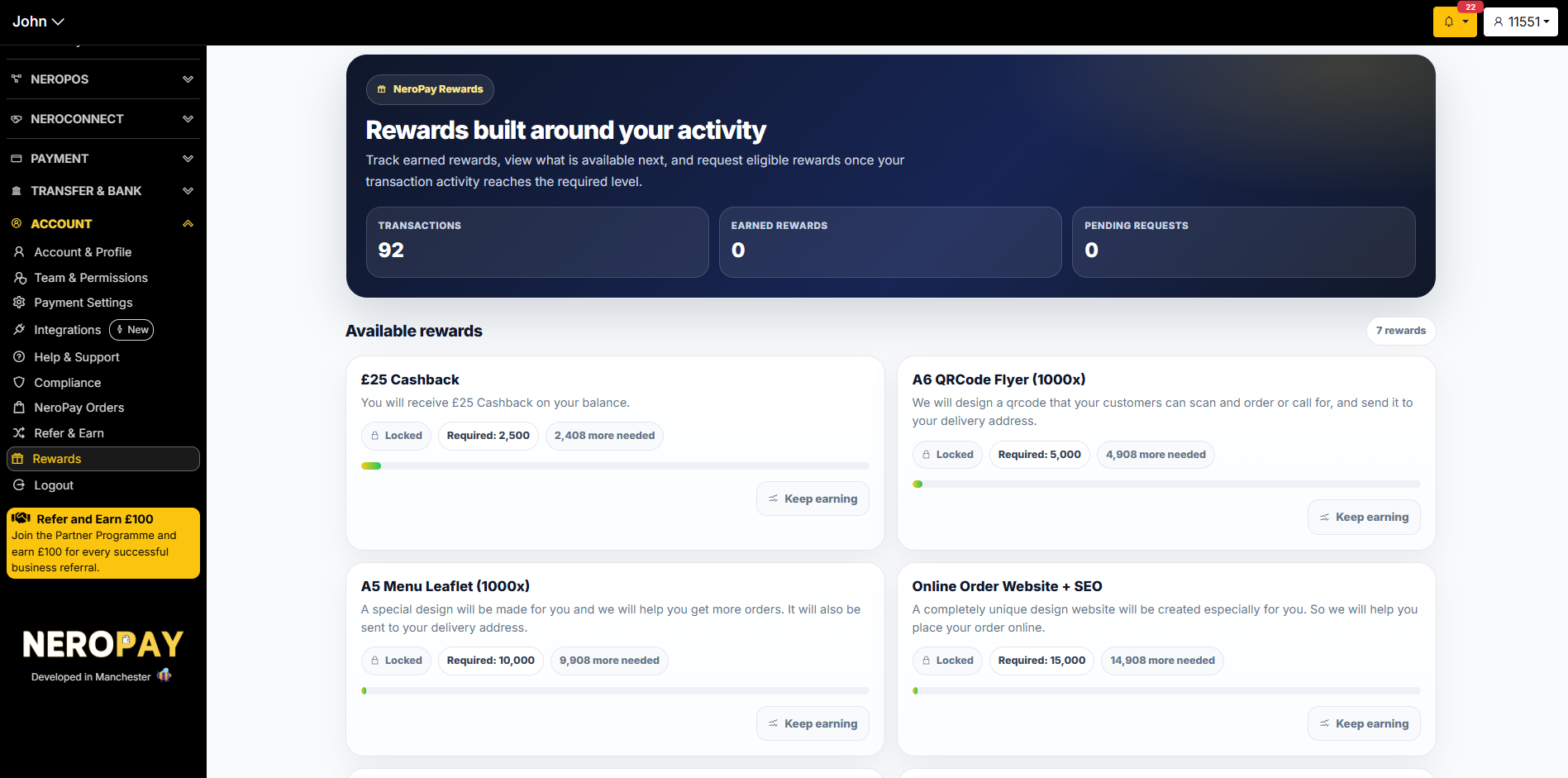
At the top of the page you will see three live metrics:
| Metric | What it shows |
|---|---|
| Transactions | Your total number of processed transactions to date |
| Earned Rewards | The number of rewards you have successfully unlocked |
| Pending Requests | Reward requests you have submitted that are awaiting processing |
📸
Available rewards
The Available Rewards section shows all rewards you can work towards. Each reward card displays:
- The reward name and description
- A lock icon and the transaction threshold required to unlock it
- How many more transactions you need to reach the threshold
- A progress bar showing how close you are
- A Keep earning prompt while the reward is still locked
Current available rewards include:
| Reward | Required transactions |
|---|---|
| £25 Cashback | 2,500 |
| A6 QR Code Flyer (1,000x) | 5,000 |
| A5 Menu Leaflet (1,000x) | 10,000 |
| Online Order Website + SEO | 15,000 |
💡 Rewards are added to your balance or fulfilled to your delivery address once your request is approved. Keep processing payments to unlock the next tier.
How to claim a reward
Once your transaction count reaches the required threshold, the reward will unlock and a claim option will appear on the reward card. Follow the on-screen steps to submit your request.
Frequently asked questions
Q: How are transactions counted towards rewards? A: All successful payment transactions processed through your NeroPay account count towards your total.
Q: What happens after I submit a reward request? A: Your request will appear under Pending Requests while the team processes it. You will be notified once it is approved and fulfilled.
Q: Can I claim multiple rewards at the same time? A: Yes, as long as you have reached the required transaction threshold for each reward.
Q: Where are physical rewards delivered? A: Physical rewards such as printed flyers and leaflets are sent to your registered business address. Make sure your address is up to date in Account → Account & Profile → Business.
Still need help? Contact us at support@neropay.app or create a ticket from your dashboard.