How to get there
From your dashboard, follow this path: Account → Compliance
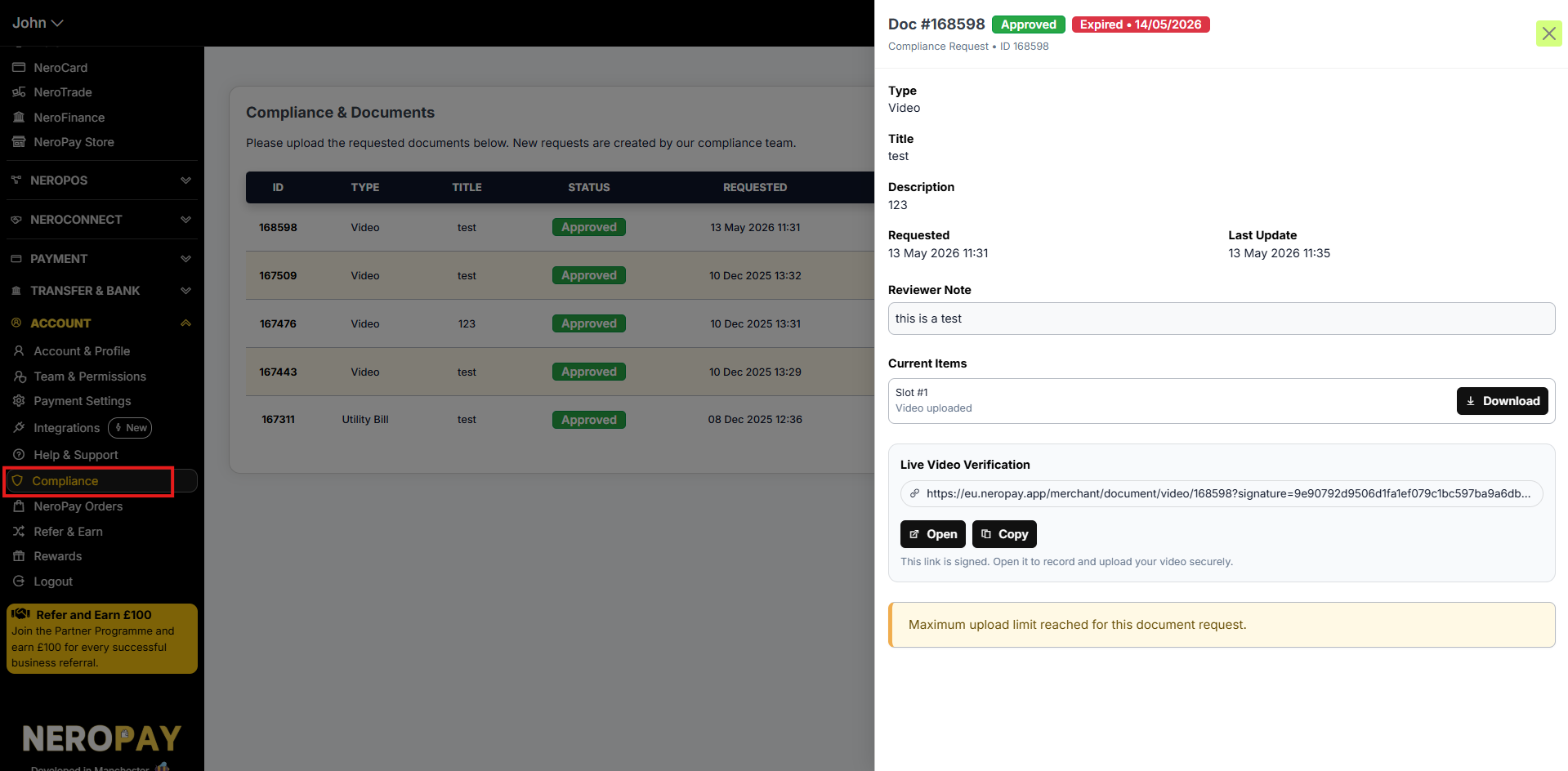
The Compliance & Documents table
The table lists all compliance requests made by the NeroPay team. Each row shows:
| Column | What it shows |
|---|---|
| ID | The unique reference number for the document request |
| Type | The type of document requested — e.g. Video, Utility Bill |
| Title | The internal title given to the request |
| Status | The current status — Approved, Pending, or Rejected |
| Requested | The date and time the request was created |
📸
Document statuses
| Status | What it means |
|---|---|
| Approved | The document has been reviewed and accepted by the compliance team |
| Pending | The document has been uploaded and is awaiting review |
| Rejected | The document was not accepted — check the reviewer note for details |
How to view a document request
Click any row in the table to open the document detail panel on the right. This shows:
Field
What it shows
Type
The document type — e.g. Video
Title
The request title
Description
Any additional instructions from the compliance team
Requested
The date the request was created
Last Update
The date the request was last updated
Reviewer Note
Any feedback or instructions left by the compliance reviewer
Current Items
The files currently uploaded against this request — click Download to save a copy
Live Video Verification
Some requests require a live video verification. When this applies, a signed link will appear in the document detail panel under Live Video Verification.
- Click Open to open the secure recording link in your browser
- Record and upload your video directly through the link
- Alternatively, click Copy to copy the link and open it on another device
💡 This link is signed and secure. It can only be used for the specific document request it belongs to.
⚠️ If you see a message saying "Maximum upload limit reached for this document request", no further files can be added to that request. Contact support if you need to upload additional documents.
Frequently asked questions
Q: Who creates compliance document requests? A: All requests are created by the NeroPay compliance team. You cannot create your own requests — they will appear in your dashboard when action is required.
Q: What happens if my document is rejected? A: Check the Reviewer Note in the document detail panel for the reason. Upload a corrected or alternative document if the request is still open, or contact support for guidance.
Q: Can I download documents I have already uploaded? A: Yes. Open the document detail panel and click Download next to the relevant item under Current Items.
Q: What should I do if I have not received a document request but my account is restricted? A: Go to Account → Help & Support and create a support ticket. A compliance specialist will review your case and advise on the next steps.
Still need help? Contact us at support@neropay.app or create a ticket from your dashboard.