How to get there
From your dashboard, follow this path:
NeroPOS → Point of Sale
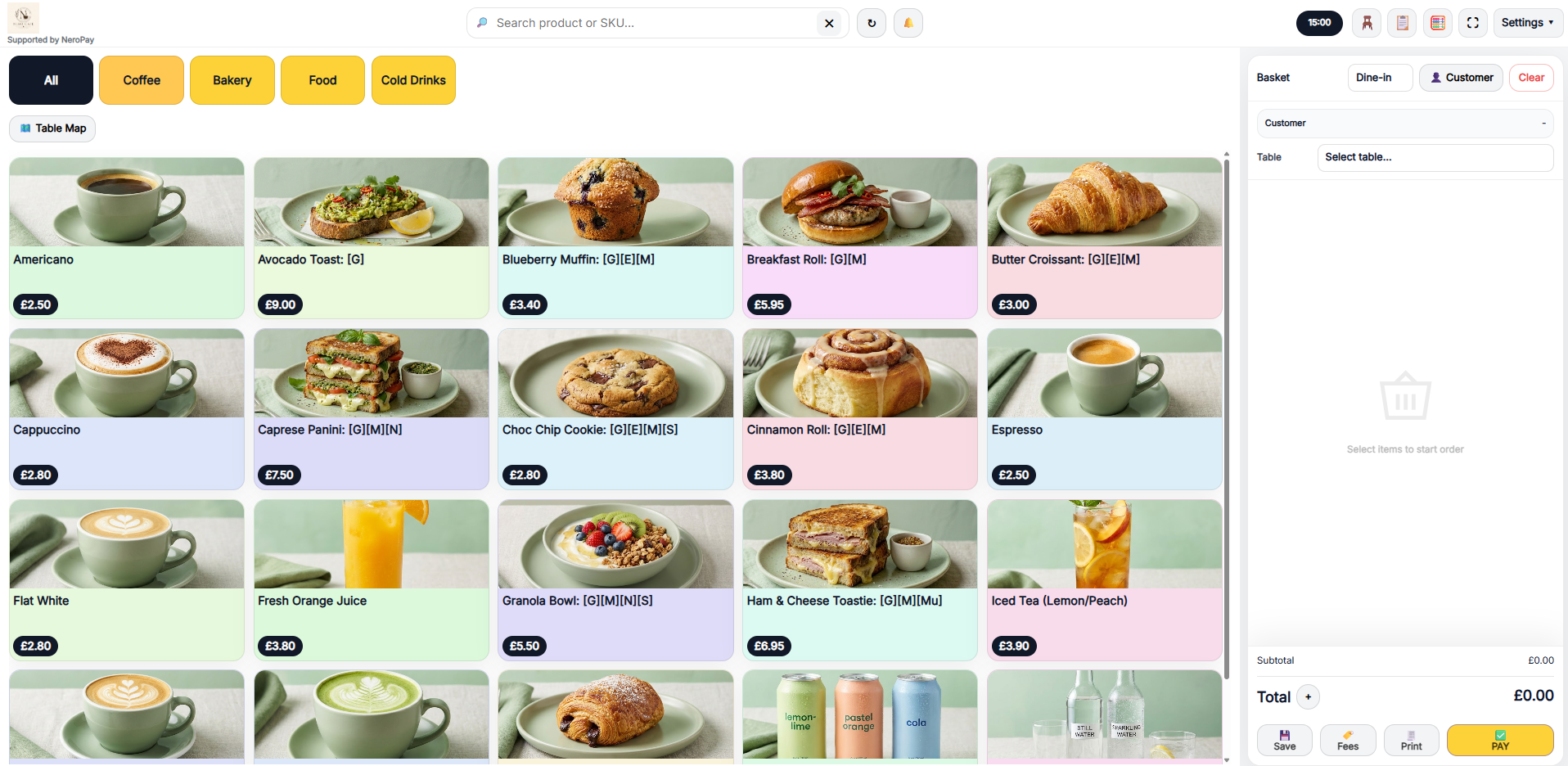
Once you open the Point of Sale, you will be logged directly into the EPOS system where all your products and categories are available.
📸
Switching between ordering modes
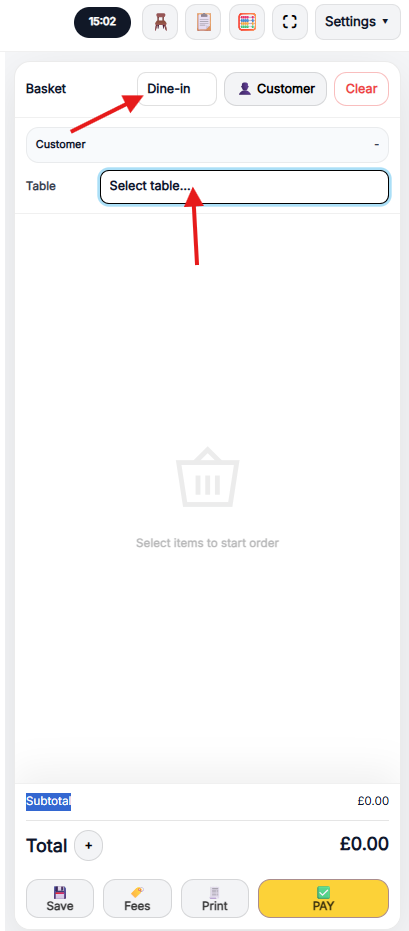
At the top of the POS screen, you can switch between three ordering modes depending on how the customer is ordering:
| Mode | When to use it |
|---|---|
| Dine-in | Customer is eating at a table in your venue |
| Takeaway | Customer is collecting their order |
| Delivery | Order is being delivered to the customer's address |
📸
Part 1 — Taking a dine-in order
When you select Dine-in mode, your table map or table list will appear.
- Select the table the customer is sitting at — the selected table will be highlighted with an arrow indicator
- Add items to the basket as normal
- Send the order to the kitchen or process payment when ready
Part 2 — Transferring a table
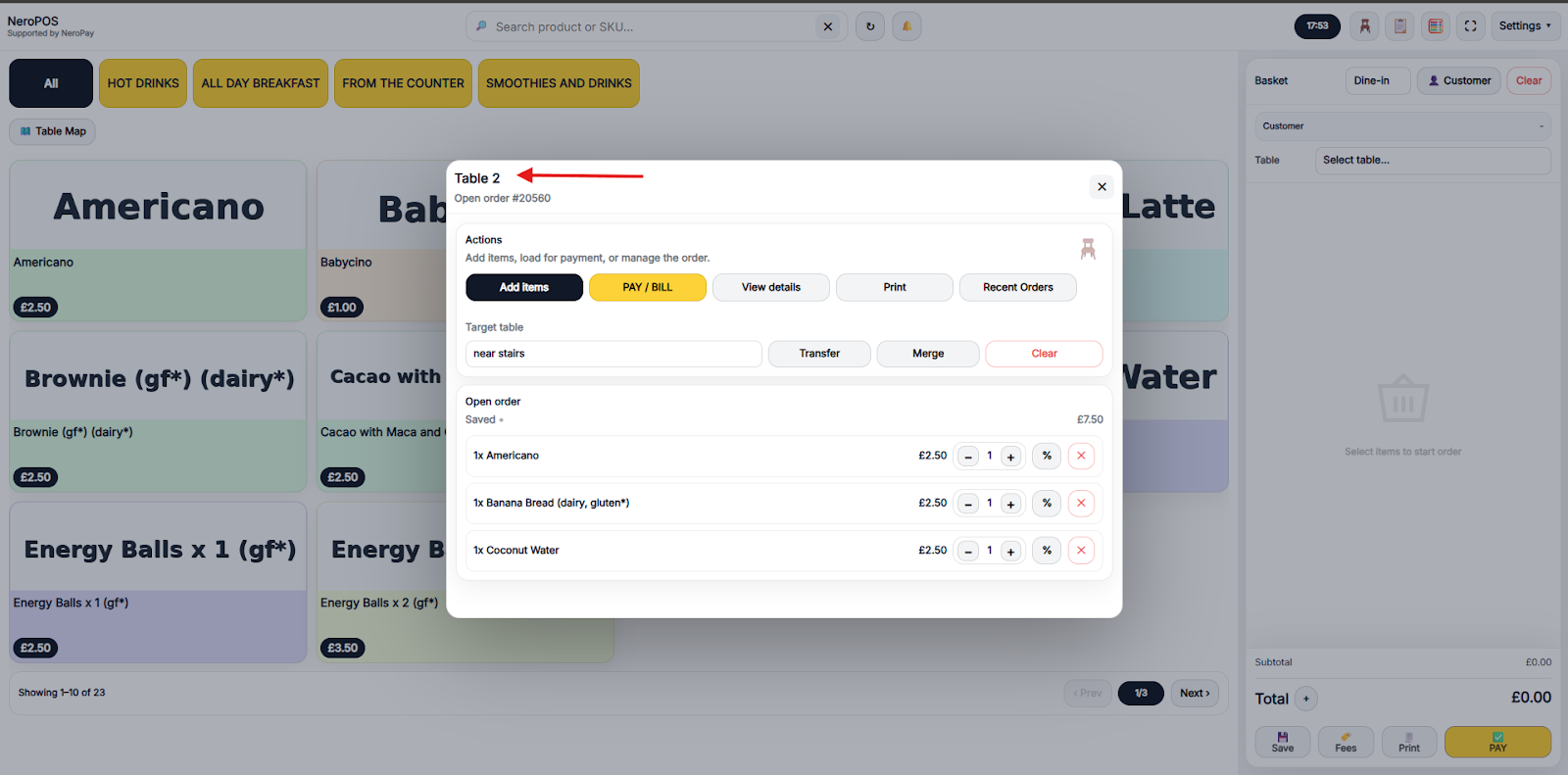
If a customer moves to a different table during their visit, you can transfer their open order without losing any items.
- Select the table that currently has the open order
- Choose Transfer from the table actions menu
- Select the target table you want to move the order to
- Confirm the transfer — the order moves to the new table instantly
📸
Part 3 — Merging tables
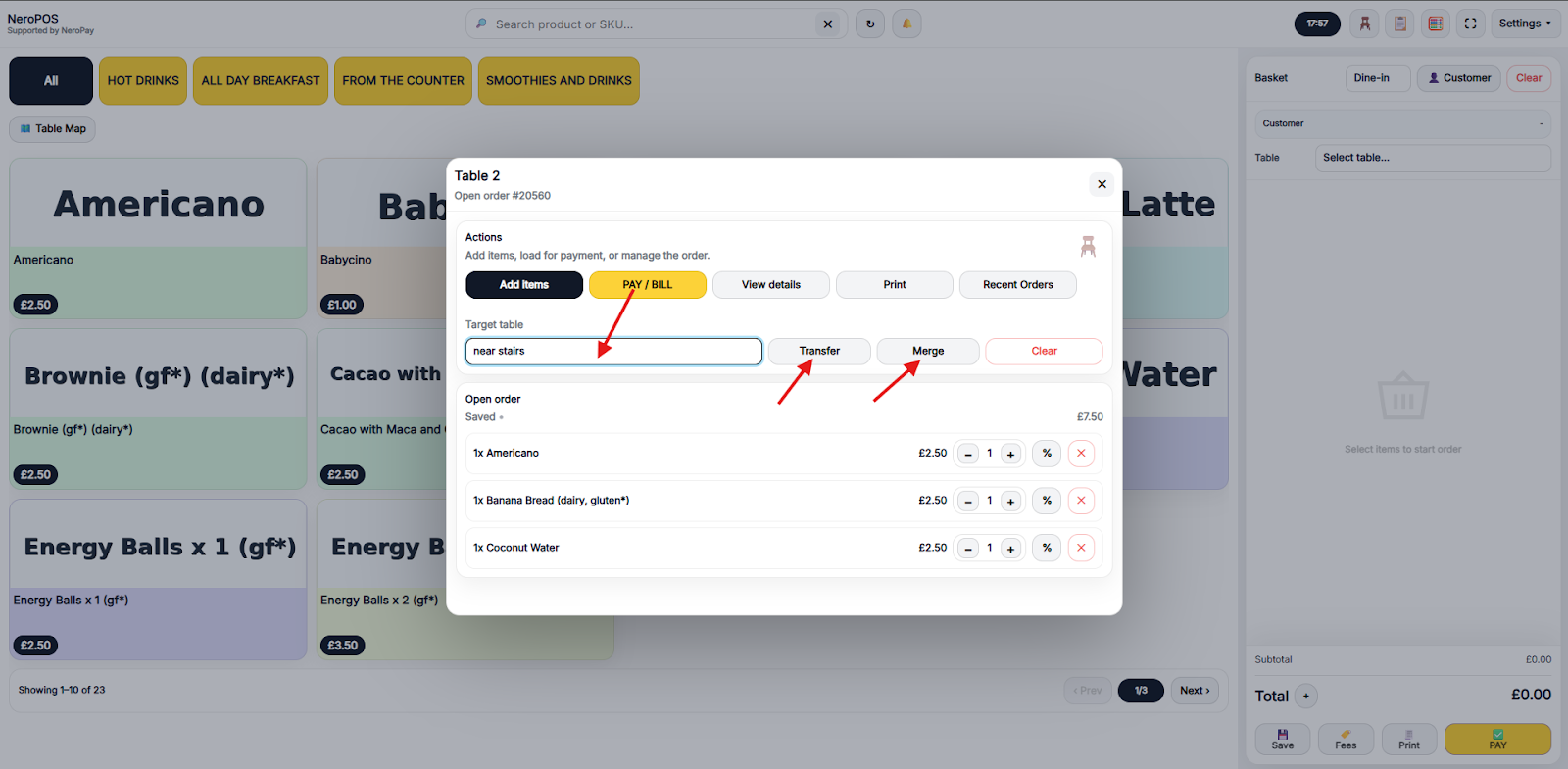
If additional guests join and need to be combined with an existing table, use the merge feature to bring two tables together.
- Select the table you want to merge
- Choose Merge from the table actions menu
- Select the target table you want to merge with
- Confirm — the two tables are combined into one order
⚠️ Note: Always select the target table before confirming a transfer or merge. This is an essential tool for busy hospitality environments where table arrangements change frequently.
📸
Frequently asked questions
Q: Can I switch ordering mode mid-order? A: We recommend selecting the correct mode before starting an order to avoid any issues with table assignment or delivery address fields.
Q: What happens to the original table after a transfer? A: Once an order is transferred, the original table is cleared and becomes available for new customers.
Q: Can I merge more than two tables at once? A: You can merge two tables at a time. Repeat the merge process if you need to combine additional tables.
Q: Can I split a merged table back into two? A: For order splitting and adjustments, contact support or refer to your specific workflow. Table splitting may depend on your POS configuration.
Q: Will the kitchen see the updated table number after a transfer? A: Yes. The kitchen display updates automatically when a table is transferred or merged.
Still need help? Contact us at support@neropay.app or create a ticket