How to get there
From your dashboard, follow this path:
NeroPOS → POS Reports
Filters
Use the filters at the top to adjust the data shown:
| Filter | What it does |
|---|---|
| Range | Select a time period — e.g. Today |
| From / To | Set a custom date range |
| Location | Filter by branch |
| Register | Filter by till |
| POS Staff | Filter by staff member |
Click Refresh to update the report after changing any filter.
What's on the report
Key metrics
| Metric | What it shows |
|---|---|
| Gross sales | Total revenue for the selected period |
| Cash | Total cash payments taken |
| Card | Total card payments taken |
| VAT / Tax | Total tax collected |
| Open orders | Number of unpaid or incomplete orders |
NeroPOS and NeroWeb orders
A breakdown of orders by source and channel — including in-store delivery, NeroWeb online orders, and third-party platforms such as Deliveroo and Uber Eats.
Payment methods
How payments were split across all methods — Cash, NeroPay card, Third-Party Card, and others.
Top products
Your best-selling items for the selected period, ranked by revenue. Platform orders show with a label — for example, Deliveroo.
Top categories
Revenue breakdown by product category.
📸
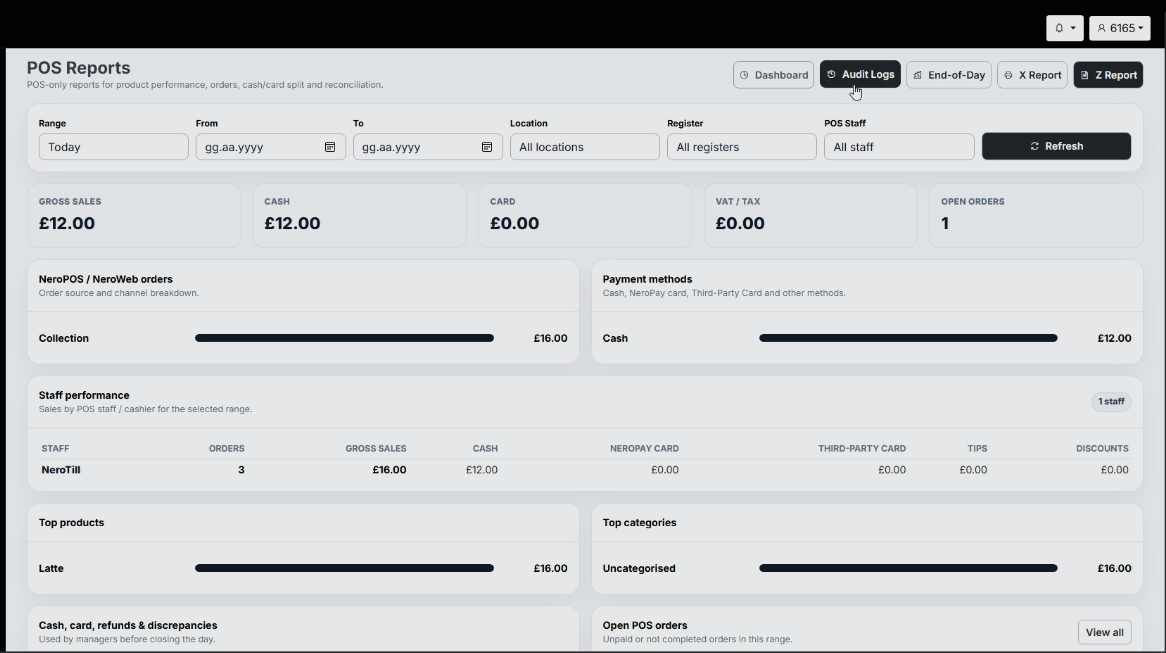
Audit Logs
📸
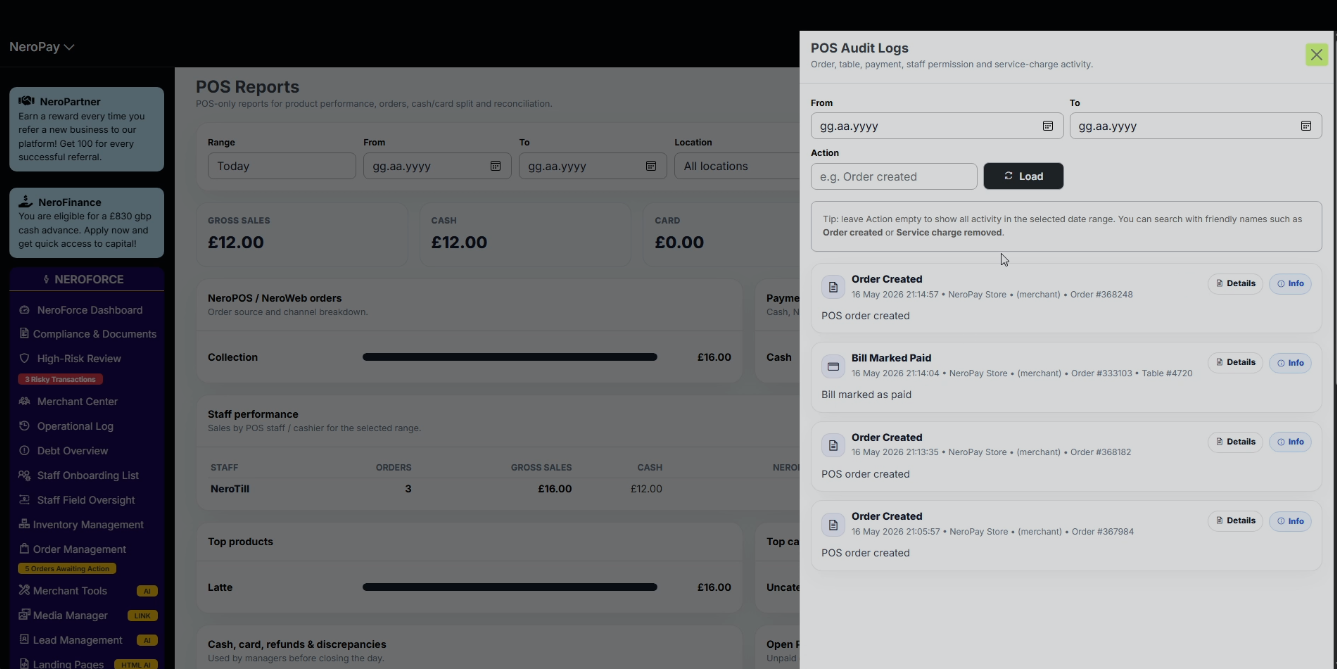
X Report
The X Report gives you a snapshot of current sales totals without closing or resetting anything. Use it mid-shift to check performance at any point during the day.
Click X Report at the top right of the POS Reports page to generate it.
💡 Tip: Run an X Report before a shift handover so outgoing staff and managers have a clear record of what was taken during their session.
Z Report
The Z Report is your end-of-day summary. It shows all sales, payments, and totals for the day and is typically run when closing the till.
Click Z Report at the top right of the POS Reports page to generate it.
⚠️ Note: The Z Report is used to officially close the trading day. Run this once all transactions for the day are complete.
End-of-Day Reconciliation
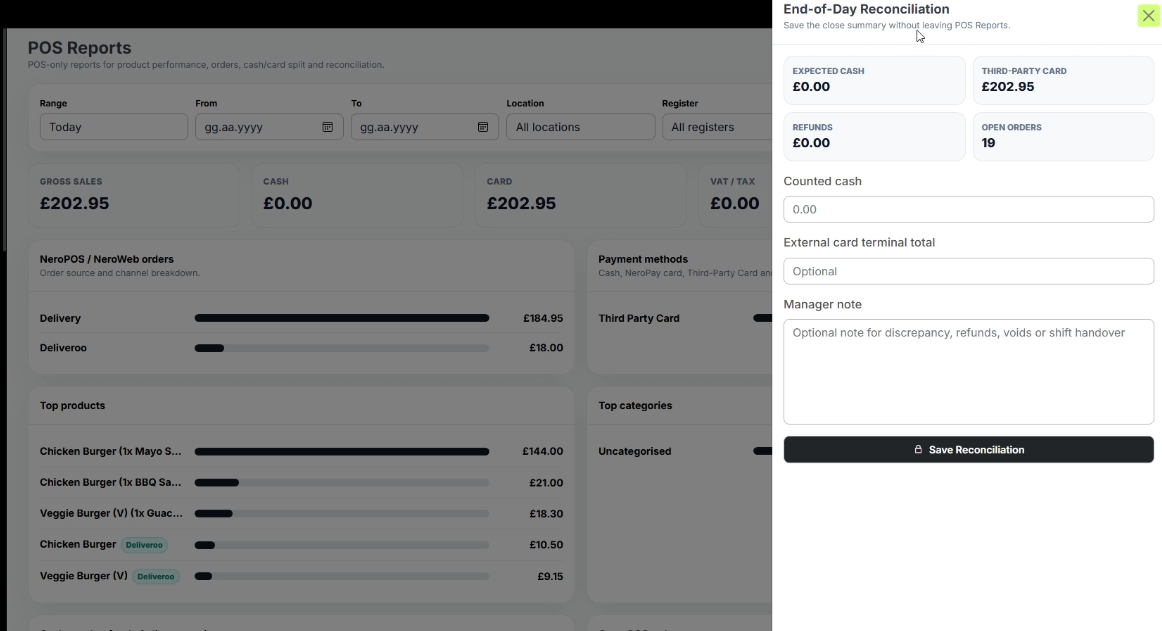
Click End-of-Day at the top right of the POS Reports page to open the reconciliation panel. This is designed for managers to save a close summary at the end of each trading day.
Fill in the following fields:
| Field | What to enter |
|---|---|
| Counted cash | The actual cash counted in the till at close |
| External card terminal total | The total shown on your third-party card terminal, if applicable |
| Manager note | Any notes on discrepancies, refunds, voids, or shift handover |
Click Save Reconciliation to save the record.
💡 Tip: Always complete the End-of-Day reconciliation before leaving for the night. It gives you a saved record of expected vs actual cash, which is essential for spotting discrepancies early.
📸
Dashboard shortcut
Click Dashboard at the top right of the POS Reports page to return to the NeroPOS Dashboard at any time without losing your current report view.
Frequently asked questions
Q: What is the difference between the X Report and Z Report? A: The X Report is a mid-day snapshot — it shows current totals without resetting anything. The Z Report is the end-of-day summary used to officially close the trading day.
Q: Can I filter POS Reports by a specific staff member? A: Yes. Use the POS Staff filter at the top of the page. Make sure Show staff in reports is enabled in POS Settings for staff data to appear. See NeroPOS settings — General →
Q: Why does my counted cash differ from the expected cash? A: Discrepancies can occur due to voids, refunds, or manual errors. Use the Manager note field in End-of-Day Reconciliation to record the reason, and investigate using the transactions list.
Q: Can I see Deliveroo and Uber Eats orders in POS Reports? A: Yes. Once your delivery platforms are connected, their orders appear in the NeroPOS / NeroWeb orders section with a platform label. See POS settings — Platforms → for setup guidance.
Still need help? Contact us at support@neropay.app or create a ticket