How to get there
From your dashboard, follow this path:
NeroPOS → POS Settings → Control
📸
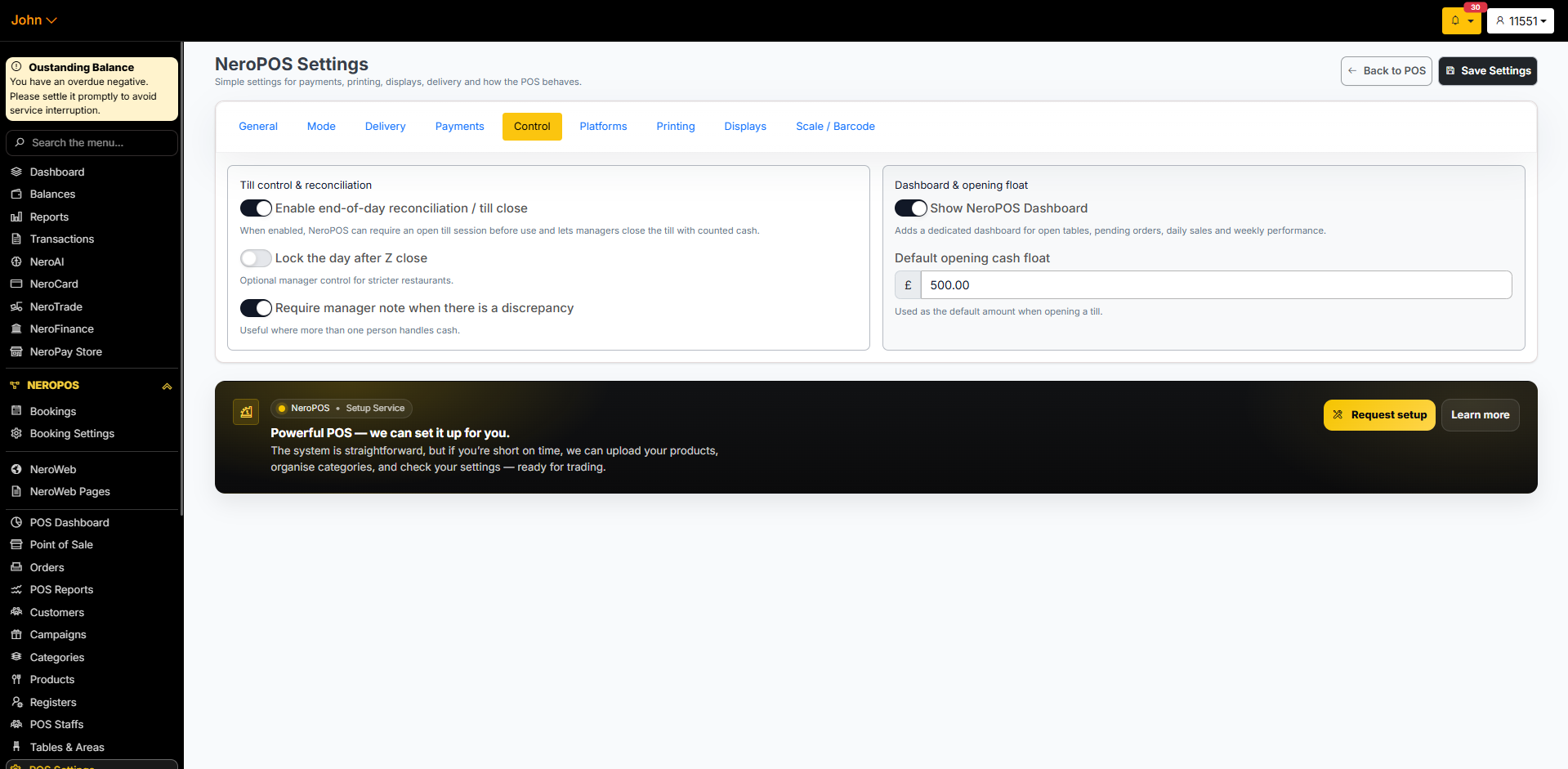
Till control and reconciliation settings
| Setting | What it does |
|---|---|
| Enable end-of-day reconciliation / till close | When on, NeroPOS requires an open till session before use and lets managers close the till with counted cash at the end of the day |
| Lock the day after Z close | Optional manager control for stricter restaurants — locks the day once the Z Report has been run |
| Require manager note when there is a discrepancy | When on, a note is required if the counted cash does not match the expected total — useful where more than one person handles cash |
Dashboard and opening float settings
| Setting | What it does |
|---|---|
| Show NeroPOS Dashboard | Adds a dedicated dashboard for open tables, pending orders, daily sales, and weekly performance |
| Default opening cash float | The default amount pre-filled when opening the till — for example, £500.00 |
💡 Tip: Set your opening float to the amount you typically put in the till at the start of each day. This makes reconciliation faster and more accurate at close.
How till control works on the EPOS
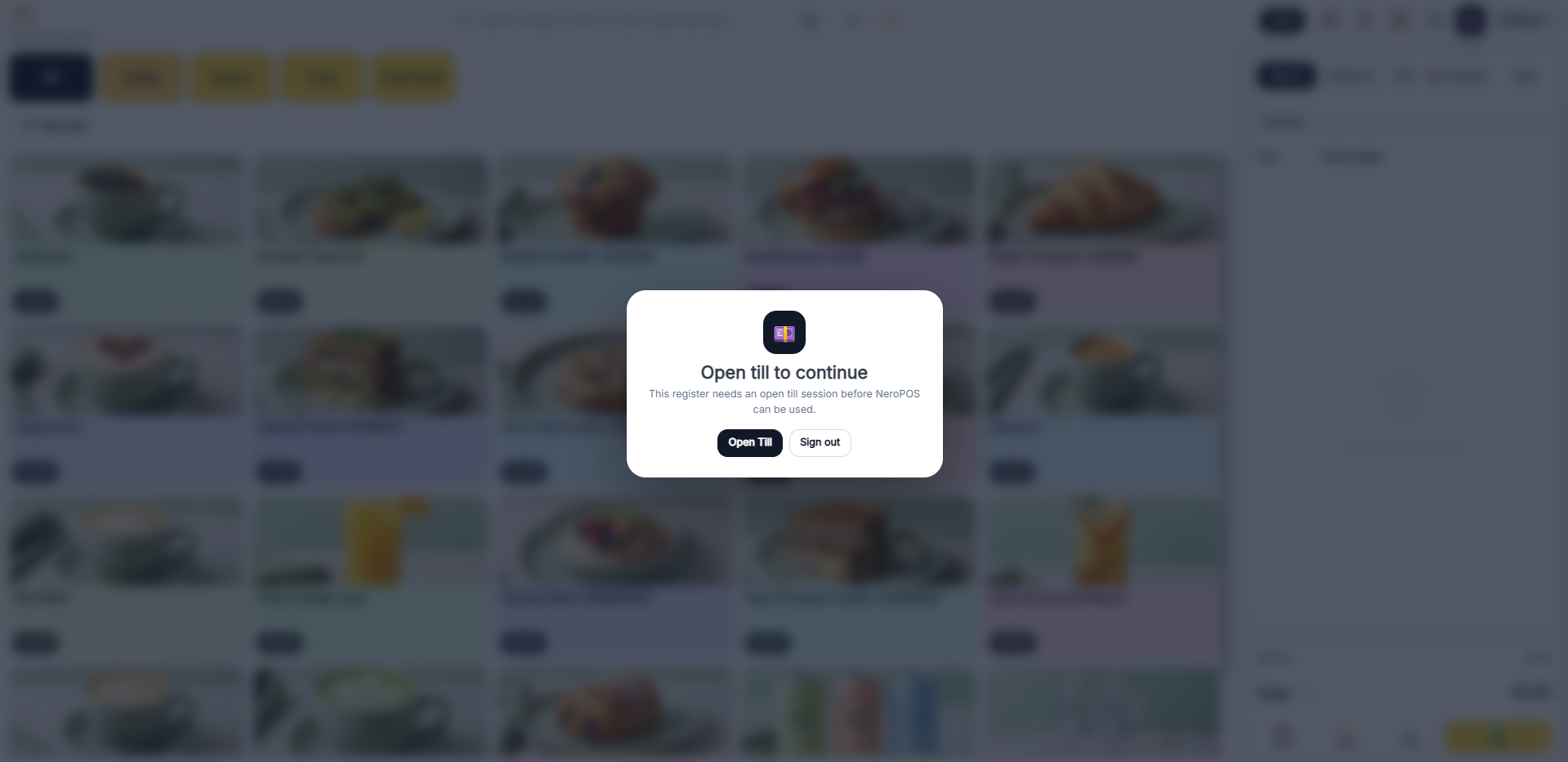
Once Enable end-of-day reconciliation is turned on, your staff will see an Open Till prompt when they log in to the EPOS for the first time each day.
Opening the till:
- Staff log in to the POS using the POS login link
- A prompt appears: "Open till to continue"
- Click Open Till to start the session — the EPOS is now ready to use
📸
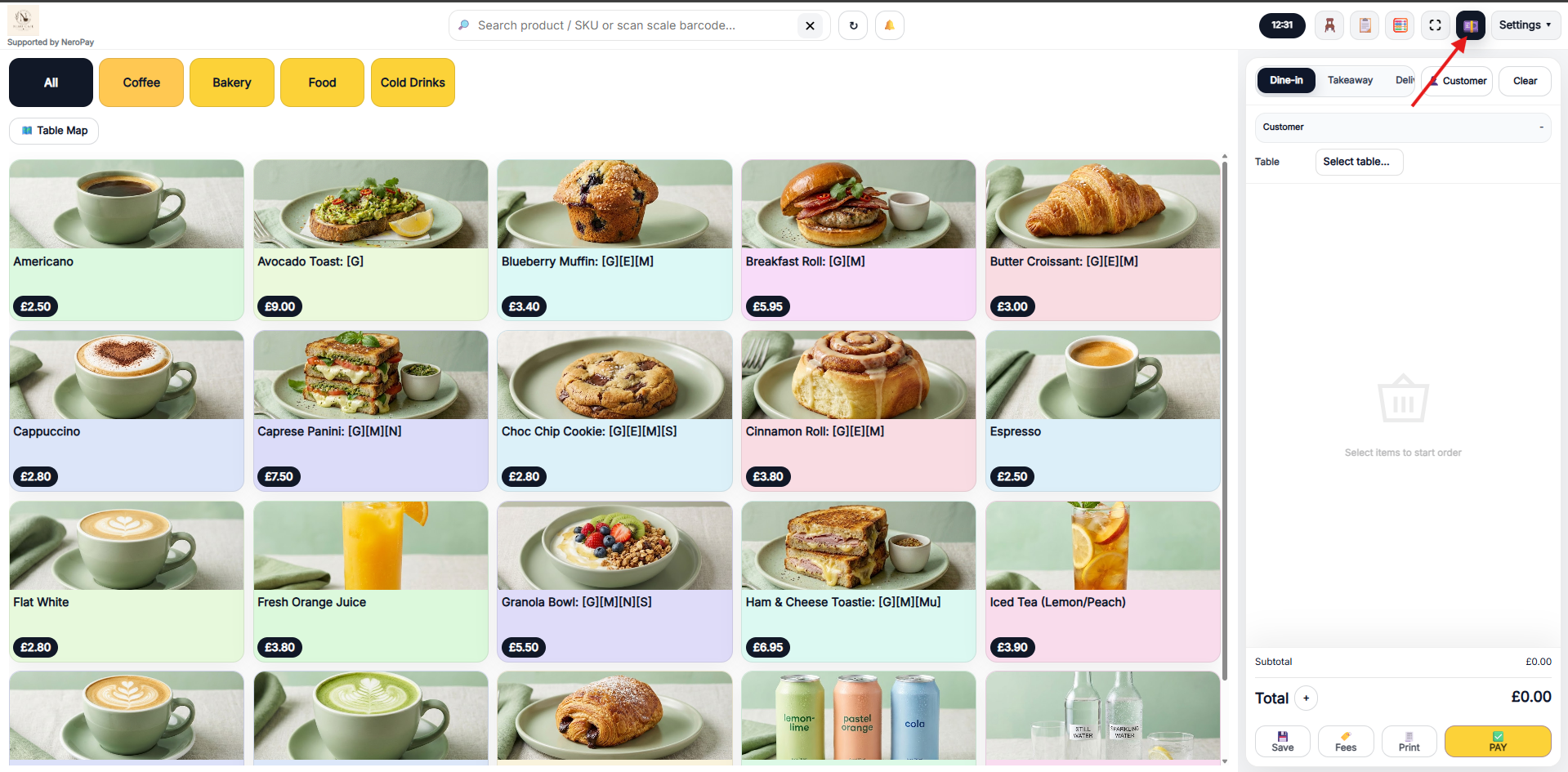
Accessing Till Control during the day:
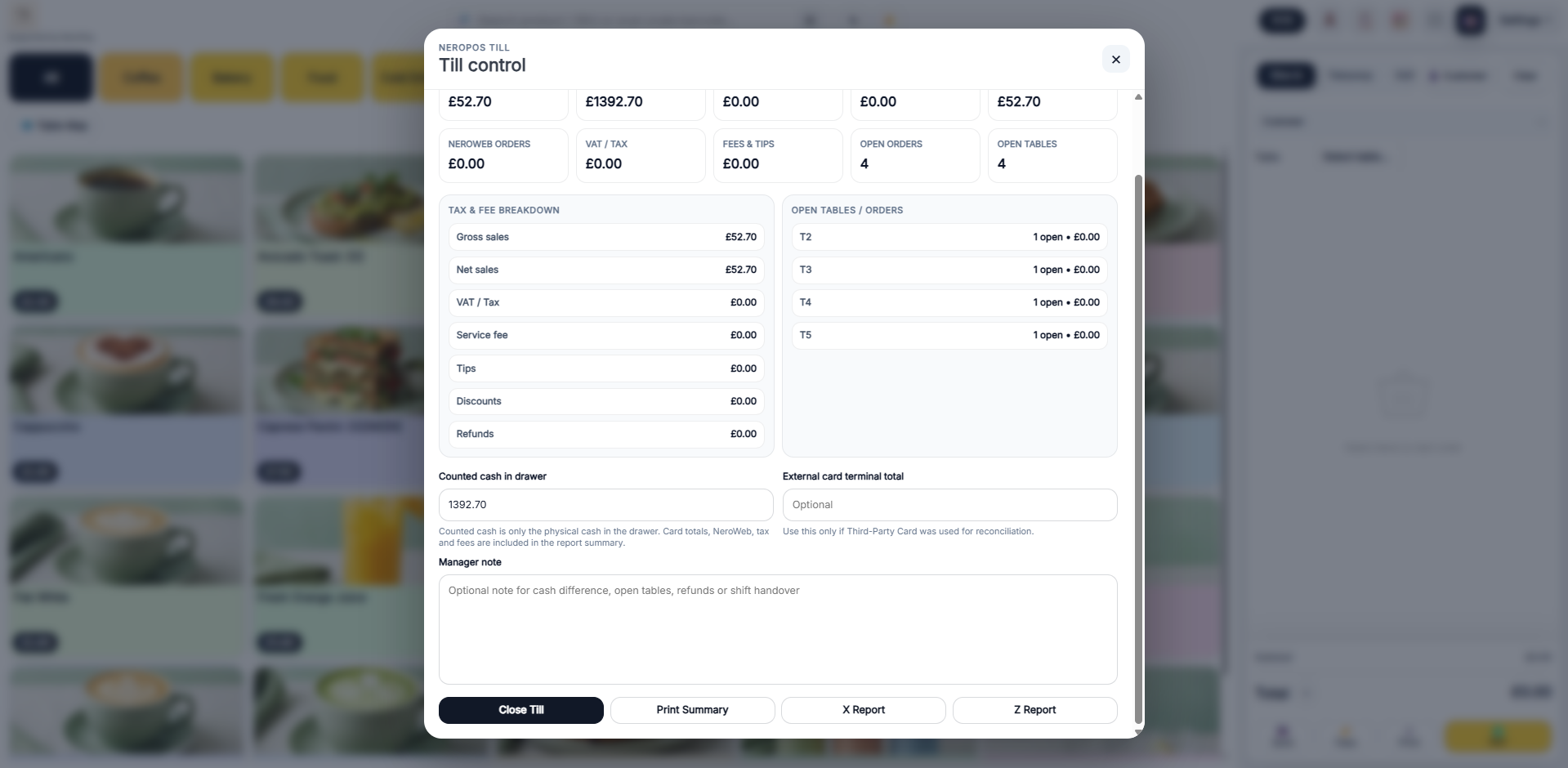
Click the Till Control icon in the top-right corner of the EPOS screen at any time to open the till summary panel. This shows:
- Current sales totals — Gross sales, Net sales, VAT, Service fee, Tips, Discounts, Refunds
- NeroWeb orders total
- Fees and tips
- Open orders count
- Open tables and their status
From here you can also:
- Enter Counted cash in drawer — the physical cash currently in the till
- Enter External card terminal total — if a third-party card terminal was used
- Add a Manager note — for cash differences, open tables, refunds, or shift handover
📸
Closing the till:
At the end of the day:
- Open Till Control from the EPOS screen
- Count the cash in the drawer and enter it in Counted cash in drawer
- Add any external card terminal total if applicable
- Add a manager note if required
- Choose one of the following actions:
| Action | What it does |
|---|---|
| Close Till | Closes the till session and saves the reconciliation |
| Print Summary | Prints a summary of the session |
| X Report | Generates a mid-session snapshot without closing the till |
| Z Report | Generates the end-of-day report and officially closes the trading day |
⚠️ Important: Run the Z Report only when all transactions for the day are complete. If Lock the day after Z close is enabled, no further orders can be added once the Z Report is saved.
Frequently asked questions
Q: What happens if staff try to use the EPOS without opening the till? A: They will see an "Open till to continue" prompt and will not be able to take orders until the till is opened.
Q: Can I set a different opening float each day? A: Yes. The Default opening cash float in POS Settings is the pre-filled amount, but staff can adjust it when opening the till each day.
Q: What is the difference between X Report and Z Report from Till Control? A: The X Report is a mid-session snapshot — it shows current totals without closing anything. The Z Report is the end-of-day report that officially closes the trading day.
Q: Do I need to enable till control if I only take card payments? A: Till control is most useful for businesses handling cash. If you only accept card payments, you may not need it — but it can still be useful for tracking open orders and daily performance.
Q: Can till control be enabled for some registers but not others? A: Till control applies at the account level when enabled in POS Settings. Contact support if you need more granular control per register.
Still need help? Contact us at support@neropay.app or create a ticket