How to get there
From your dashboard, follow this path:
NeroPOS → POS Settings → Delivery or Payments
Part 1 — Delivery
📸
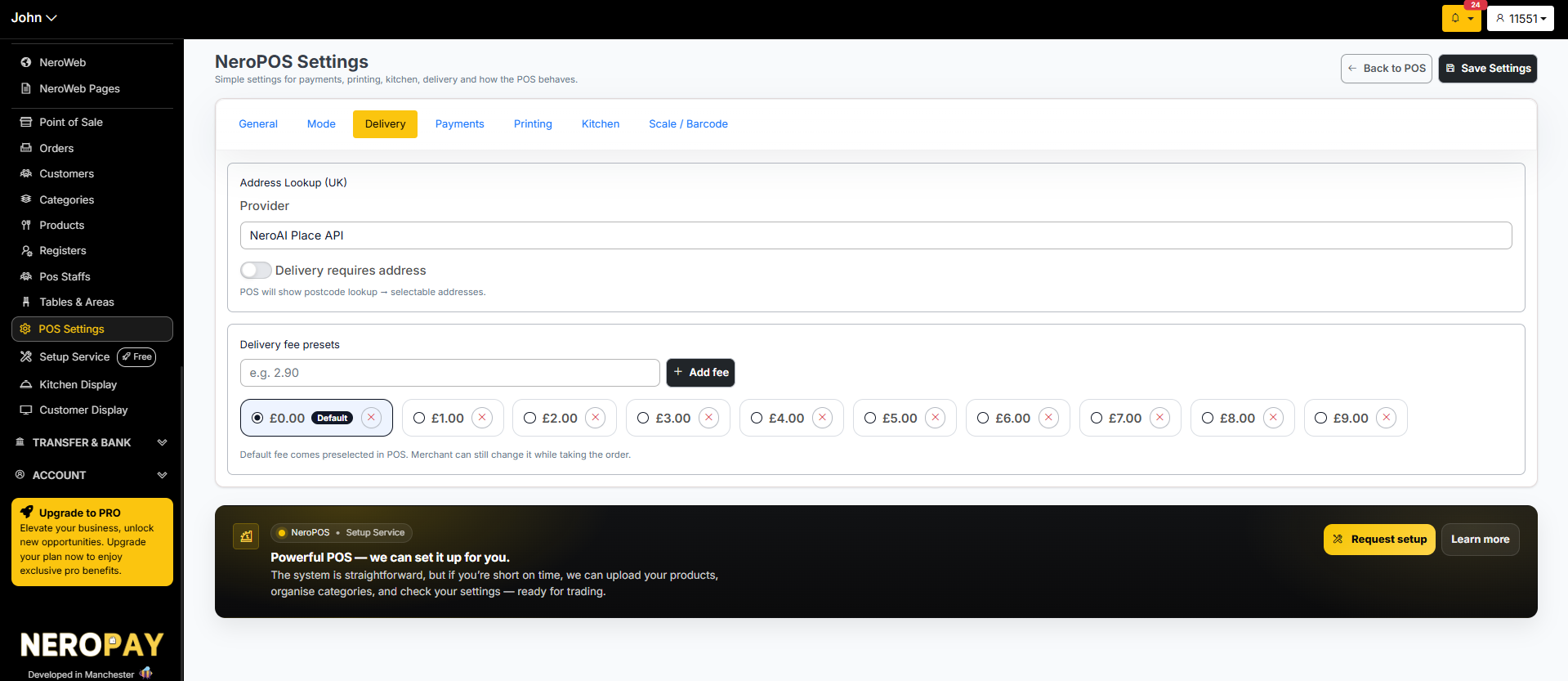
Address lookup
The delivery tab uses NeroAI Place API to power postcode lookup. When Delivery requires address is toggled on, the POS will show a postcode search field — staff can enter the postcode and select the correct address from the results.
| Setting | What it does |
|---|---|
| Provider | NeroAI Place API — powers the address lookup |
| Delivery requires an address | When on, the POS shows a postcode lookup so staff can select the customer's delivery address before completing the order |
Delivery fee presets
Set up a list of delivery fee options that staff can quickly select when taking a delivery order. This saves time during busy periods and ensures consistent pricing.
- Enter a fee amount in the field — for example, 2.90
- Click + Add fee to add it to the list
- Repeat for each fee amount you want to offer
- Click the radio button next to a fee to set it as the Default — this will be pre-selected automatically when staff take a delivery order
💡 Note: The default fee is preselected in the POS but staff can still change it while taking the order if needed.
Part 2 — Payments
📸
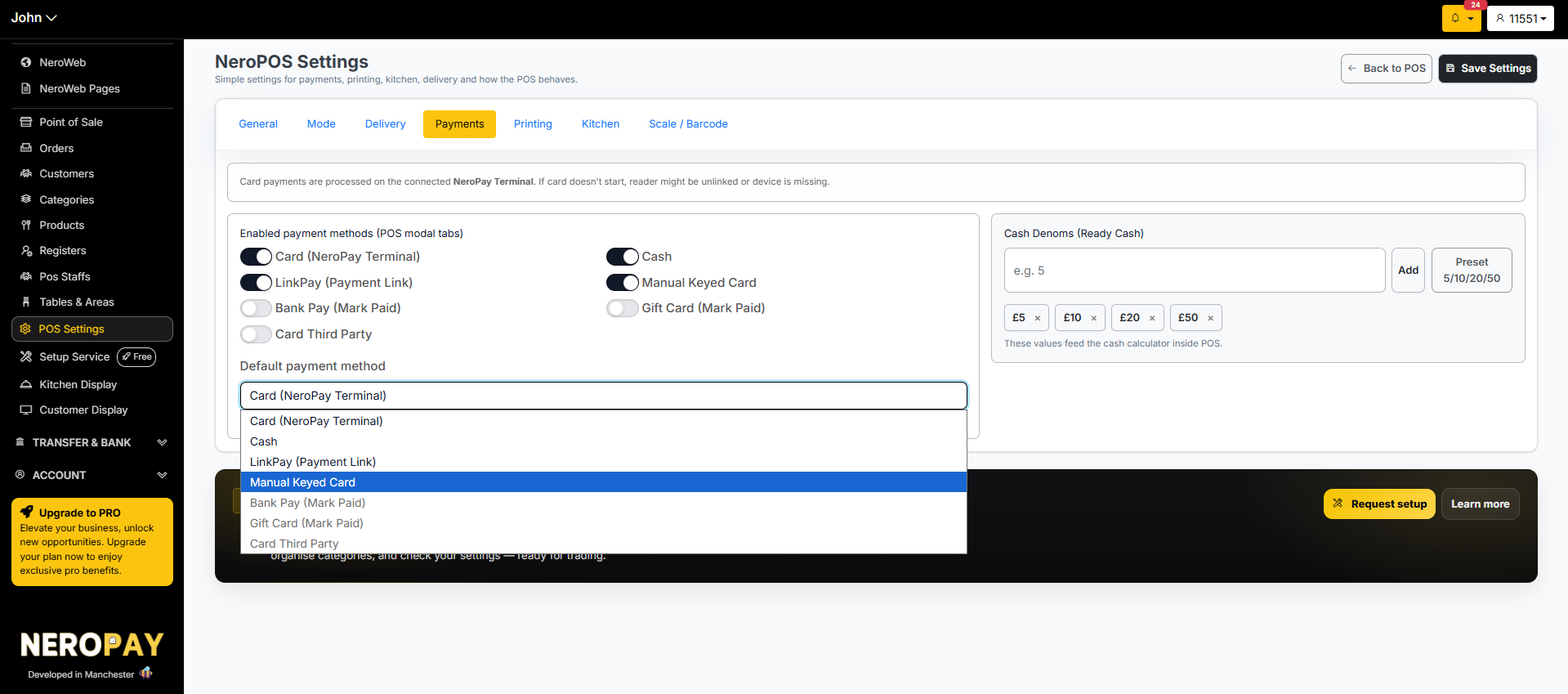
Enabled payment methods
Choose which payment methods appear as options on your POS when taking payment. Toggle each one on or off depending on what your business accepts.
| Payment method | What it means |
|---|---|
| Card (NeroPay Terminal) | Card payments processed through your connected NeroPay terminal |
| LinkPay (Payment Link) | Send a payment link to the customer to pay on their own device |
| Bank Pay (Mark Paid) | Manually mark a bank transfer as paid — no automatic processing |
| Card Third Party | Use a terminal from another provider instead of NeroPay — see note below |
| Cash | Accept cash payments |
| Manual Keyed Card | Manually enter card details for phone or remote orders |
| Gift Card (Mark Paid) | Manually mark a gift card payment as paid |
💡 Using a third-party terminal? If you are not using a NeroPay terminal, enable Card Third Party and select your terminal provider from the list. This allows your existing terminal to work alongside NeroPOS without needing to switch to NeroPay hardware.
⚠️ Note: Card payments require a connected NeroPay Terminal. If card payment does not start, your reader may be unlinked or the device may be missing — check your terminal connection.
Default payment method
Select which payment method is pre-selected when the payment screen opens. Choose the one your staff use most frequently to speed up checkout.
Cash denominations
The Cash Denoms section sets up quick-select buttons for common cash amounts inside the POS cash calculator. Staff can tap these buttons instead of typing the amount manually, making cash handling faster.
The default preset includes £5, £10, £20, and £50. To add a custom denomination:
- Enter the amount in the field
- Click Add
Frequently asked questions
Q: Can I offer different delivery fees for different areas? A: The delivery fee presets are flat amounts — for distance-based delivery fees, configure these in NeroWeb settings instead. See Getting started with NeroWeb →
Q: What is the difference between Bank Pay and Manual Keyed Card? A: Bank Pay is used when a customer pays by bank transfer — you mark it as paid manually. Manual Keyed Card is used when you type in card details directly, for example, for a phone order.
Q: I use a third-party card terminal — will it work with NeroPOS? A: Yes. Enable Card Third Party in the payment methods list and select your provider. Your existing terminal will work alongside NeroPOS without needing any additional hardware from NeroPay.
Q: Can I have more than one default payment method? A: No. Only one payment method can be set as the default. Staff can still select any other enabled method at the time of payment.
Q: Do I need to enable all payment methods? A: No. Only enable the methods your business actually accepts. Unused methods can be left off to keep the payment screen clean and simple for staff.
Still need help? Contact us at support@neropay.app or create a ticket