How to get there
From your dashboard, follow this path:
NeroPOS → POS Settings → Platforms
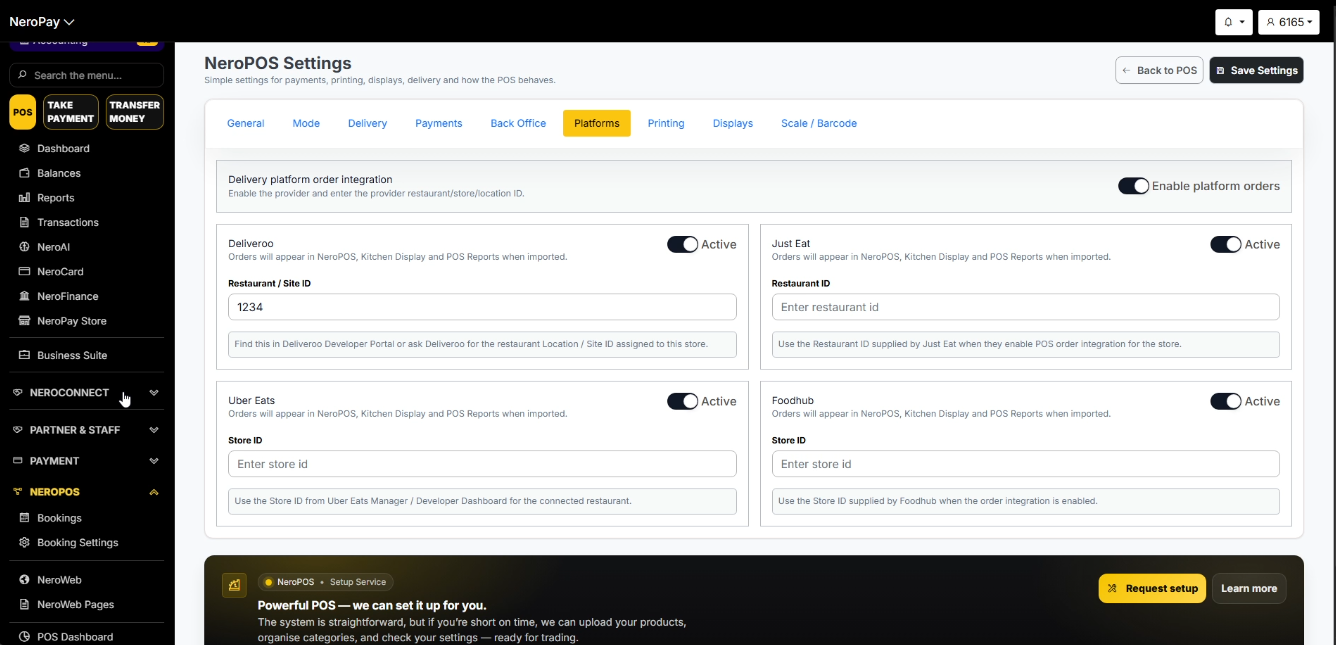
Step 1 — Enable platform orders
Toggle Enable platform orders to on at the top right of the page. This activates the delivery platform integration across your EPOS.
📸
Step 2 — Connect your platforms
Each supported platform has its own section. Toggle the platform to Active and enter the ID for your restaurant or store:
| Platform | ID required | Where to find it |
|---|---|---|
| Deliveroo | Restaurant / Site ID | Find this in the Deliveroo Developer Portal, or ask Deliveroo for the Location / Site ID assigned to your store |
| Just Eat | Restaurant ID | Supplied by Just Eat when they enable POS order integration for your store |
| Uber Eats | Store ID | Found in Uber Eats Manager or Developer Dashboard for your connected restaurant |
| Foodhub | Store ID | Supplied by Foodhub when your order integration is enabled |
⚠️ Note: You will need to contact each platform directly to get your Restaurant or Store ID before completing this setup. NeroPay cannot retrieve these IDs on your behalf.
Click Save Settings at the top right once all IDs are entered.
What happens once connected
Once a platform is active and your ID is saved, orders from that platform will:
- Appear automatically in NeroPOS → Orders
- Show on your Kitchen Display
- Be included in your POS Reports with the platform label (e.g. Deliveroo)
Viewing platform orders
From the Orders page
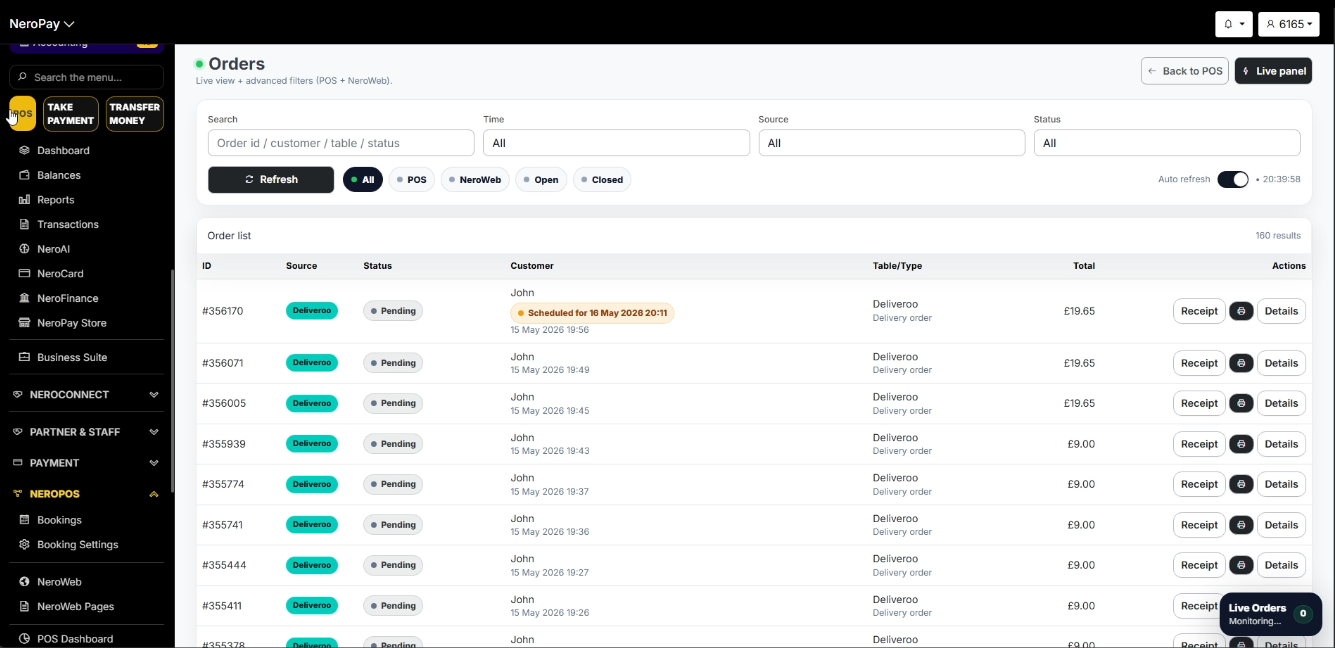
Go to NeroPOS → Orders to see all incoming orders in one list. Use the Source filter to show only orders from a specific platform.
Each order shows:
- Order ID
- Source — e.g. Deliveroo label
- Status — e.g. Pending, Completed
- Customer name and date
- Table / type — e.g. Delivery order
- Total
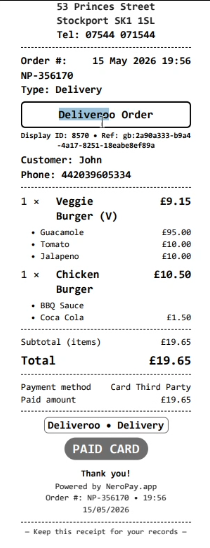
- label on receipt
📸
From the EPOS screen
Platform orders also appear directly on your POS screen. Click Details on any order to open the full order summary, including:
- Customer name, phone number, and any notes
- Channel and payment method
- Order items, subtotal, discount, and total
- Scheduled delivery time if applicable
From the order detail panel you can:
- Change the order status
- Send Notification to the customer
- Print the order receipt
- Load to POS to bring the order into your active EPOS session
Frequently asked questions
Q: Where do I find my Deliveroo Site ID? A: Log in to the Deliveroo Developer Portal, or contact Deliveroo directly and ask for the Location / Site ID assigned to your restaurant.
Q: Can I connect more than one platform at the same time? A: Yes. You can activate all four platforms simultaneously — Deliveroo, Just Eat, Uber Eats, and Foodhub — each with their own ID.
Q: Will platform orders appear on my Kitchen Display automatically? A: Yes. Once a platform is active, orders from that platform are sent to your Kitchen Display in real time alongside your in-store orders.
Q: What does "Load to POS" do? A: It brings the platform order into your active EPOS session so your staff can manage it alongside in-store orders.
Q: Why is my platform order not appearing in NeroPOS? A: Check that the platform toggle is set to Active and that the correct Restaurant or Store ID has been entered and saved. If the issue continues, contact support with your platform ID and order reference.
Still need help? Contact us at support@neropay.app or create a ticket