How to get there
From your dashboard, follow this path:
NeroPOS → POS Settings → Scale / Barcode
📸
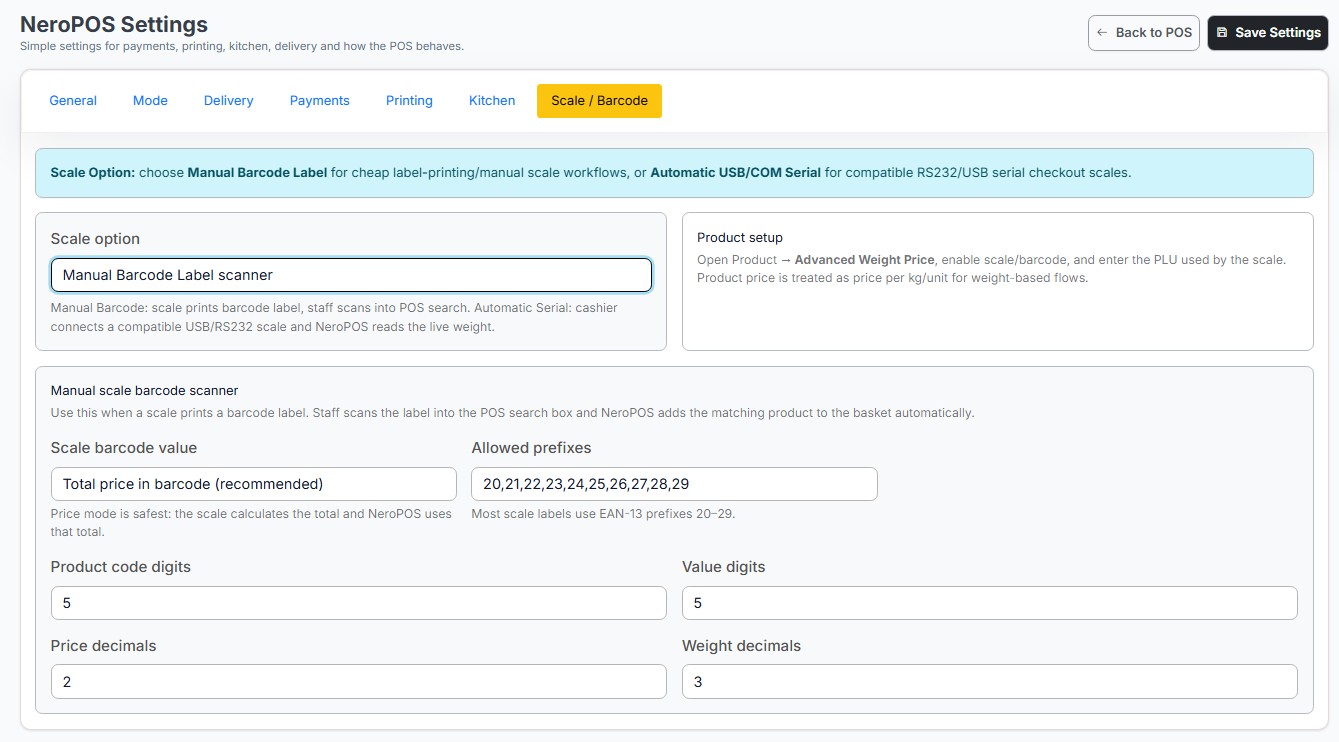
Step 1 — Choose your scale option
At the top of the page, select which type of scale integration suits your setup:
| Option | Best for |
|---|---|
| Manual Barcode Label scanner | Scales that print a barcode label — staff scan the label into the POS search box and NeroPOS adds the matching product to the basket automatically |
| Automatic USB/COM Serial | Compatible RS232/USB serial checkout scales — the cashier connects the scale directly and NeroPOS reads the live weight automatically |
📸
Step 2 — Configure manual barcode scanner settings
If you selected Manual Barcode Label scanner, configure the following fields:
| Setting | What it does |
|---|---|
| Scale barcode value | How the price is read from the barcode. Total price in barcode is recommended — the scale calculates the total and NeroPOS uses that figure directly |
| Allowed prefixes | The EAN-13 barcode prefixes your scale uses. Most scales use prefixes 20–29 (default: 20,21,22,23,24,25,26,27,28,29) |
| Product code digits | Number of digits used for the product code in the barcode (default: 5) |
| Value digits | Number of digits used for the price or weight value in the barcode (default: 5) |
| Price decimals | Number of decimal places used for price (default: 2) |
| Weight decimals | Number of decimal places used for weight (default: 3) |
📸 [Screenshot: Manual barcode scanner configuration fields]
Step 3 — Set up the product for scale use
For each product you want to sell by weight, you need to enable scale support on the product itself:
- Go to NeroPOS → Products
- Open the product you want to configure
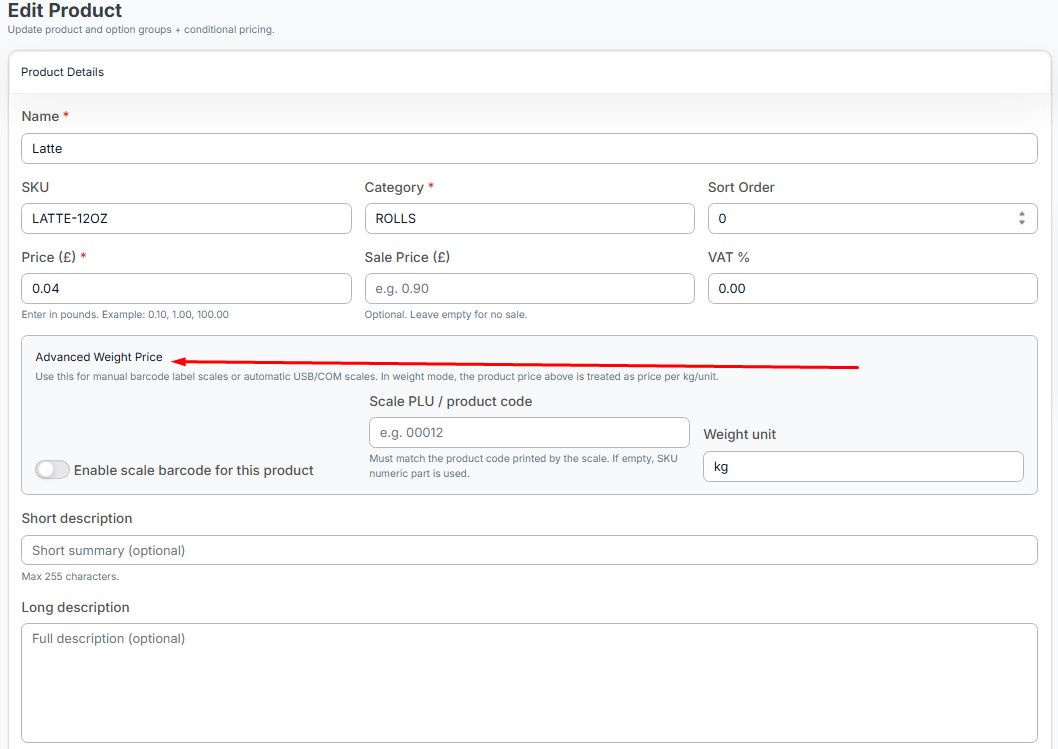
- Scroll down to the Advanced Weight Price section
- Toggle on Enable scale barcode for this product
- Enter the Scale PLU / product code — this must match the product code printed by your scale. If left empty, the SKU numeric part is used instead
- Set the Weight unit — for example, kg
- Save the product
⚠️ Note: When Advanced Weight Price is enabled, the product price is treated as the price per kg or per unit — not a fixed price. Make sure this is set correctly before going live.
How it works end to end
- Staff weighs the item on the scale
- The scale prints a barcode label with the product code and price embedded
- Staff scans the label into the POS search box
- NeroPOS automatically identifies the product and adds it to the basket with the correct price
- Customer pays at checkout as normal
Frequently asked questions
Q: Which scale option should I choose for my butcher shop? A: If your scale prints barcode labels that staff scan at the till, use Manual Barcode Label scanner. If your scale connects directly via USB or RS232 and you want the weight read automatically, use Automatic USB/COM Serial.
Q: What is a PLU code? A: PLU stands for Price Look-Up. It is the product code your scale prints on the barcode label. This must match the Scale PLU you enter on the product in NeroPOS so the system can identify the correct item when the barcode is scanned.
Q: What if my scale uses different EAN-13 prefixes? A: Update the Allowed prefixes field to match the prefixes your scale uses. Check your scale's manual or contact your scale supplier if you are unsure which prefixes it uses.
Q: Can I use this for products that are sometimes sold by weight and sometimes at a fixed price? A: No. Once Enable scale barcode is toggled on for a product, the price is always treated as price per kg/unit. We recommend creating separate products for fixed-price and weight-based versions of the same item.
Q: Do I need to configure every product individually? A: Yes. Scale barcode must be enabled on each product you want to sell by weight. Products without this enabled will not be recognised when a barcode label is scanned.
Still need help? Contact us at support@neropay.app or create a ticket