Video
Before you start
- You have an active NeroPay account with NeroPOS enabled
- You have decided how your areas are laid out — for example, First Floor, Second Floor, Garden
- You have your menu and products set up on NeroWeb — see Adding products
Part 1 — Enable table management
Step 1 — Go to POS Settings
From your dashboard, follow this path:
NeroPOS → POS Settings
Step 2 — Enable table customers
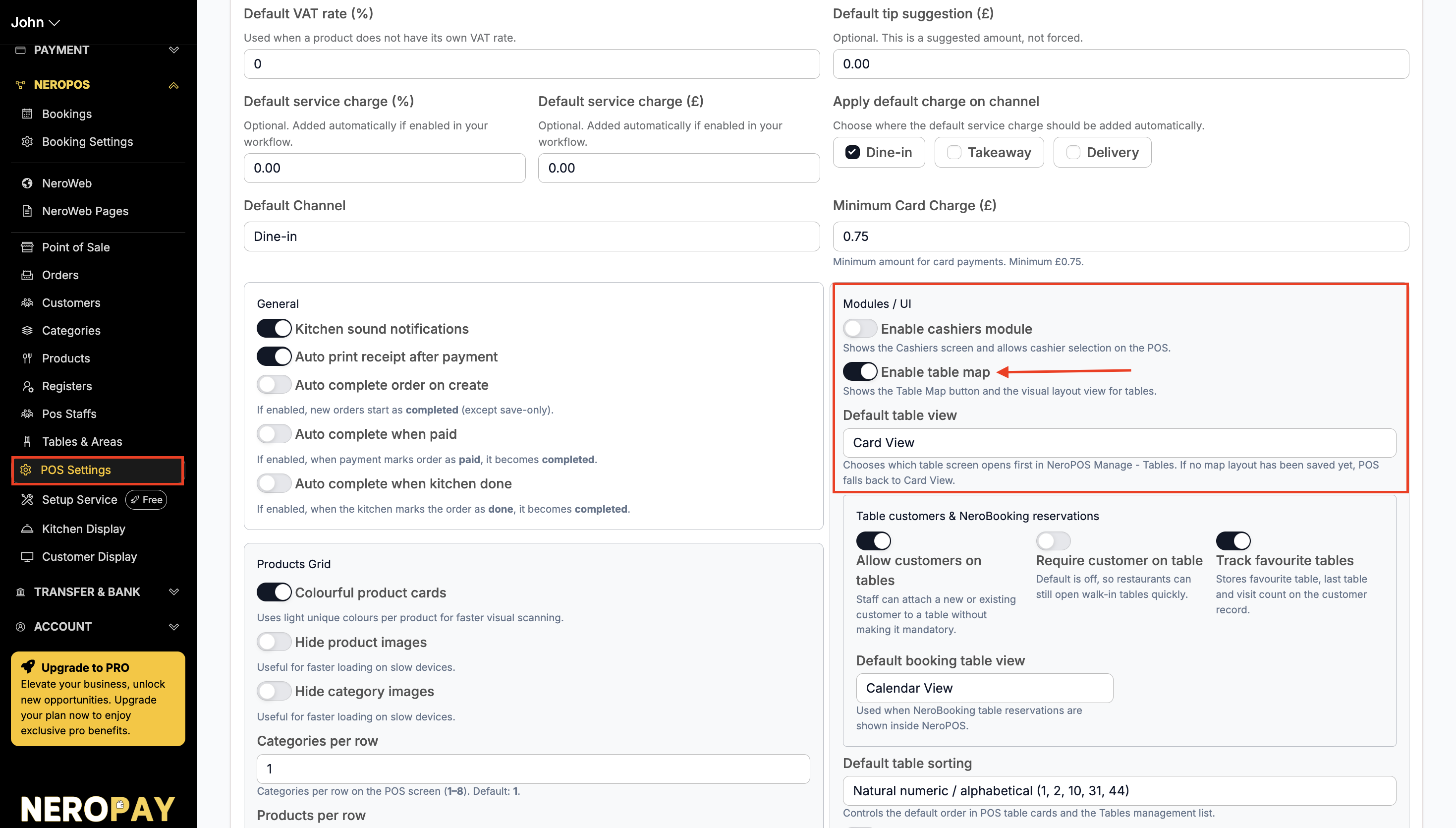
Scroll down and switch on Allow customers on tables and Enable table map.
⚠️ Important: Make sure this toggle is switched on before moving to the next step — the Tables and Areas section will not work correctly without it.
📸
Part 2 — Set up your areas
Step 3 — Go to Tables and Areas
From your dashboard, follow this path:
NeroPOS → Tables and Areas
Step 4 — Add your areas
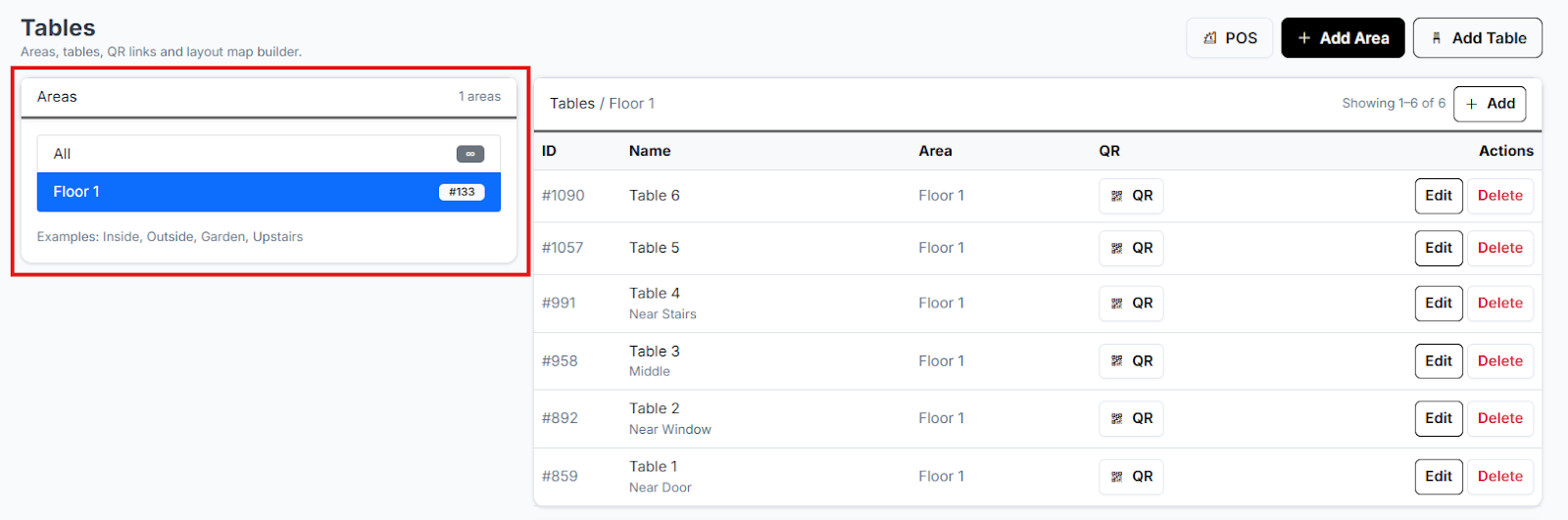
Before creating your table map, you need to set up your areas first. An area is a section of your venue — for example First Floor, Second Floor, Garden, or Bar.
- Click Add Area at the top right
- Give the area a name and click Edit
- Repeat for each section of your venue
💡 Tip: Create areas that reflect your actual floor layout — this makes order management much easier during service.
📸
Part 3 — Build your table map
Step 5 — Create your table map
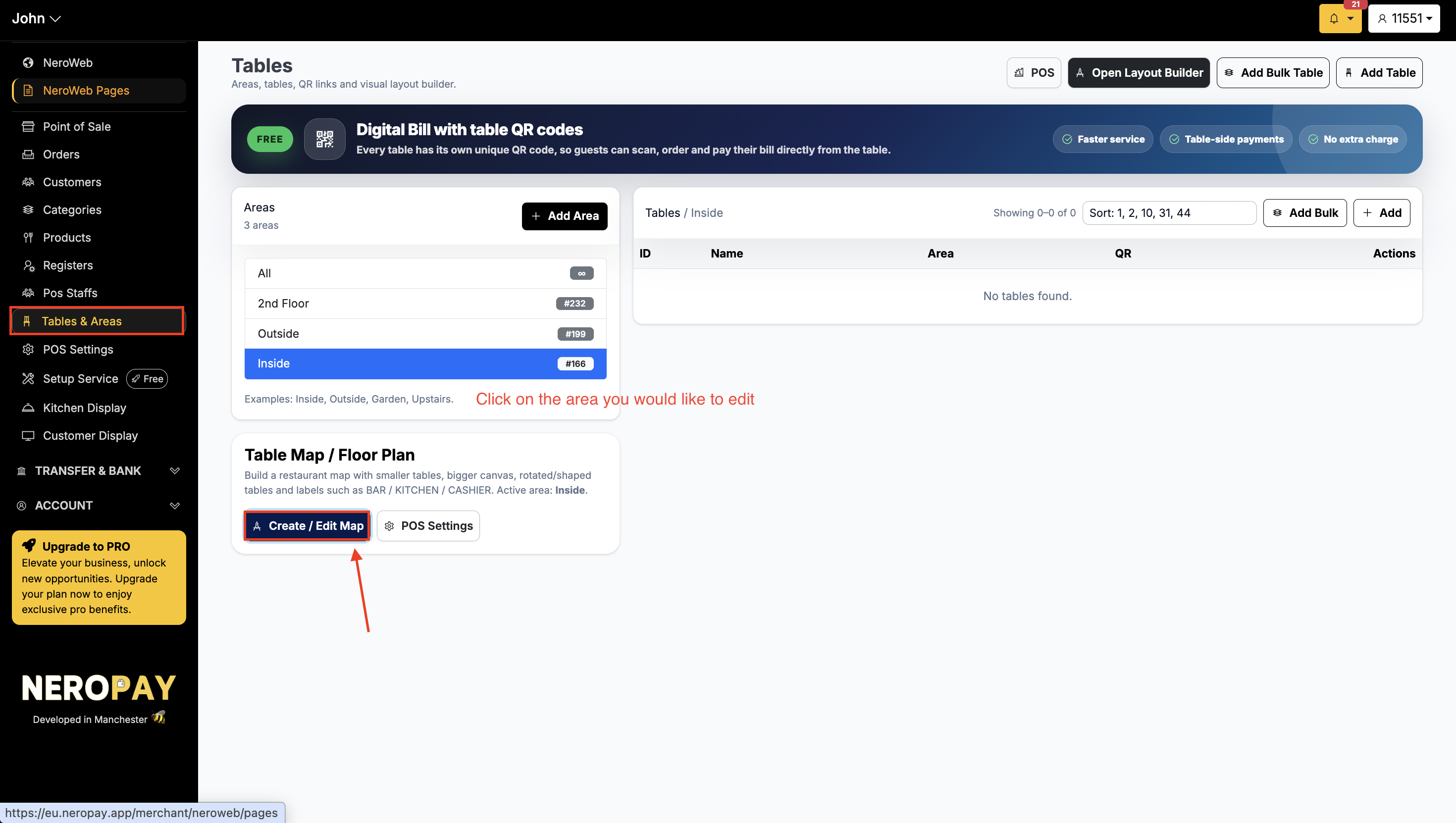
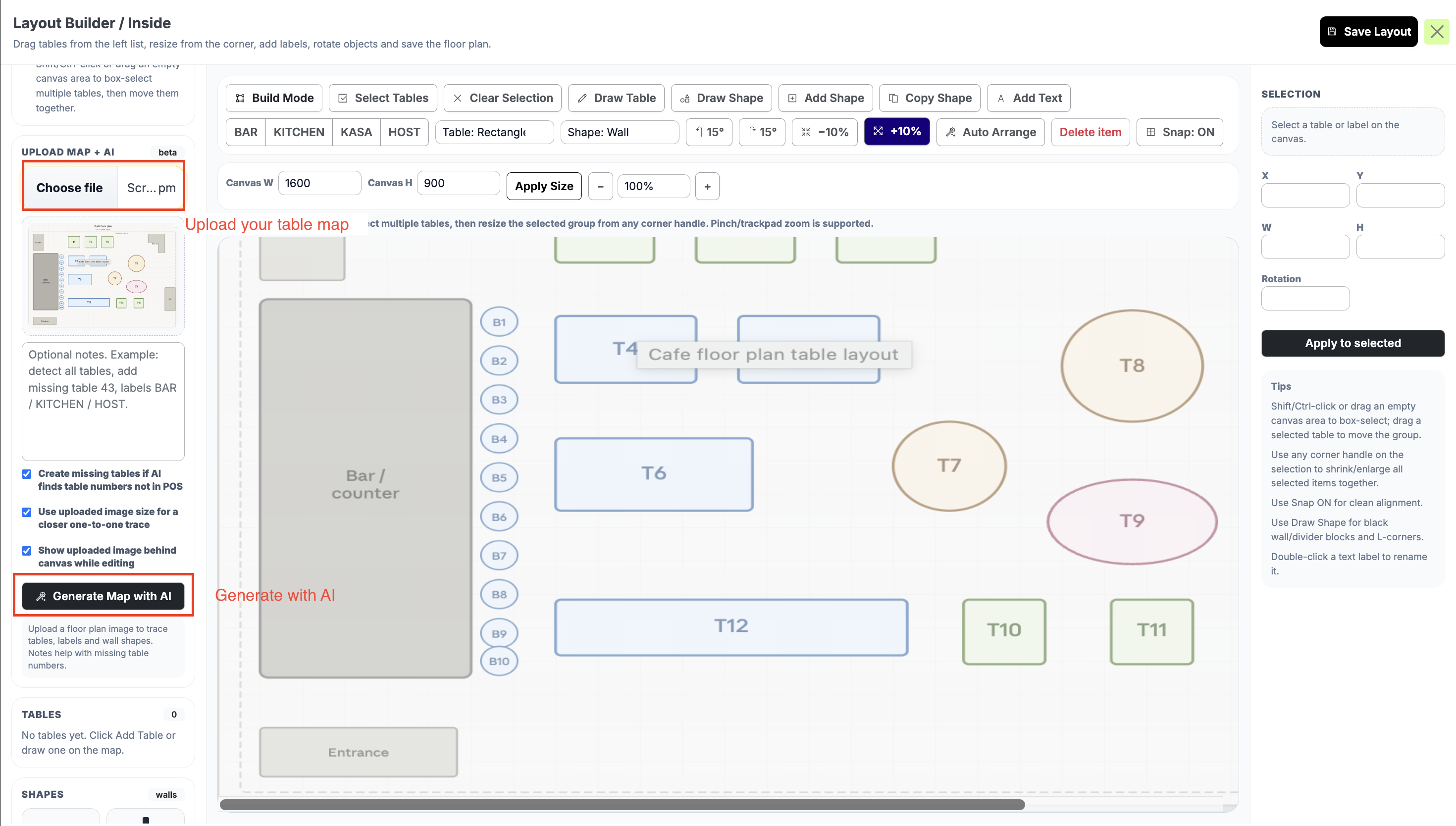
Once your areas are set up, click Create / Edit Map for the area you want to configure. You have two options:
📸
Option A — Build manually
- Click Add Table at the top right
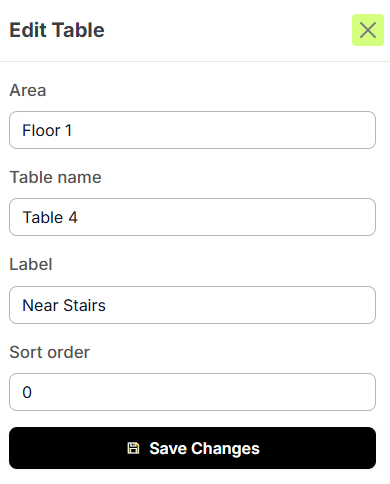
- Enter the table details:
- Name — the table number, for example Table 1
- Label — a staff reference, for example By the Window
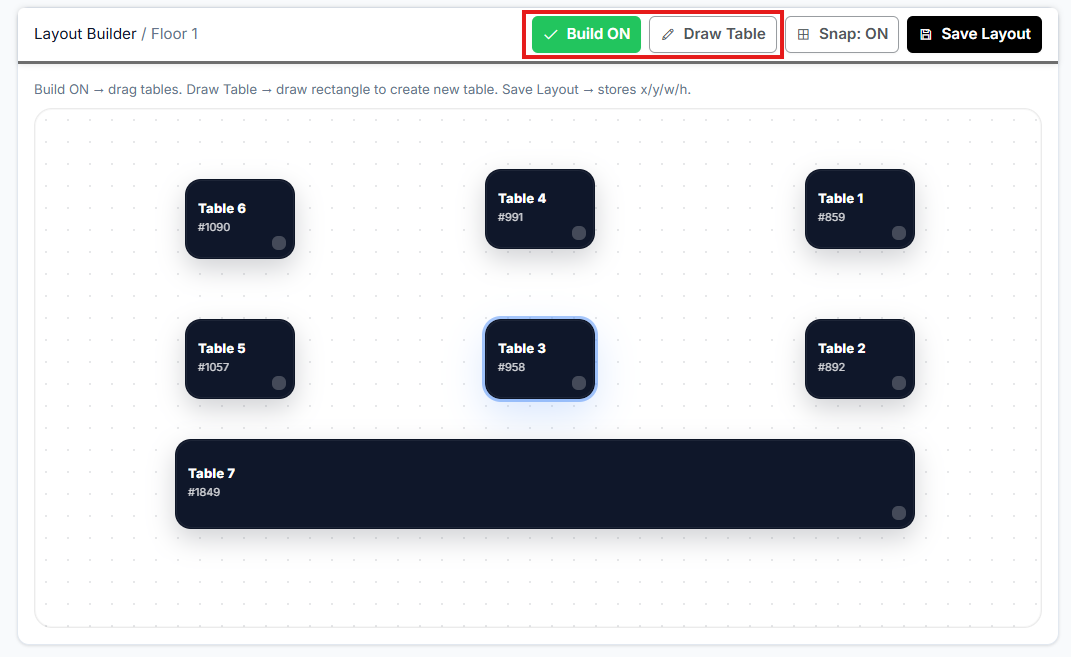
- Click Build Mode to drag and drop tables into their physical positions on the map
- Use Draw Table to create custom shapes — circles or rectangles — for a more accurate representation of your layout
📸
Option B — Upload a floor plan and let AI do it for you
Click Choose file to upload an image of your floor plan. The AI will automatically generate your table map based on the layout.
💡 Tip: The AI option saves time if you already have a printed or digital floor plan. Make sure the image is clear and easy to read for the best result. PNG or JPG formats work best.
📸
Step 6 — Save your changes
Once you are happy with your layout, click Save Settings at the top right of the page.
⚠️ Important: Your table map will not be saved until you click Save Settings. Do this before leaving the page.
Part 4 — Set up QR codes
Once your tables are created, each one automatically gets its own unique QR code. Customers can scan this code to view your menu and place orders directly from their table.
Step 7 — Generate and print QR codes
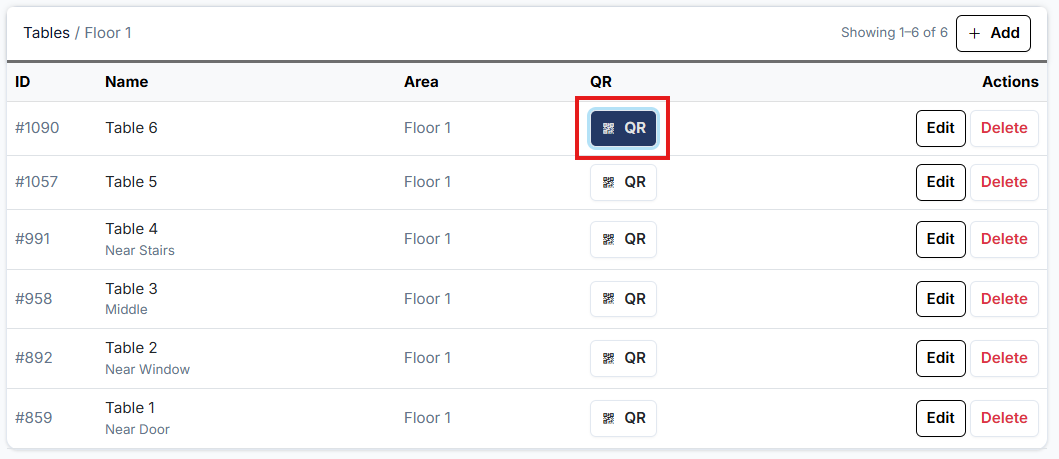
- In the table list or layout view, locate the QR icon next to each table
- Click the QR button to open the unique code for that table
- Save the image or print it directly
- Place the printed QR code on its corresponding table
📸
📸
⚠️ Before service starts: Scan a few of your printed QR codes with your phone to make sure they lead to the correct table number on your NeroWeb store. Do this before customers arrive.
Frequently asked questions
Q: Do I need to set up areas before creating a table map? A: Yes. Areas must be created first — you then build a separate table map for each area.
Q: Can I have different table maps for different areas? A: Yes. Each area has its own map, so First Floor, Second Floor, and Garden can all have completely separate layouts.
Q: Can I edit the table map after it has been created? A: Yes. Go back to NeroPOS → Tables and Areas and click Create / Edit Map at any time to make changes.
Q: What happens if I move a table in real life — do I need to update the map? A: Yes. We recommend keeping your digital map in sync with your physical layout so your team can locate tables quickly during service.
Q: Will enabling table management affect my existing orders? A: No. Enabling the feature simply adds table management to your EPOS — it does not affect any orders already in progress.
Q: Can customers order and pay entirely from the QR code? A: Customers can browse the menu and place orders via the QR code. Payment settings depend on your NeroWeb configuration — see [NeroWeb settings →] for details.
Still need help? Contact us at support@neropay.app or create a ticket