
AI Reception is a voice assistant for your business phone line. It welcomes each caller, answers questions from the details you provide, takes orders and bookings where those integrations are enabled, and hands calls to your team when needed. It runs on a monthly plan and works over phone, with WhatsApp available once your business is verified and connected.
What AI Reception does
| Capability | What it does |
|---|---|
| Answers questions | Address, opening hours, services and FAQs, using the information you provide |
| Takes orders and bookings | Connects NeroWeb orders to your existing kitchen workflow, and appointments to your NeroBooking calendar |
| Hands over to your team | Transfers calls to your chosen number or SIP destination, or creates a callback request where the workflow allows |
| Keeps every call in view | Transcripts and summaries in one place, with recordings reviewed in line with your consent and retention settings |
| Channels | Phone, WhatsApp (after business verification and connection setup) and multilingual conversations |
| Voice and greeting | Choose a greeting and voice that reflect your brand |
💡 Note: AI Reception answers from the business details, opening hours and call-handling rules you add. Keep these up to date so callers get the right answer.
How a call flows
📸 A call reaches AI Reception and ends in one of three outcomes.
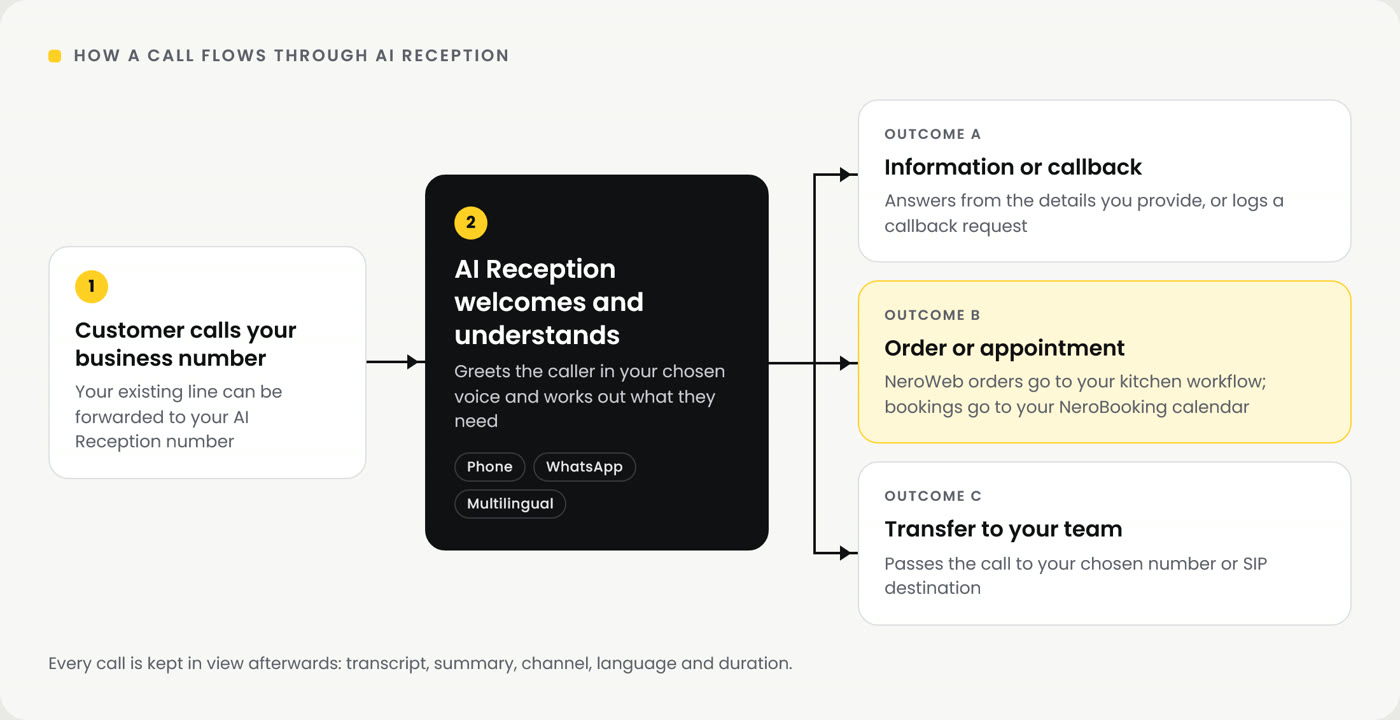
| Step | What happens |
|---|---|
| 1. Customer calls | The customer dials your business number |
| 2. AI Reception answers | Welcomes the caller in your chosen voice and works out what they need |
| 3a. Information or callback | Answers the question, or creates a callback request where the workflow allows |
| 3b. Order or appointment | Sends a NeroWeb order to your kitchen workflow, or adds an appointment to your NeroBooking calendar |
| 3c. Transfer to your team | Passes the call to your chosen number or SIP destination |
💡 Note: You can forward your existing business line to your AI Reception number, so customers keep dialling the number they already know.
Setting up AI Reception
| Step | What to do |
|---|---|
| 1. Choose your plan | Pick a monthly plan based on the voice minutes you expect to use. See Plans and pricing below |
| 2. Set up your assistant | Add your business details, opening hours and call-handling rules, then choose a voice, language and greeting |
| 3. Connect workflows | Connect orders, appointments and team transfers. Order and appointment features need the relevant integration enabled |
| 4. Test and go live | Call the number, check the responses, then go live |
⚠️ Number provision is subject to availability and verification. WhatsApp becomes available once business verification and connection setup are complete.
Reviewing calls
Each call has a details screen so you can see what was said and what happened next.
| Field | What it shows |
|---|---|
| Transcript | The full conversation as text |
| Call summary | A short account of what the caller wanted and the outcome |
| Channel | How the call came in, for example Phone |
| Language | The language the conversation was held in |
| Duration | How long the call lasted |
💡 Note: Recordings are reviewed in line with your consent and retention settings. Check these match how you tell callers their calls are handled.
Managing AI Reception day to day
| Setting | What it does |
|---|---|
| Pause orders or bookings | Stops AI Reception taking new orders or appointment bookings during busy periods |
| Opening hours | The hours AI Reception gives to callers and uses for its rules |
| Call routing | Where transfers go: your chosen number or SIP destination |
| Usage limits | Manage the usage limits on your plan |
The NeroPay team can help with setup using Login-as-merchant, and can manage settings, plan selection and payment steps on your behalf.
Plans and pricing
AI Reception is a monthly plan. Each plan comes with a set number of voice minutes per billing month and one UK reception number.
| Starter | Growth | Business | |
|---|---|---|---|
| Price per month | £49.90 | £99.90 | £199.90 |
| Voice minutes per billing month | 200 | 500 | 1,200 |
| UK reception number | 1 | 1 | 1 |
| Custom tools and MCP | Yes | Yes | Yes |
| WhatsApp with assisted business onboarding | Yes | Yes | Yes |
⚠️ Prices include VAT. Optional additional usage is £1.00 per minute, a premium number is £20.00 per month extra, and SMS is charged at your business's existing rates.
💡 Custom tools and MCP: custom tools let AI Reception use information from other software your business relies on during a call. MCP (Model Context Protocol) is an open standard for connecting AI assistants to software tools, so AI Reception can work with compatible services. Ask the NeroPay team which tools you can connect.
💡 Note: You can cancel renewal at any time. Cancellation takes effect at the end of your paid period.
Frequently asked questions
Do I need a new phone number?
Each plan comes with one UK reception number. You can keep your existing business number and forward it to your AI Reception number. Number provision is subject to availability and verification.
What happens if a caller asks for a person?
AI Reception transfers the call to your chosen number or SIP destination, or creates a callback request where the workflow allows.
Can AI Reception take orders and bookings?
Yes, once the relevant integration is enabled. NeroWeb orders go to your existing kitchen workflow and appointments go to your NeroBooking calendar. You can pause either during busy periods. See Managing NeroWeb orders and Booking settings.
What happens if I use more than my plan's minutes?
Optional additional usage is charged at £1.00 per minute. You can manage usage limits from your AI Reception settings.
Does AI Reception work on WhatsApp?
Yes, on every plan, once business verification and connection setup are complete. The NeroPay team assists with onboarding.
Still need help? Contact us at support@neropay.app or create a ticket.