How to get there
From your dashboard, follow this path: Account → Integrations
Supported integrations
NeroPay currently supports the following platforms:
| Platform | Type |
|---|---|
| Xero | Accounting |
| QuickBooks | Accounting |
| Zoho Books | Accounting |
| HubSpot | CRM |
| Salesforce | CRM |
| Sage Accounting | Accounting |
| FreeAgent | Accounting |
| FreshBooks | Accounting |
| monday.com | Project management |
| Pipedrive | CRM |
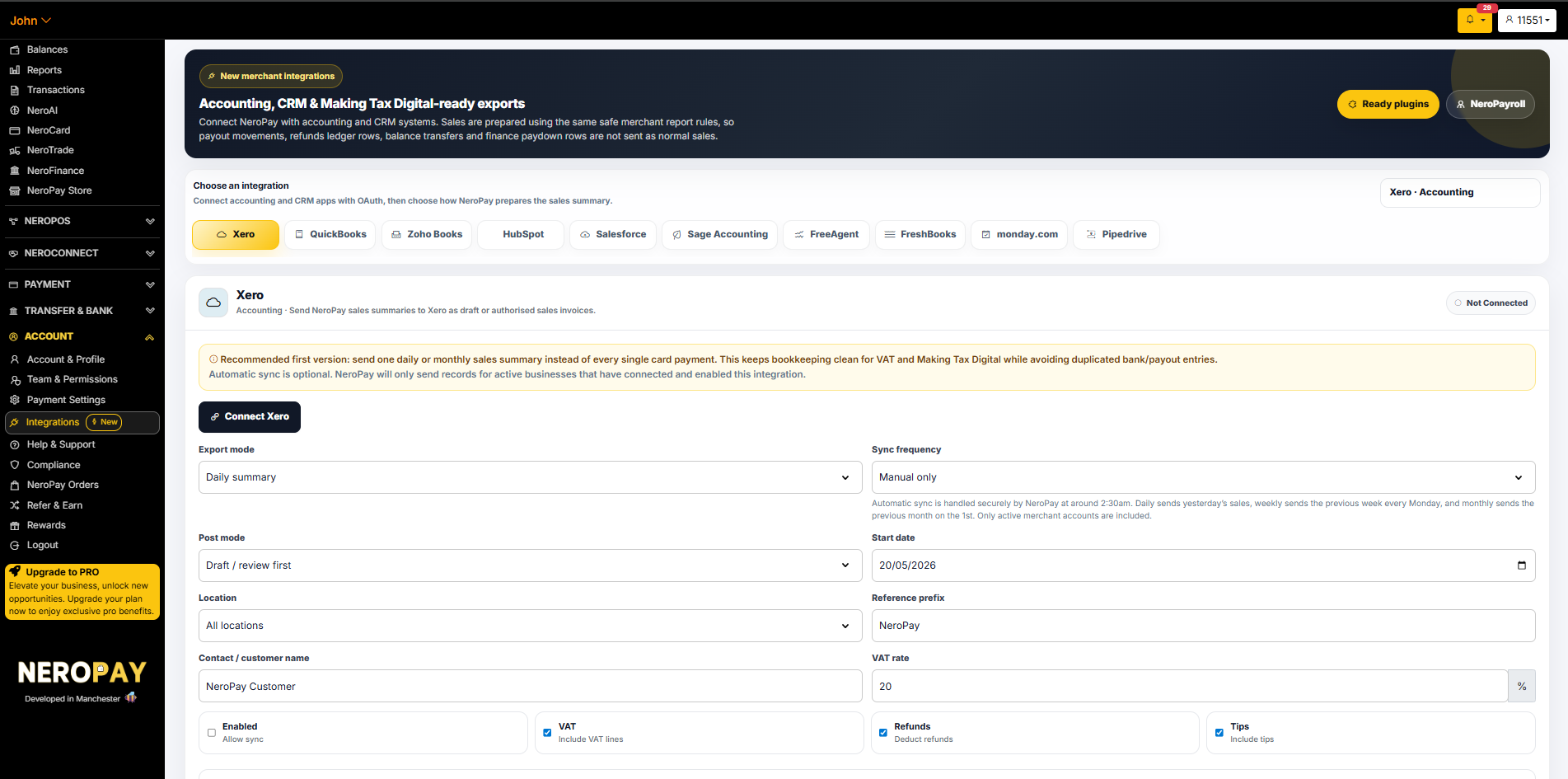
💡 NeroPay recommends sending one daily or monthly sales summary instead of every single card payment. This keeps bookkeeping clean for VAT and Making Tax Digital while avoiding duplicated bank and payout entries.
How to connect an integration
The steps below use Xero as an example. The process is the same for all supported platforms.
- Go to Account → Integrations
- Select your platform from the tab bar — e.g. Xero
- Click Connect Xero (or the equivalent button for your platform)
- Authorise the connection via OAuth in the pop-up window
- Once connected, configure your export settings (see below)
- Click Save settings
📸
Export settings
After connecting, configure how NeroPay sends data to your platform:
| Setting | What it does |
|---|---|
| Export mode | Choose how sales are grouped — e.g. Daily summary, Weekly summary, or Monthly summary |
| Sync frequency | Choose when syncs run — Manual only, Daily, Weekly, or Monthly |
| Post mode | Choose whether records are sent as Draft / review first or posted automatically |
| Start date | The date from which NeroPay will begin syncing data |
| Location | Filter by location, or select All locations |
| Reference prefix | A label added to each record — default is NeroPay |
| Contact / customer name | The customer name used on exported records — e.g. NeroPay Customer |
| VAT rate | Your applicable VAT rate — e.g. 20% |
| Enabled | Toggle on to allow automatic sync |
| VAT | Toggle on to include VAT lines in the export |
| Refunds | Toggle on to deduct refunds from the sales summary |
| Tips | Toggle on to include tips in the export |
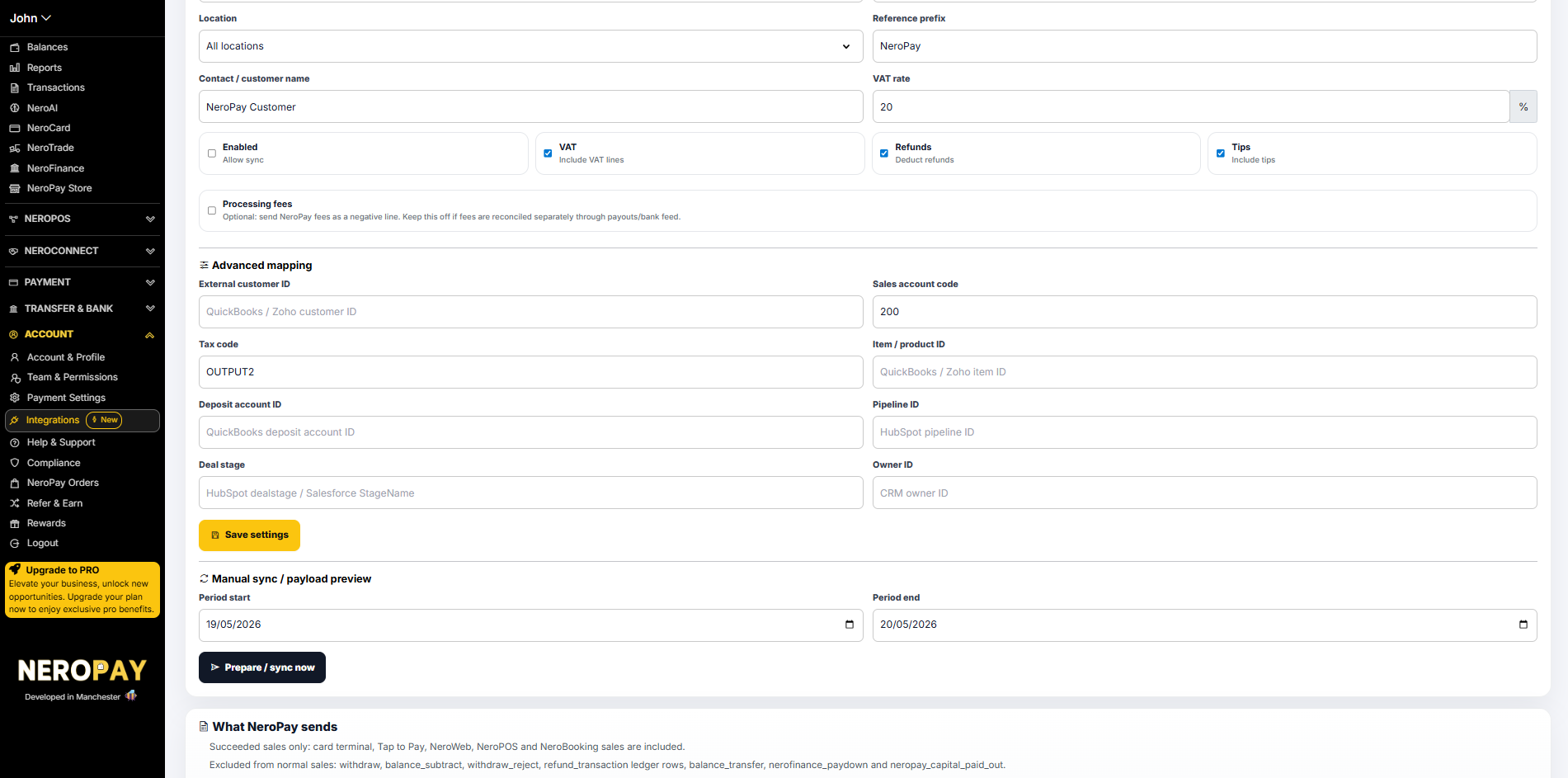
| Processing fees | Optional — sends NeroPay fees as a negative line. Leave off if fees are reconciled separately through payouts or bank feed |
Advanced mapping
For more precise control over how data maps to your accounting or CRM platform, expand the Advanced mapping section:
| Field | What to enter |
|---|---|
| External customer ID | Your QuickBooks or Zoho customer ID |
| Sales account code | The account code in your platform — e.g. 200 |
| Tax code | Your tax code — e.g. OUTPUT2 |
| Item / product ID | Your QuickBooks or Zoho item ID |
| Deposit account ID | Your QuickBooks deposit account ID |
| Pipeline ID | Your HubSpot pipeline ID |
| Deal stage | HubSpot deal stage or Salesforce StageName |
| Owner ID | CRM owner ID |
Manual sync and payload preview
If you want to send data for a specific period manually, or check what NeroPay will send before it goes live:
- Scroll to the Manual sync / payload preview section
- Set a Period start and Period end date
- Click Prepare / sync now
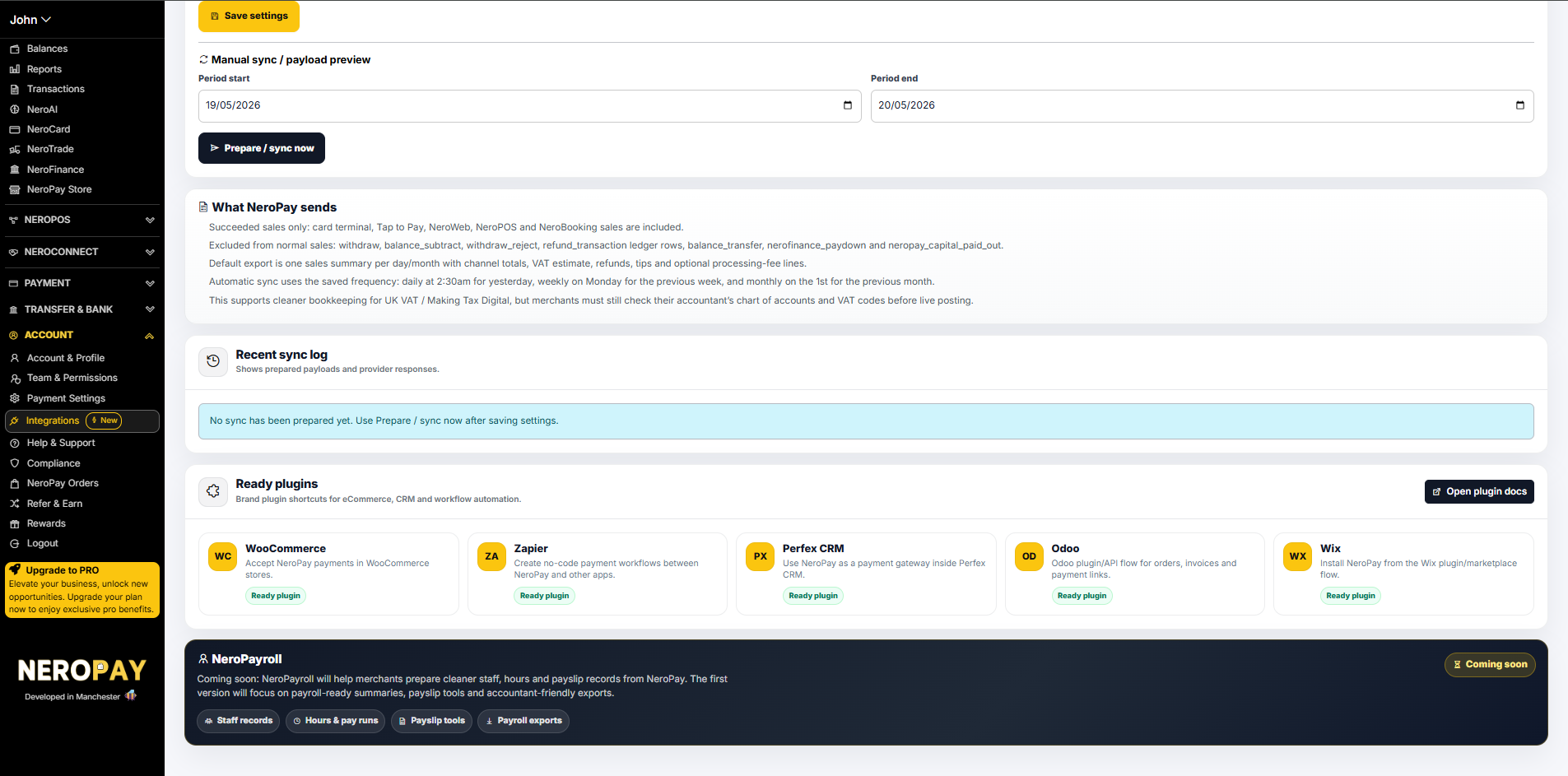
The Recent sync log below will show the prepared payloads and your platform's responses.
What NeroPay sends
Included in the export: Card terminal, Tap to Pay, NeroWeb, NeroPOS, and NeroBooking sales
Excluded from the export: Withdrawals, balance subtractions, withdrawal rejections, refund transaction ledger rows, balance transfers, NeroFinance paydowns, and NeroPay Capital paid-out rows
Default export format: One sales summary per day or month, with channel totals, VAT estimate, refunds, tips, and optional processing fee lines
Automatic sync schedule:
- Daily — runs at 2:30am for the previous day
- Weekly — runs every Monday for the previous week
- Monthly — runs on the 1st for the previous month
⚠️ This supports cleaner bookkeeping for UK VAT and Making Tax Digital. However, you must still check your accountant's chart of accounts and VAT codes before going live with posting.
Ready plugins
NeroPay also offers ready-made plugins for eCommerce, CRM, and workflow automation platforms. Click Open plugin docs on the Integrations page to access setup guides.
| Plugin | What it does |
|---|---|
| WooCommerce | Accept NeroPay payments in WooCommerce stores |
| Zapier | Create no-code payment workflows between NeroPay and other apps |
| Perfex CRM | Use NeroPay as a payment gateway inside Perfex CRM |
| Odoo | Odoo plugin and API flow for orders, invoices, and payment links |
| Wix | Install NeroPay from the Wix plugin marketplace |
NeroPayroll — coming soon
NeroPayroll will help merchants prepare cleaner staff, hours, and payslip records from NeroPay. The first version will focus on payroll-ready summaries, payslip tools, and accountant-friendly exports, covering staff records, hours and pay runs, payslip tools, and payroll exports.
Frequently asked questions
Q: Does NeroPay send every individual transaction to my accounting platform? A: No. By default, NeroPay sends one sales summary per day or month. This is the recommended approach to keep bookkeeping clean and avoid duplicated entries.
Q: Can I choose which sales are included in the sync? A: You can filter by location and toggle options such as VAT, refunds, tips, and processing fees. Certain transaction types such as withdrawals and balance transfers are always excluded.
Q: What does Draft / review first mean in Post mode? A: Records are sent to your platform as drafts, so you can review them before they are posted to your accounts. This is recommended when setting up for the first time.
Q: Can I sync historical data? A: Yes. Use the Manual sync / payload preview section to set a period start and end date and sync data for any past period.
Q: What happens if no sync has run yet? A: The Recent sync log will show a message confirming no sync has been prepared yet. Use Prepare / sync now after saving your settings to run your first sync.
Still need help? Contact us at support@neropay.app or create a ticket.